1. ບົດແນະນຳ
The BUSICOM PC-SeaV15c is a 15-inch Windows IoT touch panel PC designed for commercial and industrial applications. This manual provides essential information for the safe and efficient setup, operation, and maintenance of your device. Please read this manual thoroughly before using the product and retain it for future reference.
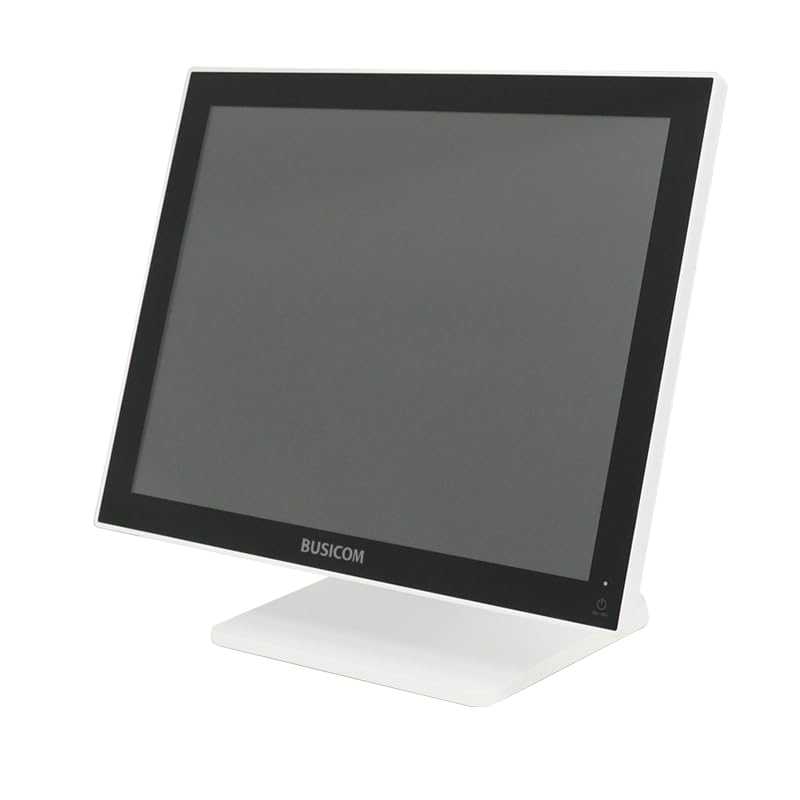
ຮູບ 1: ດ້ານຫນ້າ view of the BUSICOM PC-SeaV15c Touch Panel PC.
2. ຜະລິດຕະພັນເກີນview
2.1 ລັກສະນະທີ່ສໍາຄັນ
- ການອອກແບບຂັ້ນສູງ: Features an ultra-thin bezel and a highly durable 7H reinforced display for enhanced aesthetics and protection.
- ປະສິດທິພາບສູງສຸດ: Equipped with Microsoft Windows 10 IoT Enterprise, ensuring long-term support and reliable operation.
- ແຜງສຳຜັດທີ່ໃຊ້ງ່າຍ: Utilizes a capacitive touch method, offering a familiar and responsive touch experience similar to smartphones and tablets.
- ການບໍາລຸງຮັກສາງ່າຍດາຍ: Designed for simple RAM and SSD replacement, facilitating upgrades and servicing.
- ການໂຕ້ຕອບອະເນກປະສົງ: Provides a wide range of connectivity options to integrate with various peripherals.
- ການເກັບຮັກສາປະສິດທິພາບ: SSD storage ensures fast processing speeds, quiet operation, and excellent shock resistance.
2.2 ອົງປະກອບ
The package typically includes the BUSICOM PC-SeaV15c unit and a power adapter. Additional accessories may vary.

Figure 2: Front and side profile of the PC-SeaV15c unit.

ຮູບ 3: ດ້ານຫລັງ view showing access panels for RAM and SSD components.
3. ຄໍາແນະນໍາການຕິດຕັ້ງ
3.1 ການຫຸ້ມຫໍ່
- Carefully remove the PC-SeaV15c from its packaging.
- Check for any visible damage. If damaged, contact your vendor immediately.
- ໃຫ້ແນ່ໃຈວ່າອົງປະກອບທັງໝົດມີຢູ່ໃນລາຍຊື່.
3.2 ການເຊື່ອມຕໍ່ອຸປະກອນຕໍ່
Refer to the interface diagram below for port locations and types.

Figure 4: Detailed diagram of the PC-SeaV15c's rear and bottom interfaces.
- ການເຊື່ອມຕໍ່ພະລັງງານ: Connect the provided power adapter to the DC In port and then to a power outlet.
- ອຸປະກອນ USB: Use the USB 2.0 (4 ports) and USB 3.0 (2 ports) for connecting keyboards, mice, printers, and other USB peripherals.
- ການເຊື່ອມຕໍ່ເຄືອຂ່າຍ: ເຊື່ອມຕໍ່ສາຍ Ethernet ເຂົ້າກັບພອດ LAN ສຳລັບການເຂົ້າເຖິງເຄືອຂ່າຍແບບມີສາຍ.
- ສຽງອອກ: Connect external speakers or headphones to the Audio Out port.
- Serial Ports (RJ45): Utilize COM1, COM2, COM3, and COM6 for connecting specialized POS peripherals such as barcode scanners or receipt printers.
- Cash Drawer (RJ11): Connect a compatible cash drawer to the RJ11 port.
- ການສະແດງພາຍນອກ: If an external monitor is required, connect it to the Mini DisplayPort.
- USB Type-C: For compatible devices.
3.3 ການເປີດ/ປິດ
- ເປີດ: Press the power button located on the upper right side of the display bezel or the power mark on the rear panel.
- ປິດພະລັງງານ: To safely shut down the system, use the standard Windows shutdown procedure. Avoid direct power disconnection during operation to prevent data loss.
4. ຄໍາແນະນໍາການດໍາເນີນງານ
4.1 Windows 10 IoT Enterprise
The PC-SeaV15c operates on Windows 10 IoT Enterprise 2021. Familiarize yourself with the Windows operating system for basic navigation, application management, and system settings.
4.2 Touch Panel Usage
The capacitive touch screen supports multi-touch gestures.
- ແຕະ: ເທົ່າກັບການຄລິກເມົ້າ.
- ແຕະສອງເທື່ອ: ເທົ່າກັບການຄລິກສອງເທື່ອ.
- ກົດຄ້າງໄວ້: ເທົ່າກັບການຄລິກຂວາ.
- ປັດ: For scrolling or navigating.
- Pinch-to-Zoom: ໃຊ້ສອງນິ້ວເພື່ອຊູມເຂົ້າ ຫຼືອອກ.
5. ບໍາລຸງຮັກສາ
5.1 ການທໍາຄວາມສະອາດອຸປະກອນ
- ປິດເຄື່ອງທຸກຄັ້ງ ແລະຖອດປລັກອຸປະກອນກ່ອນທຳຄວາມສະອາດ.
- ໃຊ້ຜ້າແພທີ່ອ່ອນໆ ທີ່ບໍ່ມີເສັ້ນດ່າງ dampຫຸ້ມດ້ວຍນ້ໍາຫຼືເຄື່ອງເຮັດຄວາມສະອາດຫນ້າຈໍທີ່ບໍ່ມີການຂັດ.
- Do not spray liquids directly onto the screen or device.
- ຫຼີກເວັ້ນການນໍາໃຊ້ສານເຄມີທີ່ຮຸນແຮງ, ສານລະລາຍ, ຫຼືວັດສະດຸຂັດ.
5.2 RAM and SSD Replacement
The PC-SeaV15c is designed for easy replacement of RAM and SSD components. Refer to Figure 3 for the access panel location. For detailed instructions on component replacement, consult a qualified technician or the BUSICOM support webເວັບໄຊ.
6. ການແກ້ໄຂບັນຫາ
ພາກນີ້ສະຫນອງການແກ້ໄຂບັນຫາທົ່ວໄປທີ່ທ່ານອາດຈະພົບ.
- ອຸປະກອນບໍ່ເປີດ:
- ໃຫ້ແນ່ໃຈວ່າອະແດັບເຕີໄຟເຊື່ອມຕໍ່ຢ່າງປອດໄພກັບທັງອຸປະກອນ ແລະປລັກສຽບໄຟທີ່ເຮັດວຽກ.
- ກວດສອບວ່າປລັກສຽບໄຟເຮັດວຽກໄດ້ໂດຍການສຽບໃສ່ອຸປະກອນອື່ນ.
- ໜ້າຈໍສໍາຜັດບໍ່ຕອບສະໜອງ:
- ປິດເປີດອຸປະກອນຄືນໃໝ່.
- ໃຫ້ແນ່ໃຈວ່າຫນ້າຈໍສະອາດແລະບໍ່ມີສິ່ງກີດຂວາງ.
- ບໍ່ມີການສະແດງຜົນ:
- ກວດເບິ່ງວ່າອຸປະກອນເປີດເຄື່ອງຢູ່ຫຼືບໍ່.
- If an external display is connected, ensure the correct input source is selected on the external display.
- Peripheral not detected:
- Ensure the peripheral is correctly connected to the appropriate port (USB, LAN, COM).
- ລອງເຊື່ອມຕໍ່ອຸປະກອນຕໍ່ພອດກັບຜອດອື່ນ.
- Check the peripheral's own power supply, if applicable.
For further assistance, please contact BUSICOM customer support.
7. ຂໍ້ມູນຈໍາເພາະ
| ຄຸນສົມບັດ | ລາຍລະອຽດ |
|---|---|
| ຍີ່ຫໍ້ | BUSICOM |
| ຊື່ຕົວແບບ | PC-SeaV15c |
| ສີ | ສີຂາວ |
| ຂະໜາດໜ້າຈໍ | 15 ນິ້ວ |
| ຄວາມລະອຽດ | 1024x768 |
| ລະບົບປະຕິບັດການ | Windows 10 IoT Enterprise 2021 |
| ຍີ່ຫໍ້ CPU | Intel |
| ເຕົ້າຮັບໂຮງງານຜະລິດ | Intel® N97 |
| ຄວາມໄວ CPU | 3.6 GHz |
| ປະເພດຄວາມຈໍາ | DDR4 |
| ຕິດຕັ້ງ RAM | 4 GB |
| ປະເພດຮາດດິດ | SSD |
| ຄວາມອາດສາມາດ SSD | 128 GB (as per product title) |
| ປະເພດບັດກາຟິກ | ປະສົມປະສານ |
| VRAM Type | DDR4 SDRAM |
| VRAM Capacity | 4 GB |
| ພອດ USB 2.0 | 4 |
| ພອດ USB 3.0 | 2 |
| Optical Drive | ບໍ່ມີ |
| ນ້ຳໜັກສິນຄ້າ | 6 ກິໂລກຣາມ |
| ຄວາມສູງ (ປະມານ) | 307.5 mm (as per dimension diagram) |

ຮູບ 5: ດ້ານຫລັງ view of the PC-SeaV15c with approximate height dimension.
8. ການຮັບປະກັນແລະການສະຫນັບສະຫນູນ
For warranty information and technical support, please refer to the warranty card included with your product or visit the official BUSICOM webເວັບໄຊ. ຮັກສາໃບຮັບເງິນການຊື້ຂອງທ່ານໄວ້ເປັນຫຼັກຖານການຊື້ສໍາລັບການຮ້ອງຂໍການຮັບປະກັນ.
BUSICOM Official Webເວັບໄຊ: BUSICOM Store on Amazon.co.jp


