ແນະນຳ
This manual provides essential information for the setup, operation, and maintenance of your HP Wired Mouse 105. Designed for reliability and comfort, this optical mouse offers precise control with its 1600 DPI sensor and a versatile ambidextrous design. It connects via a standard USB-A cable, ensuring a stable and uninterrupted connection for your computing needs.
ຕັ້ງຄ່າ
The HP Wired Mouse 105 is designed for quick and easy plug-and-play setup.
- Unpack ຫນູ: ເອົາໜູອອກຈາກການຫຸ້ມຫໍ່ຢ່າງລະມັດລະວັງ.
- ເຊື່ອມຕໍ່ຫາພອດ USB: Locate an available USB Type A port on your computer (PC or Mac). Insert the mouse's USB connector firmly into the port.
- ການຕິດຕັ້ງໄດເວີ: Your operating system (Windows 7, 8, 10, 11, or Mac OS) should automatically detect and install the necessary drivers. No additional software installation is typically required.
- ກວດສອບການທໍາງານ: Once connected, the optical sensor on the underside of the mouse will emit a red light. Move the mouse to confirm cursor movement on your screen.
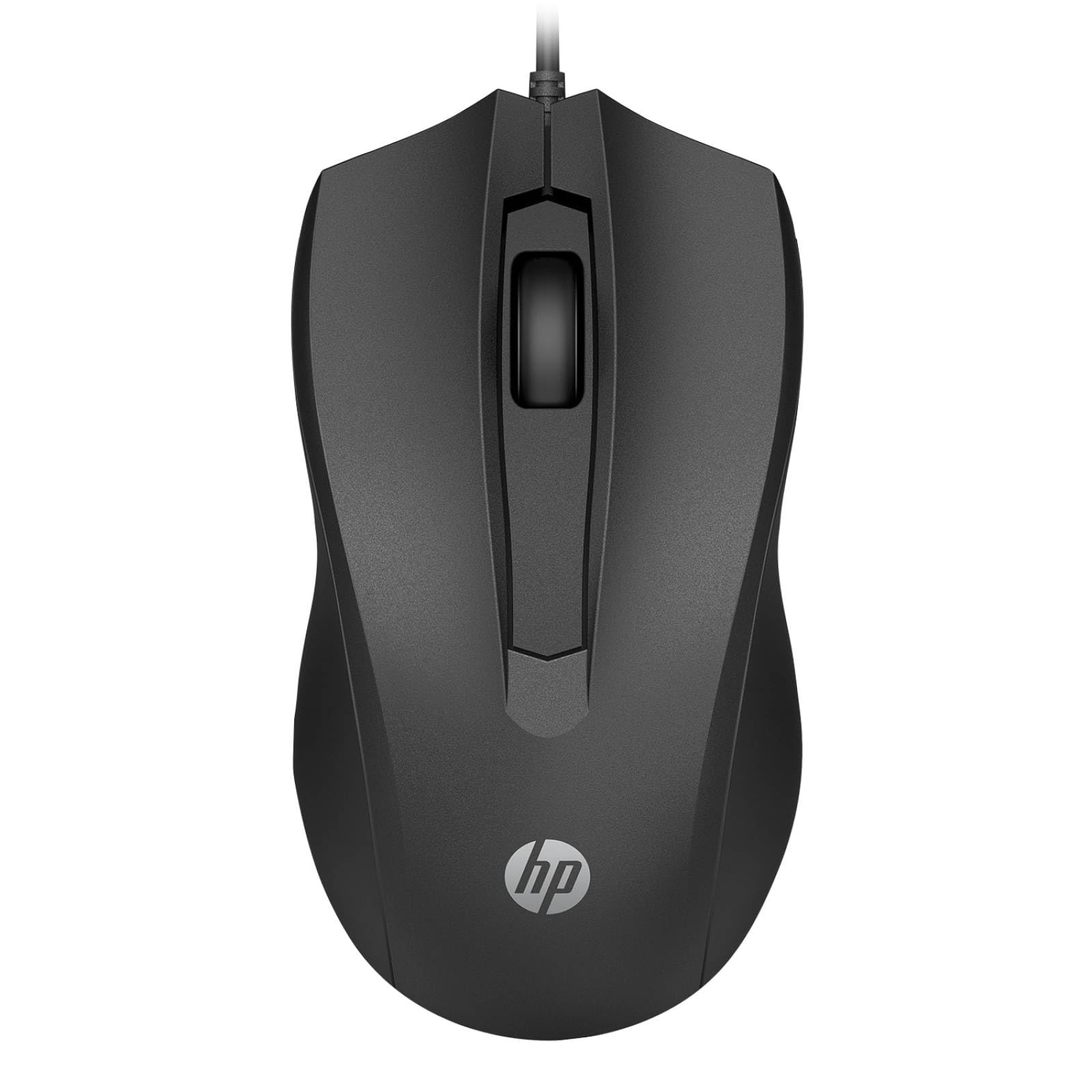
Image: The HP Wired Mouse 105 features a sleek black design and connects via a USB cable for reliable performance.
ຄໍາແນະນໍາການດໍາເນີນງານ
The HP Wired Mouse 105 is a standard 3-button optical mouse, offering intuitive control for everyday computing tasks.
- ປຸ່ມຊ້າຍ: ໃຊ້ສໍາລັບການເລືອກລາຍການ, ເປີດ files, ແລະປະຕິບັດຄໍາສັ່ງ.
- ປຸ່ມຂວາ: Used to open context-sensitive menus, providing quick access to options.
- ລໍ້ເລື່ອນ (ປຸ່ມກາງ):
- ເລື່ອນ: ໝຸນລໍ້ຂຶ້ນ ຫຼື ລົງເພື່ອນຳທາງຜ່ານເອກະສານ ແລະ web ໜ້າ.
- ຄລິກກາງ: Pressing the scroll wheel can open links in new tabs or activate other functions depending on the application.
- ເຊັນເຊີແສງ: The 1600 DPI optical sensor provides precise and responsive cursor tracking on most surfaces.
- ການອອກແບບຜິດປົກກະຕິ: The symmetrical design ensures comfortable use for both left-handed and right-handed users.
ບໍາລຸງຮັກສາ
To ensure optimal performance and longevity of your HP Wired Mouse 105, follow these simple maintenance guidelines:
- ທໍາຄວາມສະອາດຫນູ:
- ໃຊ້ຜ້າແພທີ່ອ່ອນໆ ທີ່ບໍ່ມີເສັ້ນດ່າງ dampຖອກໃສ່ດ້ວຍນໍ້າ ຫຼື ນໍ້າຢາທໍາຄວາມສະອາດອ່ອນໆເພື່ອເຊັດບໍລິເວນດ້ານນອກຂອງຫນູ.
- Avoid using harsh chemicals or abrasive materials, as these can damage the surface.
- For the optical sensor, use a dry cotton swab to gently remove any dust or debris. Do not spray liquids directly onto the sensor.
- ການດູແລສາຍໄຟ:
- Avoid bending or twisting the USB cable sharply, as this can damage the internal wires.
- Do not pull the mouse by its cable; always grasp the USB connector when plugging or unplugging.
- ການເກັບຮັກສາ: ເມື່ອບໍ່ໄດ້ໃຊ້, ໃຫ້ເກັບຮັກສາຫນູໃນສະພາບແວດລ້ອມທີ່ສະອາດ, ແຫ້ງຫ່າງຈາກອຸນຫະພູມທີ່ຮຸນແຮງ.
ການແກ້ໄຂບັນຫາ
If you encounter issues with your HP Wired Mouse 105, try the following troubleshooting steps:
- ເມົາສ໌ບໍ່ຕອບສະໜອງ:
- ກວດໃຫ້ແນ່ໃຈວ່າໄດ້ສຽບສາຍ USB ໃສ່ຢ່າງປອດໄພກັບພອດ USB ທີ່ເຮັດວຽກຢູ່ໃນຄອມພິວເຕີຂອງທ່ານ.
- ລອງສຽບເມົາສ໌ໃສ່ຊ່ອງສຽບ USB ອື່ນ.
- ປິດເປີດຄອມພິວເຕີຂອງທ່ານຄືນໃໝ່.
- ການເຄື່ອນໄຫວຕົວກະພິບທີ່ຜິດພາດ:
- ທຳຄວາມສະອາດເຊັນເຊີແສງທີ່ຢູ່ດ້ານລຸ່ມຂອງເມົ້າເພື່ອກຳຈັດຝຸ່ນ ຫຼື ສິ່ງເສດເຫຼືອຕ່າງໆ.
- ໃຫ້ແນ່ໃຈວ່າທ່ານກຳລັງໃຊ້ເມົາສ໌ຢູ່ໃນພື້ນຜິວທີ່ເໝາະສົມ. ພື້ນຜິວທີ່ມີການສະທ້ອນແສງສູງ ຫຼື ໂປ່ງໃສອາດຈະລົບກວນການຕິດຕາມທາງແສງ. ແນະນຳໃຫ້ໃຊ້ແຜ່ນຮອງເມົາສ໌.
- ປຸ່ມ ຫຼື ລໍ້ເລື່ອນບໍ່ເຮັດວຽກ:
- ກວດເບິ່ງສິ່ງກີດຂວາງທາງຮ່າງກາຍອ້ອມປຸ່ມ ຫຼື ລໍ້ເລື່ອນ.
- ທົດສອບເມົາສ໌ໃນຄອມພິວເຕີອື່ນເພື່ອກຳນົດວ່າບັນຫາເກີດຂຶ້ນກັບເມົາສ໌ ຫຼື ຊອບແວ/ໄດຣເວີຂອງຄອມພິວເຕີ.
ຂໍ້ມູນຈໍາເພາະ
| ປະເພດຜະລິດຕະພັນ | ຫນູ |
| ຍີ່ຫໍ້ | HP |
| ໝາຍເລກຕົວແບບ | 105 (Manufacturer Part Number: 822M9UT#ABA) |
| ເຕັກໂນໂລຊີການເຊື່ອມຕໍ່ | Cable (USB Type A) |
| ການກວດຈັບການເຄື່ອນໄຫວ | Optical |
| ການແກ້ໄຂການເຄື່ອນໄຫວ | 1600 dpi |
| ຈຳນວນປຸ່ມທັງໝົດ | 3 |
| ເgonາະກັບການເຮັດວຽກ | Symmetrical, Ambidextrous |
| ຂະໜາດ (H x W x D) | 1.5" x 4.6" x 2.5" (3.8 cm x 11.7 cm x 6.4 cm) |
| ນ້ຳໜັກ | 3.17 ອໍ (90 g) |
| ຄວາມເຂົ້າກັນໄດ້ຂອງລະບົບປະຕິບັດການ | Windows 7, Windows 8, Windows 10, Windows 11, Mac OS |
| ເວທີສະຫນັບສະຫນູນ | PC, Mac |
ການຮັບປະກັນແລະການສະຫນັບສະຫນູນ
The HP Wired Mouse 105 comes with an HP standard one-year limited warranty. For detailed warranty terms and conditions, please refer to the documentation included with your product or visit the official HP support website. If you require technical assistance or have questions not covered in this manual, please contact HP customer support.