1. ບົດແນະນຳ
This manual provides essential information for the safe and efficient operation of your TESLA QLED Smart TV, Model Q55S939GUS. Please read these instructions thoroughly before using your television and retain them for future reference. This television features a 55-inch (140 cm) QLED display, Google TV operating system, Ultra HD resolution, HDR10, Dolby Atmos audio, built-in Wi-Fi, Bluetooth, and Chromecast.

ຮູບພາບ 1.1: ດ້ານຫນ້າ view of the TESLA QLED Smart TV, highlighting key features.
2. ຂໍ້ມູນຄວາມປອດໄພ
Always follow basic safety precautions when using this television to reduce the risk of fire, electric shock, and injury. Keep the television away from moisture and heat sources. Ensure proper ventilation. Do not block ventilation openings. Use only attachments/accessories specified by the manufacturer. Refer all servicing to qualified service personnel.
3. ເນື້ອໃນຊຸດ
ກວດສອບວ່າລາຍການທັງຫມົດແມ່ນມີຢູ່ໃນຊຸດ:
- TESLA QLED Smart TV (Model Q55S939GUS)
- ການຄວບຄຸມໄລຍະໄກ
- ສາຍໄຟ
- TV Stand/Base
- ຫມໍ້ໄຟສໍາລັບການຄວບຄຸມໄລຍະໄກ
- ຄູ່ມືຜູ້ໃຊ້ (ເອກະສານນີ້)
4. ຕັ້ງຄ່າ
4.1 ການຕັ້ງຄ່າທາງດ້ານຮ່າງກາຍ
ຕິດຕັ້ງ: Carefully place the TV screen-down on a soft, flat surface. Align the stand with the mounting holes on the bottom of the TV and secure it with the provided screws. Ensure the stand is firmly attached before placing the TV upright.

Image 4.1: TESLA QLED Smart TV with stand.
ຕິດຝາ: If you plan to wall mount the TV, refer to the instructions provided with your wall mount kit. Ensure the wall mount is compatible with the VESA mounting pattern of your TV. The back of the TV includes mounting points for this purpose.
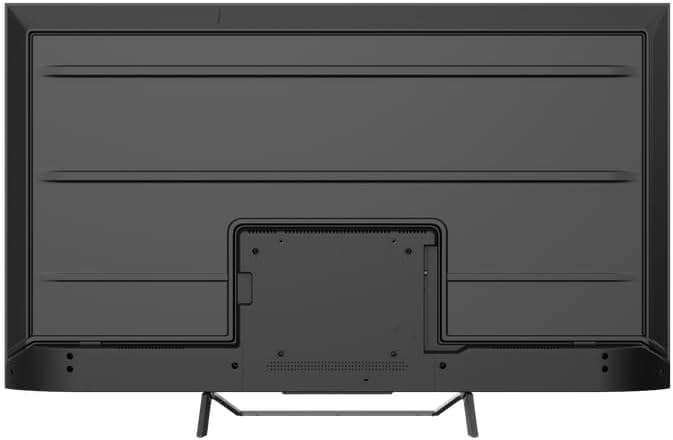
ຮູບພາບ 4.2: ດ້ານຫລັງ view of the TV, indicating mounting points.
4.2 Initial Power On & Network Connection
- ເຊື່ອມຕໍ່ສາຍໄຟກັບໂທລະພາບ ແລະຈາກນັ້ນໄປຫາປລັກສຽບໄຟ.
- ກົດປຸ່ມເປີດປິດໃນການຄວບຄຸມໄລຍະໄກຫຼືໃນໂທລະພາບຂອງມັນເອງ.
- Follow the on-screen instructions to select your language, country, and connect to your Wi-Fi network. You can also connect via Ethernet for a wired connection.
4.3 ການຕິດຕັ້ງ Google TV
During the initial setup, you will be guided through setting up your Google TV account. This allows access to Google Assistant, Google Play Store apps, and personalized content recommendations. You will need a Google account to fully utilize these features.
5. ປະຕິບັດການໂທລະພາບ
5.1 ການຄວບຄຸມໄລຍະໄກເກີນview
The remote control provides access to all TV functions. Insert the provided batteries into the remote control. Familiarize yourself with the button layout for easy navigation.

Image 5.1: TESLA Smart TV Remote Control.
5.2 ຫນ້າທີ່ພື້ນຖານ
- ພະລັງງານ: ກົດປຸ່ມເປີດປິດເພື່ອເປີດ ຫຼືປິດໂທລະພາບ.
- ປະລິມານ: Use the VOL +/- buttons to adjust the sound level.
- ຊ່ອງ: Use the P +/- buttons to change channels.
- ການນໍາທາງ: Use the directional pad and OK button to navigate menus and select options.
- ຫນ້າທໍາອິດ: Press the Home button to return to the Google TV home screen.
5.3 Smart TV Features (Google TV, Apps, Chromecast)
Your TESLA QLED Smart TV runs on Google TV, offering an intuitive interface and access to a vast library of content.
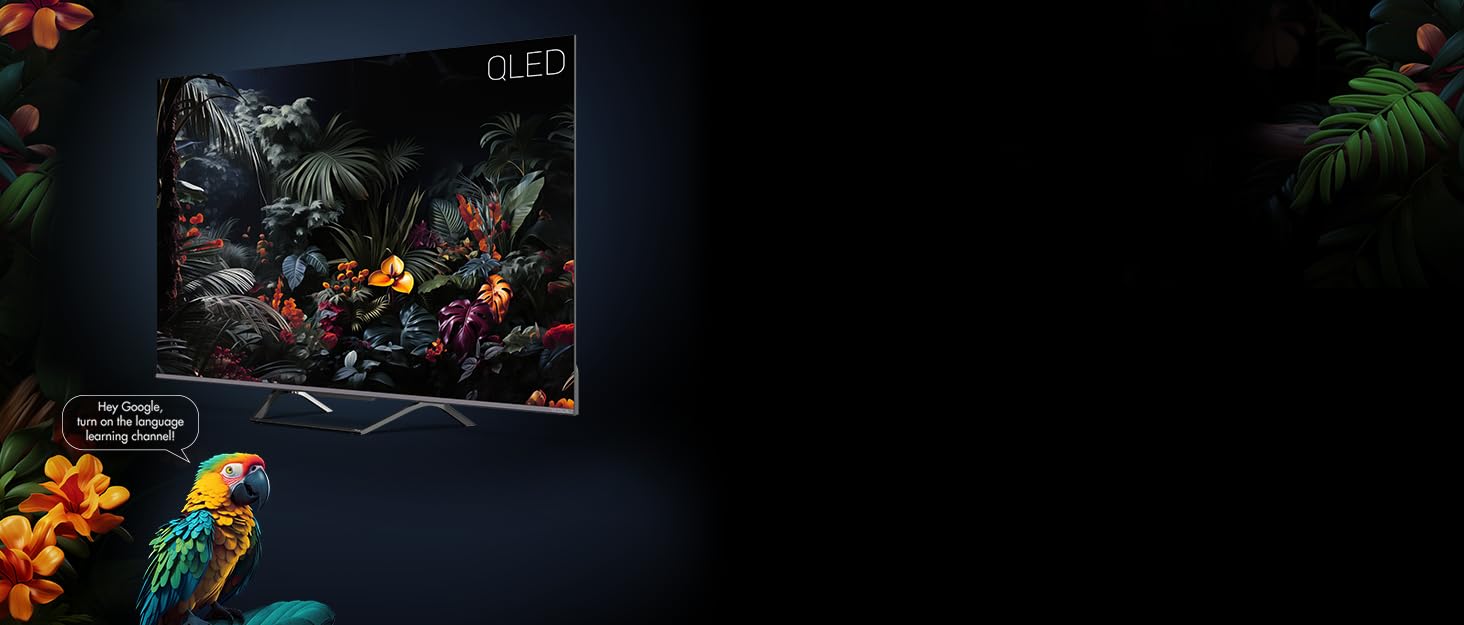
Image 5.2: Google Assistant integration on TESLA QLED TV.
- ການໂຕ້ຕອບ Google TV: The home screen provides personalized recommendations, quick access to installed apps like Netflix, YouTube, and Prime Video, and live TV options.
- ຜູ້ຊ່ວຍ Google: ໃຊ້ຄຳສັ່ງສຽງຜ່ານຣີໂໝດຄວບຄຸມເພື່ອຄົ້ນຫາເນື້ອຫາ, ຄວບຄຸມອຸປະກອນເຮືອນອັດສະລິຍະ, ຮັບຄຳຕອບ ແລະ ອື່ນໆ.
- Chromecast ໃນຕົວ: Cast content (videos, photos, music) directly from your compatible mobile devices or computer to the TV screen.
- Google Play Store: Download and install over 10,000 additional applications and games.
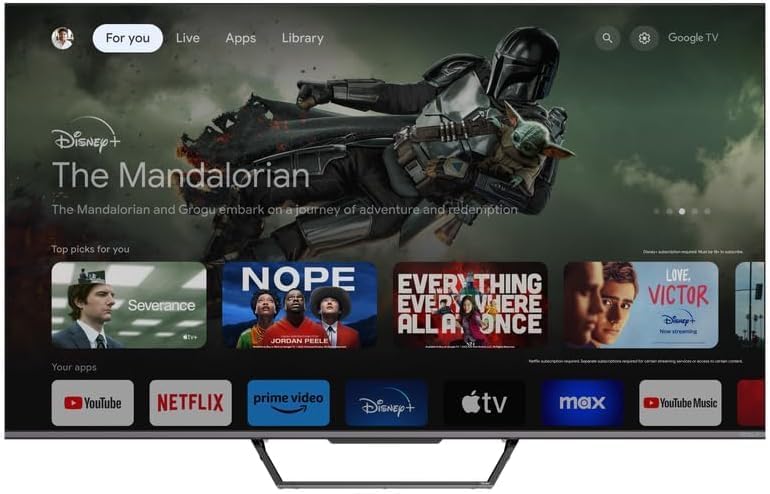
Image 5.3: Google TV home screen with app access.
5.4 ການເຊື່ອມຕໍ່
ໂທລະພາບມີພອດຕ່າງໆເພື່ອເຊື່ອມຕໍ່ອຸປະກອນພາຍນອກ:
- ຜອດ HDMI (x3): Connect gaming consoles, Blu-ray players, soundbars, and other HDMI-enabled devices.
- ພອດ USB (x2): ເຊື່ອມຕໍ່ USB drives ສໍາລັບການຫຼິ້ນມີເດຍ ຫຼືບ່ອນເກັບຂໍ້ມູນພາຍນອກ.
- Wi-Fi: ເຊື່ອມຕໍ່ແບບໄຮ້ສາຍກັບເຄືອຂ່າຍເຮືອນຂອງທ່ານເພື່ອເຂົ້າເຖິງອິນເຕີເນັດ.
- Bluetooth: Connect wireless headphones, speakers, or other Bluetooth accessories.
- ອີເທີເນັດ: ສໍາລັບການເຊື່ອມຕໍ່ອິນເຕີເນັດແບບມີສາຍທີ່ຫມັ້ນຄົງ.
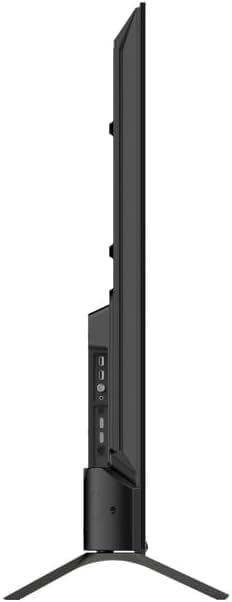
ຮູບພາບ 5.4: ຂ້າງ view of TV with connectivity ports.
5.5 ການຕັ້ງຄ່າສຽງ ແລະ ຮູບພາບ
- Dolby Atmos & Ultra Surround: Experience immersive, three-dimensional audio. Adjust audio settings in the TV menu to optimize sound for your environment.
- ເຕັກໂນໂລຊີ QLED: Quantum Dot technology delivers over a billion shades of color, enhanced brightness, and superior contrast.
- HDR10: High Dynamic Range 10 provides a wider range of colors and contrasts, resulting in a more realistic image.
- ໂໝດຮູບ: Select from various preset picture modes (e.g., Standard, Vivid, Movie, Game) or customize settings like brightness, contrast, color, and sharpness to suit your preferences.
6. ບໍາລຸງຮັກສາ
6.1 ການທໍາຄວາມສະອາດ
ຖອດປລັກໂທລະທັດທຸກຄັ້ງກ່ອນທຳຄວາມສະອາດ. ໃຊ້ຜ້າອ່ອນ, ແຫ້ງເພື່ອເຊັດຫນ້າຈໍແລະຕູ້. ສໍາລັບຮອຍແຂງ, ເບົາບາງ dampen the cloth with water or a specialized screen cleaner. Never use abrasive cleaners, waxes, or solvents.
6.2 ການປັບປຸງຊອບແວ
Your Google TV will periodically receive software updates to improve performance and add new features. Ensure your TV is connected to the internet to receive these updates. You can check for updates manually in the TV's settings menu.
7. ການແກ້ໄຂບັນຫາ
ຖ້າຫາກທ່ານພົບບັນຫາກັບໂທລະພາບຂອງທ່ານ, ເບິ່ງບັນຫາທົ່ວໄປດັ່ງຕໍ່ໄປນີ້ແລະການແກ້ໄຂ:
| ບັນຫາ | ການແກ້ໄຂທີ່ເປັນໄປໄດ້ |
|---|---|
| ບໍ່ມີພະລັງງານ | Check if the power cable is securely connected to the TV and the power outlet. Ensure the outlet is working. |
| ບໍ່ມີຮູບ, ແຕ່ສຽງແມ່ນປະຈຸບັນ | ກວດເບິ່ງແຫຼ່ງປ້ອນຂໍ້ມູນ. ໃຫ້ແນ່ໃຈວ່າອຸປະກອນພາຍນອກເຊື່ອມຕໍ່ຢ່າງຖືກຕ້ອງ ແລະເປີດຢູ່. |
| ບໍ່ມີສຽງ, ແຕ່ມີຮູບພາບ | ກວດເບິ່ງລະດັບສຽງ. ກວດໃຫ້ແນ່ໃຈວ່າບໍ່ໄດ້ເປີດໃຊ້ການປິດສຽງ. ກວດເບິ່ງການຕັ້ງຄ່າສຽງອອກ. |
| ການຄວບຄຸມໄລຍະໄກບໍ່ເຮັດວຽກ | ປ່ຽນແບັດເຕີຣີ. ໃຫ້ແນ່ໃຈວ່າບໍ່ມີສິ່ງກີດຂວາງລະຫວ່າງຣີໂໝດ ແລະ ໂທລະພາບ. |
| ບໍ່ສາມາດເຊື່ອມຕໍ່ກັບ Wi-Fi ໄດ້ | ກວດສອບເຣົາເຕີ ແລະ ການເຊື່ອມຕໍ່ອິນເຕີເນັດຂອງທ່ານ. ໃສ່ລະຫັດຜ່ານ Wi-Fi ຄືນໃໝ່. ລອງເປີດໂທລະພາບ ແລະ ເຣົາເຕີຄືນໃໝ່. |
For further assistance, consult the TESLA support webເວັບໄຊ ຫຼືຕິດຕໍ່ບໍລິການລູກຄ້າ.
8. ຂໍ້ມູນຈໍາເພາະ
Key technical specifications for the TESLA QLED Smart TV Model Q55S939GUS:
| ຄຸນສົມບັດ | ຂໍ້ມູນຈໍາເພາະ |
|---|---|
| ຍີ່ຫໍ້ | TESLA |
| ໝາຍເລກຕົວແບບ | Q55S939GUS |
| ຂະໜາດໜ້າຈໍ | 55 ນິ້ວ (140 ຊມ) |
| ເຕັກໂນໂລຊີການສະແດງ | QLED |
| ຄວາມລະອຽດ | 4K (3840 x 2160) |
| ລະບົບປະຕິບັດການ | Google TV |
| ອັດຕາການໂຫຼດຂໍ້ມູນຄືນໃໝ່ | 60 Hz |
| ຄຸນນະສົມບັດພິເສດ | Chromecast, Built-in Speaker, Game Mode, Flat Panel, Wide Color Enhancer |
| ເຕັກໂນໂລຊີສຽງ | Dolby Atmos, Ultra Surround, 2 x 10W Speakers |
| ການເຊື່ອມຕໍ່ | Bluetooth, HDMI (x3), RF, USB (x2), Wi-Fi, Ethernet |
| ຂະໜາດສິນຄ້າ (ກວ້າງ x ຍາວ x ສູງ) | 26.5 x 122.5 x 72 cm |
| ສີ | ເງິນໂລຫະ |

Image 8.1: Illustrative diagram of TV dimensions and remote control. Note: This product is 55 inches, not 75 inches as shown in the diagram.
9. ການຮັບປະກັນແລະການສະຫນັບສະຫນູນ
For warranty information, please refer to the warranty card included with your product or visit the official TESLA website. Keep your proof of purchase for warranty claims. For technical support, troubleshooting assistance, or service requests, please contact TESLA customer support through their official channels.