ແນະນຳ
This manual provides essential instructions for setting up, operating, maintaining, and troubleshooting your CWOWDEFU Kids Tablet 10 inch Pro. Please read this manual thoroughly to ensure proper use and to maximize your tablet's features.

Image: The CWOWDEFU Kids Tablet 10 inch Pro, encased in its protective blue EVA cover, showcasing its vibrant display with a child-friendly interface. The image highlights the tablet's design and its primary use for children.
ແມ່ນຫຍັງຢູ່ໃນກ່ອງ
ກວດສອບວ່າລາຍການທັງຫມົດແມ່ນມີຢູ່ໃນຊຸດ:
- 10 inch kids tablet
- ເຄື່ອງສາກ
- EVA protective cover
- ຫນັງປົກປ້ອງ
- ສາຍ USB

ຮູບພາບ: ຫຼາຍກວ່າview of the package contents for the CWOWDEFU Kids Tablet, showing the tablet, charger, USB cable, protective film, and the EVA protective cover.
ຕັ້ງຄ່າ
1. ການສາກໄຟເບື້ອງຕົ້ນ
Before first use, fully charge the tablet using the provided charger and USB cable. Connect the USB cable to the tablet's charging port and the charger to a power outlet. The charging indicator will show the charging status.
2. ເປີດ / ປິດພະລັງງານ
- ເພື່ອເປີດເຄື່ອງ: ກົດປຸ່ມເປີດປິດທີ່ຢູ່ຂ້າງແທັບເລັດຄ້າງໄວ້ຈົນກວ່າໜ້າຈໍຈະສະຫວ່າງຂຶ້ນ.
- ປິດເຄື່ອງ: ກົດປຸ່ມເປີດປິດຄ້າງໄວ້, ຈາກນັ້ນເລືອກ "ປິດເຄື່ອງ" ຈາກຕົວເລືອກໃນໜ້າຈໍ.
- ເພື່ອເລີ່ມຕົ້ນໃໝ່: ກົດປຸ່ມເປີດປິດຄ້າງໄວ້, ຈາກນັ້ນເລືອກ "ຣີສະຕາດ" ຈາກຕົວເລືອກໃນໜ້າຈໍ.
3. ການເຊື່ອມຕໍ່ Wi-Fi
- ໄປທີ່ ການຕັ້ງຄ່າ > ເຄືອຂ່າຍ ແລະອິນເຕີເນັດ > Wi-Fi.
- ສະຫຼັບ Wi-Fi On.
- ເລືອກເຄືອຂ່າຍ Wi-Fi ທີ່ທ່ານຕ້ອງການຈາກບັນຊີລາຍຊື່.
- ໃສ່ລະຫັດຜ່ານເຄືອຂ່າຍຖ້າຖືກເຕືອນ, ຈາກນັ້ນແຕະ ເຊື່ອມຕໍ່.
4. Parental Control Setup (Cwow Kids+ and Android 14)
The tablet features robust parental controls through both the native Android 14 OS and the pre-installed Cwow Kids+ application. This allows you to manage screen time, content access, and app usage.
- Cwow Kids+ App: Launch the Cwow Kids+ app. Follow the on-screen instructions to create a child profile, set time limits, and select appropriate content.
- Android 14 Parental Controls: ທ່ອງໄປຫາ ການຕັ້ງຄ່າ > Digital Wellbeing & ການຄວບຄຸມຂອງພໍ່ແມ່. Here you can set up Google Family Link to manage your child's device from your own.

Image: A visual representation of the parental control settings on the tablet, demonstrating how parents can set a password and manage access to webສະຖານທີ່ແລະຄໍາຮ້ອງສະຫມັກ.
5. Face ID Setup
For enhanced security, you can set up Face ID recognition:
- ໄປທີ່ ການຕັ້ງຄ່າ > ຄວາມປອດໄພ & ຄວາມເປັນສ່ວນຕົວ > ປົດລັອກດ້ວຍໜ້າ.
- Follow the on-screen prompts to register your face. Ensure good lighting during the setup process.
ຄໍາແນະນໍາການດໍາເນີນງານ
1. ການນໍາທາງພື້ນຖານ
- ແຕະ: ແຕະທີ່ໄອຄອນເພື່ອເປີດແອັບຯ ຫຼືເລືອກລາຍການໃດໜຶ່ງ.
- ປັດ: Slide your finger across the screen to scroll through pages or lists.
- Pinch-to-Zoom: ໃຊ້ສອງນິ້ວເພື່ອຊູມເຂົ້າ ຫຼືອອກໃນຮູບ ແລະ web ໜ້າ.
- ໜ້າຈໍຫຼັກ: Tap the home button (usually a circle or house icon) to return to the main screen.

Image: The tablet's interface showcasing the Android 14 operating system, along with icons for Bluetooth 5.0 and WiFi 6, indicating modern connectivity features.
2. Using Cwow Kids+ Platform
The Cwow Kids+ platform offers a curated selection of child-friendly applications for learning and entertainment. Access it directly from the home screen. Parental controls within this app allow for customization of content and usage limits.
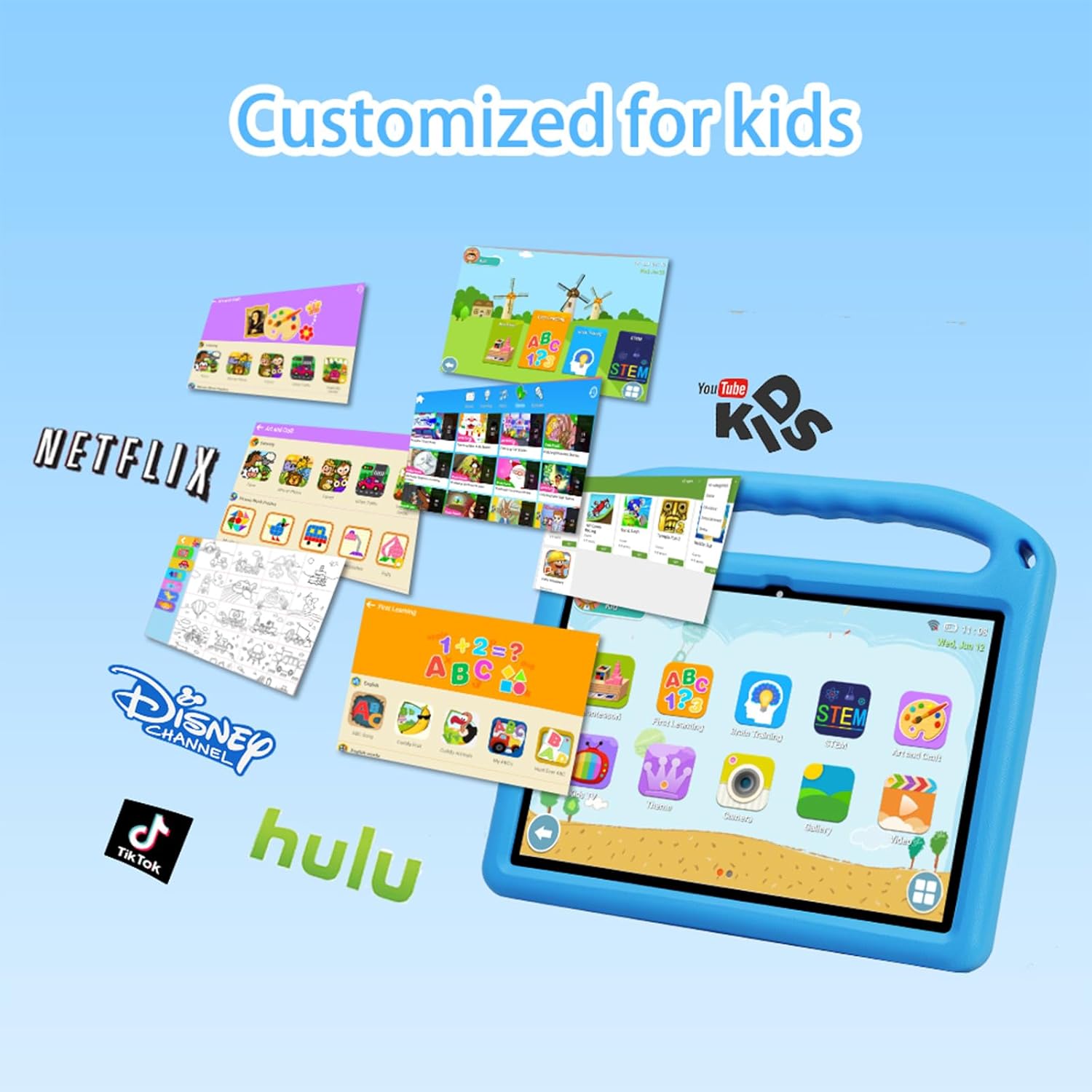
Image: The tablet screen filled with various applications, including popular streaming services and educational games, demonstrating the range of content available for children.
3. ການຈັດການແອັບ
- ການຕິດຕັ້ງແອັບ: Use the Google Play Store (if enabled by parental controls) or the Cwow Kids+ platform to download and install new applications.
- ຖອນການຕິດຕັ້ງແອັບ: Press and hold an app icon on the home screen or app drawer, then drag it to the "Uninstall" option, or go to ການຕັ້ງຄ່າ > ແອັບ > ເບິ່ງແອັບທັງໝົດ, ເລືອກແອັບ, ແລະແຕະ ຖອນການຕິດຕັ້ງ.
4. ການຄຸ້ມຄອງການເກັບຮັກສາ
The tablet comes with 128GB of internal storage, expandable up to 1TB using a microSD card (not included). To manage storage:
- ໄປທີ່ ການຕັ້ງຄ່າ > ການເກັບຮັກສາ ກັບ view ການນໍາໃຊ້ການເກັບຮັກສາ.
- ໃສ່ກາດ microSD ເຂົ້າໄປໃນຊ່ອງທີ່ກຳນົດໄວ້ເພື່ອຂະຫຍາຍບ່ອນເກັບຂໍ້ມູນ.

Image: A graphic illustrating the tablet's 128GB built-in storage, expandable up to 1TB, surrounded by icons of popular applications, emphasizing ample space for content.
5. Battery Usage and Charging
ແບັດເຕີຣີ 6000mAh ຊ່ວຍໃຫ້ໃຊ້ງານໄດ້ດົນຂຶ້ນ. ເພື່ອອາຍຸການໃຊ້ງານຂອງແບັດເຕີຣີທີ່ດີທີ່ສຸດ:
- Charge the tablet fully before significant use.
- ຫຼີກເວັ້ນອຸນຫະພູມທີ່ຮຸນແຮງ.
- Close unused applications to conserve power.
- The tablet supports PD fast charging via its Type-C port.

Image: A child using the tablet on an airplane, highlighting the device's portability and long-lasting 6000mAh battery, suitable for travel.
6. ການນໍາໃຊ້ກ້ອງຖ່າຍຮູບ
The tablet is equipped with 5MP and 8MP cameras. Open the Camera app to take photos or record videos. Ensure adequate lighting for best results.
ບໍາລຸງຮັກສາ
1. Cleaning the Tablet and EVA Case
- Use a soft, lint-free cloth to clean the screen and tablet body. Avoid abrasive materials.
- ສໍາລັບ smudges stubborn, ເລັກນ້ອຍ dampເຊັດຜ້າດ້ວຍນ້ຳ ຫຼື ນ້ຳຢາທຳຄວາມສະອາດທີ່ໃຊ້ກັບໜ້າຈໍໄດ້.
- The EVA protective case can be wiped clean with a damp cloth and mild soap if necessary. Ensure it is completely dry before reattaching to the tablet.

ຮູບພາບ: ລາຍລະອຽດ view of the EVA protective case, highlighting its robust design with reinforced corners, an integrated handle for carrying, and a retractable stand for hands-free viewing.
2. ການປັບປຸງຊອບແວ
ກວດສອບ ແລະ ຕິດຕັ້ງການອັບເດດຊອບແວເປັນປະຈຳເພື່ອຮັບປະກັນປະສິດທິພາບ ແລະ ຄວາມປອດໄພທີ່ດີທີ່ສຸດ. ໄປທີ່ ການຕັ້ງຄ່າ > ລະບົບ > ອັບເດດລະບົບ.
3. ການເພີ່ມປະສິດທິພາບການເກັບຮັກສາ
To maintain performance, periodically clear unnecessary files and apps. Use the built-in storage manager in ການຕັ້ງຄ່າ > ການເກັບຮັກສາ to identify and remove large files or rarely used applications.
ການແກ້ໄຂບັນຫາ
ຖ້າຫາກທ່ານພົບບັນຫາກັບຢາເມັດຂອງທ່ານ, ເບິ່ງວິທີແກ້ໄຂທົ່ວໄປດັ່ງຕໍ່ໄປນີ້:
| ບັນຫາ | ການແກ້ໄຂ |
|---|---|
| Tablet freezes or is unresponsive | Press and hold the Power button for about 10-15 seconds to force a restart. If the issue persists, try a factory reset (see below). |
| Wi-Fi disconnects frequently | Ensure you are within range of your Wi-Fi router. Try forgetting the network and reconnecting. Restart your Wi-Fi router. |
| ແທັບເລັດຮ້ອນເກີນໄປ | Avoid using the tablet in direct sunlight or poorly ventilated areas. Close background applications. If using the EVA case, ensure it does not obstruct ventilation. Reduce screen brightness. |
| ແບັດເຕີຣີໝົດໄວ | Reduce screen brightness, disable Wi-Fi/Bluetooth when not in use, close background apps, and limit usage of power-intensive applications. |
| Screen is black or won't turn on | Ensure the tablet is charged. Connect it to the charger and wait a few minutes, then try powering it on. If it still doesn't respond, perform a force restart. |
ຣີເຊັດເປັນຄ່າໂຮງງານ
A factory reset will erase all data on your tablet and restore it to its original factory settings. Back up important data before proceeding.
- ໄປທີ່ ການຕັ້ງຄ່າ > ລະບົບ > ຣີເຊັດຕົວເລືອກ.
- ເລືອກ ລຶບຂໍ້ມູນທັງໝົດ (ຣີເຊັດເປັນຄ່າໂຮງງານ).
- Confirm your decision when prompted.
ຂໍ້ມູນຈໍາເພາະ
| ຄຸນສົມບັດ | ລາຍລະອຽດ |
|---|---|
| ຊື່ຕົວແບບ | CWOWDEFU Kids Tablet 10 inch Pro |
| ລະບົບປະຕິບັດການ | Android 14.0 |
| ຂະໜາດໜ້າຈໍ | 10.1 ນິ້ວ |
| ຄວາມລະອຽດໜ້າຈໍ | 1280 x 800 ພິກເຊລ |
| ໂຮງງານຜະລິດ | Octa-core 2.0 GHz (Allwinner) |
| RAM | 8 GB |
| ການເກັບຮັກສາພາຍໃນ | 128 GB |
| ການເກັບຮັກສາທີ່ຂະຫຍາຍໄດ້ | ສູງສຸດ 1 TB (ຜ່ານບັດ microSD) |
| ການເຊື່ອມຕໍ່ໄຮ້ສາຍ | Wi-Fi 802.11ax (Wi-Fi 6), Bluetooth 5.0 |
| ຄວາມອາດສາມາດຫມໍ້ໄຟ | 6000 mAh |
| ອາຍຸແບັດເຕີຣີ (ສະແຕນບາຍ) | ສູງສຸດ 300 ຊົ່ວໂມງ |
| ພອດສາກໄຟ | USB Type-C (supports PD fast charging) |
| ກ້ອງຖ່າຍຮູບ | ກ້ອງໜ້າ: 5MP, ກ້ອງຫຼັງ: 8MP |
| ຂະໜາດ (LxWxH) | 10.45 x 6.3 x 0.35 ນິ້ວ |
| ນ້ໍາຫນັກລາຍການ | 1.21 ປອນ |

Image: A schematic showing the tablet's powerful Allwinner A523 Octa-Core 2.0GHz processor and 8GB RAM, indicating strong data processing capabilities for smooth operation.
ການຮັບປະກັນແລະການສະຫນັບສະຫນູນ
ຂໍ້ມູນການຮັບປະກັນ
Your CWOWDEFU Kids Tablet 10 inch Pro is covered by a manufacturer's warranty. Please refer to the warranty card included in your package for specific terms and conditions, including coverage duration and claim procedures. Keep your proof of purchase for warranty claims.
ການຊ່ວຍເຫຼືອລູກຄ້າ
For technical assistance, troubleshooting not covered in this manual, or warranty inquiries, please contact CWOWDEFU customer support. Contact information can typically be found on the official CWOWDEFU webສະຖານທີ່ຫຼືຢູ່ໃນບັດຮັບປະກັນ.


