1. ບົດແນະນຳ
This manual provides detailed instructions for the installation, operation, and maintenance of your Tenveo VHD630A AI Auto Tracking PTZ Camera and KB200 Joystick Controller. This bundle is designed for high-quality video capture and live streaming in various environments, including church services, video conferences, and educational settings. Please read this manual thoroughly before using the product to ensure optimal performance and safety.
2. ຂໍ້ມູນຄວາມປອດໄພ
- Ensure the product is installed in a stable location to prevent falls.
- Do not expose the camera or controller to moisture or extreme temperatures.
- ໃຊ້ພຽງແຕ່ອະແດບເຕີພະລັງງານທີ່ໃຫ້ມາກັບອຸປະກອນ.
- ຫຼີກລ່ຽງການຖອດປະກອບເຄື່ອງ; ໃຫ້ຕິດຕໍ່ພະນັກງານທີ່ມີຄຸນວຸດທິເພື່ອບໍລິການ.
- ຮັກສາຊ່ອງລະບາຍອາກາດໃຫ້ຊັດເຈນເພື່ອປ້ອງກັນຄວາມຮ້ອນເກີນ.
3. ເນື້ອໃນຊຸດ
ກວດສອບວ່າລາຍການທັງຫມົດແມ່ນມີຢູ່ໃນຊຸດຂອງທ່ານ:
- Tenveo VHD630A PTZ Camera
- Tenveo KB200 PTZ Controller Joystick Keyboard
- Power Adapter for Camera
- Power Adapter for Controller
- ສາຍ USB
- ສາຍເຄເບີ້ນ RS232
- Wall Mount Bracket & Screws
- ຄູ່ມືຜູ້ໃຊ້ (ເອກະສານນີ້)
4. ຜະລິດຕະພັນເກີນview
4.1 Tenveo VHD630A PTZ Camera
The VHD630A camera features a 30X optical zoom lens with an additional 8X digital zoom, capable of capturing video up to 1080p at 60fps. It includes AI Auto Tracking for automatic subject framing and multiple output options for versatile connectivity.
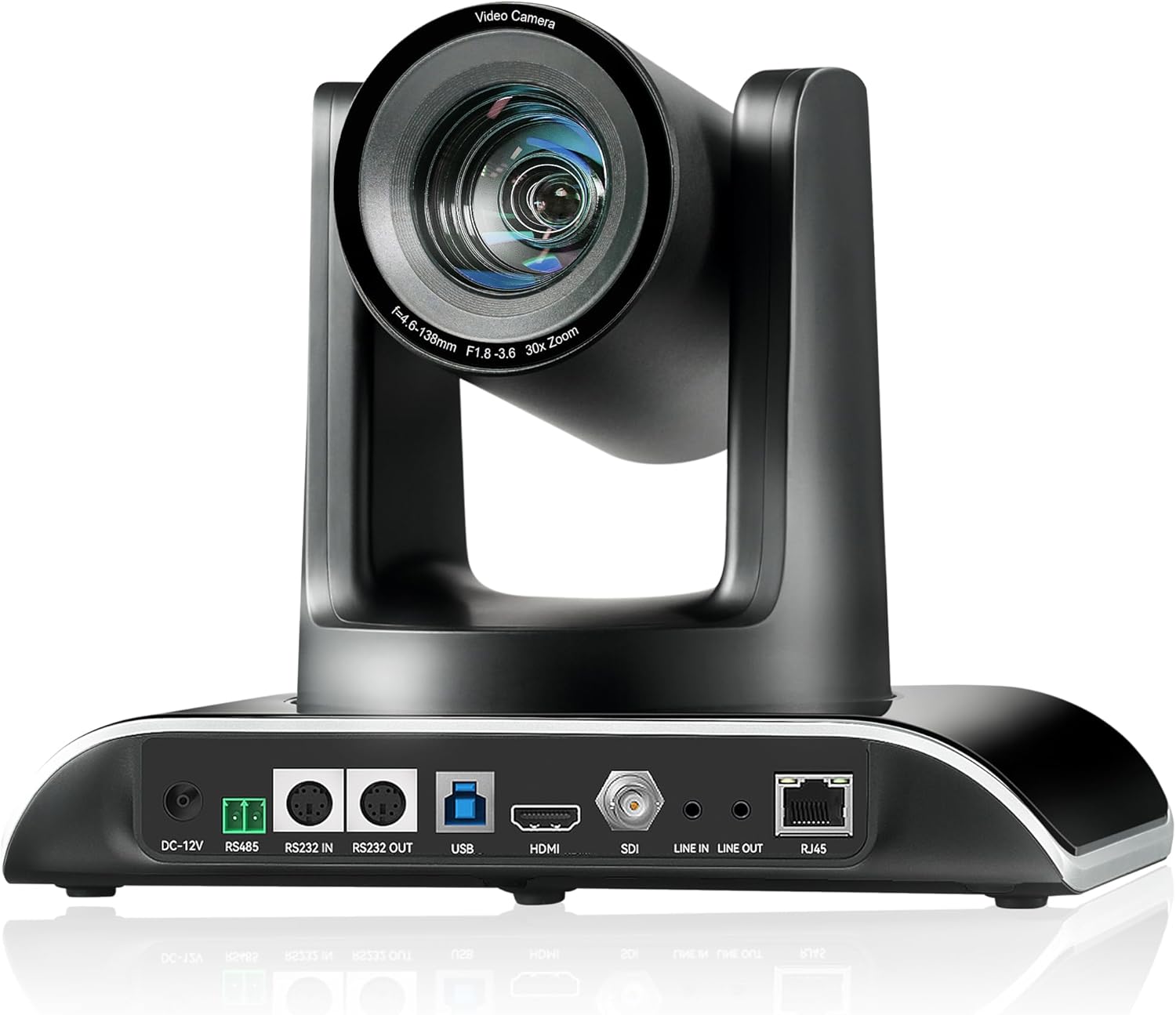
ຮູບທີ 4.1: Tenveo VHD630A PTZ Camera Rear Panel. This image displays the rear panel of the camera, highlighting its connectivity ports including DC-12V power input, RS485, RS232 IN/OUT, USB, HDMI, SDI, Line IN/OUT audio, and RJ45 (PoE) for network and power.
ຄຸນນະສົມບັດທີ່ສໍາຄັນ:
- Optical Zoom: 30X optical zoom with 8X digital zoom.
- ຄວາມລະອຽດ: Up to 1080p at 60fps.
- AI ຕິດຕາມອັດຕະໂນມັດ: Automatically detects and tracks subjects.
- ຜົນໄດ້ຮັບວິດີໂອ: SDI, HDMI, USB3.0, RJ45 (PoE) IP.
- ພາກສະຫນາມກ້ວາງຂອງ View: 69.5° FOV.
- ພະລັງງານຫຼາຍກວ່າ Ethernet (PoE): ຮອງຮັບການສະຫນອງພະລັງງານມາດຕະຖານ PoE.

ຮູບທີ 4.2: Tenveo PTZ Camera Feature Overview. This graphic visually summarizes the camera's capabilities, including 30X optical zoom, 69.5° wide FOV, PoE support, IR remote control, OSD menu, auto/manual focus, live streaming capability, AI tracking and auto framing, 1080P 60FPS video, and multiple video output options (USB3.0, HDMI, RJ45, SDI).
4.2 Tenveo KB200 PTZ Controller
The KB200 is a 4D joystick controller designed for precise control over PTZ camera movements. It supports both network and analog control modes and is compatible with various protocols.

ຮູບທີ 4.3: Tenveo KB200 PTZ Controller. This image shows the top panel of the controller, featuring the 4D joystick, various control buttons for pan, tilt, zoom, focus, exposure, white balance, and a numeric keypad for preset recall.
ຄຸນນະສົມບັດທີ່ສໍາຄັນ:
- ທິບາຍຮູບແບບການຄວບຄຸມ: Network and Analog.
- ພິທີການ: Supports VISCA, VISCA over IP, PELCO-P, PELCO-D.
- ຢອດສະຕິກ: High-quality 4D joystick for variable speed control.
- ປຸ່ມລັດ: Up to 7 shortcut buttons for quick operations.
5. ຕັ້ງຄ່າ
5.1 ການເຊື່ອມຕໍ່ທາງດ້ານຮ່າງກາຍ
Connect the camera and controller using the appropriate cables based on your desired setup. The VHD630A camera offers multiple output options:
- SDI: For professional video mixers and long cable runs.
- HDMI: For direct connection to displays or capture cards.
- USB3.0: For direct connection to a computer for video conferencing or streaming software.
- RJ45 (PoE): For network connectivity and power via a single Ethernet cable (requires PoE-enabled switch or injector).
The KB200 controller connects to the camera via RS232, RS485, or Ethernet (RJ45).

ຮູບທີ 5.1: Camera Connection Methods. This diagram illustrates various connection setups for the PTZ camera, including USB PTZ Camera to PC, Ethernet PTZ Camera to Network Switch to PC, HDMI PTZ Camera to Blackmagic ATEM HDMI to PC, and SDI PTZ Camera to Blackmagic ATEM SDI to PC, all leading to YouTube/Facebook Live streaming.

ຮູບທີ 5.2: Network and Analog Control Modes. This image demonstrates how a conference camera, dome camera, or PTZ camera can be connected via cable to a network switch, which then connects to the KB200 controller, supporting Power over Ethernet (PoE).

ຮູບທີ 5.3: KB200 Controller Rear Connections. This image details the rear panel of the KB200 controller, labeling ports such as RS232, RS422, Ethernet (RJ-45 PoE), USB (for upgrading), DC12V power interface, and the power switch.
5.2 ຕົວເລືອກການຕິດຕັ້ງ
The VHD630A camera supports desktop, monitor, wall, or ceiling mounting. A wall mount bracket and screws are included in the package. Ensure the mounting surface is sturdy enough to support the camera's weight.
5.3 ການຕັ້ງຄ່າເຄືອຂ່າຍ
For network control and IP streaming, connect the camera's RJ45 port to your network. If using PoE, ensure your network switch or injector provides PoE power. The KB200 controller can also be connected to the network for IP control of multiple cameras.
6. Operating the Camera (VHD630A)
6.1 ການຄວບຄຸມພື້ນຖານ
The camera's pan, tilt, and zoom functions can be controlled via the KB200 joystick controller or compatible software. Adjust focus manually or use the auto-focus feature.
6.2 AI Auto Tracking
Activate the AI Auto Tracking feature to automatically detect and follow a designated subject. This ensures the subject remains centered and in focus without manual intervention. Refer to the camera's OSD menu for specific AI tracking settings.

ຮູບທີ 6.1: AI Tracking Auto Framing in Use. This image demonstrates the AI tracking feature, where the camera automatically frames a speaker during a presentation, keeping them in the center of the shot.
6.3 Video Output Modes
Select the appropriate video output (SDI, HDMI, USB3.0, or IP) based on your streaming or recording setup. The camera can output 1080p at 60 frames per second for high-quality video.
7. Operating the Controller (KB200)
7.1 Joystick Functions
The 4D joystick provides intuitive control over camera pan, tilt, and zoom. Push the joystick in different directions to pan and tilt, and twist it to control zoom speed. The joystick also allows for variable speed control for smooth camera movements.
7.2 ການຈັດການລ່ວງໜ້າ
The KB200 controller allows you to save and recall camera presets. Position the camera to a desired view, then use the preset buttons to store the position. You can then recall these positions quickly during operation.

ຮູບທີ 7.1: KB200 Controller Feature Overview. This graphic highlights the controller's key attributes: PoE Support, Multi Interface Control (RS422, RS232, RJ45), Protocols (VISCA, VISCA over IP, PELCO-P, PELCO-D), High-Quality 4D joystick, Two Control Modes (Network and Analog), and up to 7 shortcut control buttons.
7.3 ຮອງຮັບອະນຸສັນຍາ
The controller supports VISCA, VISCA over IP, PELCO-P, and PELCO-D protocols, ensuring compatibility with a wide range of PTZ cameras and control systems. It can operate in both network and analog control modes, with independent IP addresses in network mode.
8. ບໍາລຸງຮັກສາ
8.1 ການທໍາຄວາມສະອາດ
Gently wipe the camera lens and body with a soft, dry cloth. For stubborn marks, use a slightly damp ຜ້າແລະຫຼັງຈາກນັ້ນໃຫ້ແຫ້ງຢ່າງລະອຽດ. ຫຼີກເວັ້ນການນໍາໃຊ້ສານເຄມີທີ່ຮຸນແຮງຫຼືວັດສະດຸຂັດ.
8.2 ການອັບເດດເຟີມແວ
Periodically check the Tenveo website for firmware updates to ensure your camera and controller have the latest features and performance enhancements. Follow the provided instructions for firmware installation.
9. ການແກ້ໄຂບັນຫາ
ຖ້າຫາກທ່ານພົບບັນຫາ, ເບິ່ງບັນຫາທົ່ວໄປດັ່ງຕໍ່ໄປນີ້ແລະການແກ້ໄຂ:
- ບໍ່ມີພະລັງງານ: Ensure all power cables are securely connected and power outlets are active. Check the power adapters.
- ບໍ່ມີຜົນຜະລິດວິດີໂອ: Verify cable connections (HDMI, SDI, USB, Ethernet). Ensure the correct input source is selected on your display or capture device. Check camera settings.
- ຜູ້ຄວບຄຸມບໍ່ຕອບສະໜອງ: Check the control cable connections (RS232, RS485, Ethernet). Ensure the controller and camera are on the same network if using IP control. Verify protocol settings.
- ບັນຫາການຕິດຕາມ AI: Ensure the subject is clearly visible and well-lit. Avoid rapid, erratic movements. Check tracking sensitivity settings in the OSD menu.
- ບັນຫາຄຸນນະພາບຮູບພາບ: Check lighting conditions. Ensure the lens is clean. Adjust exposure and white balance settings.
For further assistance, contact Tenveo technical support.
10. ຂໍ້ມູນຈໍາເພາະ
Tenveo VHD630A PTZ Camera
- ຄວາມລະອຽດການຖ່າຍວິດີໂອ: 1080p
- Optical Zoom: 30x
- ຊູມດິຈິຕອນ: 8x
- ເຊັນເຊີ: 1/2.8" CMOS
- ເຕັກໂນໂລຍີການເຊື່ອມຕໍ່: HDMI, USB, SDI, RJ45 (PoE)
- ຮູບແບບການຖ່າຍຮູບວິດີໂອ: MP4, MOV
- ອຸປະກອນທີ່ເຂົ້າກັນໄດ້: Blackmagic Design ATEM, Facebook Live, OBS, Professional Video Mixer, Skype, Teams, YouTube, Zoom, vMix
Tenveo KB200 PTZ Controller
- ທິບາຍຮູບແບບການຄວບຄຸມ: Network, Analog
- ອະນຸສັນຍາສະຫນັບສະຫນູນ: VISCA, VISCA over IP, PELCO-P, PELCO-D
- ຢອດສະຕິກ: 4D
- ການໂຕ້ຕອບ: RS232, RS422, Ethernet (RJ45), USB
11. ການຮັບປະກັນແລະການສະຫນັບສະຫນູນ
Tenveo offers a 3-year warranty and lifetime technical support service, including firmware upgrades. If you have any questions or require assistance, please contact Tenveo customer service. They aim to reply within 24 hours and provide a satisfactory solution.
For support, visit the official Tenveo webເວັບໄຊ ຫຼືອ້າງອີງເຖິງຂໍ້ມູນການຕິດຕໍ່ທີ່ສະໜອງໃຫ້ກັບເອກະສານຜະລິດຕະພັນຂອງທ່ານ.


