ແນະນຳ
This manual provides detailed instructions for the setup, operation, and maintenance of your KEFEYA S6 15.6-inch Portable Monitor. Please read this manual thoroughly before using the product to ensure proper functionality and to maximize your user experience. Keep this manual for future reference.

Image: KEFEYA S6 Portable Monitor in a triple-screen configuration with a laptop.
ເນື້ອໃນຊຸດ
ກວດສອບວ່າລາຍການທັງຫມົດທີ່ລະບຸໄວ້ຂ້າງລຸ່ມນີ້ແມ່ນລວມຢູ່ໃນຊຸດຂອງທ່ານ. ຖ້າລາຍການໃດຂາດຫາຍໄປຫຼືເສຍຫາຍ, ກະລຸນາຕິດຕໍ່ຝ່າຍຊ່ວຍເຫຼືອລູກຄ້າ.
Image: KEFEYA S6 Portable Monitor and its main components.
- Triple Screen Monitor
- ກະເປົາຖື
- ຄູ່ມືເລີ່ມຕົ້ນດ່ວນ
- ຄູ່ມືຜູ້ໃຊ້
- ຂາຕັ້ງໜ້າຈໍ
- HDMI to TYPE-C Cable (for video only) x 1
- TYPE-C to TYPE-C Cable x 2
- USB-A to TYPE-C Cable x 2
ສິນຄ້າເກີນview
The KEFEYA S6 Portable Monitor is designed to extend your laptop's display, offering enhanced productivity and versatility. It features a 15.6-inch FHD 1080P IPS display with 120% sRGB color gamut, providing vibrant and accurate visuals.
ຄຸນນະສົມບັດທີ່ສໍາຄັນ:
- ຈໍສະແດງຜົນຄຸນນະພາບສູງ: 15.6-inch FHD (1920x1080) IPS panel with 120% sRGB color coverage, 300 nits brightness, and 1000:1 contrast ratio.
- Flexible and Portable Design: Supports 11 DIY configurations, horizontal/vertical rotation, and a foldable stand for stability and easy transport.
- ການຄວບຄຸມທີ່ສອດຄ່ອງກັບສະລີລະວິທະຍາ: Multifunctional adjustment button for brightness, tint, and volume.
- ໂໝດສະແດງຜົນຫຼາຍຮູບແບບ: Supports copy, extend, and mirror modes for various multitasking needs.
- ຄວາມເຂົ້າກັນໄດ້ທົ່ວໂລກ: Plug and Play with Windows, macOS, Chrome, Xbox, PS5, Switch via HDMI, USB-C, and USB-A.

Image: Display specifications of the KEFEYA S6 Portable Monitor.

Image: Flexibility and stability features of the monitor, showing rotation capabilities.

Image: Detachable monitor feature, allowing for single or dual screen use.

Image: Enhanced productivity with the KEFEYA S6 Portable Monitor.
ການຕິດຕັ້ງແລະການເຊື່ອມຕໍ່
Follow these steps to connect your KEFEYA S6 Portable Monitor to your device.
Installation for All Laptop Sizes:
The monitor is designed for easy installation. Simply stretch the portable display to match the width of your laptop and attach it. No permanent fixation is required on your laptop.

Image: Installation guide for attaching the monitor to a laptop.
ວິທີການເຊື່ອມຕໍ່:
The KEFEYA S6 supports various connection types for broad compatibility.
Image: Connection setup for the KEFEYA S6 Portable Monitor.
- For Laptops with 2 Full Function Type-C Ports: Use the provided Type-C to Type-C cables to connect directly from your laptop's Type-C ports to the monitor's Type-C ports. This typically provides both video and power.
- For Laptops with HDMI and USB-A/USB-C:
- Connect one screen to the monitor using a Type-C cable (if your laptop has a full-featured Type-C port).
- Connect the other screen using an HDMI to Type-C cable for video, and a USB-A to Type-C cable for power.
- ໝາຍເຫດ: Ensure the HDMI cable is connected to the USB-C and DP ports on the extender for proper functionality.
The monitor is Plug & Play, meaning no additional drivers are typically required for most operating systems (Windows, macOS, Chrome OS).
ຄໍາແນະນໍາການດໍາເນີນງານ
The KEFEYA S6 offers various display modes and adjustable settings to optimize your viewປະສົບການ.
ໂໝດສະແດງຜົນ:
Enhance your workflow with multiple display configurations:
- Mirror Display: Duplicates your laptop's screen content on the portable monitor.
- ຂະຫຍາຍຈໍສະແດງຜົນ: Extends your desktop across multiple screens, allowing for increased workspace.
- Portrait Display: Rotate the monitor to a vertical orientation for tasks like coding, document review, or social media feeds.
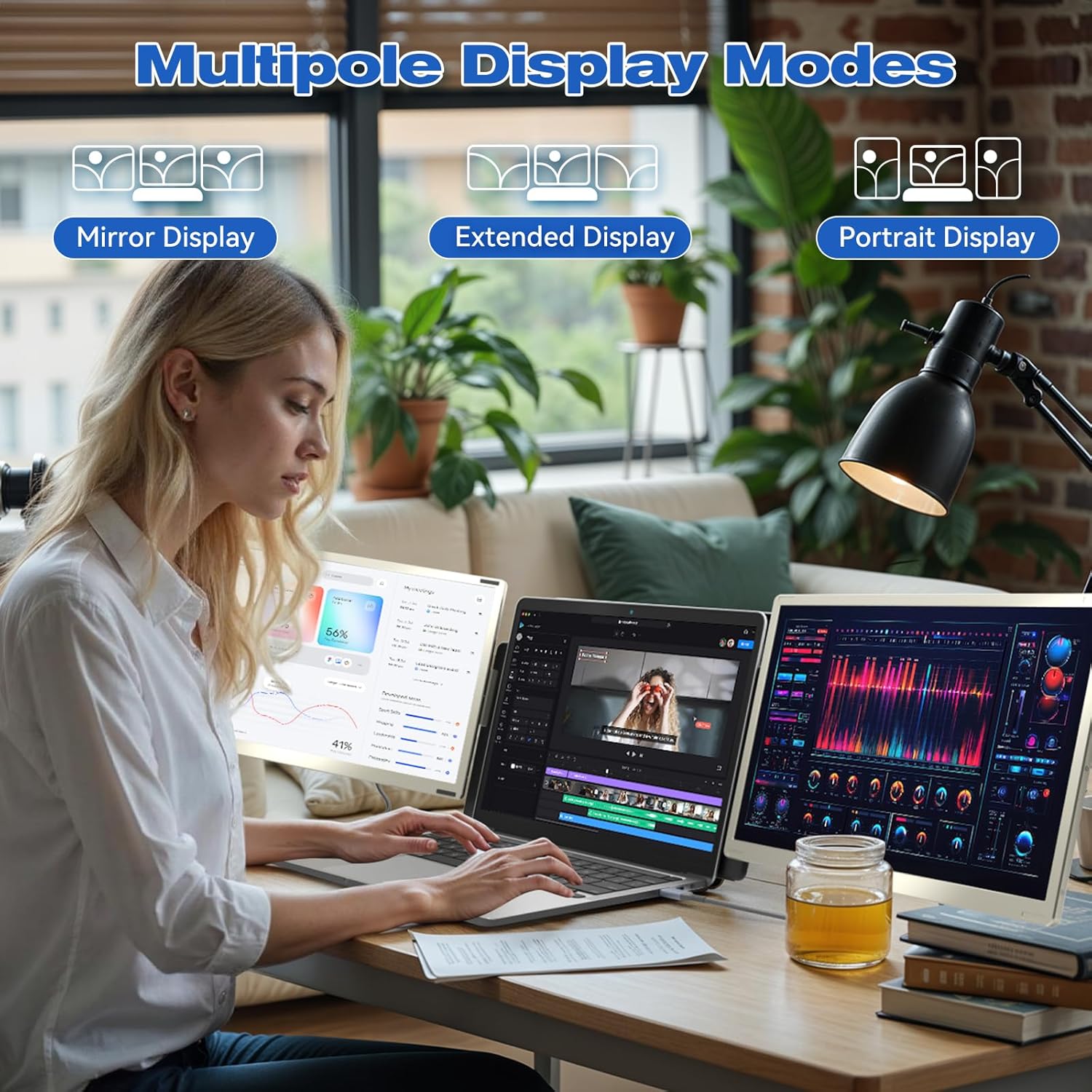
ຮູບພາບ: Examples of Mirror, Extended, and Portrait display modes.

Image: Multiple configurations for different usage scenarios.

Image: Usage scenarios for the KEFEYA S6 Portable Monitor.
ການປັບຕົວ:
Use the multifunctional adjustment button on the monitor to customize settings:
- ຄວາມສະຫວ່າງ: Adjust the screen's luminance for optimal viewຢູ່ໃນສະພາບແສງສະຫວ່າງຕ່າງໆ.
- ສີ: Fine-tune color balance.
- ປະລິມານ: Control the audio output if the monitor's built-in speakers are used.
ບໍາລຸງຮັກສາ
To ensure the longevity and optimal performance of your KEFEYA S6 Portable Monitor, follow these maintenance guidelines:
- ທໍາຄວາມສະອາດ: ໃຊ້ຜ້າອ່ອນໆທີ່ບໍ່ມີຂົນເພື່ອເຊັດໜ້າຈໍ ແລະ ພາຍນອກຢ່າງເບົາໆ. ສຳລັບຮອຍທີ່ຝັງແໜ້ນ, ໃຫ້ເຊັດອອກເລັກນ້ອຍampໃສ່ຜ້າດ້ວຍນ້ໍາຫຼືເຄື່ອງເຮັດຄວາມສະອາດຫນ້າຈໍທີ່ປອດໄພ. ຫຼີກເວັ້ນການສານເຄມີທີ່ຮຸນແຮງຫຼືວັດສະດຸຂັດ.
- ການເກັບຮັກສາ: When not in use, store the monitor in its provided carrying bag to protect it from dust, scratches, and impacts.
- ການຈັດການ: Handle the monitor with care. Avoid dropping it or subjecting it to excessive force.
- ສະພາບແວດລ້ອມ: Operate and store the monitor in a dry environment, away from extreme temperatures, direct sunlight, and high humidity.
ການແກ້ໄຂບັນຫາ
If you encounter issues with your KEFEYA S6 Portable Monitor, refer to the following common solutions:
- ບໍ່ມີສັນຍານ / ຫນ້າຈໍສີດໍາ:
- Ensure all cables (USB-C, HDMI, USB-A for power) are securely connected to both the monitor and your laptop.
- Verify that your laptop's display settings are configured to detect and extend/mirror to an external display.
- If using HDMI, ensure the USB-C cable is also connected for power.
- Try connecting to a different port on your laptop or a different device to rule out port or device issues.
- Compatibility Issues (e.g., MacBook M1/M2/M3):
- MacBook M1/M2/M3 models may require a docking station or a compatible H5-T hub cable for dual-screen functionality. Contact customer support for assistance with compatible accessories.
- ບັນຫາຄຸນນະພາບຮູບພາບ (ກະພິບ, ສີບິດເບືອນ):
- ກວດສອບການເຊື່ອມຕໍ່ສາຍໄຟວ່າມີການຫຼວມ ຫຼື ເສຍຫາຍຫຼືບໍ່.
- Adjust the monitor's settings (brightness, contrast, tint) using the multifunctional button.
- Ensure your laptop's graphics drivers are up to date.
- ບໍ່ມີສຽງ:
- Increase the monitor's volume using the adjustment button.
- Check your laptop's audio output settings to ensure the monitor is selected as the playback device.
ຖ້າຂັ້ນຕອນເຫຼົ່ານີ້ບໍ່ສາມາດແກ້ໄຂບັນຫາໄດ້, ກະລຸນາອ້າງອີງໃສ່ພາກສ່ວນການຮັບປະກັນ ແລະ ການສະໜັບສະໜູນສຳລັບການຊ່ວຍເຫຼືອເພີ່ມເຕີມ.
ຂໍ້ມູນຈໍາເພາະ
| ຄຸນສົມບັດ | ຂໍ້ມູນຈໍາເພາະ |
|---|---|
| ຍີ່ຫໍ້ | KEFEYA |
| ໝາຍເລກຕົວແບບ | S6 |
| ຂະໜາດໜ້າຈໍ | 15.6 ນິ້ວ |
| ປະເພດຫນ້າຈໍ | LCD ຫຼື LED |
| ຄວາມລະອຽດ | 1920 x 1080 (FHD 1080p) |
| ອັດຕາສ່ວນ | 16:9 |
| ອັດຕາສ່ວນກົງກັນຂ້າມ | 1000:1 |
| ເວລາຕອບສະຫນອງ | 2 ມິນລິວິນາທີ |
| ອັດຕາການໂຫຼດຂໍ້ມູນຄືນໃໝ່ | 60 Hz |
| ສີ Gamut | 120% sRGB |
| ຄວາມສະຫວ່າງ | 300 nits |
| ການໂຕ້ຕອບຮາດແວ | HDMI, USB, USB Type C |
| ຈໍານວນພອດ HDMI | 1 |
| ຈຳນວນຂອງ USB 3.0 Ports | 2 |
| ປະເພດຕົວເຊື່ອມຕໍ່ | HDMI, USB Type A, USB Type C |
| ອຸປະກອນທີ່ເຂົ້າກັນໄດ້ | ແລັບທັອບ |
| ຂະໜາດ (L x W x H) | 36 x 21.6 x 4.5 ຊັງຕີແມັດ |
| ນ້ຳໜັກສິນຄ້າ | 2.39 ກິໂລກຣາມ |
| ຄຸນນະສົມບັດພິເສດ | 120% sRGB, Energy Efficiency, Blue Light Filter, Anti-glare Screen |
ການຮັບປະກັນແລະການສະຫນັບສະຫນູນ
The KEFEYA S6 Portable Monitor comes with a one-year warranty from the date of purchase. For any product-related inquiries, technical assistance, or warranty claims, please contact KEFEYA customer support.
We offer 24/7 online assistance to resolve compatibility issues, signal problems, or dual-screen configurations. If you require specific accessories like the H5-T cable, please reach out to our customer service team.
ສໍາລັບການສະຫນັບສະຫນູນ, ກະລຸນາໄປຢ້ຽມຢາມຢ່າງເປັນທາງການຂອງພວກເຮົາ website or contact us via the details provided in your Quick Start Guide.


