1. ບົດແນະນຳ
This manual provides essential information for the proper use and maintenance of your Realme 12 Plus 5G RMX3867 smartphone. Please read this guide thoroughly before operating your device to ensure optimal performance and longevity. Keep this manual for future reference.
2. ລາຍການບັນຈຸພັນ
Upon opening the package, verify that all items listed below are present and in good condition. If any items are missing or damaged, please contact your retailer.

Image: Contents of the Realme 12 Plus 5G RMX3867 retail box. Includes the phone, phone case, quick guide, detachable camera decoration replacement guide, safety guide, screwdriver, two screws, USB cable, and SIM card ejector.
- Realme 12 Plus 5G RMX3867 Smartphone
- ກະເປົາໂທລະສັບ
- ຄູ່ມືດ່ວນ
- Detachable Camera Decoration Replacement Guide
- ຄູ່ມືຄວາມປອດໄພ
- ໄຂຄວງ
- ສະກູ (x2)
- ສາຍ USB
- ຕົວຖອດຊິມກາດ
Note: Some accessories, such as the detachable camera decoration, may come in a separate package or require assembly. Refer to the specific guides provided.

Image: Contents of the Detachable Camera Decoration Protective Cover Set. Includes a packaging box, detachable deco case (x1), two screws, and a phone case (x1).
3. ຕັ້ງຄ່າ
3.1. ການຕິດຕັ້ງຊິມກາດ
- ຊອກຫາຖາດຊິມກາດຢູ່ດ້ານຂ້າງຂອງອຸປະກອນຂອງທ່ານ.
- Insert the provided SIM card ejector tool into the small hole next to the tray.
- ຍູ້ຄ່ອຍໆຈົນກ່ວາຖາດຈະອອກມາ.
- Place your Nano-SIM card(s) into the tray with the gold contacts facing down. Ensure the card is correctly oriented according to the tray's diagram.
- ໃສ່ຖາດໃສ່ໂທລະສັບຄືນໃໝ່ຢ່າງລະມັດລະວັງຈົນກວ່າມັນຈະກົດໃສ່ບ່ອນ.

ຮູບພາບ: ລຸ່ມ view of the Realme 12 Plus 5G RMX3867, showing the USB-C port, speaker grille, microphone, and SIM card tray slot.
3.2. ເປີດ / ປິດພະລັງງານ
- ເພື່ອເປີດເຄື່ອງ: Press and hold the Power button (located on the right side of the device) until the realme logo appears.
- ປິດເຄື່ອງ: ກົດປຸ່ມເປີດປິດຄ້າງໄວ້ຈົນກວ່າເມນູຕົວເລືອກພະລັງງານຈະປາກົດຂຶ້ນ. ແຕະທີ່ "ປິດເຄື່ອງ" ແລະຢືນຢັນ.
- ເພື່ອເລີ່ມຕົ້ນໃໝ່: Press and hold the Power button until the power options menu appears. Tap "Restart" and confirm.

ຮູບພາບ: ຂ້າງ view of the Realme 12 Plus 5G RMX3867, highlighting the power button and volume rocker on the right edge of the device.
3.3. ການຕິດຕັ້ງເບື້ອງຕົ້ນ
The first time you power on your device, you will be guided through the initial setup process. This includes:
- ການເລືອກພາສາຂອງທ່ານ.
- ກຳລັງເຊື່ອມຕໍ່ກັບເຄືອຂ່າຍ Wi-Fi.
- ຕັ້ງຄ່າບັນຊີ Google ຂອງທ່ານ.
- Configuring screen lock (PIN, pattern, password, fingerprint, face unlock).
- ການໂອນຂໍ້ມູນຈາກອຸປະກອນເກົ່າ (ທາງເລືອກ).
4. ປະຕິບັດການອຸປະກອນຂອງທ່ານ
4.1. ການນໍາທາງພື້ນຖານ
- ທ່າທາງສໍາຜັດ: Your device supports various touch gestures for navigation, including tap, swipe, pinch-to-zoom, and long press.
- ໜ້າຈໍຫຼັກ: The central hub for your apps and widgets. Swipe left or right to access additional screens.
- ກະດານແຈ້ງການ: ປັດລົງຈາກເທິງສຸດຂອງໜ້າຈໍເພື່ອເຂົ້າເຖິງການແຈ້ງເຕືອນ ແລະການຕັ້ງຄ່າດ່ວນ.
- App Drawer: ປັດຂຶ້ນຈາກລຸ່ມສຸດຂອງໜ້າຈໍໄປທີ່ view ແອັບພລິເຄຊັນທີ່ຕິດຕັ້ງທັງໝົດ.

ຮູບພາບ: ທາງຫນ້າ view of the Realme 12 Plus 5G RMX3867, displaying its large screen with a punch-hole camera cutout at the top center.
4.2. ຟັງຊັນກ້ອງຖ່າຍຮູບ
The Realme 12 Plus 5G RMX3867 features a powerful 200MP main camera. To access the camera, tap the Camera icon on your home screen or app drawer.
- ໂໝດຮູບ: Switch between various modes like Photo, Portrait, Night, Pro, and more.
- ການບັນທຶກວິດີໂອ: Record high-quality videos. Adjust resolution and frame rate in settings.
- ການຕັ້ງຄ່າ: Access camera settings to customize features such as HDR, AI enhancements, and grid lines.
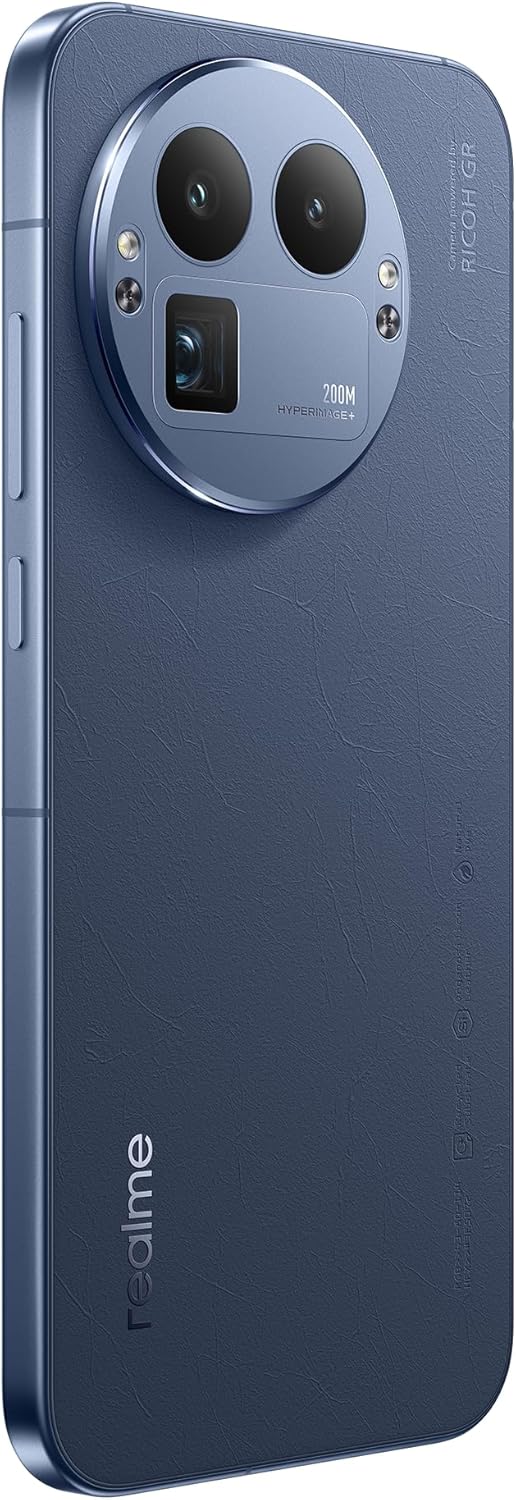
ຮູບພາບ: ດ້ານຫລັງ view of the Realme 12 Plus 5G RMX3867, showcasing the prominent circular camera module with multiple lenses and a "200M HYPERIMAGE+" label.
4.3. ການເຊື່ອມຕໍ່
- ເຄືອຂ່າຍ 5G: Your device supports 5G connectivity for faster mobile data speeds. Ensure your SIM card and plan support 5G.
- Wi-Fi: Connect to wireless networks for internet access. Go to Settings > Wi-Fi to manage connections.
- Bluetooth: Pair with Bluetooth devices like headphones, speakers, or car systems. Go to Settings > Bluetooth.
- USB-C: ໃຊ້ພອດ USB-C ສຳລັບການສາກໄຟ ແລະ ການໂອນຂໍ້ມູນ.
4.4. ຄຸນນະສົມບັດຄວາມປອດໄພ
- ເຊັນເຊີນີ້ວມື: Unlock your device quickly and securely using the in-display fingerprint sensor. Register your fingerprints in Settings > Security & Privacy > Fingerprint.
- ປົດລັອກດ້ວຍໜ້າ: Use facial recognition to unlock your phone. Set up Face Unlock in Settings > Security & Privacy > Face.
- ລັອກ ໜ້າ ຈໍ: Choose from PIN, pattern, or password for basic screen security.
5. ບໍາລຸງຮັກສາ
5.1. ການເຮັດຄວາມສະອາດອຸປະກອນຂອງທ່ານ
- ໃຊ້ຜ້າແພທີ່ອ່ອນນຸ້ມ, ບໍ່ມີສານດ່າງເພື່ອເຊັດໜ້າຈໍ ແລະຕົວເຄື່ອງຂອງໂທລະສັບ.
- ຫຼີກເວັ້ນການນໍາໃຊ້ສານເຄມີທີ່ຮຸນແຮງ, ວັດສະດຸຂັດ, ຫຼືສີດ aerosol.
- ສໍາລັບ smudges stubborn, ເລັກນ້ອຍ dampen ຜ້າທີ່ມີນ້ໍາຫຼືເຄື່ອງເຮັດຄວາມສະອາດຫນ້າຈໍທີ່ອອກແບບໂດຍສະເພາະສໍາລັບເອເລັກໂຕຣນິກ.
5.2. ການປັບປຸງຊອບແວ
Regularly check for and install software updates to ensure your device has the latest features, security patches, and performance improvements. Go to Settings > About device > Up to date to check for updates.
5.3. ການດູແລຫມໍ້ໄຟ
- ຫຼີກເວັ້ນອຸນຫະພູມທີ່ຮຸນແຮງ, ຍ້ອນວ່າພວກມັນສາມາດເຮັດໃຫ້ອາຍຸຫມໍ້ໄຟຫຼຸດລົງ.
- Use only the original charger and cable or certified compatible accessories.
- Do not let the battery drain completely frequently. It is generally recommended to keep the battery level between 20% and 80%.
6. ການແກ້ໄຂບັນຫາ
6.1. ບັນຫາທົ່ວໄປ ແລະການແກ້ໄຂ
| ສະບັບ | ການແກ້ໄຂ |
|---|---|
| ອຸປະກອນບໍ່ເປີດ | ໃຫ້ແນ່ໃຈວ່າແບັດເຕີຣີສາກແລ້ວ. ກົດປຸ່ມເປີດປິດຄ້າງໄວ້ຢ່າງໜ້ອຍ 10-15 ວິນາທີ. |
| ແອັບຂັດຂ້ອງ ຫຼືຄ້າງ | ປິດແອັບ ແລະ ເປີດມັນຄືນໃໝ່. ລຶບລ້າງແຄສຂອງແອັບ (ການຕັ້ງຄ່າ > ແອັບ > [ຊື່ແອັບ] > ບ່ອນເກັບຂໍ້ມູນ > ລຶບລ້າງແຄສ). ປິດເປີດອຸປະກອນຄືນໃໝ່. |
| ຊີວິດຫມໍ້ໄຟບໍ່ດີ | Check background app usage. Reduce screen brightness. Disable unnecessary features like GPS or Bluetooth when not in use. |
| ບໍ່ສາມາດເຊື່ອມຕໍ່ກັບ Wi-Fi ໄດ້ | Restart your router and phone. Forget the network and reconnect. Ensure Wi-Fi is enabled on your device. |
6.2. ຣີເຊັດເປັນຄ່າໂຮງງານ
ຖ້າທ່ານພົບບັນຫາທີ່ຍັງຄົງຄ້າງຢູ່, ການຣີເຊັດເປັນຄ່າໂຮງງານອາດຈະແກ້ໄຂບັນຫາເຫຼົ່ານັ້ນໄດ້. ຄຳເຕືອນ: ການຣີເຊັດເປັນຄ່າໂຮງງານຈະລຶບຂໍ້ມູນທັງໝົດຢູ່ໃນໂທລະສັບຂອງທ່ານ. ສໍາຮອງຂໍ້ມູນທີ່ສໍາຄັນກ່ອນທີ່ຈະດໍາເນີນການ.
- ໄປທີ່ Settings > System > Reset options.
- ແຕະ "ລຶບຂໍ້ມູນທັງໝົດ (ຣີເຊັດເປັນຄ່າໂຮງງານ)".
- ຢືນຢັນການຕັດສິນໃຈຂອງທ່ານແລະໃສ່ລະຫັດ PIN / ລະຫັດຜ່ານຂອງທ່ານຖ້າຖືກເຕືອນ.
- ອຸປະກອນຈະຣີສະຕາດ ແລະເລີ່ມຂະບວນການຣີເຊັດ.
7. ຂໍ້ມູນຈໍາເພາະ
Below are the key technical specifications for the Realme 12 Plus 5G RMX3867:
| ຄຸນສົມບັດ | ລາຍລະອຽດ |
|---|---|
| ຍີ່ຫໍ້ | realme |
| ຊື່ຕົວແບບ | Realme 12 Plus 5G (RMX3867) |
| ລະບົບປະຕິບັດການ | Android |
| ຄວາມອາດສາມາດເກັບຮັກສາຫນ່ວຍຄວາມຈໍາ | 256 GB |
| RAM ຂະຫນາດທີ່ຕິດຕັ້ງ | 12 GB |
| ຕົວແບບ CPU | Snapdragon |
| ຄວາມໄວ CPU | 1200 MHz |
| ຂະໜາດໜ້າຈໍ | 6.4 ນິ້ວ |
| ປະເພດການສະແດງ | AMOLED |
| ຄວາມລະອຽດ | 1440 x 2560 |
| ຄວາມລະອຽດວິດີໂອທີ່ມີປະສິດທິພາບ | 200 MP |
| ເຕັກໂນໂລຊີໂທລະສັບມືຖື | 5G |
| ຄວາມອາດສາມາດຫມໍ້ໄຟ | 7000 ລ້ານamp ຊົ່ວໂມງ |
| ຊີວິດສະເລ່ຍຂອງຫມໍ້ໄຟ | 21 ຊົ່ວໂມງ |
| ການໂຕ້ຕອບຂອງມະນຸດ | ໜ້າຈໍສຳຜັດ |
| ໝາຍເລກຕົວແບບ | GT 8 Pro (Note: Product title is Realme 12 Plus 5G RMX3867) |
Note: Some specifications may vary slightly based on region or specific product variant. The model number in the product title is RMX3867, while some specifications list 'GT 8 Pro'. Please refer to your device's packaging for the most accurate model information.
8. ການຮັບປະກັນແລະການສະຫນັບສະຫນູນ
Your Realme 12 Plus 5G RMX3867 device comes with a limited warranty. Please refer to the warranty card included in your product packaging for detailed terms and conditions, including warranty period and coverage.
ສໍາລັບການສະຫນັບສະຫນູນດ້ານວິຊາການ, ການບໍລິການ, ຫຼືການສອບຖາມເພີ່ມເຕີມ, ກະລຸນາເຂົ້າໄປທີ່ສະຫນັບສະຫນູນ realme ຢ່າງເປັນທາງການ website or contact their customer service. Contact information can typically be found on the realme official website or in the "Safety Guide" included with your device.
ຮັກສາຫຼັກຖານການຊື້ຂອງທ່ານສໍາລັບການຮ້ອງຂໍການຮັບປະກັນ.


