Turtle Beach TBK-2002-01-US

Turtle Beach Vulcan II TKL Pro Magnetic Mechanical RGB Gaming Keyboard User Manual

Model: TBK-2002-01-US

ແນະນຳ

This manual provides detailed instructions for the setup, operation, and maintenance of your Turtle Beach Vulcan II TKL Pro Magnetic Mechanical RGB Gaming Keyboard. This keyboard is designed for high-performance gaming and offers extensive customization options through its analog Hall-Effect switches and accompanying software.
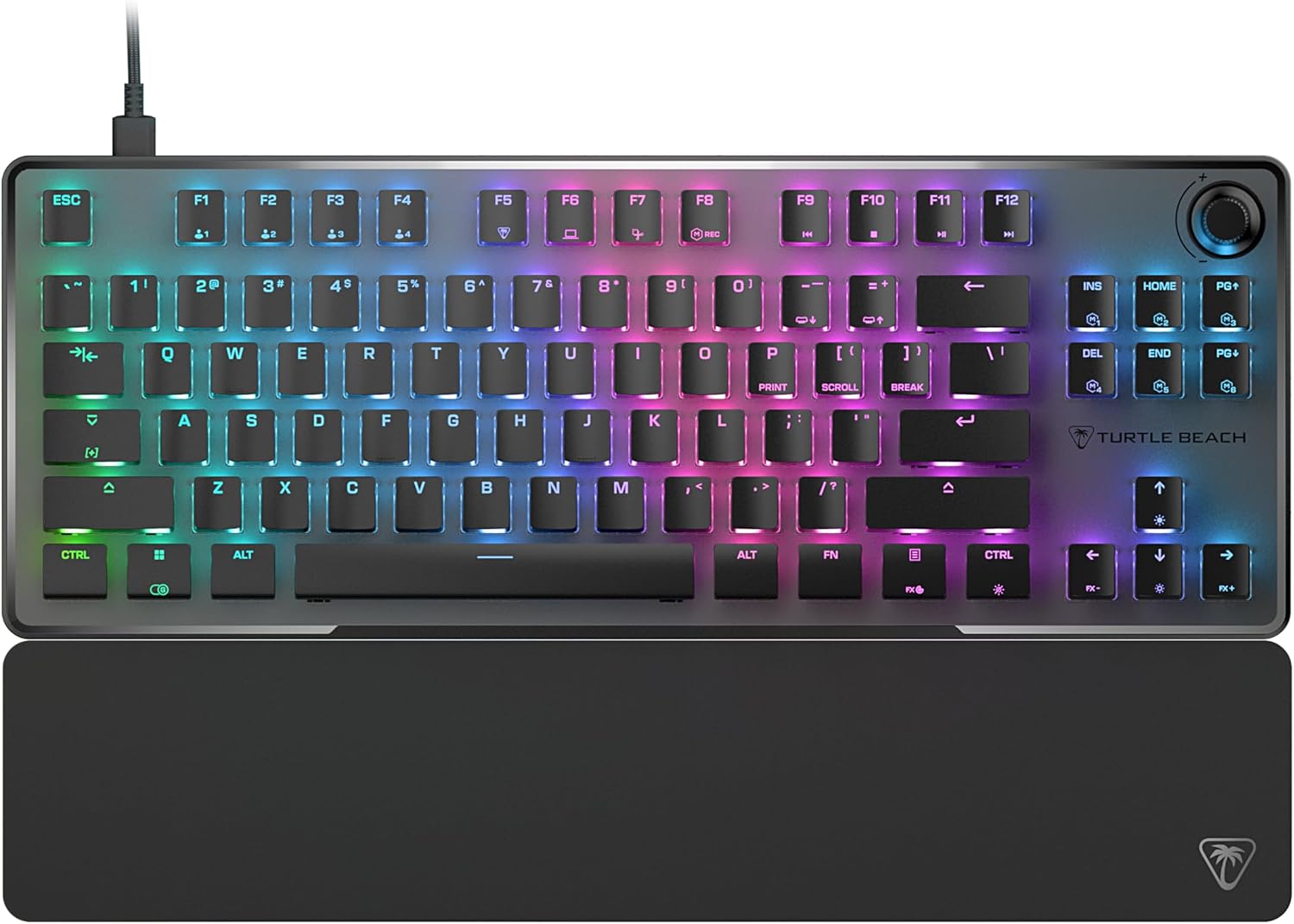
ລົງລຸ່ມ view of the Turtle Beach Vulcan II TKL Pro keyboard with RGB lighting and detachable palm rest.

Image: The Turtle Beach Vulcan II TKL Pro keyboard, showcasing its tenkeyless design, RGB lighting, and included palm rest.

ເນື້ອໃນຊຸດ

ກະລຸນາກວດສອບວ່າສິນຄ້າທັງໝົດມີຢູ່ໃນການຫຸ້ມຫໍ່ຜະລິດຕະພັນຂອງທ່ານ:

  • Turtle Beach Vulcan II TKL Pro Keyboard
  • ສາຍ USB-C ຫາ USB-A
  • Palm Rest
  • ຄູ່ມືເລີ່ມຕົ້ນດ່ວນ
Diagram showing the keyboard, USB cable, and palm rest as package contents.

Image: Visual representation of the items included in the Vulcan II TKL Pro package: the keyboard, USB-C to USB-A cable, and palm rest.

ຕັ້ງຄ່າ

  1. ເຊື່ອມຕໍ່ແປ້ນພິມ: Insert the USB-C end of the provided cable into the port on the back of the Vulcan II TKL Pro keyboard. Connect the USB-A end to an available USB port on your PC or laptop.
  2. Attach the Palm Rest: Align the palm rest with the front edge of the keyboard and attach it for ergonomic support during use.
  3. Install Swarm II Software: For full customization and access to advanced features, download and install the Turtle Beach Swarm II desktop software from the official Turtle Beach website. This software allows you to adjust RGB lighting, key actuation points, assign macros, and more.
  4. ການຕັ້ງຄ່າເບື້ອງຕົ້ນ: Once the software is installed, launch it to configure your keyboard settings, including lighting effects, key assignments, and actuation preferences.

ຄຸນນະສົມບັດທີ່ສໍາຄັນແລະການດໍາເນີນງານ

Analog Hall-Effect Magnetic Switches

The Vulcan II TKL Pro features ultra-responsive magnetic switches, pre-lubed for smooth key presses and rated for a 150 million click lifecycle. This Hall-Effect technology enables advanced features such as Rapid Trigger and adjustable multi-point actuation.

Diagram illustrating the internal components of an Analog Hall-Effect Magnetic Switch.

Image: A cutaway diagram of the Analog Hall-Effect Magnetic Switch, showing the magnetic sensor and the mechanism that allows for precise actuation detection.

Rapid Trigger Performance

The Rapid Trigger setting eliminates downtime between key presses, allowing for continuous and repeated key actuation with minimal finger lifting. This feature enhances movement control, responsiveness, and aiming speed in games.

Diagram comparing fixed vs. dynamic active/reset points for key actuation, highlighting Rapid Trigger.

Image: A comparison diagram showing how Rapid Trigger allows for dynamic active/reset points (0.1mm to 4.0mm) on the Vulcan II TKL Pro, unlike regular keyboards with fixed points, enabling faster repeated inputs.

Per Key Sensitivity Adjustment

Adjust the actuation point of each key individually or globally, from 0.1mm to 4mm. Shorter travel provides faster response for quick actions, while longer travel allows for more deliberate and precise control. Each key supports 40 preset heights and up to three inputs per key, configurable via the keyboard or Swarm II software.

Diagram showing adjustable actuation points from 0.1mm to 4.0mm for a key switch.

Image: A detailed diagram illustrating the adjustable actuation range of the key switches, from 0.1mm to 4.0mm, allowing for customized sensitivity.

AIMO Intelligent RGB Lighting

AIMO lighting technology provides smooth and vibrant RGB lighting effects with double the refresh rate of standard gaming keyboards. It can sync with other compatible AIMO-enabled products. Per-key RGB customization is available, and five on-board profiles allow saving custom lighting effects and key reassignments.

Keyboard and mouse with synchronized AIMO RGB lighting.

Image: The Vulcan II TKL Pro keyboard and a compatible gaming mouse displaying synchronized, vibrant AIMO Intelligent RGB lighting effects.

Advanced Customization with Swarm II Software

The Swarm II desktop software is essential for unlocking the full potential of your keyboard. It allows for comprehensive adjustments including RGB lighting, assigning up to three different inputs per key, adjusting key actuation points, enabling Rapid Trigger, and recording/assigning macro functions. It also supports controller emulator features for analog stick and trigger control in games.

Screenshot of the Swarm II software interface on a monitor, showing keyboard customization options.

Image: A monitor displaying the Turtle Beach Swarm II software interface, demonstrating the extensive customization options available for the Vulcan II TKL Pro keyboard.

Easy-Shift [+] Button Duplicator

This technology adds a secondary function to compatible keys. By holding down a designated modifier key, you can instantly access a second layer of commands, which is fully customizable within the Swarm II software.

Keyboard key highlighted to show Easy-Shift [+] functionality.

Image: A close-up of the keyboard with a key highlighted, illustrating the Easy-Shift [+] feature that allows for a secondary function on compatible keys.

Advanced Anti-Ghosting

Optimized for gamers, the advanced anti-ghosting technology ensures that every keystroke is reliably registered, even when multiple keys are pressed simultaneously, preventing missed inputs during intense gaming sessions.

3rd Party Keycap Compatible

The Vulcan II TKL Pro comes with T-shaped ABS keycaps and is designed to be fully compatible with third-party keycaps, allowing users to further customize their keyboard's aesthetic and feel.

Tenkeyless Form Factor

The compact tenkeyless (TKL) design removes the numeric keypad, providing more desk space for mouse movement and allowing for a more natural and comfortable playing position, which can improve aiming accuracy in games.

Push-to-Mute Volume Wheel

A built-in dial allows for convenient on-the-fly control of master volume. Simply push the dial to quickly mute or unmute audio.

ການອອກແບບທົນທານ

The keyboard features a sand-blasted anodized aluminum top plate for structural integrity and resistance to wear and tear. The double kickstand design provides stable positioning, and the included soft palm rest ensures comfort during extended use.

ບໍາລຸງຮັກສາ

  • ທໍາຄວາມສະອາດ: Use a soft, dry cloth to wipe down the keyboard surface. For deeper cleaning, gently remove keycaps (if comfortable) and use compressed air to clear debris from beneath. Avoid using harsh chemicals or abrasive materials.
  • ການດູແລສາຍໄຟ: Ensure the USB cable is not excessively bent or kinked to prevent damage.
  • ການເກັບຮັກສາ: ເມື່ອບໍ່ໄດ້ໃຊ້ເປັນເວລາດົນ, ໃຫ້ເກັບຮັກສາແປ້ນພິມໄວ້ໃນສະພາບແວດລ້ອມທີ່ສະອາດ, ແຫ້ງແລ້ງຫ່າງຈາກອຸນຫະພູມສູງສຸດ.

ການແກ້ໄຂບັນຫາ

ບັນຫາການແກ້ໄຂທີ່ເປັນໄປໄດ້
ແປ້ນພິມບໍ່ຕອບສະໜອງ
  • ໃຫ້ແນ່ໃຈວ່າສາຍ USB ໄດ້ເຊື່ອມຕໍ່ຢ່າງປອດໄພກັບທັງແປ້ນພິມ ແລະຄອມພິວເຕີ.
  • ລອງເຊື່ອມຕໍ່ແປ້ນພິມກັບພອດ USB ອື່ນ.
  • ປິດເປີດຄອມພິວເຕີຂອງທ່ານຄືນໃໝ່.
ແສງ RGB ບໍ່ເຮັດວຽກຫຼືບໍ່ຖືກຕ້ອງ
  • Ensure the Swarm II software is installed and running.
  • Check lighting settings within the Swarm II software.
  • Update the keyboard firmware via Swarm II.
ປຸ່ມບໍ່ໄດ້ລົງທະບຽນ ຫຼືພິມສອງເທື່ອ
  • ເຮັດຄວາມສະອາດອ້ອມກະແຈທີ່ຖືກກະທົບດ້ວຍອາກາດບີບອັດ.
  • Adjust the actuation point for the specific key in Swarm II.
  • ໃຫ້ແນ່ໃຈວ່າໄດຣເວີ ແລະ ເຟີມແວຣ໌ລຸ້ນລ່າສຸດໄດ້ຖືກຕິດຕັ້ງແລ້ວ.
Swarm II software not detecting keyboard
  • Reinstall the Swarm II software.
  • ໃຫ້ແນ່ໃຈວ່າລະບົບປະຕິບັດການຂອງທ່ານອັບເດດແລ້ວ.
  • ປິດການໃຊ້ງານຊົ່ວຄາວຊອບແວຕ້ານໄວຣັສ ຫຼືໄຟວໍທີ່ອາດຈະແຊກແຊງ.

ຂໍ້ມູນຈໍາເພາະ

ຄຸນສົມບັດລາຍລະອຽດ
ໝາຍເລກຕົວແບບTBK-2002-01-US
ການເຊື່ອມຕໍ່USB-A (ມີສາຍ)
ປະເພດສະຫຼັບAnalog Hall-Effect Magnetic Switches
ຈຸດປະຕິບັດງານປັບໄດ້ຈາກ 0.1mm ຫາ 4.0mm
Keycap Compatibility3rd Party Keycap Compatible (T-shaped ABS keycaps)
ແສງໄຟAIMO Intelligent RGB (Per-key customizable)
ປັດໄຈແບບຟອມTenkeyless (TKL)
On-Board Profiles5
ນ້ຳໜັກ1.38 ປອນ (ປະມານ 0.62 ກິ​ໂລ​)
ຂະໜາດ (LxWxH)14.41 x 8.58 x 1.26 ນິ້ວ (ປະມານ 36.6 x 21.8 x 3.2 ຊມ)
ແຫຼ່ງພະລັງງານUSB Powered

ການຮັບປະກັນແລະການສະຫນັບສະຫນູນ

For detailed warranty information and technical support, please refer to the Quick Start Guide included with your product or visit the official Turtle Beach support website. Product registration may be required to activate your warranty.

ສະຫນັບສະຫນູນອອນໄລນ໌: www.turtlebeach.com/pages/support

ເອກະສານທີ່ກ່ຽວຂ້ອງ - TBK-2002-01-US

ກ່ອນview Turtle Beach Vulcan II Mechanical Gaming Keyboard Quick Start Guide
A quick start guide for the Turtle Beach Vulcan II mechanical gaming keyboard, detailing its features, specifications, package contents, and setup instructions in multiple languages.
ກ່ອນview ຄູ່ມືຜູ້ໃຊ້ Turtle Beach VelocityOne Flightstick
ຄູ່​ມື​ການ​ນໍາ​ໃຊ້​ທີ່​ສົມ​ບູນ​ແບບ​ສໍາ​ລັບ​ການ Turtle Beach VelocityOne Flightstick, ລາຍ​ລະ​ອຽດ​ລັກ​ສະ​ນະ​ຂອງ​ຕົນ​, ການ​ຕັ້ງ​ຄ່າ​, ການ​ດໍາ​ເນີນ​ງານ​, ການ​ຕັ້ງ​ຄ່າ​, ແລະ​ຂໍ້​ມູນ​ການ​ປະ​ຕິ​ບັດ​ສໍາ​ລັບ PC ແລະ XBOX gaming​.
ກ່ອນview Turtle Beach ATOM Controller ຄູ່ມືເລີ່ມຕົ້ນດ່ວນ
ຄູ່ມືສັ້ນໆສໍາລັບການຕັ້ງຄ່າແລະການນໍາໃຊ້ຕົວຄວບຄຸມ Turtle Beach ATOM, ການຄວບຄຸມການຄວບຄຸມ, ການຕິດສະມາດໂຟນ, ພະລັງງານ, ການຈັບຄູ່ Bluetooth, ການສາກໄຟ, ແລະຂໍ້ມູນກົດລະບຽບ.
ກ່ອນview Turtle Beach Recon 50X Gaming Headset ຄູ່ມືເລີ່ມຕົ້ນດ່ວນ
ຄູ່ມືສັ້ນໆສໍາລັບການຕັ້ງຊຸດຫູຟັງເກມ Turtle Beach Recon 50X ເທິງ Xbox One, PC, Mac, ແລະ PS4. ລວມມີຂໍ້ມູນກ່ຽວກັບການຄວບຄຸມໃນແຖວ, ເນື້ອໃນຂອງຊຸດ, ແລະການປະຕິບັດຕາມກົດລະບຽບ.
ກ່ອນview Turtle Beach Scout Air™ True Wireless Bluetooth Earbuds ຄູ່ມືເລີ່ມຕົ້ນດ່ວນ
ເລີ່ມຕົ້ນຢ່າງວ່ອງໄວດ້ວຍຫູຟັງ Turtle Beach Scout Air™ True Wireless Bluetooth Earbuds ຂອງທ່ານ. ຄູ່ມືນີ້ກວມເອົາການຕິດຕັ້ງ, ການເຊື່ອມຕໍ່, ການຄວບຄຸມ, ການສາກໄຟ, ແລະຂໍ້ມູນຈໍາເພາະສໍາລັບສຽງທີ່ບໍ່ມີ seamless.
ກ່ອນview Turtle Beach Elite 800 Transmitter Contact Pins Replacement Guide
ຄຳແນະນຳເທື່ອລະຂັ້ນຕອນກ່ຽວກັບວິທີການປ່ຽນເຂັມສາກໃສ່ເຄື່ອງສົ່ງສັນຍານ Turtle Beach Elite 800.