1. ບົດແນະນຳ
This manual provides detailed instructions for the installation, operation, and maintenance of your Mars Gaming MC-LCD Compact Micro-ATX PC Case. The MC-LCD case features a robust steel construction, a modular design for component flexibility, and an integrated 8-inch IPS LCD display. It is designed to support advanced cooling solutions and modern hardware, ensuring optimal performance for gaming and productivity.
2. ການຕັ້ງຄ່າ ແລະ ການຕິດຕັ້ງອຸປະກອນຕ່າງໆ
2.1 ການຫຸ້ມຫໍ່ແລະການກວດກາເບື້ອງຕົ້ນ
Carefully remove the PC case from its packaging. Inspect for any signs of damage during transit. Ensure all accessories are present, including screws, cables, and any included mounting hardware.
2.2 ການຖອດແຜງອອກ
The MC-LCD case features a tempered glass side panel and mesh panels for optimal access. To begin installation, carefully remove the tempered glass side panel by unscrewing its fasteners and sliding it off. The mesh panels are designed for easy removal to facilitate component installation and airflow management.

ຮູບທີ 2.2.1: View of the Mars Gaming MC-LCD PC case with the tempered glass side panel removed, revealing the interior for component installation.
2.3 ການຕິດຕັ້ງເມນບອດ
Install your Micro-ATX motherboard onto the pre-installed standoffs. Secure it with the provided screws. Ensure proper alignment with the I/O shield.
2.4 ການຕິດຕັ້ງແຫຼ່ງຈ່າຍໄຟ
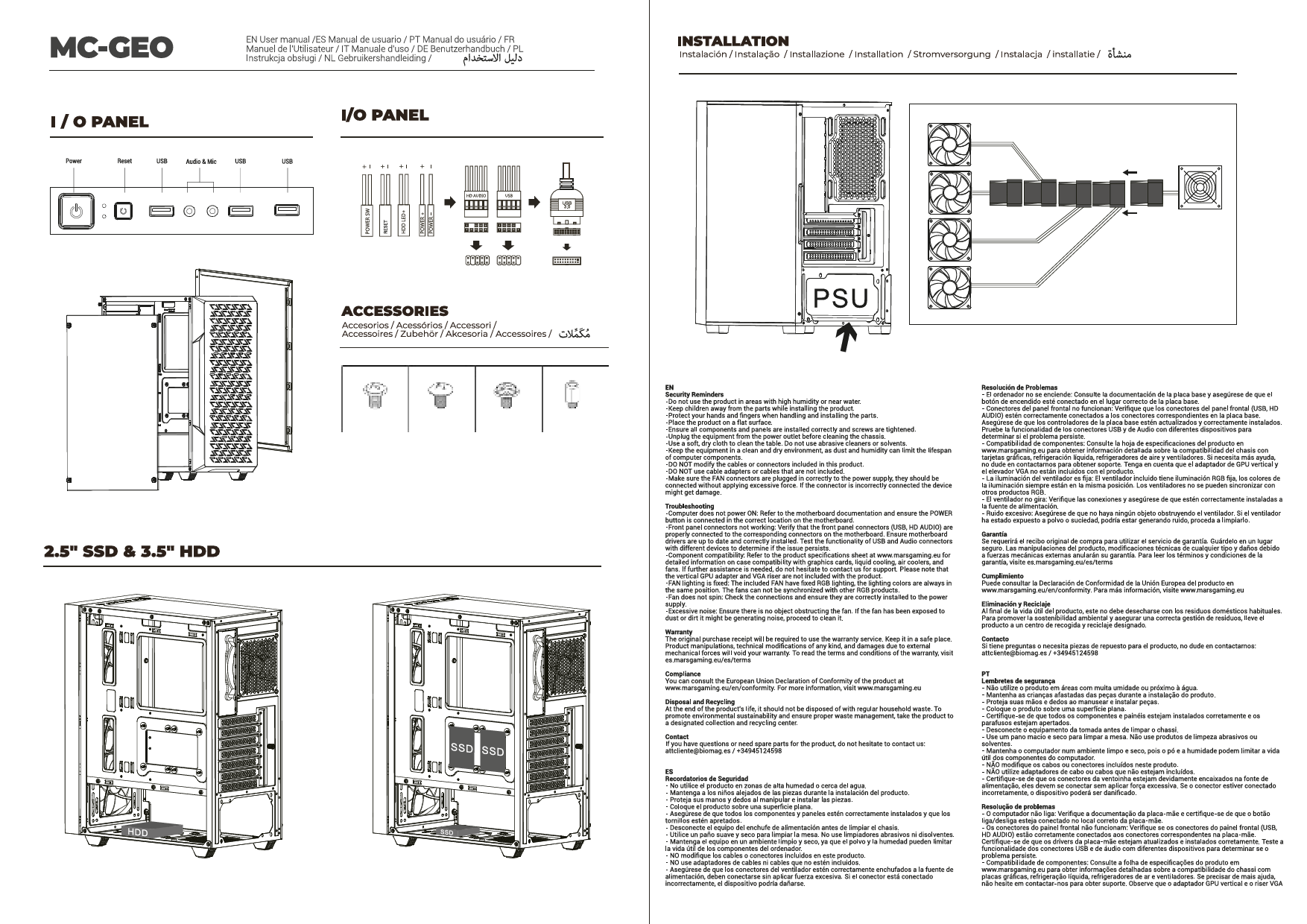
The MC-LCD case features a front-mounted power supply bay. Install your power supply into this bay. The height of the power supply can be adjusted to accommodate various configurations and cable management needs. Secure the power supply using the appropriate screws.
2.5 ການຕິດຕັ້ງ Drive Storage
The case supports up to two hard drives. Locate the designated mounting points for 2.5-inch or 3.5-inch drives and secure them using the provided hardware.
2.6 ການຕິດຕັ້ງກາດກຣາບຟິກ ແລະ ກາດຂະຫຍາຍ
Install your graphics card and any other expansion cards into the available PCIe slots on your motherboard. The case supports graphics cards up to 417mm in length and includes four expansion slots. Vertical adapter support is available for graphics cards (adapter sold separately).
2.7 Cooling System Installation (Fans and Liquid Cooling)
The MC-LCD case offers extensive cooling options:
- ແຟນໆ: Install up to seven 120mm fans in various locations (side, top, front, rear) to maximize airflow.
- CPU Coolers: ຮອງຮັບເຄື່ອງເຮັດຄວາມເຢັນ CPU ສູງເຖິງ 170 ມມ ໃນລະດັບຄວາມສູງ.
- Liquid Cooling: Full support for liquid cooling systems up to 360mm radiators. Install radiators in designated areas such as the top or side panels.

ຮູບທີ 2.7.1: ພາຍໃນ view of the Mars Gaming MC-LCD PC case demonstrating installation of a liquid cooling system.
2.8 ການເຊື່ອມຕໍ່ແຜງດ້ານໜ້າ
Connect the front panel cables (USB 3.0, HD Audio, USB-C, power, reset, LED indicators) to the corresponding headers on your motherboard. Refer to your motherboard manual for specific header locations.
2.9 8-inch IPS LCD Display Setup
The integrated 8-inch IPS LCD display can be mounted in portrait or landscape orientation and supports front and side mounting. Connect the display to your graphics card using an HDMI cable. The display operates at 1280x800 resolution with a 60Hz refresh rate. Power for the display is typically supplied via a USB connection to your motherboard or power supply.

ຮູບທີ 2.9.1: The Mars Gaming MC-LCD PC case featuring its 8-inch IPS LCD display, capable of showing system information or other content.

ຮູບທີ 2.9.2: Another perspective of the Mars Gaming MC-LCD PC case, highlighting the versatility of the 8-inch IPS LCD display for desktop widgets and multitasking.
ໝາຍເຫດ: The display does not include its own customization software. For customizing the content shown on the display, it is recommended to use third-party widget applications and desktop gadgets compatible with your operating system.
2.10 ການຈັດການສາຍ
Utilize the cable routing channels and tie-down points behind the motherboard tray to manage cables effectively. Proper cable management improves airflow and aesthetics.
2.11 ການຕິດແຜງຄືນໃໝ່
Once all components are installed and cables managed, carefully reattach the tempered glass side panel and any mesh panels. Ensure all fasteners are securely tightened.
3. ຄໍາແນະນໍາການດໍາເນີນງານ
3.1 ການເປີດລະບົບຂອງທ່ານ
After connecting all external peripherals and the power cable, press the power button located on the front panel of the case to start your computer.
3.2 Utilizing the 8-inch IPS LCD Display
The integrated LCD display functions as a secondary monitor. You can extend your desktop to it, allowing for multitasking, monitoring system statistics, or displaying custom content using compatible software. Ensure the display is correctly connected via HDMI and USB for power.
3.3 ການໄຫຼວຽນຂອງອາກາດ ແລະ ຄວາມເຢັນ
The MC-LCD case is designed with side, top, and front mesh panels to promote excellent airflow. Ensure that fans are installed in appropriate orientations (intake/exhaust) to maintain optimal internal temperatures. Avoid obstructing the mesh panels to prevent airflow restriction.

ຮູບທີ 3.3.1: The Mars Gaming MC-LCD PC case showcasing its mesh grilles on the side, top, and front for superior ventilation.
4. ບໍາລຸງຮັກສາ
4.1 ການທຳຄວາມສະອາດເຄສ
Regularly clean the exterior of the case with a soft, damp cloth. Avoid abrasive cleaners or solvents that could damage the finish or the tempered glass. For the mesh panels, use a soft brush or compressed air to remove dust buildup, which helps maintain optimal airflow.
4.2 ການດູແລກະຈົກທີ່ມີຄວາມແຂງແກ່ນ
Clean the tempered glass panel with a glass cleaner and a microfiber cloth. Avoid applying excessive force or using sharp objects near the glass to prevent scratches or breakage.
4.3 ການຄຸ້ມຄອງຝຸ່ນພາຍໃນ
Periodically open the case and use compressed air to remove dust from internal components, especially fans, radiators, and heatsinks. This prevents overheating and prolongs component lifespan.
5. ການແກ້ໄຂບັນຫາ
5.1 ລະບົບບໍ່ເປີດ
- ໃຫ້ແນ່ໃຈວ່າການສະຫນອງພະລັງງານໄດ້ຖືກເຊື່ອມຕໍ່ຢ່າງຖືກຕ້ອງກັບເຕົ້າສຽບໄຟແລະສະວິດໄຟໃນ PSU ຢູ່ໃນຕໍາແຫນ່ງ 'ON'.
- ກວດສອບວ່າສາຍປຸ່ມເປີດຂອງແຜງໜ້າປັດດ້ານໜ້າຖືກເຊື່ອມຕໍ່ກັບຫົວໄຟຂອງເມນບອດຢ່າງຖືກຕ້ອງ.
- Check all internal power connections to the motherboard, CPU, and graphics card.
5.2 8-inch IPS LCD Display Not Working
- Confirm the HDMI cable is securely connected from the display to your graphics card.
- Ensure the USB cable providing power to the display is connected to a functional USB port.
- Check your operating system's display settings to ensure the secondary display is detected and enabled.
- Remember that the display does not have dedicated software; customization relies on OS features or third-party widgets.
5.3 ບັນຫາຄວາມຮ້ອນເກີນໄປ
- Verify that all case fans and CPU/GPU coolers are spinning correctly.
- Ensure proper fan orientation for optimal intake and exhaust airflow.
- Clean any dust buildup from mesh panels, fans, and radiators.
- Confirm that no internal cables are obstructing airflow.
5.4 ພອດ USB ບໍ່ເຮັດວຽກ
- Check that the front panel USB 3.0 and USB-C cables are correctly connected to the corresponding headers on your motherboard.
- Ensure your motherboard drivers are up to date.
6. ຂໍ້ມູນຈໍາເພາະ
| ຊື່ຕົວແບບ | MCLCDW |
| ຍີ່ຫໍ້ | ເກມດາວອັງຄານ |
| ປະເພດກໍລະນີ | Micro-ATX Tower |
| ຄວາມເຂົ້າກັນໄດ້ຂອງເມນບອດ | Micro ATX |
| ວັດສະດຸ | ເຫຼັກກ້າປະສົມ, ແກ້ວອຸ່ນ |
| ສີ | ສີຂາວ |
| ຂະໜາດສິນຄ້າ (LxWxH) | 8 x 8 x 8 inches (approximate, based on item dimensions) |
| ນ້ໍາຫນັກລາຍການ | 13.2 ປອນ |
| ທ່າເຮືອທາງ ໜ້າ I / O | 1x USB 3.0, 2x USB 2.0, 1x USB-C, HD Audio |
| ສະລັອດຕິງຂະຫຍາຍ | 4 |
| ຄວາມຍາວສູງສຸດຂອງ GPU | 417ມມ |
| ຄວາມສູງຂອງ CPU Cooler ສູງສຸດ | 170ມມ |
| ສະຫນັບສະຫນູນພັດລົມ | Up to 7x 120mm fans |
| ສະຫນັບສະຫນູນການເຮັດຄວາມສະອາດຂອງແຫຼວ | Up to 360mm radiators |
| ການຕິດຕັ້ງການສະຫນອງພະລັງງານ | Front Mount (adjustable height) |
| ຈໍສະແດງຜົນ IPS LCD ຂະໜາດ 8 ນິ້ວ | 1280x800 resolution, 60Hz refresh rate, HDMI connection, portrait/landscape orientation, front/side mounting. |
7. ການຮັບປະກັນແລະການສະຫນັບສະຫນູນ
For detailed warranty information and technical support, please refer to the official Mars Gaming webເວັບໄຊ ຫຼືຕິດຕໍ່ບໍລິການລູກຄ້າຂອງເຂົາເຈົ້າໂດຍກົງ. ຮັກສາຫຼັກຖານການຊື້ຂອງທ່ານສໍາລັບການຮ້ອງຂໍການຮັບປະກັນ.
ເຈົ້າໜ້າທີ່ເກມ Mars Webເວັບໄຊ: www.marsgaming.eu