1. ຜະລິດຕະພັນເກີນview
The Vandlion V15Pro is a compact and powerful digital voice recorder designed for high-quality audio capture in various settings, including meetings, classes, and interviews. Featuring a durable metal casing and a large 128GB internal memory, it offers extended recording capabilities and ease of use.
Key features include one-touch recording, long battery life for up to 35 hours of continuous recording, and Voice Activated Recording (VOR) for efficient memory and battery usage. Its lightweight and portable design makes it an ideal tool for professionals and students alike.

Image: The Vandlion V15Pro Dictaphone, a small, black, rectangular device, held between a thumb and forefinger, highlighting its portability. A black lanyard is attached to the device.
2. ເນື້ອໃນຊຸດ
ກະລຸນາກວດເບິ່ງກ່ອງສໍາລັບລາຍການຕໍ່ໄປນີ້:
- Vandlion V15Pro Digital Dictaphone
- USB-A to USB-C Charging/Data Cable
- USB-A ເຖິງ USB-C Adapter
- ການຄວບຄຸມໄລຍະໄກແບບມີສາຍ
- ຫູຟັງ (ຊ່ອງສຽບ 3.5 ມມ)
- ສາຍແຂນ
- ຄູ່ມືຜູ້ໃຊ້ (ເອກະສານນີ້)
3. ຮູບແບບ ແລະ ຂະໜາດຂອງອຸປະກອນ
Familiarize yourself with the physical features of your Vandlion V15Pro dictaphone.

Image: A detailed diagram of the Vandlion V15Pro Dictaphone, illustrating its compact dimensions (approximately 5.33 cm length, 3.18 cm width, 0.58 cm thickness) and highlighting its metal body, noise reduction chip, Voice Activated Recording (VOR) capability, and lightweight design (21g).
The device features a simple ON/OFF slide switch for recording, a USB-C port for charging and data transfer, and a small indicator light. The microphone is integrated into the device's body.
4. ການຕິດຕັ້ງເບື້ອງຕົ້ນ
4.1 ການສາກອຸປະກອນ
Before first use, fully charge the dictaphone. A full charge takes approximately 2 hours.
- Connect the provided USB-C cable to the dictaphone's USB-C port.
- ເຊື່ອມຕໍ່ອີກສົ້ນຂອງສາຍກັບອະແດັບເຕີໄຟ USB (ບໍ່ລວມ) ຫຼືພອດ USB ຂອງຄອມພິວເຕີ.
- During charging, the red indicator light will flash. Once fully charged, the blue light will illuminate.
- If recording while charging, the indicator light may not illuminate, which is normal.
4.2 ການກໍານົດວັນທີ ແລະເວລາ
ເພື່ອຮັບປະກັນເວລາທີ່ຖືກຕ້ອງamps for your recordings, set the device's date and time:
- Connect the dictaphone to a computer using the USB-C cable.
- Locate the 'SetTime' application or a text file (e.g., 'time.txt') on the device's storage.
- Follow the instructions within the application or edit the text file to synchronize the device's time with your computer's system time.
- ສຳຄັນ: It is recommended to back up the original 'SetTime' file ຫຼືຂໍ້ຄວາມ file on your computer before making any changes.
5. ຄໍາແນະນໍາການດໍາເນີນງານ
5.1 ການບັນທຶກພື້ນຖານ
The Vandlion V15Pro features simple one-touch recording:
- ເພື່ອເລີ່ມການບັນທຶກ, ເລື່ອນສະວິດເປີດ/ປິດໄປທີ່ ON position. The indicator light will briefly illuminate and then turn off, indicating that recording has begun discreetly.
- To save the recording and stop, slide the ON/OFF switch to the ປິດ position. The device will automatically save the current recording file.
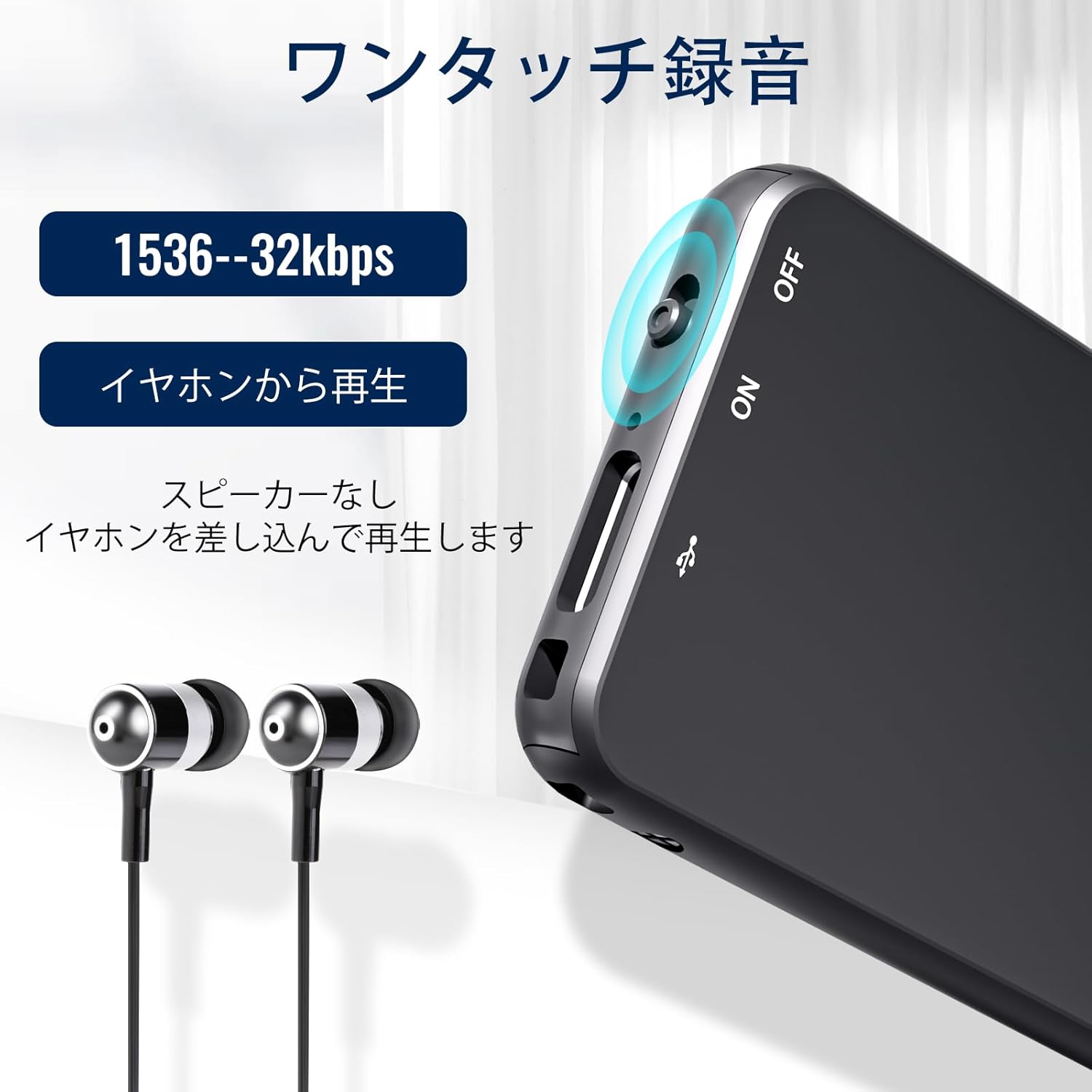
ຮູບພາບ: A close-up view of the Vandlion V15Pro Dictaphone, highlighting the ON/OFF slide switch on the side and the USB-C port. This illustrates the one-touch recording functionality.
5.2 ການຫຼິ້ນຄືນ
You can listen to your recordings directly from the device or by transferring them to a computer.
- Direct Playback: Connect the provided headphones to the device via the remote control. Use the remote control to navigate and play back recordings.
- ການຫຼິ້ນຄອມພິວເຕີ: Connect the dictaphone to your computer. The device will appear as a removable drive. Navigate to the 'RECORD' folder to access and play your MP3 audio files.
5.3 ການບັນທຶກການເປີດໃຊ້ດ້ວຍສຽງ (VOR)
The V15Pro supports Voice Activated Recording, which automatically starts recording when sound is detected and pauses when there is silence. This feature helps conserve memory and battery life.
- The VOR function can be configured via the device's settings file when connected to a computer. Refer to the 'SetTime' or configuration text file for detailed instructions on adjusting VOR sensitivity.
- When VOR is active, the device will enter standby mode when no sound is detected, resuming recording automatically when sound returns.
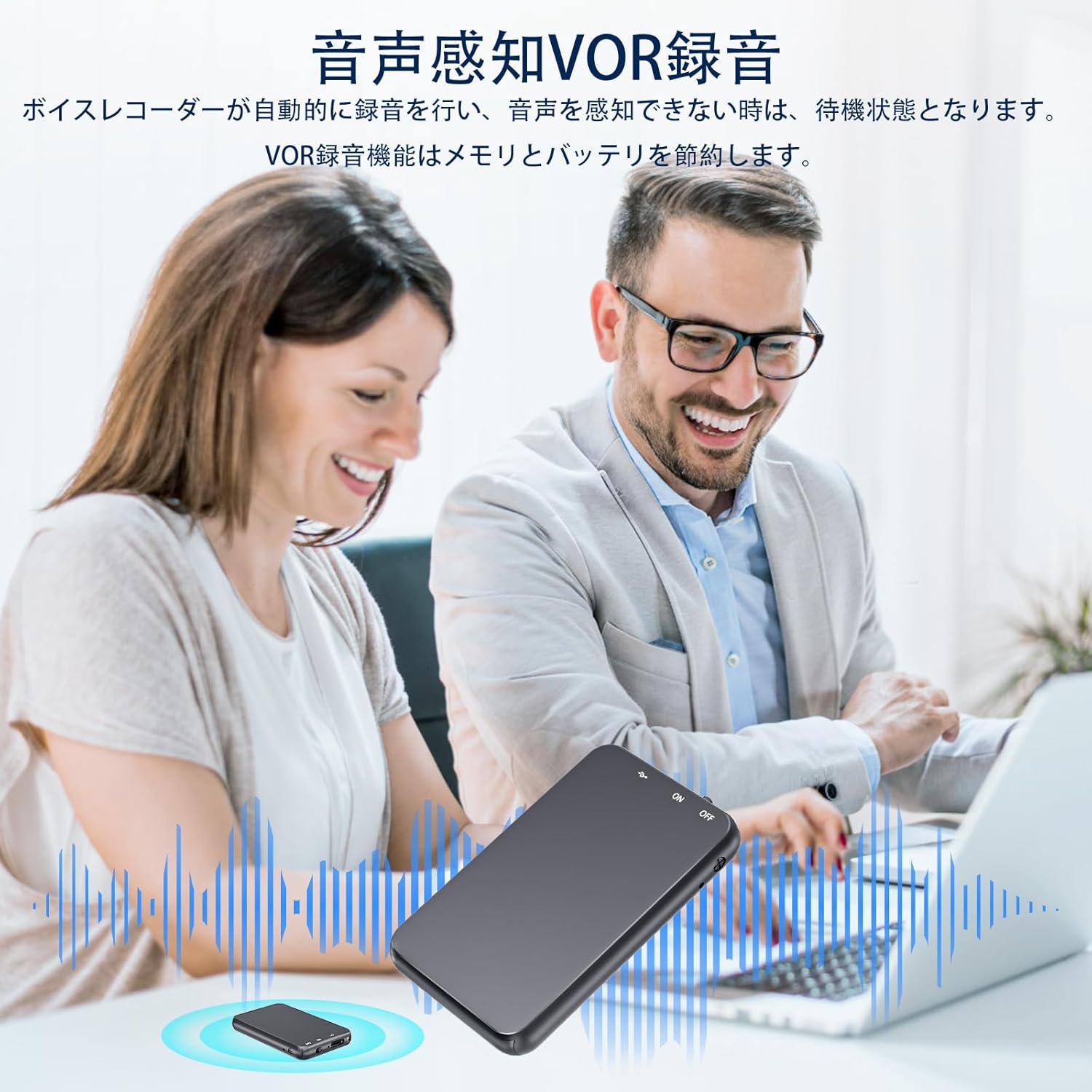
Image: An illustration depicting the Voice Activated Recording (VOR) feature, showing the dictaphone on a table during a meeting with two individuals. Sound waves emanate from the device, indicating active recording when voices are present, and silence when they are not, demonstrating how VOR saves memory and battery.
5.4 ເຊື່ອມຕໍ່ກັບຄອມພິວເຕີ້
ເພື່ອໂອນ files or configure settings, connect your dictaphone to a computer:
- Ensure the dictaphone is turned ປິດ ກ່ອນທີ່ຈະເຊື່ອມຕໍ່.
- Connect the dictaphone to your computer using the provided USB-C cable.
- Wait 20-30 seconds for the computer to recognize the device, especially with large memory capacities.
- The dictaphone will appear as a removable disk drive. You can then drag and drop files ໄປແລະຈາກອຸປະກອນ.
- ສໍາລັບຜູ້ໃຊ້ Mac: You may need to use a USB-C adapter for proper connection.
- ບັນຫາຄົນຂັບ: If the computer does not recognize the device, it may lack necessary drivers. Search online for "download computer drivers" or contact support.
5.5 Connecting to an Android Phone (with OTG)
You can connect the dictaphone to an Android phone that supports OTG (On-The-Go) functionality:
- Ensure the dictaphone is turned ປິດ ກ່ອນທີ່ຈະເຊື່ອມຕໍ່.
- Verify that OTG function is enabled on your Android phone (usually found in Settings by searching for "OTG" or "USB").
- Use an appropriate OTG adapter or cable to connect the dictaphone to your phone.
- The phone should recognize the dictaphone as external storage, allowing you to manage files.
6. ບໍາລຸງຮັກສາ
Proper care will extend the life of your dictaphone:
- ທໍາຄວາມສະອາດ: ເຊັດອຸປະກອນດ້ວຍຜ້າອ່ອນໆ, ແຫ້ງ. ຢ່າໃຊ້ນໍ້າສະອາດ ຫຼືສານລະລາຍ.
- ການເກັບຮັກສາ: ເກັບຮັກສາອຸປະກອນໄວ້ໃນບ່ອນທີ່ເຢັນ, ແຫ້ງ ແລະ ຫ່າງຈາກແສງແດດໂດຍກົງ, ອຸນຫະພູມທີ່ຮຸນແຮງ ແລະ ຄວາມຊຸ່ມຊື່ນ.
- ການດູແລຫມໍ້ໄຟ: ເພື່ອຮັກສາສຸຂະພາບຂອງແບັດເຕີຣີ, ໃຫ້ຫຼີກລ່ຽງການສາກແບັດເຕີຣີຈົນໝົດເລື້ອຍໆ. ໃຫ້ສາກອຸປະກອນເປັນປະຈຳ, ເຖິງແມ່ນວ່າຈະບໍ່ໄດ້ໃຊ້ງານເປັນເວລາດົນກໍຕາມ.
- ຫຼີກລ້ຽງການທໍາລາຍທາງດ້ານຮ່າງກາຍ: ໂລຫະ ຄasing provides durability, but avoid dropping the device or exposing it to strong impacts.
7. ການແກ້ໄຂບັນຫາ
If you encounter issues with your Vandlion V15Pro dictaphone, refer to the following common problems and solutions:
| ບັນຫາ | ການແກ້ໄຂ |
|---|---|
| Cannot record or recording breaks. |
|
| SetTime software displays errors or viruses. |
|
| Indicator light does not turn on during charging. |
|
| Digital dictaphone cannot connect to a computer or Android phone. |
|
| How to reduce recording noise. |
|
8. ຂໍ້ກໍານົດດ້ານວິຊາການ
| ຍີ່ຫໍ້ | Vandlion |
| ໝາຍເລກຕົວແບບ | Vandlion-V15Pro |
| ຄວາມອາດສາມາດເກັບຮັກສາຫນ່ວຍຄວາມຈໍາ | 128 GB |
| ຮູບແບບການບັນທຶກ | ສຽງ MP3 |
| ປະເພດຫມໍ້ໄຟ | 1 Lithium-ion (included), Rechargeable |
| ເວລາບັນທຶກຢ່າງຕໍ່ເນື່ອງ | Up to 35 hours (after 2-hour charge) |
| ການໂຕ້ຕອບການສາກໄຟ | USB ປະເພດ C |
| Jack ຫູຟັງ | 3.5 ມມ |
| ຕົວປະກອບແບບຟອມໄມໂຄຣໂຟນ | ປະສົມປະສານ |
| ນ້ໍາຫນັກລາຍການ | 19 ກຣາມ |
| ສີ | ດຳ |
| ອຸປະກອນທີ່ເຂົ້າກັນໄດ້ | Computers, Android Phones (with OTG) |
9. ການຮັບປະກັນແລະການສະຫນັບສະຫນູນ
Vandlion products are manufactured to high-quality standards. For warranty information or technical support, please refer to the contact details provided with your purchase documentation or visit the official Vandlion webເວັບໄຊ. ກະລຸນາຮັກສາຫຼັກຖານການຊື້ຂອງທ່ານສໍາລັບການຮຽກຮ້ອງການຮັບປະກັນ.


