1. ບົດແນະນຳ
This manual provides essential information for the setup, operation, maintenance, and troubleshooting of your GenMachine Mini PC AMD Ryzen 5 3550H. Please read this manual thoroughly before using the product to ensure optimal performance and longevity.
The GenMachine Mini PC is a compact yet powerful computing solution designed for a variety of tasks, including gaming, office work, and design. It features an AMD Ryzen 5 3550H processor, 16GB DDR4 RAM, and a 512GB SSD with M.2 NVMe support, offering high performance in a small form factor.

ຮູບ 1.1: ດ້ານຫນ້າ view of the GenMachine Mini PC, showcasing its compact white design with front USB ports and power button.
2. ຕັ້ງຄ່າ
2.1 ຖອດກ່ອງ
Carefully unpack all components from the packaging. Ensure all items listed in the packing list are present.

Figure 2.1: The packing list includes the Mini PC unit, user manual, packing box, power adapter, and HD line (HDMI cable).
2.2 ການເຊື່ອມຕໍ່ອຸປະກອນຕໍ່
Connect your monitor(s), keyboard, mouse, and other necessary peripherals to the Mini PC. The device supports multiple display options via HDMI and DisplayPort.
- Connect your monitor(s) to the HDMI or DisplayPort outputs.
- Connect your keyboard and mouse to the available USB 3.0 ports.
- ສໍາລັບການເຂົ້າເຖິງເຄືອຂ່າຍແບບມີສາຍ, ໃຫ້ເຊື່ອມຕໍ່ສາຍອີເທີເນັດກັບພອດ LAN.
- Connect the power adapter to the Mini PC and then to a power outlet.
ຮູບ 2.2: ເກີນview of the Mini PC's interfaces, including power supply, network interface (LAN), DisplayPort (DP), HDMI interface, USB interfaces, and audio port.
2.3 ການເປີດເຄື່ອງເບື້ອງຕົ້ນ
Press the power button located on the front of the Mini PC. The system will boot up. Follow the on-screen instructions for initial operating system setup.
3. ການດໍາເນີນງານ
3.1 ການນຳໃຊ້ທົ່ວໄປ
The GenMachine Mini PC is designed for versatile use, from demanding gaming sessions to professional design work and everyday office tasks. Its AMD Ryzen 5 3550H processor ensures smooth performance across various applications.
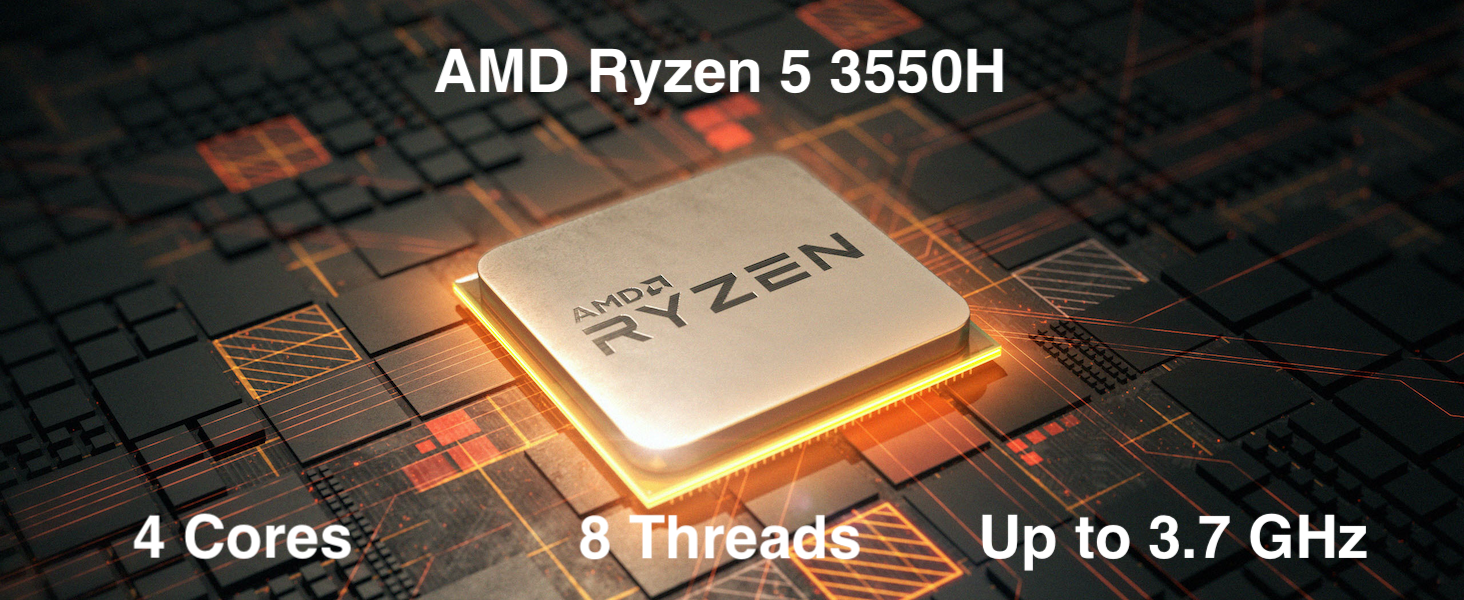
Figure 3.1: The AMD Ryzen 5 3550H processor features 4 cores, 8 threads, and a boost clock up to 3.7GHz, providing powerful performance for various computing needs.
3.2 ການຕັ້ງຄ່າຫຼາຍຈໍສະແດງຜົນ
Utilize the HDMI and DisplayPort outputs to connect up to two 4K displays simultaneously, enhancing productivity and immersive experiences.
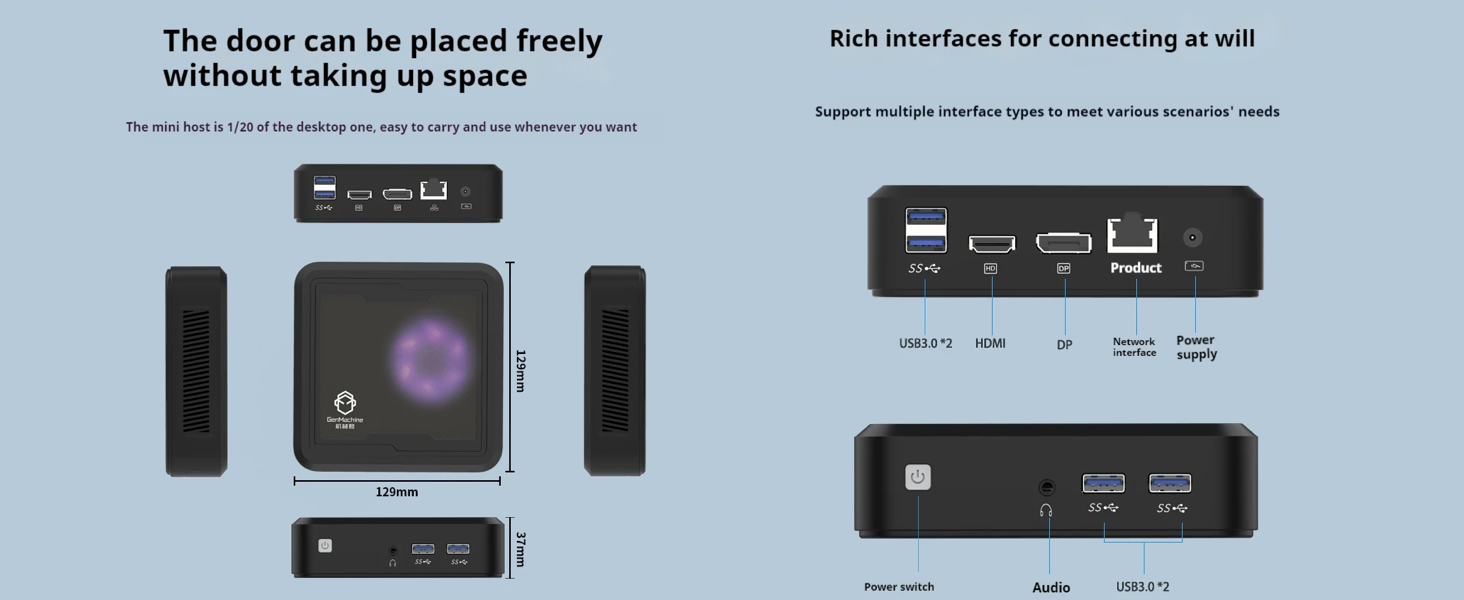
Figure 3.2: The Mini PC supports dual 4K displays via HD (HDMI) and DP (DisplayPort) outputs, allowing for an expanded workspace.
3.3 ການເກັບຮັກສາແລະການຂະຫຍາຍຫນ່ວຍຄວາມຈໍາ
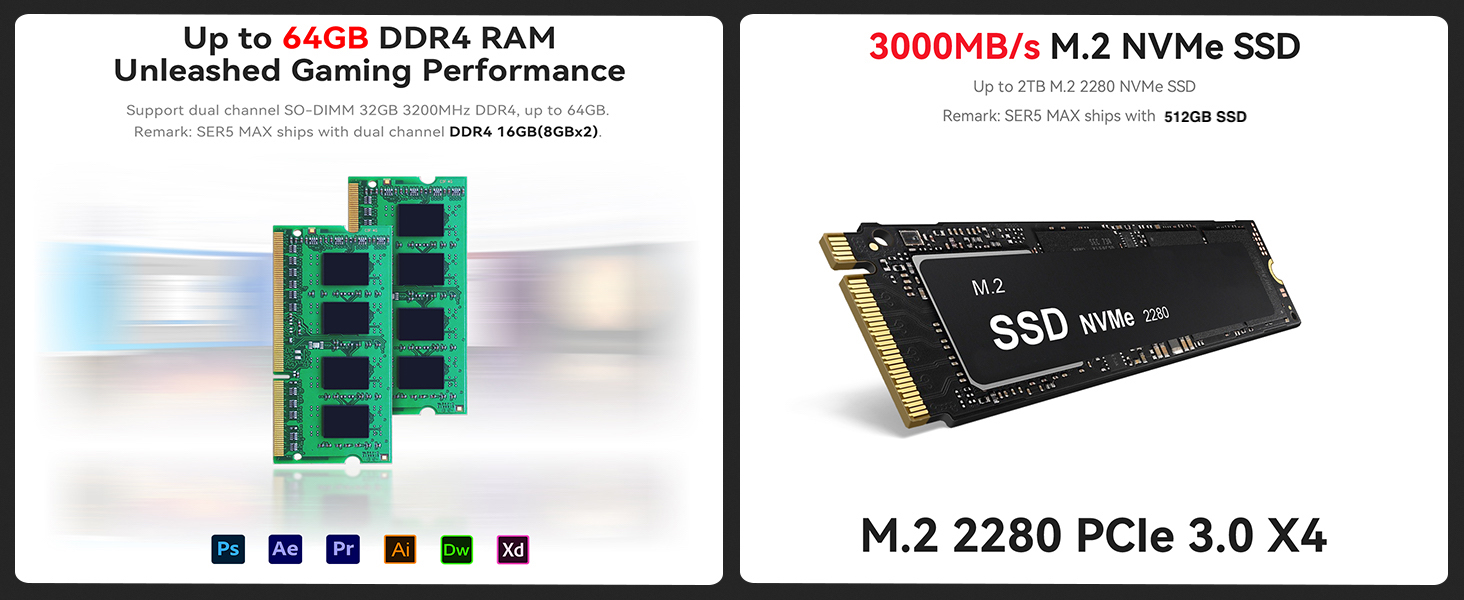
The Mini PC comes with 16GB DDR4 RAM and a 512GB SSD. It supports dual-channel DDR4 memory up to 64GB and M.2 NVMe SSDs up to 2TB for significant storage and performance upgrades.
Figure 3.3: Illustration showing support for up to 64GB DDR4 RAM and 3000MB/s M.2 NVMe SSD (PCIe 3.0 X4) for enhanced performance and storage.
3.4 ການເຊື່ອມຕໍ່
The Mini PC includes WiFi 5 and Bluetooth 4.2 for wireless connectivity, ensuring high-speed internet access and seamless pairing with wireless peripherals.
3.5 ວິດີໂອສາທິດ
Watch this official video from GenMachine for a visual overview of the Mini PC's features and capabilities.
Video 3.1: An official video demonstrating the GenMachine Mini Personal Desktop Computer, highlighting its compact size, various interfaces, and suitability for office and media server use.
4. ບໍາລຸງຮັກສາ
4.1 ການທໍາຄວາມສະອາດ
Regularly clean the exterior of the Mini PC with a soft, dry cloth. Use compressed air to gently clear dust from the ventilation grilles to ensure proper airflow and prevent overheating.
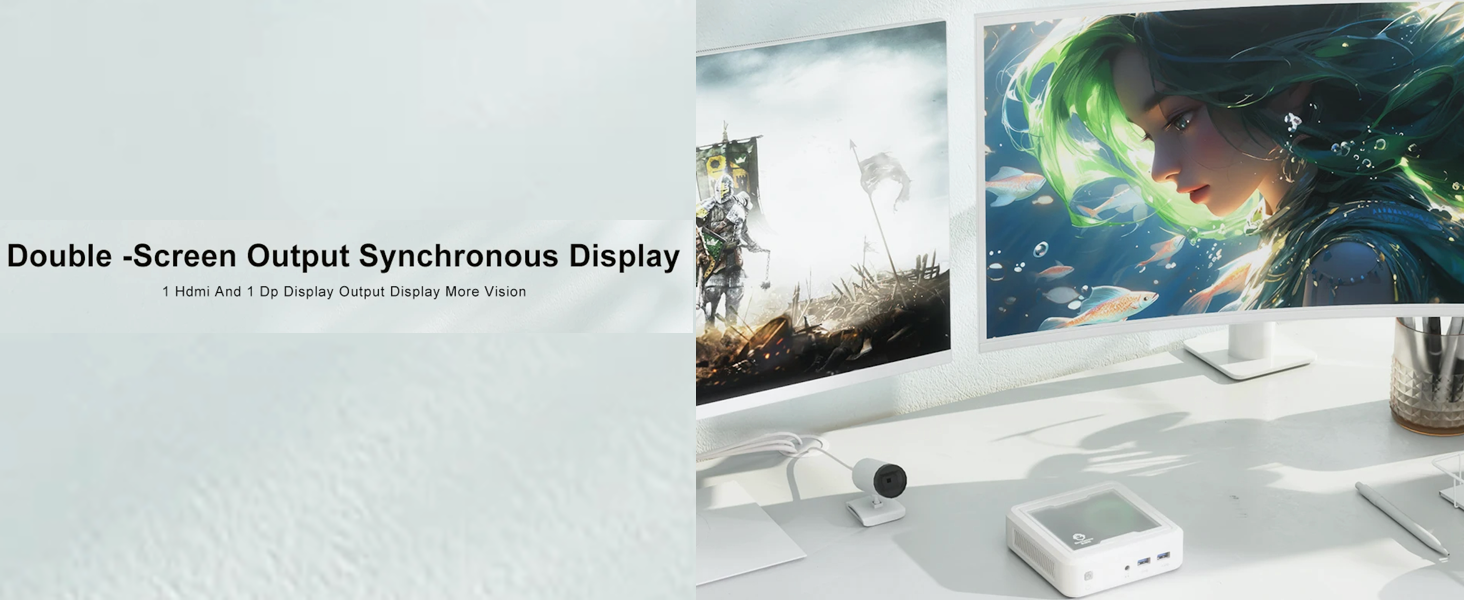
Figure 4.1: The Mini PC undergoes rigorous quality control, including vibration, drop, temperature/humidity, port, and noise tests, ensuring durability and reliability.
4.2 ການຄຸ້ມຄອງຄວາມຮ້ອນ
Ensure the Mini PC is placed in a well-ventilated area. Avoid blocking the air vents to allow for efficient heat dissipation. The device is designed with mesh ventilated heat dissipation to maintain optimal operating temperatures.
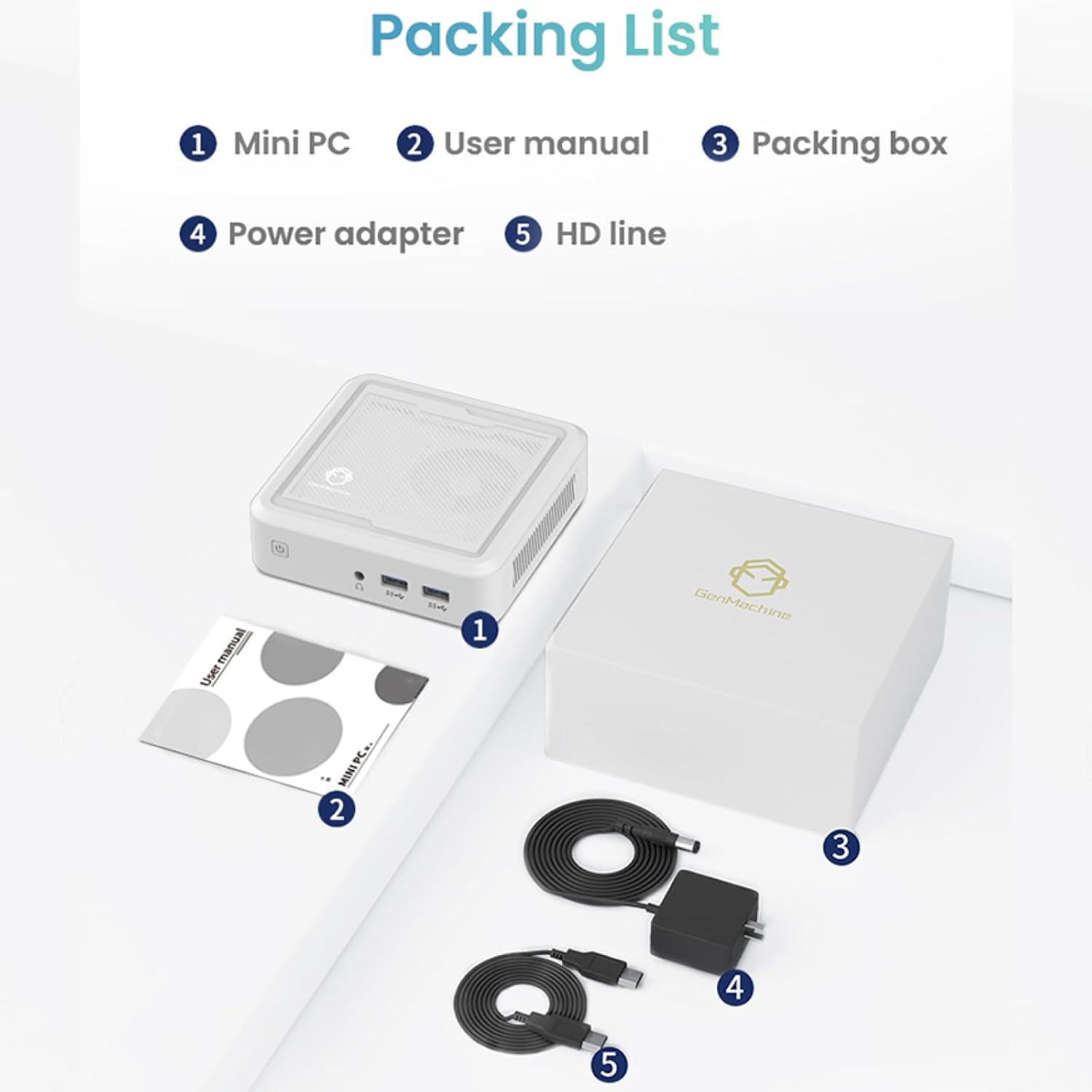
Figure 4.2: The GenMachine Mini PC operates at a low noise level of approximately 35 decibels, comparable to a quiet library environment.
5. ການແກ້ໄຂບັນຫາ
5.1 ບັນຫາທົ່ວໄປ ແລະການແກ້ໄຂ
- ບໍ່ມີພະລັງງານ:
- ໃຫ້ແນ່ໃຈວ່າອະແດັບເຕີໄຟເຊື່ອມຕໍ່ຢ່າງປອດໄພກັບທັງ Mini PC ແລະປລັກສຽບໄຟທີ່ເຮັດວຽກໄດ້.
- ກວດສອບວ່າປລັກສຽບໄຟເຮັດວຽກໄດ້ໂດຍການສຽບໃສ່ອຸປະກອນອື່ນ.
- ບໍ່ມີການສະແດງຜົນ:
- ກວດສອບວ່າສາຍ HDMI ຫຼື DisplayPort ໄດ້ເຊື່ອມຕໍ່ກັບທັງ Mini PC ແລະ ຈໍພາບຢ່າງແໜ້ນໜາແລ້ວ.
- ກວດໃຫ້ແນ່ໃຈວ່າເປີດໜ້າຈໍ ແລະຕັ້ງເປັນແຫຼ່ງປ້ອນຂໍ້ມູນທີ່ຖືກຕ້ອງ.
- Try a different cable or monitor if possible.
- ປະສິດທິພາບຊ້າ:
- ປິດແອັບພລິເຄຊັນທີ່ບໍ່ຈໍາເປັນທີ່ເຮັດວຽກຢູ່ໃນພື້ນຫຼັງ.
- ກວດສອບພື້ນທີ່ຫວ່າງພຽງພໍໃນ SSD.
- Ensure the Mini PC is well-ventilated to prevent thermal throttling.
- Consider upgrading RAM or SSD if performance issues persist (refer to Section 3.3).
- No Wi-Fi/Bluetooth:
- Check if Wi-Fi and Bluetooth are enabled in the operating system settings.
- Ensure drivers are correctly installed. Visit the manufacturer's webເວັບໄຊສໍາລັບຄົນຂັບຫລ້າສຸດ.
- ຣີສະຕາດ Mini PC.
6. ຂໍ້ມູນຈໍາເພາະ
Below are the key technical specifications for the GenMachine Mini PC AMD Ryzen 5 3550H:
| ຄຸນສົມບັດ | ລາຍລະອຽດ |
|---|---|
| ໂຮງງານຜະລິດ | AMD Ryzen 5 3550H (Up to 3.7GHz, 4 Cores, 8 Threads) |
| RAM | 16GB DDR4 (ຂະຫຍາຍໄດ້ສູງສຸດ 64GB) |
| ການເກັບຮັກສາ | 512GB SSD (M.2 NVMe support up to 2TB) |
| Graphics Coprocessor | ຮູບພາບປະສົມປະສານ |
| ລະບົບປະຕິບັດການ | OS (Pre-installed or user-installable) |
| ການເຊື່ອມຕໍ່ | WiFi 5, Bluetooth 4.2, LAN (Ethernet) |
| ຜົນຜະລິດວິດີໂອ | HDMI, DisplayPort (Supports Dual 4K Displays) |
| ພອດ USB | 2 x USB 2.0, 2 x USB 3.0 |
| ສຽງ | ສຽງ Jack 3.5 ມມ |
| ຂະໜາດ (LxWxH) | 5 x 5 x 1.45 ນິ້ວ (12.9 x 12.9 x 3.7 cm) |
| ນ້ໍາຫນັກລາຍການ | 1.7 ປອນ |
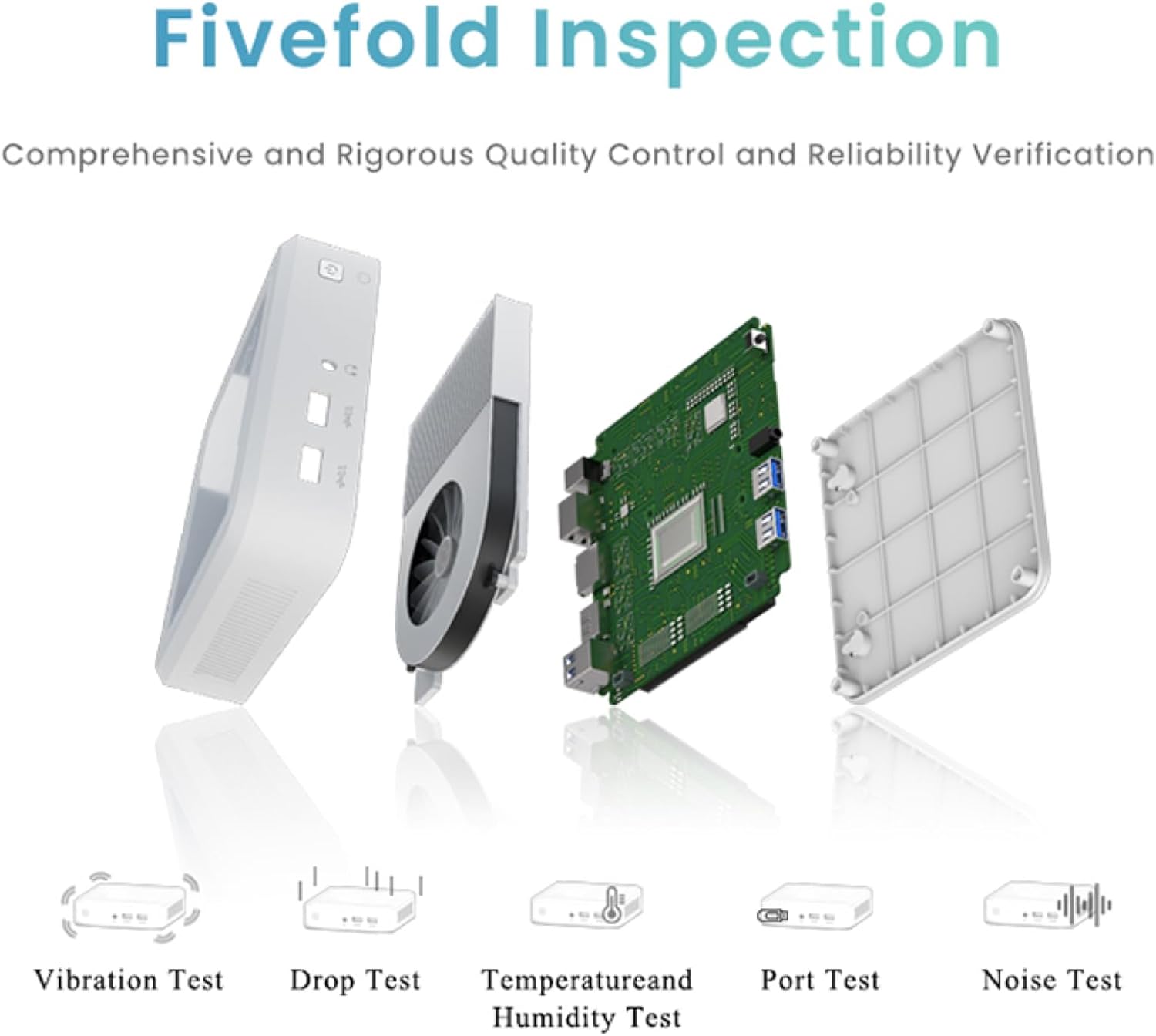
Figure 6.1: The compact dimensions of the GenMachine Mini PC, measuring 12.9 x 12.9 x 3.7 cm, making it suitable for various workspaces.
7. ການຮັບປະກັນແລະການສະຫນັບສະຫນູນ
For detailed warranty information and technical support, please refer to the official GenMachine webເວັບໄຊ ຫຼືຕິດຕໍ່ບໍລິການລູກຄ້າຂອງເຂົາເຈົ້າໂດຍກົງ. ຮັກສາໃບຮັບເງິນການຊື້ຂອງທ່ານໄວ້ເປັນຫຼັກຖານການຊື້ສໍາລັບການຮ້ອງຂໍການຮັບປະກັນ.
The product typically includes a standard manufacturer's warranty. Additional protection plans may be available from your retailer at the time of purchase.
ຂໍ້ມູນຕິດຕໍ່: Please visit the official GenMachine website for the most up-to-date contact details for support and service.


