ແນະນຳ
This manual provides detailed instructions for the setup, operation, maintenance, and troubleshooting of your typecase Keyboard Case for iPad Pro 12.9. Please read this manual thoroughly before using the product to ensure optimal performance and longevity.
The typecase Keyboard Case is designed to enhance your iPad Pro 12.9 experience, offering a versatile keyboard with a trackpad and backlit keys. It is compatible with iPad Pro 12.9-inch (6th, 5th, 4th, 3rd Generation) models.
ເນື້ອໃນຊຸດ
- 1 x typecase Keyboard Case (for iPad Pro 12.9 6th/5th/4th/3rd Gen)
- ສາຍໄຟສາກແບັດ USB-C 1 x
- 1 x ຄູ່ມືຜູ້ໃຊ້
ຕັ້ງຄ່າ
1. ກຳລັງສາກແປ້ນພິມ
Before initial use, fully charge the keyboard. Connect the provided USB-C charging cable to the charging port on the side of the keyboard and to a USB power adapter (not included). The charging indicator light will show the charging status.
- ສະຖານທີ່ພອດສາກໄຟ: Typically on the right side of the keyboard.
- ຊີວິດຫມໍ້ໄຟ: The keyboard features a built-in rechargeable lithium polymer battery. Battery level can be checked on your iPad (like other connected Bluetooth devices) or via a shortcut key (Fn + Spacebar, if available, to show 1/3, 2/3, 3/3 battery life).
2. ການຕິດຕັ້ງ iPad Pro ຂອງທ່ານ
The keyboard case features a magnetic attachment system. Align your iPad Pro 12.9 with the magnetic panel on the case. The magnets will securely hold the iPad in place.
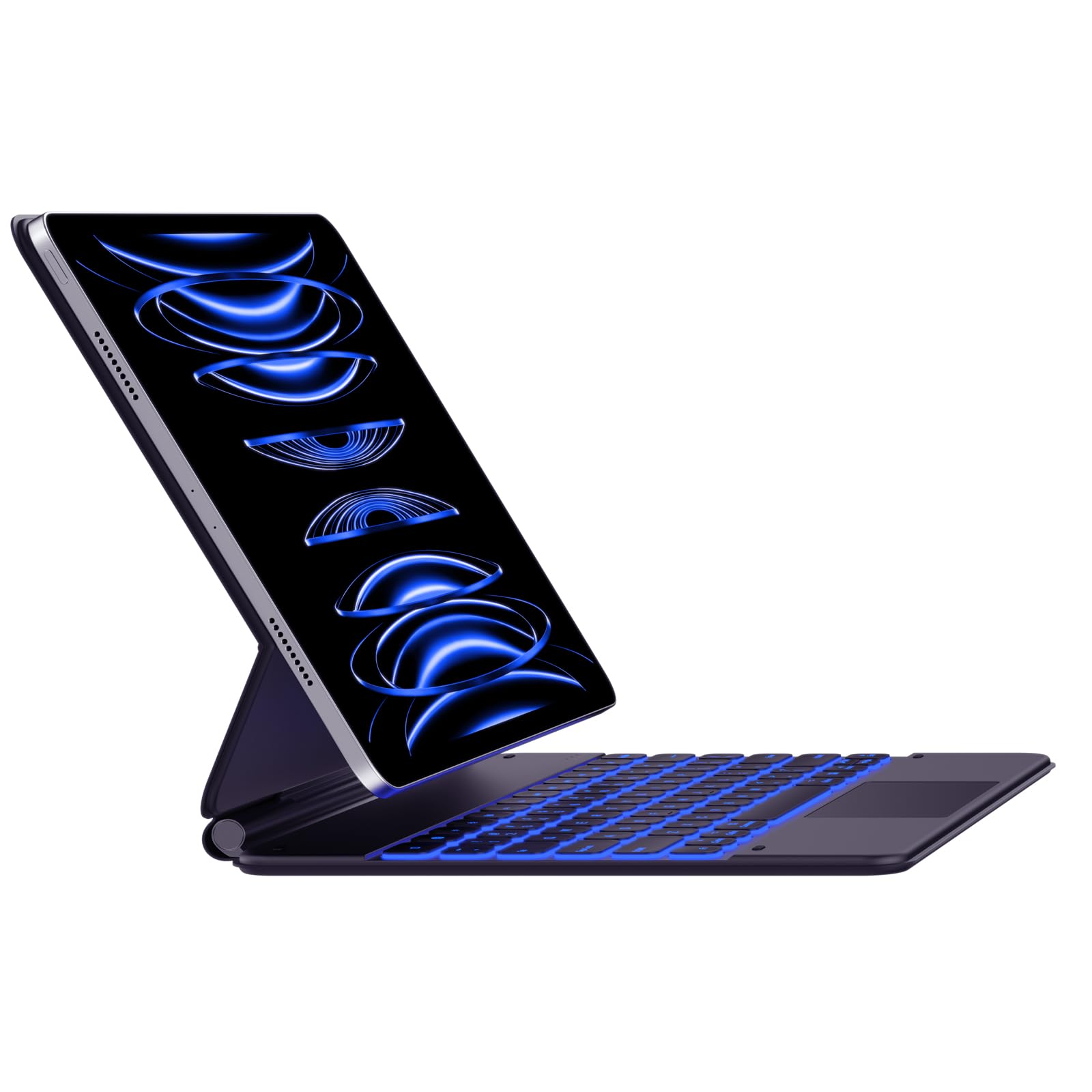
Image: The typecase Keyboard Case with an iPad Pro magnetically attached, displaying blue backlit keys and a vibrant screen.
- Ensure the camera cutout on the case aligns with your iPad's camera.
- The magnetic connection is designed to be strong, but always handle with care.
3. Pairing with Your iPad (Bluetooth Connection)
- ເປີດ: Locate the power switch on the side of the keyboard and slide it to the "ON" position.
- ເປີດໃຊ້ໂໝດການຈັບຄູ່: ກົດຄ້າງໄວ້ ເຊື່ອມຕໍ່ button (or a similar Bluetooth pairing key, often indicated by a Bluetooth icon) on the keyboard. The Bluetooth indicator light will start blinking, indicating it's in pairing mode.
- On Your iPad: ໄປທີ່ ການຕັ້ງຄ່າ > Bluetooth.
- ເລືອກອຸປະກອນ: In the Bluetooth devices list, you should see "typecase Keyboard" or a similar name. Tap on it to connect.
- ການຢືນຢັນ: Once paired, the Bluetooth indicator light on the keyboard will stop blinking and remain solid (or turn off), and your iPad will show the keyboard as "Connected."
Note: The keyboard will automatically attempt to reconnect to the last paired device when powered on. If connection issues occur, repeat the pairing steps.
ຄໍາແນະນໍາການດໍາເນີນງານ
Keyboard Layout and Function Keys
The keyboard features a standard QWERTY layout with an additional row of function keys at the top for quick access to iPad features.
- Escape (Esc): Functions as a Home button.
- Brightness Keys: Adjust iPad screen brightness.
- Keyboard Backlight Keys: Adjust backlight color and brightness.
- ປຸ່ມຄວບຄຸມສື່: ຫຼິ້ນ/ຢຸດຊົ່ວຄາວ, ເພງກ່ອນໜ້ານີ້, ເພງຕໍ່ໄປ.
- ປຸ່ມລະດັບສຽງ: ປິດສຽງ, ຫຼຸດສຽງລົງ, ເພີ່ມສຽງຂຶ້ນ.
- ກະແຈລັອກ: ລັອກໜ້າຈໍ iPad.
- Globe Key: Used for switching between keyboard languages or emoji keyboard (functionality may vary based on iPadOS settings).
ການຄວບຄຸມໄຟຫຼັງ
The keyboard offers 11 backlight colors and 3 levels of brightness. Use the dedicated backlight keys (often marked with a light bulb icon or similar) in the function row to cycle through colors and adjust brightness.
- Press the backlight key once to change color.
- Press the brightness key (often combined with backlight key or separate) to cycle through brightness levels.
ການໃຊ້ແທຣັກແພດ
The integrated trackpad supports multi-touch gestures, similar to a laptop trackpad. Ensure your iPadOS is updated to support trackpad functionality.
| ທ່າທາງ | ການປະຕິບັດ |
|---|---|
| Single Finger Tap | Click, select item. |
| Two Fingers Swipe | Scroll up/down/left/right. |
| Two Fingers Pinch | ຊູມເຂົ້າ/ອອກ. |
| ສາມນິ້ວມືປັດຂຶ້ນ | Go to Home Screen. |
| ສາມນິ້ວມືປັດຊ້າຍ/ຂວາ | ສະຫຼັບລະຫວ່າງແອັບທີ່ເປີດຢູ່. |
Note: Trackpad precision and responsiveness are optimized for general use. For specific settings or advanced gestures, refer to your iPad's accessibility settings.
ຟັງຊັນການນອນອັດຕະໂນມັດ
The keyboard case is designed with an auto-sleep feature to conserve battery. If inactive for a period, the keyboard will enter sleep mode. Press any key to wake it up and reconnect to your iPad.
ບໍາລຸງຮັກສາ
- ທໍາຄວາມສະອາດ: ໃຊ້ອ່ອນ, ງamp, lint-free cloth to clean the keyboard and case. Avoid harsh chemicals or abrasive materials.
- ການເກັບຮັກສາ: When not in use, close the case to protect both the iPad and the keyboard. Store in a cool, dry place away from direct sunlight.
- ການດູແລຫມໍ້ໄຟ: ເພື່ອຍືດອາຍຸການໃຊ້ງານຂອງແບັດເຕີຣີ, ໃຫ້ຫຼີກລ່ຽງການສາກໄຟແປ້ນພິມຈົນໝົດເລື້ອຍໆ. ໃຫ້ສາກໄຟເປັນປະຈຳ, ເຖິງແມ່ນວ່າຈະບໍ່ໝົດໝົດກໍຕາມ.
- ກະດຸມແມ່ເຫຼັກ: Ensure the magnetic clasp is free from debris to maintain a secure closure.
ການແກ້ໄຂບັນຫາ
- ແປ້ນພິມບໍ່ໄດ້ເຊື່ອມຕໍ່:
- ກວດໃຫ້ແນ່ໃຈວ່າແປ້ນພິມໄດ້ເປີດ ແລະສາກໄຟແລ້ວ.
- Check that Bluetooth is enabled on your iPad.
- Forget the device in your iPad's Bluetooth settings and re-pair it.
- Restart both the keyboard and your iPad.
- ປຸ່ມບໍ່ຕອບສະໜອງ:
- Verify the keyboard is connected via Bluetooth.
- ໃຫ້ແນ່ໃຈວ່າແປ້ນພິມບໍ່ໄດ້ຢູ່ໃນໂໝດນອນ.
- Check for any physical obstructions under the keys.
- Trackpad Issues:
- ຢືນຢັນວ່າແປ້ນພິມເຊື່ອມຕໍ່ແລ້ວ.
- Check iPadOS settings for trackpad functionality.
- ເຮັດຄວາມສະອາດພື້ນຜິວ trackpad.
- iPad Slipping from Magnetic Mount:
- Ensure the iPad is correctly aligned with the magnetic panel.
- Check for any debris between the iPad and the magnetic surface.
- Avoid excessive force or sudden movements that could dislodge the iPad.
ຂໍ້ມູນຈໍາເພາະ
| ຄຸນສົມບັດ | ລາຍລະອຽດ |
|---|---|
| ໝາຍເລກຕົວແບບ | KB206129 |
| ຄວາມເຂົ້າກັນໄດ້ | iPad Pro 12.9-inch (6th, 5th, 4th, 3rd Gen) |
| ການເຊື່ອມຕໍ່ | Bluetooth |
| ປະເພດຫມໍ້ໄຟ | Lithium Polymer (ລວມ) |
| ພອດສາກໄຟ | USB-C |
| ແສງຫຼັງ | 11 Colors, 3 Brightness Levels (RGB support) |
| ຄຸນນະສົມບັດພິເສດ | Backlit, Lightweight, Integrated Trackpad, Magnetic Clasp |
| ວັດສະດຸ | Acrylonitrile Butadiene ສະໄຕຣີນ |
| ນ້ໍາຫນັກລາຍການ | 1.13 ກິໂລກຣາມ |
| ຂະໜາດແພັກເກັດ | 30.48 x 25.4 x 3.56 cm |
ການຮັບປະກັນແລະການສະຫນັບສະຫນູນ
Your typecase Keyboard Case is covered by a limited warranty against manufacturing defects. For specific warranty terms and conditions, please refer to the documentation included with your purchase or visit the official typecase webເວັບໄຊ.
For technical support, troubleshooting assistance, or warranty claims, please contact typecase customer service through their official support channels. Contact information can typically be found on the product packaging or the brand's webເວັບໄຊ.


