ແນະນຳ
The Linksys 5G AX1800 Mobile Hotspot is a portable device designed to provide high-speed 5G and WiFi 6 connectivity for multiple devices. With its ultra-thin design and long battery capacity, it allows you to stay connected on the go. This manual provides essential information for the proper setup, operation, maintenance, and troubleshooting of your mobile hotspot.
ຄຸນນະສົມບັດທີ່ສໍາຄັນປະກອບມີ:
- Portable 5G supersonic speed and bandwidth.
- WiFi 6 speeds up to 1.8 Gbps (AX1800).
- Supports connection for 15+ devices simultaneously.
- Ultra-thin and lightweight design for maximum convenience.
- ແບດເຕີລີ່ທີ່ຍາວນານສໍາລັບການນໍາໃຊ້ທີ່ຍາວນານ.
- Powered by leading-edge 5G technology by Qualcomm.
ຮູບ 1: ດ້ານຫນ້າ view of the Linksys 5G AX1800 Mobile Hotspot, showing LED indicators for battery, 5G/LTE, and Wi-Fi status.
ຕັ້ງຄ່າ
1. ຕິດຕັ້ງ SIM Card
The Linksys 5G AX1800 Mobile Hotspot requires a Nano-SIM card for 5G/LTE connectivity. Ensure the device is powered off before inserting the SIM card.
- ຊອກຫາຝາປິດຊ່ອງໃສ່ຊິມກາດຢູ່ດ້ານຂ້າງຂອງອຸປະກອນ.
- ຄ່ອຍໆເປີດຝາປິດ.
- Insert the Nano-SIM card into the slot with the gold contacts facing down and the notched corner aligned correctly.
- ປິດຝາປິດຊ່ອງໃສ່ຊິມກາດຢ່າງປອດໄພ.

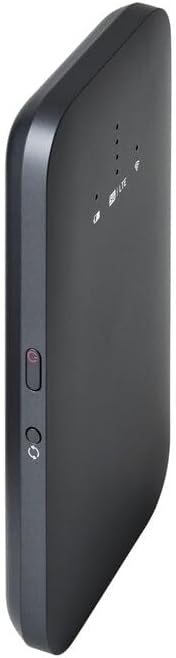
ຮູບ 2: ຂ້າງ view of the mobile hotspot, highlighting the SIM card slot cover.
2. ສາກໄຟອຸປະກອນ
Before first use, fully charge the mobile hotspot. Use the provided charging cable and a compatible USB power adapter.
- Connect one end of the USB cable to the charging port on the device.
- Connect the other end to a USB power adapter or a computer's USB port.
- The battery indicator LED will show charging status. Allow several hours for a full charge.

ຮູບທີ 3: ດ້ານລຸ່ມ view of the mobile hotspot, showing the USB-C charging port.
3. ເປີດ/ປິດ
To power on the device, press and hold the power button located on the side until the LED indicators light up. To power off, press and hold the power button again until the indicators turn off.

ຮູບ 4: ຂ້າງ view of the mobile hotspot, indicating the location of the power button.
ຄໍາແນະນໍາການດໍາເນີນງານ
1. ກຳລັງເຊື່ອມຕໍ່ອຸປະກອນກັບ Wi-Fi
Once powered on, the mobile hotspot will broadcast a Wi-Fi network. You can connect up to 15+ devices simultaneously.
- ໃນອຸປະກອນຂອງທ່ານ (ໂທລະສັບສະຫຼາດ, ແລັບທັອບ, ແທັບເລັດ), ເປີດການຕັ້ງຄ່າ Wi-Fi.
- ຊອກຫາ ເຄືອຂ່າຍ Wi-Fi ທີ່ມີຢູ່.
- Select the network name (SSID) of your Linksys Mobile Hotspot. The default SSID and password are usually found on a sticker inside the device or on its packaging.
- ໃສ່ລະຫັດຜ່ານ Wi-Fi ເມື່ອຖືກເຕືອນ.
- Your device should now be connected to the internet via the mobile hotspot.
2. ເຂົ້າໃຈໄຟສະແດງ LED
The LED indicators on the front of the device provide important status information:
- ຕົວຊີ້ວັດຫມໍ້ໄຟ: Shows the current battery level and charging status.
- 5G/LTE Indicator: Indicates the mobile network connection status (e.g., solid blue for 5G, solid green for LTE, blinking for searching).
- ຕົວຊີ້ວັດ Wi-Fi: Shows if the Wi-Fi network is active and broadcasting.
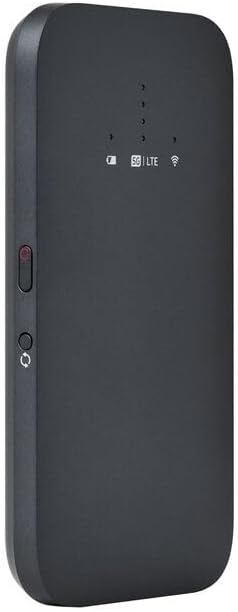
ຮູບທີ 5: ດ້ານໜ້າເປັນມຸມ view of the mobile hotspot, clearly showing the LED indicators for battery, 5G/LTE, and Wi-Fi.
3. ການເຂົ້າເຖິງ Web ການໂຕ້ຕອບການຄຸ້ມຄອງ
For advanced settings, such as changing the Wi-Fi name or password, managing connected devices, or checking data usage, you can access the device's web ການໂຕ້ຕອບການຄຸ້ມຄອງ.
- Ensure your device is connected to the mobile hotspot's Wi-Fi network.
- ເປີດ ກ web ໂປຣແກຣມທ່ອງເວັບ (ຕົວຢ່າງ, Chrome, Firefox, Safari).
- Enter the default IP address for the hotspot (usually
192.168.1.1or192.168.0.1, refer to the device's documentation or sticker for the exact address) into the address bar and press Enter. - Log in using the default username and password (also found on the device sticker or documentation). It is highly recommended to change the default password for security.
ບໍາລຸງຮັກສາ
1. ການດູແລຫມໍ້ໄຟ
- ຫຼີກເວັ້ນການເປີດເຜີຍອຸປະກອນກັບອຸນຫະພູມທີ່ຮຸນແຮງ.
- ຢ່າປ່ອຍໃຫ້ອຸປະກອນມີໄຟຟ້າໝົດເປັນເວລາດົນ.
- ໃຊ້ສະເພາະອຸປະກອນສາກໄຟຕົ້ນສະບັບ ຫຼື ອຸປະກອນເສີມທີ່ໄດ້ຮັບການຮັບຮອງທີ່ເຂົ້າກັນໄດ້ເທົ່ານັ້ນ.
2. ທໍາຄວາມສະອາດ
Wipe the device with a soft, dry, lint-free cloth. Do not use liquid cleaners or aerosols directly on the device.
3. ອັບເດດເຟີມແວ
Periodically check for firmware updates through the web management interface. Keeping the firmware updated ensures optimal performance and security.
ການແກ້ໄຂບັນຫາ
ບໍ່ມີການເຊື່ອມຕໍ່ອິນເຕີເນັດ
- ໃຫ້ແນ່ໃຈວ່າຊິມກາດຖືກໃສ່ຢ່າງຖືກຕ້ອງ ແລະ ເປີດໃຊ້ດ້ວຍແຜນການໃຊ້ອິນເຕີເນັດ.
- Check the 5G/LTE indicator on the device. If it's blinking or off, the device may be searching for a network or have no signal.
- Restart the mobile hotspot and your connected device.
- Verify that your data plan has not been exhausted.
ຄວາມໄວ Wi-Fi ຊ້າ
- Move closer to the mobile hotspot to improve signal strength.
- Reduce the number of connected devices or data-intensive activities.
- ກວດສອບຄວາມແອອັດຂອງເຄືອຂ່າຍໃນພື້ນທີ່ຂອງທ່ານ.
Device Not Connecting to Hotspot
- Ensure the Wi-Fi indicator on the hotspot is active.
- ກວດເບິ່ງລະຫັດຜ່ານ Wi-Fi ສອງຄັ້ງ.
- ປິດເປີດທັງຈຸດເຊື່ອມຕໍ່ ແລະ ອຸປະກອນທີ່ທ່ານກຳລັງພະຍາຍາມເຊື່ອມຕໍ່ຄືນໃໝ່.
ຣີເຊັດເປັນຄ່າໂຮງງານ
If issues persist, you may perform a factory reset. This will revert all settings to their default values, including Wi-Fi name and password. Refer to the device's specific instructions for the reset procedure, usually involving a small reset button.
ຂໍ້ມູນຈໍາເພາະ
| ຄຸນສົມບັດ | ລາຍລະອຽດ |
|---|---|
| ຍີ່ຫໍ້ | ລິ້ງຄ໌ |
| ຊື່ຕົວແບບ | FGHSAX1800 |
| ໝາຍເລກຕົວແບບ | FGHSAX1800-AH |
| ເຕັກໂນໂລຊີການເຊື່ອມຕໍ່ | 5G |
| ມາດຕະຖານ Wi-Fi | WiFi 6 (AX1800) |
| ອັດຕາການໂອນຂໍ້ມູນ | ສູງເຖິງ 1.8 Gigabits ຕໍ່ວິນາທີ |
| ຫ້ອງຮຽນແຖບຄວາມຖີ່ | Dual-Band |
| ປະເພດເສົາອາກາດ | ພາຍໃນ |
| ຄຸນນະສົມບັດພິເສດ | ຮູບແບບການເຂົ້າເຖິງຈຸດ |
| ອົງປະກອບລວມ | ຊ່ອງໃສ່ຊິມກາດ |
| ສະບັບtage | 12 ໂວນ |
| ຂະໜາດແພັກເກັດ | 14 x 7.5 x 1.55 cm |
| ນ້ໍາຫນັກລາຍການ | 185 g |
ການຮັບປະກັນແລະການສະຫນັບສະຫນູນ
For warranty information and technical support, please refer to the warranty card included with your product or visit the official Linksys support webເວັບໄຊ. ໂດຍທົ່ວໄປແລ້ວທ່ານສາມາດຊອກຫາ FAQs, ການດາວໂຫຼດໄດເວີ, ແລະຂໍ້ມູນການຕິດຕໍ່ສໍາລັບການບໍລິການລູກຄ້າຢູ່ທີ່ນັ້ນ.
Linksys Official Support: https://www.linksys.com/support


