1. ຜະລິດຕະພັນເກີນview
The MONOKEI Standard Keyboard is a mechanical keyboard designed for a versatile typing experience. It features a durable construction, hot-swappable switches, and multiple connectivity options.
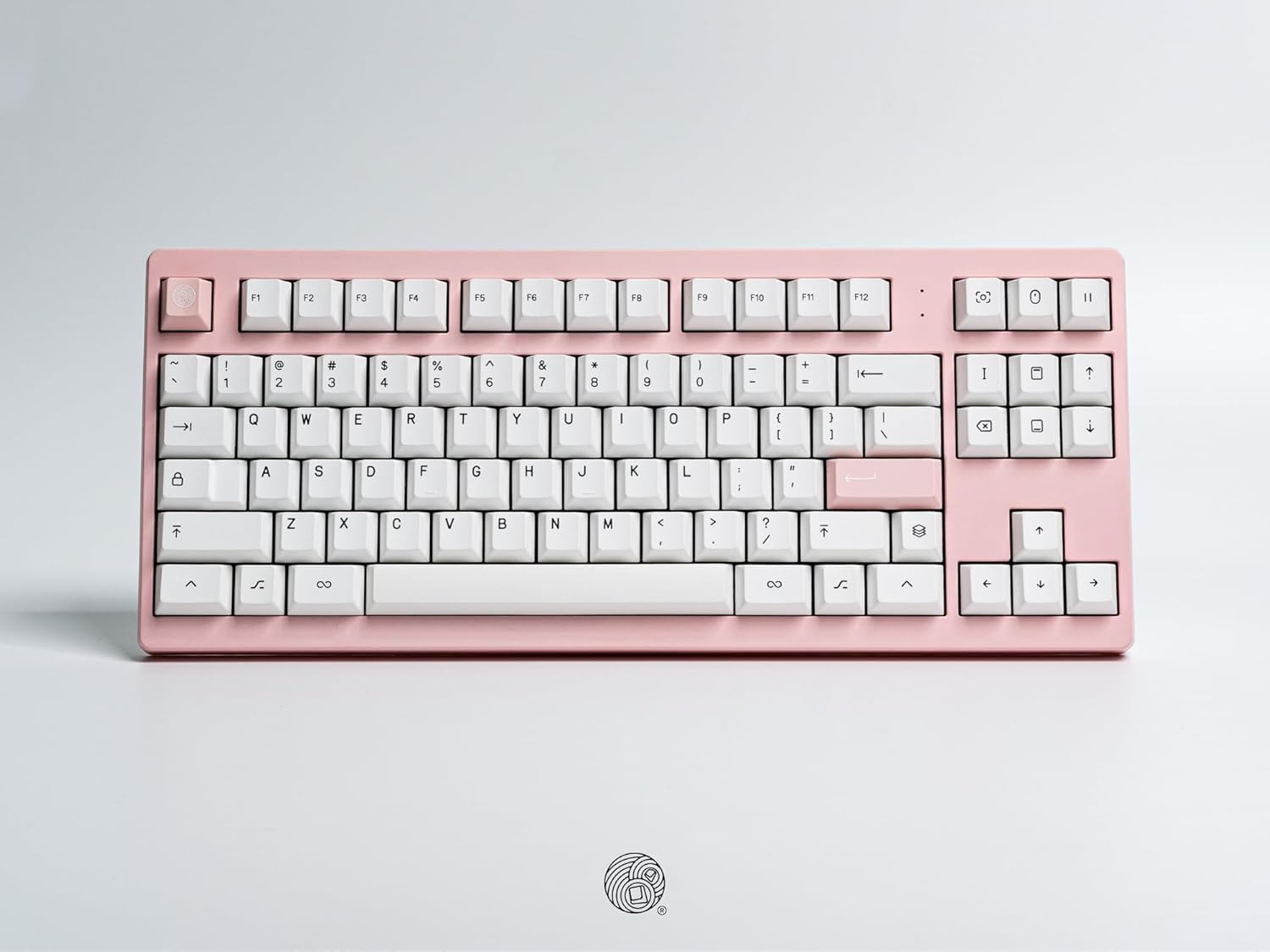
ເໜືອຫົວ view of the MONOKEI Standard Keyboard, showcasing its full layout in a blush pink casing with white PBT keycaps. The keyboard features a standard 87-key layout, including function keys, arrow keys, and a navigation cluster.
2. ຕັ້ງຄ່າ
2.1 Unboxing ແລະເນື້ອໃນ
Carefully remove the keyboard and accessories from the packaging. The box should contain:
- MONOKEI Standard Keyboard
- ສາຍ USB-C
- ຕົວດຶງກະແຈ
2.2 ການເຊື່ອມຕໍ່ເບື້ອງຕົ້ນ
The MONOKEI Standard Keyboard supports both wired and wireless (Bluetooth) connectivity.
ການເຊື່ອມຕໍ່ສາຍ:
- Connect the provided USB-C cable to the port on the keyboard.
- ເຊື່ອມຕໍ່ປາຍອື່ນຂອງສາຍ USB-C ກັບພອດ USB ທີ່ມີຢູ່ໃນຄອມພິວເຕີຂອງທ່ານ.
- ແປ້ນພິມຈະຖືກຮັບຮູ້ໂດຍອັດຕະໂນມັດໂດຍລະບົບປະຕິບັດການຂອງທ່ານ.
ການເຊື່ອມຕໍ່ໄຮ້ສາຍ (Bluetooth):
- Ensure the keyboard is charged or connected via USB-C for initial setup.
- Turn on the keyboard's Bluetooth mode (refer to the Operating section for specific key combinations).
- On your device (PC, laptop, smartphone, tablet), navigate to Bluetooth settings.
- ຊອກຫາ available devices and select 'MONOKEI Standard' to pair.
- ປະຕິບັດຕາມການກະຕຸ້ນໃນຫນ້າຈໍໃດຫນຶ່ງເພື່ອສໍາເລັດຂະບວນການການຈັບຄູ່.
2.3 ການສາກໄຟ
Connect the USB-C cable to the keyboard and a power source (e.g., computer USB port, wall adapter). The keyboard can operate for up to 30 days on a full charge in wireless mode.
3. ຄໍາແນະນໍາການດໍາເນີນງານ
3.1 ຟັງຊັນຫຼັກພື້ນຖານ
The MONOKEI Standard Keyboard features a standard 87-key layout. All alphanumeric keys, symbols, and basic modifiers (Shift, Ctrl, Alt, Fn) function as expected.
3.2 ປຸ່ມຟັງຊັນພິເສດ
The F1-F12 keys may have secondary functions when pressed in combination with the 'Fn' key. Refer to the keycap legends for specific media controls or system functions.
3.3 ການປ່ຽນໂໝດລະບົບປະຕິບັດການ
The keyboard may default to a specific operating system layout (e.g., Mac). To switch between operating system modes (e.g., Windows/Mac), use the designated hotkey combination. Consult the included quick start guide for the specific key sequence.
3.4 Switching Between Paired Devices
If multiple devices are paired via Bluetooth, use the designated function keys (often Fn + 1, 2, or 3) to switch between them quickly.
4. ບໍາລຸງຮັກສາ
4.1 ການທໍາຄວາມສະອາດແປ້ນພິມ
To clean the keyboard, power it off and disconnect it from your device. Use a soft, lint-free cloth lightly dampລ້າງດ້ວຍນໍ້າ ຫຼື ນໍ້າຢາທໍາຄວາມສະອາດອ່ອນໆ. ຫຼີກລ່ຽງການສີດນໍ້າຢາໃສ່ແປ້ນພິມໂດຍກົງ. ສໍາລັບການທໍາຄວາມສະອາດລະຫວ່າງຝາປິດແປ້ນພິມ, ໃຫ້ໃຊ້ອາກາດອັດ ຫຼື ແປງຂະໜາດນ້ອຍ.
4.2 Keycap ແລະ Switch ປ່ຽນແທນ
The MONOKEI Standard Keyboard features hot-swappable sockets, allowing for easy replacement of switches without soldering. To replace keycaps or switches:
- ຄ່ອຍໆຖອດຝາປິດປຸ່ມກົດອອກໂດຍໃຊ້ຕົວດຶງຝາປິດປຸ່ມກົດທີ່ສະໜອງໃຫ້.
- Once the keycap is removed, use a switch puller (not included, but often bundled with replacement switches) to carefully extract the switch from its socket.
- Align the pins of the new switch with the holes in the PCB and press firmly until it clicks into place.
- ວາງປຸ່ມກົດທີ່ຕ້ອງການໃສ່ປຸ່ມສະວິດໃໝ່.
ໝາຍເຫດ: Opening the keyboard casing may void the warranty. Exercise caution if considering internal modifications.
5. ການແກ້ໄຂບັນຫາ
5.1 ບັນຫາການເຊື່ອມຕໍ່
- ແປ້ນພິມບໍ່ໄດ້ເຊື່ອມຕໍ່ຜ່ານ Bluetooth: Ensure Bluetooth is enabled on both the keyboard and your device. Try unpairing and re-pairing the keyboard. Ensure the keyboard is sufficiently charged.
- ບໍ່ຮູ້ຈັກການເຊື່ອມຕໍ່ແບບມີສາຍ: Try a different USB port or cable. Ensure the cable is fully inserted into both the keyboard and the computer.
5.2 ປຸ່ມບໍ່ຕອບສະໜອງ
- ກະແຈສ່ວນຕົວ: If a single key is not responding, the switch may be faulty or improperly seated. Try removing the keycap and switch, then re-inserting the switch firmly. If the issue persists, consider replacing the switch.
- ປຸ່ມຫຼາຍອັນ: Ensure the keyboard is properly connected (wired or wireless). Restart your computer or device. If using wireless, check battery level.
5.3 ບັນຫາການສາກໄຟ
- Ensure the USB-C cable is securely connected to both the keyboard and a working power source.
- ລອງໃຊ້ສາຍ USB-C ຫຼືອະແດັບເຕີໄຟອື່ນ.
6. ຂໍ້ມູນຈໍາເພາະ
| ຄຸນສົມບັດ | ລາຍລະອຽດ |
|---|---|
| ຂະໜາດສິນຄ້າ | 14.3 x 5.9 x 1.5 ນິ້ວ (14.3"L x 5.9"W x 1.5"H) |
| ນ້ໍາຫນັກລາຍການ | 2.1 ປອນ |
| ວັດສະດຸ | Polybutylene Terephthalate (PBT Keycaps) |
| ເຕັກໂນໂລຊີການເຊື່ອມຕໍ່ | Bluetooth, USB-C |
| ຄຸນນະສົມບັດພິເສດ | Hot-Swappable, Long-lasting PBT keycaps, Wired, Wireless |
| ອົງປະກອບລວມ | Keycap Puller, USB Cable |
| ອຸປະກອນທີ່ເຂົ້າກັນໄດ້ | ແລັບທັອບ, ຄອມພິວເຕີ, ໂທລະສັບສະຫຼາດ, ແທັບເລັດ |
7. ການຮັບປະກັນແລະການສະຫນັບສະຫນູນ
7.1 ຂໍ້ມູນການຮັບປະກັນ
MONOKEI products are manufactured to high-quality standards. For specific warranty terms and conditions, please refer to the warranty card included with your product or visit the official MONOKEI webເວັບໄຊ. ຮັກສາຫຼັກຖານການຊື້ຂອງທ່ານສໍາລັບການຮ້ອງຂໍການຮັບປະກັນ.
7.2 ສະຫນັບສະຫນູນລູກຄ້າ
If you encounter any issues or have questions not covered in this manual, please contact MONOKEI customer support. You can find more information and contact details on the official MONOKEI store page:

