1. ບົດແນະນຳ
Welcome to the user manual for your new SGIN E10P 10-inch Kids Tablet. This guide provides essential information on setting up, operating, maintaining, and troubleshooting your device. Please read this manual thoroughly to ensure proper use and to maximize your tablet's features.
ແມ່ນຫຍັງຢູ່ໃນກ່ອງ
ຫຼັງຈາກການຍົກເລີກການຫຸ້ມຫໍ່, ກະລຸນາກວດສອບວ່າລາຍການທັງຫມົດທີ່ມີຢູ່ຂ້າງລຸ່ມນີ້:
- SGIN E10P Kids Tablet (with protective case)
- ຄູ່ມືຜູ້ໃຊ້
- ສາຍ USB Type-C
- ອະແດັບເຕີພະລັງງານ (ສາຍສາກ)
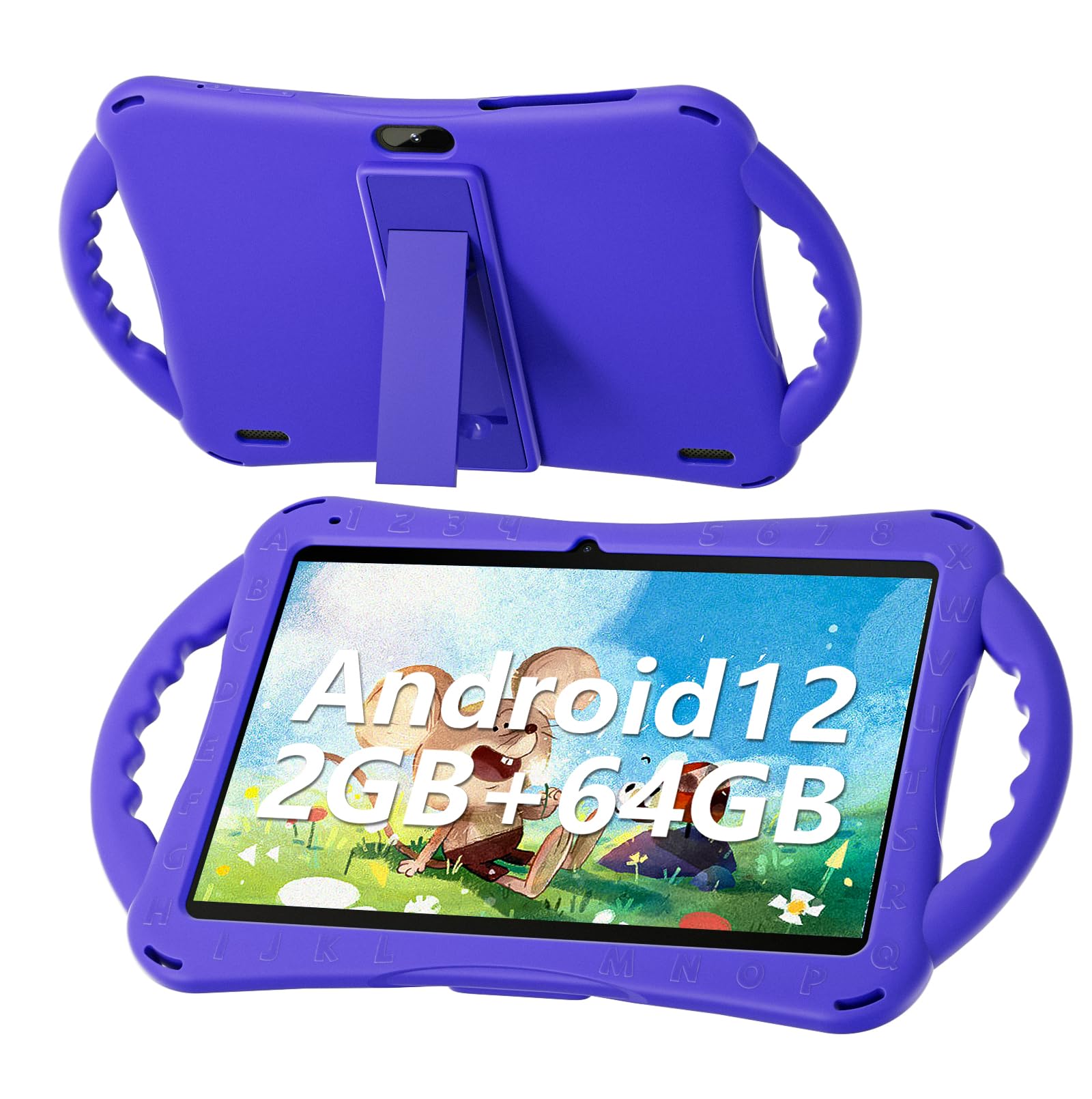
Figure 1: SGIN E10P Kids Tablet with its protective case.
2. ຜະລິດຕະພັນເກີນview
Familiarize yourself with the physical components of your SGIN E10P Kids Tablet.

Figure 2: Labeled diagram of the SGIN E10P Kids Tablet components.
- ກ້ອງໜ້າ: ສໍາລັບການໂທວິດີໂອ ແລະເຊວຟີ.
- ກ້ອງຫຼັງ: ສໍາລັບການຖ່າຍຮູບແລະວິດີໂອ.
- ລໍາໂພງ: ສຽງອອກ.
- Type-C Port: ສໍາລັບການສາກໄຟແລະການໂອນຂໍ້ມູນ.
- ສະລັອດຕິງບັດ TF: ສຳລັບການຂະຫຍາຍພື້ນທີ່ເກັບຂໍ້ມູນດ້ວຍບັດ microSD.
- ຫູຟັງ Jack: ສໍາລັບການເຊື່ອມຕໍ່ຫູຟັງແບບມີສາຍ.
- ເພີ່ມປະລິມານ: Button to raise the audio level.
- ຫຼຸດປະລິມານ: Button to lower the audio level.
- Bracket (Kickstand): ຂາຕັ້ງແບບປະສົມປະສານສໍາລັບ hands-free viewing.
- Armrest (Handle): Ergonomic handles on the protective case for easy gripping.
3. ຕັ້ງຄ່າ
3.1 ການສາກແທັບເລັດ
Before first use, fully charge the tablet. Connect the USB Type-C cable to the tablet's Type-C port and the other end to the power adapter. Plug the power adapter into a wall outlet. The battery indicator on the screen will show charging status. A full charge typically takes several hours.
3.2 ການເປີດ/ປິດ
- ເພື່ອເປີດເຄື່ອງ: Press and hold the Power button (usually located on the side or top edge) until the SGIN logo appears on the screen.
- ປິດເຄື່ອງ: ກົດປຸ່ມເປີດປິດຄ້າງໄວ້ຈົນກ່ວາເມນູປະກົດຂຶ້ນ. ເລືອກ "ປິດໄຟ" ຈາກທາງເລືອກ.
- ເພື່ອເລີ່ມຕົ້ນໃໝ່: ກົດປຸ່ມເປີດປິດຄ້າງໄວ້ຈົນກ່ວາເມນູປະກົດຂຶ້ນ. ເລືອກ "ເລີ່ມຕົ້ນໃຫມ່" ຈາກທາງເລືອກ.
3.3 ການຕິດຕັ້ງເບື້ອງຕົ້ນ
The first time you power on the tablet, you will be guided through an initial setup process:
- ການເລືອກພາສາ: ເລືອກພາສາທີ່ເຈົ້າມັກ.
- ການເຊື່ອມຕໍ່ Wi-Fi: ເລືອກເຄືອຂ່າຍ Wi-Fi ຂອງທ່ານແລະໃສ່ລະຫັດຜ່ານເພື່ອເຊື່ອມຕໍ່ກັບອິນເຕີເນັດ.
- ບັນຊີ Google: Sign in with an existing Google account or create a new one. This is necessary for downloading apps from the Google Play Store.
- ວັນທີ ແລະເວລາ: ຕັ້ງວັນທີ ແລະ ເວລາທີ່ຖືກຕ້ອງ ຫຼື ອະນຸຍາດໃຫ້ເຄືອຂ່າຍຕັ້ງຄ່າມັນໂດຍອັດຕະໂນມັດ.
- ການຄວບຄຸມຂອງພໍ່ແມ່: Configure Google Kids Space or other parental control features to manage content and screen time for children.
4. ປະຕິບັດການແທັບເລັດ
4.1 ການນໍາທາງພື້ນຖານ
The SGIN E10P tablet uses a touch-sensitive screen for navigation:
- ແຕະ: ແຕະໜ້າຈໍໜຶ່ງຄັ້ງເພື່ອເປີດແອັບ, ເລືອກລາຍການໃດໜຶ່ງ, ຫຼືກົດປຸ່ມໃດໜຶ່ງ.
- ແຕະຄ້າງໄວ້: ກົດລາຍການຄ້າງໄວ້ເພື່ອເຂົ້າເຖິງຕົວເລືອກເພີ່ມເຕີມ ຫຼືຍ້າຍມັນ.
- ປັດ: ລາກນິ້ວມືຂອງທ່ານໄປທົ່ວໜ້າຈໍເພື່ອເລື່ອນຜ່ານໜ້າ ຫຼືລາຍການຕ່າງໆ.
- Pinch-to-Zoom: ວາງສອງນິ້ວມືໃສ່ໜ້າຈໍ ແລະ ຍ້າຍມັນອອກຈາກກັນເພື່ອຊູມເຂົ້າ ຫຼື ແຍກມັນອອກເພື່ອຊູມອອກ.
4.2 ການເຊື່ອມຕໍ່ Wi-Fi
To connect or manage Wi-Fi networks:
- ໄປທີ່ ການຕັ້ງຄ່າ > ເຄືອຂ່າຍ ແລະອິນເຕີເນັດ > Wi-Fi.
- ສະຫຼັບ Wi-Fi On.
- ເລືອກເຄືອຂ່າຍທີ່ທ່ານຕ້ອງການຈາກບັນຊີລາຍຊື່ແລະໃສ່ລະຫັດຜ່ານຖ້າຫາກວ່າ prompted.

Figure 3: The tablet supports both 2.4GHz and 5GHz Wi-Fi for stable connections.
4.3 Applications and Content
The tablet runs on Android 12 and comes with access to the Google Play Store, allowing you to download a wide range of applications. It is pre-configured for children's use, supporting apps like YouTube Kids, educational games, and other child-friendly content.

Figure 4: The Android 12 interface with various pre-installed and downloadable kids' apps.
4.4 ການຄວບຄຸມຂອງຜູ້ປົກຄອງ
Utilize the built-in parental control features to manage your child's tablet experience. This includes setting screen time limits, filtering content, and approving app downloads. Access these settings through the Google Family Link app or directly in the tablet's settings under "Digital Wellbeing & parental controls."
5. ບໍາລຸງຮັກສາ
5.1 ການທໍາຄວາມສະອາດ
- ໜ້າຈໍ: ໃຊ້ຜ້າອ່ອນໆທີ່ບໍ່ມີຂົນທີ່ອອກແບບມາສະເພາະສຳລັບເຄື່ອງເອເລັກໂຕຣນິກ. ສຳລັບຮອຍເປື້ອນທີ່ຝັງແໜ້ນ, ໃຫ້ໃຊ້ຜ້າເຊັດໂຕເລັກນ້ອຍampໃສ່ຜ້າດ້ວຍນ້ໍາຫຼືການແກ້ໄຂເຮັດຄວາມສະອາດຫນ້າຈໍ (ຢ່າສີດໃສ່ຫນ້າຈໍໂດຍກົງ).
- ກໍລະນີ: The silicone protective case can be wiped with a damp cloth and mild soap if necessary. Ensure it is completely dry before reattaching it to the tablet.
- ພອດ: Keep all ports (USB-C, headphone jack, TF card slot) free of dust and debris. Use a soft brush or compressed air if needed.
5.2 ການດູແລຫມໍ້ໄຟ
The tablet is equipped with a 5000mAh battery, providing extended usage time.

Figure 5: The tablet features a 5000mAh battery for prolonged use.
- ຫຼີກເວັ້ນອຸນຫະພູມທີ່ຮຸນແຮງ, ຍ້ອນວ່າພວກມັນສາມາດເຮັດໃຫ້ອາຍຸຫມໍ້ໄຟຫຼຸດລົງ.
- ໃຊ້ພຽງແຕ່ສາຍສາກ ແລະສາຍທີ່ໃຫ້ມາເພື່ອປ້ອງກັນຄວາມເສຍຫາຍ.
- ເພື່ອອາຍຸການໃຊ້ງານຂອງແບັດເຕີຣີທີ່ດີທີ່ສຸດ, ຄວນຫຼີກລ່ຽງການເຮັດໃຫ້ແບັດເຕີຣີໝົດເລື້ອຍໆ ຫຼື ຮັກສາໃຫ້ແບັດເຕີຣີສາກໄຟ 100% ເປັນເວລາດົນ.
5.3 ການເກັບຮັກສາ
Store the tablet in a cool, dry place away from direct sunlight and moisture when not in use.
6. ການແກ້ໄຂບັນຫາ
This section addresses common issues you might encounter with your SGIN E10P tablet.
6.1 ແທັບເລັດບໍ່ເປີດ
- ໃຫ້ແນ່ໃຈວ່າແທັບເລັດສາກໄຟພຽງພໍ. ເຊື່ອມຕໍ່ມັນກັບເຄື່ອງສາກຢ່າງໜ້ອຍ 30 ນາທີກ່ອນທີ່ຈະພະຍາຍາມເປີດມັນອີກຄັ້ງ.
- ກົດປຸ່ມເປີດປິດຄ້າງໄວ້ 10-15 ວິນາທີເພື່ອເປີດປິດເປີດຄືນໃໝ່.
6.2 ບັນຫາການເຊື່ອມຕໍ່ Wi-Fi
- ກວດເບິ່ງວ່າ Wi-Fi ຖືກເປີດໃຊ້ຢູ່ໃນການຕັ້ງຄ່າຂອງແທັບເລັດຫຼືບໍ່.
- Verify that your Wi-Fi router is working correctly and other devices can connect.
- Forget the network in the tablet's Wi-Fi settings and reconnect.
- Restart both the tablet and your Wi-Fi router.
6.3 ແອັບຂັດຂ້ອງ ຫຼື ຄ້າງໄວ້
- ປິດ ແລະເປີດແອັບຄືນໃໝ່.
- ລ້າງແຄດຂອງແອັບຯ ແລະຂໍ້ມູນໃນ ການຕັ້ງຄ່າ > ແອັບ > [ຊື່ແອັບ] > ການເກັບຮັກສາ & cache.
- Ensure the app is updated to its latest version via the Google Play Store.
- ຣີສະຕາດແທັບເລັດ.
6.4 ການປະຕິບັດຊ້າ
- ປິດແອັບພລິເຄຊັນພື້ນຫຼັງທີ່ບໍ່ຈໍາເປັນ.
- ລຶບຂໍ້ມູນທີ່ເກັບໄວ້ໃນແຄສຈາກແອັບ ແລະ ລະບົບ.
- Ensure there is sufficient storage space available. Delete unused apps or files.
- ພິຈາລະນາການດໍາເນີນການຕັ້ງຄ່າໂຮງງານໃຫມ່ເປັນທາງເລືອກສຸດທ້າຍ (ໝາຍເຫດ: This will erase all data on the tablet. Back up important files ທໍາອິດ).
7. ຂໍ້ມູນຈໍາເພາະ
Key technical specifications for the SGIN E10P Kids Tablet:
| ຄຸນສົມບັດ | ຂໍ້ມູນຈໍາເພາະ |
|---|---|
| ຍີ່ຫໍ້ | SGIN |
| ໝາຍເລກຕົວແບບ | E10P |
| ຂະໜາດໜ້າຈໍ | 10 ນິ້ວ |
| ຄວາມລະອຽດໜ້າຈໍ | 1280 x 800 |
| ໂຮງງານຜະລິດ | 1.5 GHz Allwinner Quad-core A133 |
| RAM | 2 GB |
| ບ່ອນຈັດເກັບຂໍ້ມູນ (ROM) | 64 GB |
| ການເກັບຮັກສາທີ່ຂະຫຍາຍໄດ້ | TF Card Slot (for additional expansion) |
| ລະບົບປະຕິບັດການ | Android 12 |
| ຫລັງ Webຄວາມລະອຽດກ້ອງ | 5 MP |
| ກ້ອງໜ້າ | 2 MP |
| ຄວາມອາດສາມາດຫມໍ້ໄຟ | 5000 mAh |
| ການເຊື່ອມຕໍ່ | 2.4G/5G WiFi, Bluetooth 4.2 |
| ຂະໜາດ (LxWxH) | 10.1 x 6 x 0.4 ນິ້ວ |
| ນ້ໍາຫນັກລາຍການ | 2.27 ປອນ |
8. ການຮັບປະກັນແລະການສະຫນັບສະຫນູນ
SGIN provides a 1-year maintenance period from the date of purchase for this product. If you encounter any issues or require assistance, please contact SGIN customer support.
For further support, please refer to the contact information provided with your purchase documentation or visit the official SGIN webເວັບໄຊ.