1. ບົດແນະນຳ
This manual provides essential information for the proper setup, operation, and maintenance of your TECLAST T40HD 10.4-inch Android 13 Tablet. Please read this manual thoroughly before using the device to ensure optimal performance and longevity. Keep this manual for future reference.

ຮູບພາບ 1.1: ດ້ານໜ້າ ແລະດ້ານຫຼັງ view of the TECLAST T40HD tablet, showcasing its slim design and camera module.
2. ເນື້ອໃນຊຸດ
ກວດສອບວ່າລາຍການທັງຫມົດທີ່ລະບຸໄວ້ຂ້າງລຸ່ມນີ້ແມ່ນມີຢູ່ໃນການຫຸ້ມຫໍ່ຜະລິດຕະພັນຂອງທ່ານ:
- TECLAST T40HD Tablet
- Power Adapter (ອາດຈະແຕກຕ່າງກັນຕາມພາກພື້ນ)
- ສາຍຂໍ້ມູນ (USB Type-C)
- Drive Out Pin (for SIM/Micro SD tray)
- ບັດບໍາລຸງຮັກສາ
- ຄູ່ມືຜູ້ໃຊ້ (ເອກະສານນີ້)
- ຕົວປ້ອງກັນໜ້າຈໍ (ນຳໃຊ້ລ່ວງໜ້າ ຫຼື ລວມມີແຍກຕ່າງຫາກ)

Image 2.1: Illustration of the TECLAST T40HD tablet and its standard accessories included in the box.
3. ການຕິດຕັ້ງເບື້ອງຕົ້ນ
3.1 ການສາກແທັບເລັດ
Before first use, fully charge the tablet using the provided power adapter and USB Type-C cable. Connect the cable to the tablet's USB-C port and the adapter to a power outlet. The charging indicator will typically show progress on the screen.

Image 3.1: The tablet connected to a charger, indicating battery status, and a user operating the tablet while traveling.
3.2 ການເປີດ/ປິດ
- ເພື່ອເປີດເຄື່ອງ: Press and hold the Power button (located on the side) until the TECLAST logo appears on the screen.
- ປິດເຄື່ອງ: ກົດປຸ່ມເປີດ/ປິດຄ້າງໄວ້ຈົນກວ່າເມນູຕົວເລືອກພະລັງງານຈະປາກົດຂຶ້ນ. ເລືອກ 'ປິດເຄື່ອງ'.
- ເພື່ອເລີ່ມຕົ້ນໃໝ່: ຈາກເມນູຕົວເລືອກພະລັງງານ, ເລືອກ 'Restart'.
3.3 ການໃສ່ຊິມກາດ ແລະ ໄມໂຄຣ SD
The TECLAST T40HD supports dual SIM cards and a Micro SD card for expanded storage. Use the provided drive out pin to open the card tray.
- Locate the SIM/Micro SD card tray on the side of the tablet.
- Insert the drive out pin into the small hole next to the tray and press gently until the tray ejects.
- ດຶງຖາດອອກຢ່າງລະມັດລະວັງ.
- Place your Nano-SIM cards and/or Micro SD card into the designated slots on the tray, ensuring correct orientation.
- ຍູ້ຖາດກັບໄປໃສ່ແທັບເລັດຄ່ອຍໆ ຈົນກວ່າມັນຈະກົດໃສ່ບ່ອນ.

Image 3.2: The SIM/Micro SD card tray, illustrating the placement of SIM cards.
3.4 ການຕິດຕັ້ງ Android ເບື້ອງຕົ້ນ
Upon first power-on, the tablet will guide you through the Android 13 setup process. This includes selecting your language, connecting to Wi-Fi, setting up your Google account, and configuring security options like face unlock.
4. ປະຕິບັດການແທັບເລັດ
4.1 ການນຳທາງ ແລະ ທ່າທາງ
The TECLAST T40HD runs on Android 13, offering intuitive navigation through gestures and on-screen buttons. Common gestures include:
- ແຕະ: ເລືອກລາຍການ ຫຼືເປີດແອັບ.
- ປັດ: ເລື່ອນຜ່ານໜ້າ ຫຼືລາຍຊື່.
- Pinch-to-zoom: ຂະຫຍາຍ ຫຼືຫຼຸດເນື້ອຫາໃນໜ້າຈໍ.
- ປັດຂຶ້ນຈາກລຸ່ມສຸດ: Go to Home screen or open app drawer.
- Swipe from left/right edge: ກັບຄືນ.
4.2 ການເຊື່ອມຕໍ່ກັບເຄືອຂ່າຍ
- Wi-Fi: Go to Settings > Network & internet > Wi-Fi. Select your network and enter the password.
- ຂໍ້ມູນມືຖື (4G LTE): If a SIM card is inserted, enable mobile data in Settings > Network & internet > Mobile network.
- Bluetooth: Pair with Bluetooth devices (e.g., headphones, keyboards) via Settings > Connected devices > Bluetooth.
4.3 ມັນຕິມີເດຍ ແລະເກມ
The tablet's 2K HD display and Unisoc T606 Octa-core processor provide a smooth experience for media consumption and gaming.
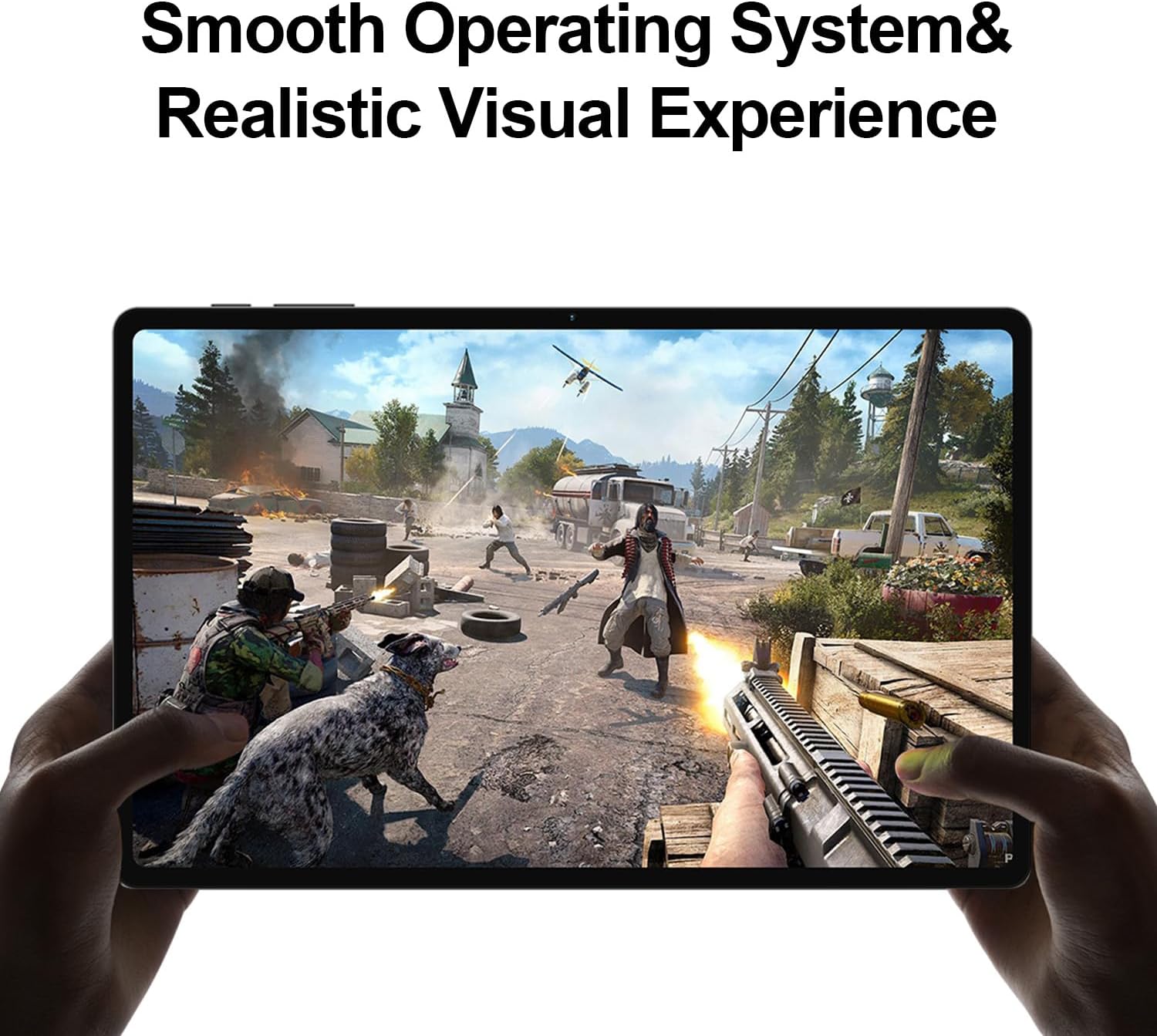
Image 4.1: The tablet displaying a high-fidelity video game, demonstrating its graphical capabilities.

Image 4.2: The tablet showcasing its battery performance for different usage scenarios.
4.4 Multitasking
Android 13 supports split-screen mode, allowing you to use two apps simultaneously. To activate, open an app, then swipe up slightly from the bottom of the screen to reveal the recent apps. Tap the app icon at the top of the window and select 'Split top'. Choose another app to fill the second half of the screen.

Image 4.3: The tablet demonstrating split-screen functionality for enhanced productivity.
4.5 ການຄວບຄຸມຂອງຜູ້ປົກຄອງ
Utilize Android's built-in parental control features to manage screen time, restrict app access, and filter content. Access these settings through the Google Family Link app or directly in the tablet's Settings menu under 'Digital Wellbeing & parental controls'.

Image 4.4: Parental control features displayed on the tablet, enabling management of usage for children.
4.6 GPS Navigation
The integrated GPS functionality allows for precise location tracking and navigation. Use pre-installed map applications or download your preferred navigation apps from the Google Play Store.

Image 4.5: The tablet used for GPS navigation in a vehicle.
4.7 Android 13 Features Overview
The TECLAST T40HD operates on Android 13, offering enhanced privacy controls, improved battery efficiency, smoother overall operation, and various user interface improvements. It also expands compatibility with a wide range of devices and applications.

Image 4.6: Visual representation of the Android 13 operating system interface on the tablet.
4.8 ວິດີໂອຜະລິດຕະພັນຢ່າງເປັນທາງການ
Video 4.1: An official product video from Teclast USA Official Store, showcasing the key features and design of the TECLAST T40HD Android 13 Tablet.
5. ບໍາລຸງຮັກສາ
- ທໍາຄວາມສະອາດ: ໃຊ້ຜ້າທີ່ອ່ອນໆ, ບໍ່ມີສານດ່າງເພື່ອເຮັດຄວາມສະອາດຫນ້າຈໍແລະຮ່າງກາຍ. ຫຼີກລ້ຽງການວັດສະດຸຂັດຫຼືສານເຄມີທີ່ຮ້າຍແຮງ.
- ອັບເດດຊອບແວ: ກວດສອບ ແລະຕິດຕັ້ງການອັບເດດລະບົບເປັນປະຈຳເພື່ອຮັບປະກັນປະສິດທິພາບ ແລະຄວາມປອດໄພທີ່ດີທີ່ສຸດ. ໄປທີ່ Settings > System > System update.
- ການດູແລຫມໍ້ໄຟ: To prolong battery life, avoid extreme temperatures and do not let the battery fully discharge frequently.
- ການຈັດການການເກັບຮັກສາ: ລ້າງບໍ່ຈໍາເປັນເປັນໄລຍະ files ແລະຖອນການຕິດຕັ້ງແອັບຯທີ່ບໍ່ໄດ້ໃຊ້ເພື່ອເພີ່ມພື້ນທີ່ຫວ່າງ.
6. ການແກ້ໄຂບັນຫາ
| ສະບັບ | ການແກ້ໄຂທີ່ເປັນໄປໄດ້ |
|---|---|
| ແທັບເລັດບໍ່ເປີດ | Ensure the tablet is charged. Connect to the charger for at least 30 minutes before attempting to power on again. |
| ໜ້າຈໍບໍ່ຕອບສະໜອງ | Perform a force restart by holding the Power button for approximately 10-15 seconds. If the issue persists, contact support. |
| ບັນຫາການເຊື່ອມຕໍ່ Wi-Fi | Restart the tablet and your Wi-Fi router. Forget the network in Wi-Fi settings and reconnect. Ensure you are within range. |
| ແອັບກຳລັງຂັດຂ້ອງ ຫຼືຄ້າງ | Clear the cache for the problematic app (Settings > Apps > [App Name] > Storage & cache > Clear cache). Update the app or uninstall and reinstall it. Ensure sufficient free storage. |
| ການປະຕິບັດຊ້າ | Close unused background apps. Clear cache and temporary files. Consider a factory reset if performance issues are severe and persistent (back up data first). |
| ບໍ່ໄດ້ກວດພົບ SIM card | Ensure the SIM card is correctly inserted into the tray. Restart the tablet. Verify that mobile data is enabled in settings. |
7. ຂໍ້ມູນຈໍາເພາະ

ຮູບພາບ 7.1: ຫຼາຍກວ່າview of the TECLAST T40HD tablet's key technical specifications.
| ຄຸນສົມບັດ | ລາຍລະອຽດ |
|---|---|
| ຕົວແບບ | T40HD |
| ລະບົບປະຕິບັດການ | Android 13 (GMS ຮັບຮອງ) |
| ຈໍສະແດງຜົນ | 10.4-inch 2K (2000x1200) TDDI IPS, TÜV Rheinland Certified |
| ໂຮງງານຜະລິດ | Unisoc T606 Octa-Core (1.6 GHz) |
| RAM | 16GB (8GB ຕົວຈິງ + 8GB ເພີ່ມໄດ້) |
| ການເກັບຮັກສາພາຍໃນ | 128GB UMCP |
| ການເກັບຮັກສາທີ່ຂະຫຍາຍໄດ້ | Micro SD card up to 1TB |
| ກ້ອງຫຼັງ | 13MP + 30W auxiliary camera |
| ກ້ອງໜ້າ | 8MP |
| ແບັດເຕີຣີ | ໂພລີເມີລີທຽມ 7200mAh |
| ການເຊື່ອມຕໍ່ | 4G LTE (Dual SIM), 5G WiFi (2.4/5GHz), Bluetooth 5.0, GPS |
| ທ່າເຮືອ | USB ປະເພດ-C, ຊ່ອງສຽບຫູຟັງ 3.5 ມມ |
| ຂະໜາດ (LxWxH) | 10.4 x 6 x 0.6 ນິ້ວ |
| ນ້ຳໜັກ | 1.9 ປອນ |
8. ການຮັບປະກັນແລະການສະຫນັບສະຫນູນ
8.1 ຂໍ້ມູນການຮັບປະກັນ
TECLAST products typically come with a 1-year warranty from the date of purchase. This warranty covers manufacturing defects. Please refer to the 'Maintenance Card' included in your package for specific warranty terms and conditions. Keep your proof of purchase for warranty claims.
8.2 ສະຫນັບສະຫນູນລູກຄ້າ
For technical assistance, troubleshooting, or warranty inquiries, please contact TECLAST customer support. You can typically find contact information on the official TECLAST website or through the retailer where you purchased the device. TECLAST aims to respond to inquiries within one working day and offers a 1-year unconditional replacement service for eligible issues.
ໝາຍເຫດສຳຄັນ: It is recommended to charge the product for more than 30 minutes before turning it on for the first time.


