1. ບົດແນະນຳ
Thank you for choosing the WEWATCH S3 Smart Projector. This projector integrates an Android operating system, offering a seamless entertainment experience with built-in streaming applications. It features 4K Ultra-HD resolution, 500 ANSI lumens brightness, 20000:1 contrast, electronic focus, 4-point keystone correction, and versatile connectivity options including dual-band WiFi and Bluetooth. This manual provides essential information for setting up, operating, maintaining, and troubleshooting your projector to ensure optimal performance and longevity.
2. ຂໍ້ມູນຄວາມປອດໄພ
ກະລຸນາອ່ານຄຳແນະນຳດ້ານຄວາມປອດໄພທັງໝົດຢ່າງລະອຽດກ່ອນທີ່ຈະໃຊ້ໂປເຈັກເຕີ. ເກັບຄູ່ມືນີ້ໄວ້ເພື່ອອ້າງອີງໃນອະນາຄົດ.
- ການສະຫນອງພະລັງງານ: ໃຊ້ພຽງແຕ່ອະແດບເຕີໄຟຟ້າທີ່ສະໜອງໃຫ້ເທົ່ານັ້ນ. ໃຫ້ແນ່ໃຈວ່າລະດັບສຽງtage ກົງກັບຄວາມຕ້ອງການຂອງໂປເຈັກເຕີ.
- ການລະບາຍອາກາດ: ຫ້າມປິດຊ່ອງລະບາຍອາກາດ. ຮັບປະກັນການໄຫຼວຽນຂອງອາກາດທີ່ພຽງພໍຢູ່ຮອບໂປເຈັກເຕີເພື່ອປ້ອງກັນຄວາມຮ້ອນເກີນ.
- ການເປີດເຜີຍຂອງແຫຼວ: Do not expose the projector to rain, moisture, or any liquids. Avoid placing objects filled with liquids, such as vases, on the projector.
- ທໍາຄວາມສະອາດ: ຖອດສາຍໂປເຈັກເຕີອອກກ່ອນທຳຄວາມສະອາດ. ໃຊ້ຜ້າອ່ອນ, ແຫ້ງ. ຫ້າມໃຊ້ນໍ້າສະອາດ ຫຼື ແອໂຣໂຊລ.
- ການຈັດວາງ: Place the projector on a stable, flat surface. Avoid placing it in direct sunlight, near heat sources, or in environments with excessive dust or humidity.
- ການປົກປ້ອງຕາ: ຢ່າເບິ່ງໂດຍກົງໃນເລນໂປເຈັກເຕີເມື່ອ lamp ເປີດຢູ່, ເນື່ອງຈາກແສງສະຫວ່າງສາມາດເຮັດໃຫ້ເກີດຄວາມເສຍຫາຍຕໍ່ຕາ.
- ການບໍລິການ: ຢ່າພະຍາຍາມບໍລິການຜະລິດຕະພັນນີ້ດ້ວຍຕົນເອງ. ອ້າງເຖິງການບໍລິການທັງtoົດໃຫ້ກັບພະນັກງານບໍລິການທີ່ມີຄຸນວຸດທິ.
3. ເນື້ອໃນຊຸດ
ກະລຸນາກວດເບິ່ງເນື້ອໃນຂອງແພັກເກດເມື່ອ unboxing:
- WEWATCH S3 Smart Projector
- ການຄວບຄຸມໄລຍະໄກ
- Power Adapter
- ສາຍ HDMI
- ຄູ່ມືຜູ້ໃຊ້
4. ຜະລິດຕະພັນເກີນview
Familiarize yourself with the components and ports of your WEWATCH S3 projector.

ດ້ານໜ້າ view of the WEWATCH S3 Smart Projector, showcasing the lens and sleek design.
ພອດເຊື່ອມຕໍ່

ຫລັງ view of the WEWATCH S3 Projector, highlighting the various input and output ports including LAN, USB, HDMI, AV, and headphone jack.
The projector is equipped with multiple ports for diverse connectivity:
- LAN Port (x1): ສໍາລັບການເຊື່ອມຕໍ່ອິນເຕີເນັດແບບມີສາຍ.
- ພອດ USB (x2): ສຳລັບເຊື່ອມຕໍ່ໄດຣຟ໌ USB ຫຼືອຸປະກອນ USB ອື່ນໆ.
- ຜອດ HDMI (x2): For connecting devices like laptops, gaming consoles, or TV sticks.
- ພອດ AV (x1): ສຳລັບການເຊື່ອມຕໍ່ອຸປະກອນສຽງ/ວິດີໂອລຸ້ນເກົ່າ.
- Jack ຫູຟັງ (3.5mm): ສຳລັບການເຊື່ອມຕໍ່ອຸປະກອນສຽງພາຍນອກ ຫຼື ຫູຟັງ.
5. ຕັ້ງຄ່າ
5.1 ຕຳແໜ່ງ ແລະ ຂະໜາດໜ້າຈໍ
Position the projector on a stable surface. The projection distance determines the screen size. You can achieve a large screen size of up to 300 inches.
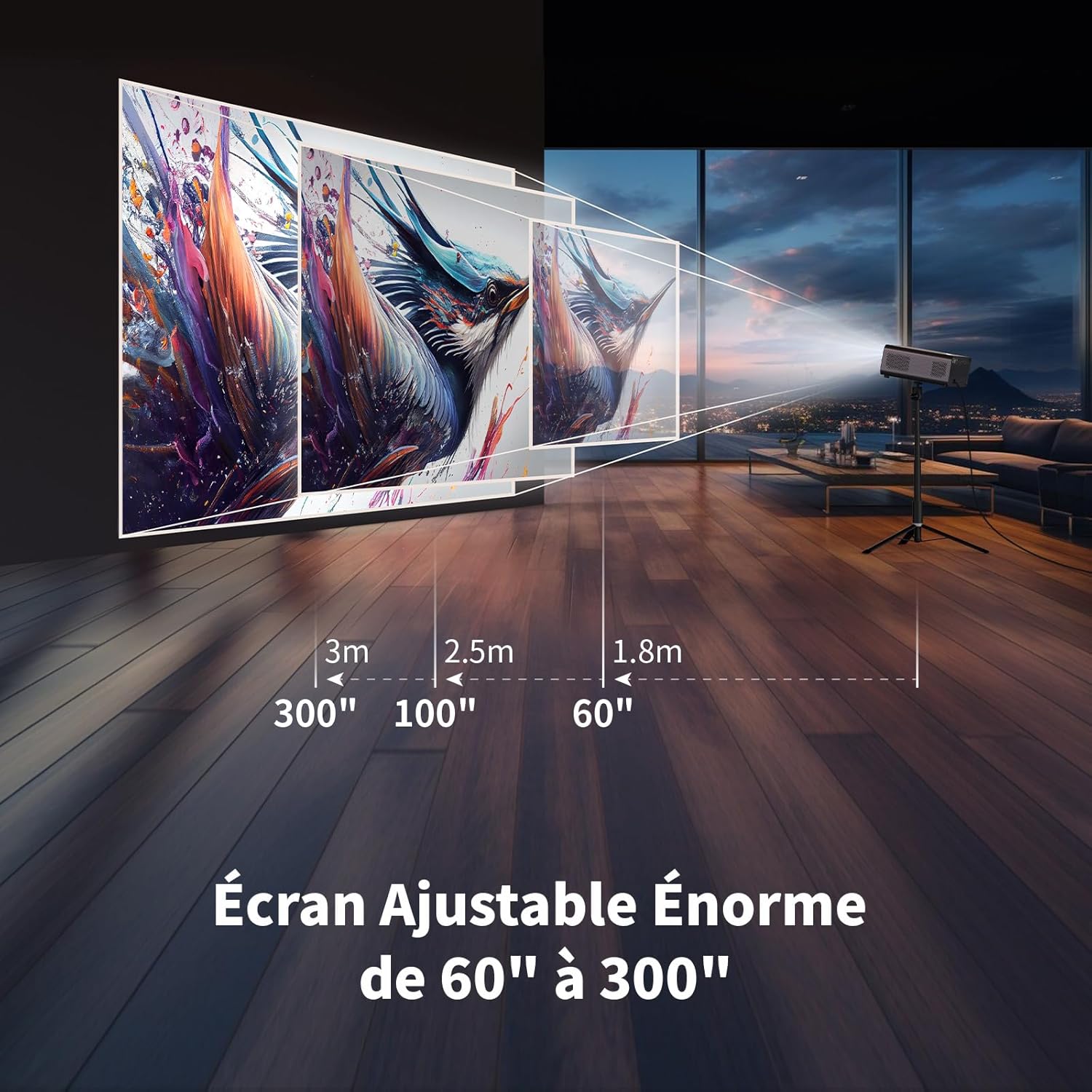
Illustration showing recommended projection distances for various screen sizes, from 60 inches at 1.8m to 300 inches at 3m.
5.2 ການເຊື່ອມຕໍ່ພະລັງງານ
Connect the power adapter to the projector's power input and then plug it into a wall outlet. Press the power button on the projector or remote control to turn it on.
5.3 Electronic Focus
Achieve a clear image quickly using the electronic focus function. Use the F+ and F- buttons on the remote control to adjust the focus until the image is sharp.

Image demonstrating the remote control's F+ and F- buttons for electronic focus adjustment, and the visual effect of keystone correction on the projected image.
5.4 Keystone ການແກ້ໄຂ
The projector supports 4-point keystone correction and automatic vertical correction to ensure a rectangular image, regardless of the projection angle. Adjust these settings in the projector's menu if needed.
5.5 ຟັງຊັນຊູມ
The zoom function allows you to reduce the image size from 100% to 80% without moving the projector. This can be adjusted via the projector's settings menu.

Visual representation of the projector's zoom function, showing how the image size can be reduced from 100% to 50% without physically moving the projector.
6. ການເຮັດວຽກ
6.1 Android OS and Built-in Applications
The WEWATCH S3 features an integrated Android operating system, providing direct access to popular streaming services like Netflix, YouTube, Prime Video, Disney+, and KODI. When using these applications, switch the remote control to mouse mode for optimal navigation. Remember to switch back to normal mode after use.

A user relaxing and watching content projected from the WEWATCH S3, showing the Android interface with icons for Netflix, YouTube, Prime Video, and other streaming applications.
6.2 ການເຊື່ອມຕໍ່ແບບໄຮ້ສາຍ (WiFi ແລະ Bluetooth)
The projector supports dual-band 2.4G+5G WiFi for fast and stable connections with iOS, Android, and Windows devices. Bluetooth functionality allows you to connect external speakers for enhanced audio or Bluetooth headphones for private listening.

A person holding a smartphone, wirelessly mirroring its content to the WEWATCH S3 projector, demonstrating the 2.4/5G WiFi and Bluetooth capabilities for seamless content sharing.
6.3 ການເຊື່ອມຕໍ່ອຸປະກອນພາຍນອກ
Utilize the HDMI, USB, LAN, and AV ports to connect various external devices such as TV sticks, USB drives, laptops, gaming consoles, or older media players for diverse content playback.
ໂໝດລຳໂພງ Bluetooth 6.4
The projector can function as a standalone Bluetooth speaker. Connect your smartphone or other Bluetooth-enabled devices to the projector to play music, utilizing its built-in HiFi 5W speaker.
7. ບໍາລຸງຮັກສາ
7.1 Dust Box Cleaning
The WEWATCH S3 features a hidden dust box designed to prevent dust from entering the projector. Regularly clean the dust box to maintain optimal performance and image quality.

ລະອຽດ view of the WEWATCH S3 Projector showing the hidden dust box compartment and the internal fan system, with arrows indicating airflow for cooling.
7.2 ການເບິ່ງແຍງທົ່ວໄປ
- Keep the projector clean and free from dust.
- ເກັບຮັກສາໂປເຈັກເຕີໄວ້ໃນບ່ອນທີ່ເຢັນ, ແຫ້ງເມື່ອບໍ່ໄດ້ໃຊ້.
- Avoid touching the lens directly. Use a lens cleaning cloth if necessary.
8. ການແກ້ໄຂບັນຫາ
ຖ້າເຈົ້າພົບບັນຫາກັບໂປເຈັກເຕີຂອງເຈົ້າ, ໃຫ້ອ້າງອີງເຖິງບັນຫາ ແລະວິທີແກ້ໄຂບັນຫາທົ່ວໄປຕໍ່ໄປນີ້:
| ບັນຫາ | ສາເຫດທີ່ເປັນໄປໄດ້ | ການແກ້ໄຂ |
|---|---|---|
| ບໍ່ມີຮູບທີ່ຄາດໄວ້ | ສາຍໄຟວ່າງ; ແຫຼ່ງປ້ອນຂໍ້ມູນບໍ່ຖືກຕ້ອງ; ເປີດຝາ Lens. | ກວດສອບການເຊື່ອມຕໍ່ພະລັງງານ; ເລືອກແຫຼ່ງສັນຍານເຂົ້າທີ່ຖືກຕ້ອງ (HDMI, USB, ແລະອື່ນໆ); ເອົາຝາປິດເລນອອກ. |
| ຮູບມົວ | ບໍ່ໄດ້ປັບໂຟກັສ; ໂປເຈັກເຕີຢູ່ໄກ/ໃກ້ເກີນໄປ; ບໍ່ໄດ້ປັບ Keystone. | Adjust electronic focus (F+/F-); Adjust projection distance; Perform keystone correction. |
| ບໍ່ມີສຽງ | Volume too low; Muted; External speaker not connected properly. | Increase volume; Unmute; Check external speaker connection or try built-in speaker. |
| WiFi/Bluetooth connection issues | ລະຫັດຜ່ານບໍ່ຖືກຕ້ອງ; ອຸປະກອນຢູ່ນອກຂອບເຂດ; ການລົບກວນ. | Verify password; Move device closer; Reduce interference from other devices. |
| Apps not working correctly | Remote not in mouse mode; App needs update; Internet connection issue. | Switch remote to mouse mode; Check for app updates; Verify internet connection. |
9. ຂໍ້ມູນຈໍາເພາະ
Detailed technical specifications for the WEWATCH S3 Smart Projector:
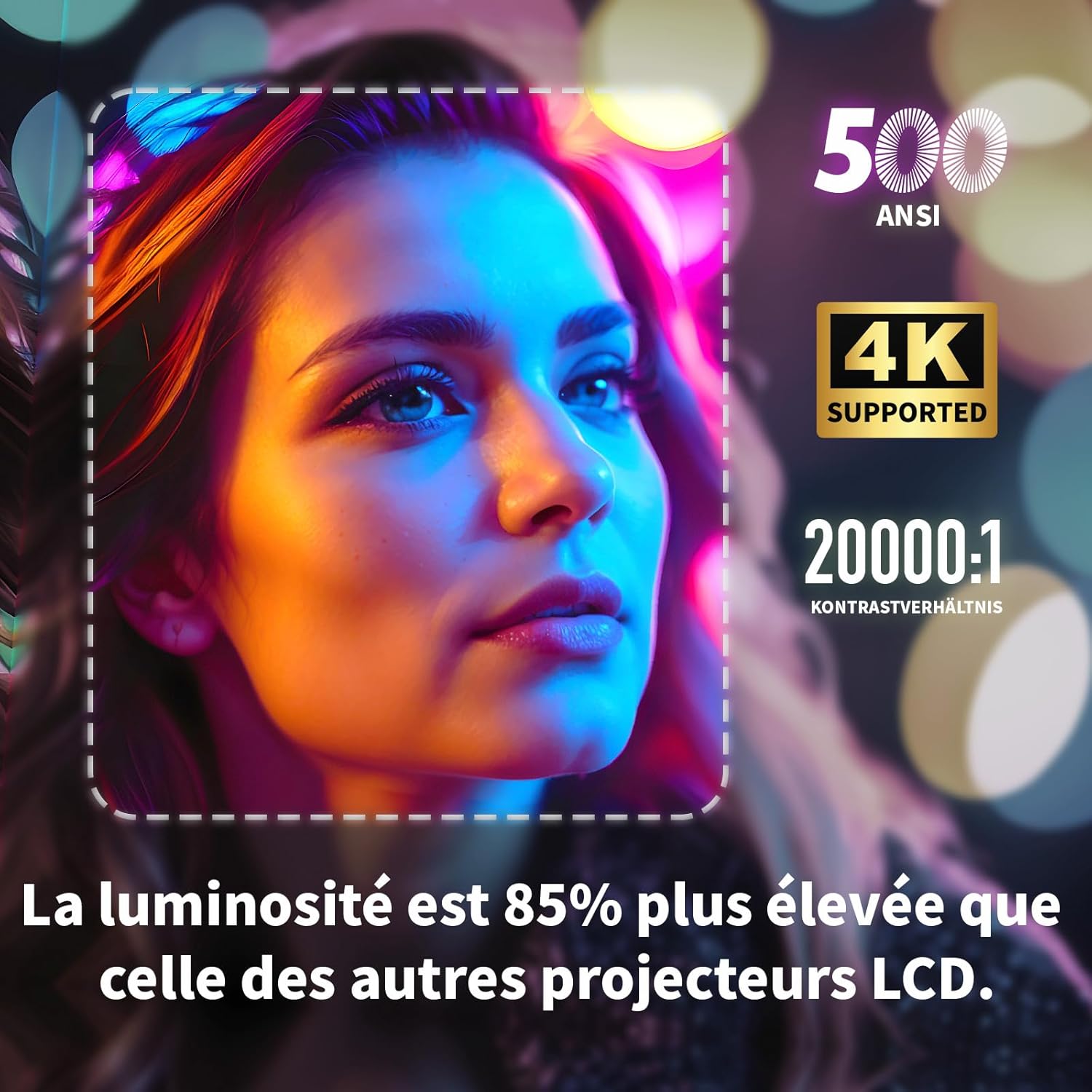
Visual highlighting key specifications: 500 ANSI lumens, 4K support, and 20000:1 contrast ratio, indicating 85% higher brightness than other LCD projectors.
| ຄຸນສົມບັດ | ຂໍ້ມູນຈໍາເພາະ |
|---|---|
| ຍີ່ຫໍ້ | WEWATCH |
| ໝາຍເລກຕົວແບບ | S3 |
| ສີ | ສີເທົາ |
| ຄວາມລະອຽດການສະແດງ | 3840 x 2160 (4K Ultra HD) |
| ຄວາມສະຫວ່າງ | 500 ANSI Lumens |
| ອັດຕາສ່ວນກົງກັນຂ້າມ | 20000:1 |
| ລະບົບປະຕິບັດການ | Android OS (with built-in Netflix, YouTube, Prime Video, Disney+, KODI) |
| ເຕັກໂນໂລຊີການເຊື່ອມຕໍ່ | Bluetooth, Ethernet, HDMI, Wi-Fi (2.4G+5G dual-band) |
| ຄຸນນະສົມບັດພິເສດ | Electronic Focus, 4-Point Keystone Correction, Automatic Vertical Correction, Zoom (80%-100%), Built-in Speakers, Dust-proof Design |
| ຂະໜາດໜ້າຈໍ | ເຖິງ 300 ນິ້ວ |
| ສຽງ | Integrated HiFi 5W Speaker, Bluetooth Speaker Mode |
| ຂະໜາດ | 24.3L x 24.9W x 10.5ຊມ |
| ພອດ USB | 2 |
10. ການຮັບປະກັນແລະການສະຫນັບສະຫນູນ
WEWATCH products come with a standard manufacturer's warranty. For detailed warranty information, technical support, or service inquiries, please refer to the warranty card included in your package or visit the official WEWATCH website. Please have your product model number (S3) and purchase information ready when contacting support.


