1. ບົດແນະນຳ
Thank you for choosing the Cherry KW 7100 Mini Multi-Device Compact Keyboard. This manual provides essential information for setting up, operating, and maintaining your new keyboard. Designed for versatility and portability, this keyboard offers seamless connectivity across multiple devices.
2. ສິ່ງທີ່ຢູ່ໃນກ່ອງ
- Cherry KW 7100 Mini Multi-Device Compact Keyboard
- USB-C to USB-A Charging/Connection Cable
- ແບັດເຕີຣີ 2x AAA
- 2.4 GHz Wireless Nano Receiver (stored magnetically in the keyboard)
- ກະເປົາຖື
- ຄູ່ມືການສອນ

ຮູບ 1: ເທິງລົງລຸ່ມ view of the Cherry KW 7100 Mini Keyboard.
3. ຕັ້ງຄ່າ
3.1. ການຕິດຕັ້ງຫມໍ້ໄຟ
- ຊອກຫາຊ່ອງໃສ່ຫມໍ້ໄຟຢູ່ດ້ານລຸ່ມຂອງແປ້ນພິມ.
- ເລື່ອນເປີດcoverາປົກຊ່ອງຂອງbatteryໍ້ໄຟ.
- ໃສ່ໝໍ້ໄຟ AAA ສອງໜ່ວຍ, ຮັບປະກັນການຂົ້ວທີ່ຖືກຕ້ອງ (+/-).
- ປິດຝາປິດຊ່ອງໃສ່ຫມໍ້ໄຟຢ່າງປອດໄພ.
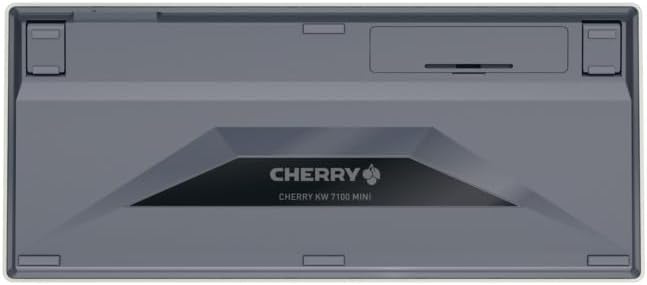
Figure 2: Underside of the keyboard with the battery compartment.
3.2. ການເຊື່ອມຕໍ່ແປ້ນພິມ
The Cherry KW 7100 Mini supports three connection methods: Bluetooth, 2.4 GHz Wireless, and Wired USB-C.
3.2.1. ການເຊື່ອມຕໍ່ Bluetooth (ສູງສຸດ 3 ອຸປະກອນ)
- ເປີດແປ້ນພິມໂດຍໃຊ້ສະວິດໄຟທີ່ຢູ່ດ້ານຂ້າງ.
- Press and hold one of the Bluetooth channel keys (F1, F2, or F3) for 3-5 seconds until the corresponding LED indicator blinks rapidly. This indicates pairing mode.
- On your device (laptop, smartphone, tablet), navigate to Bluetooth settings and search for available devices.
- Select "Cherry KW 7100" from the list to pair. The LED will stop blinking and remain solid for a few seconds upon successful connection.
- Repeat for up to two additional devices using the other Bluetooth channel keys (F1, F2, or F3).
3.2.2. ການເຊື່ອມຕໍ່ໄຮ້ສາຍ 2.4 GHz
- Locate the 2.4 GHz wireless nano receiver, typically stored magnetically in a slot on the underside of the keyboard.
- Insert the nano receiver into an available USB-A port on your computer.
- ເປີດແປ້ນພິມໂດຍໃຊ້ສະວິດເປີດປິດ. ແປ້ນພິມຄວນຈະເຊື່ອມຕໍ່ກັບເຄື່ອງຮັບສັນຍານໂດຍອັດຕະໂນມັດ.
3.2.3. ການເຊື່ອມຕໍ່ USB-C ແບບມີສາຍ
- Connect one end of the provided USB-C cable to the USB-C port on the keyboard.
- Connect the other end of the USB-C cable to an available USB-A port on your computer.
- The keyboard will function as a wired keyboard.
Video 1: Demonstrating the setup and typing experience of the Cherry KW 7100 Mini Keyboard.
4. ການໃຊ້ງານຄີບອດ
4.1. ການປ່ຽນລະຫວ່າງອຸປະກອນທີ່ເຊື່ອມຕໍ່
To switch between paired Bluetooth devices, simply press the corresponding Bluetooth channel key (F1, F2, or F3) that your device is paired to. The keyboard will automatically connect to the selected device.
4.2. ປຸ່ມຟັງຊັນ (FN)
The keyboard features a dedicated FN key, typically located near the right Shift key. This key, in combination with other keys, activates secondary functions such as media controls, screen brightness, and other system commands. Refer to the keycap legends for specific FN key combinations.
4.3. ຕົວຊີ້ວັດ LED
LED indicators on the keyboard provide information about its status:
- Bluetooth Channel LEDs (F1, F2, F3): Indicate the currently active Bluetooth connection or pairing mode.
- Caps Lock LED: ຈະສະຫວ່າງຂຶ້ນເມື່ອປຸ່ມ Caps Lock ເປີດໃຊ້ງານ.
- LED ສະຖານະຫມໍ້ໄຟ: ຊີ້ບອກລະດັບແບັດເຕີຣີຕໍ່າ.
4.4. ຕີນປັບໄດ້
The keyboard is equipped with stable, fold-out feet on the underside. These allow you to adjust the typing angle for improved ergonomics and comfort.
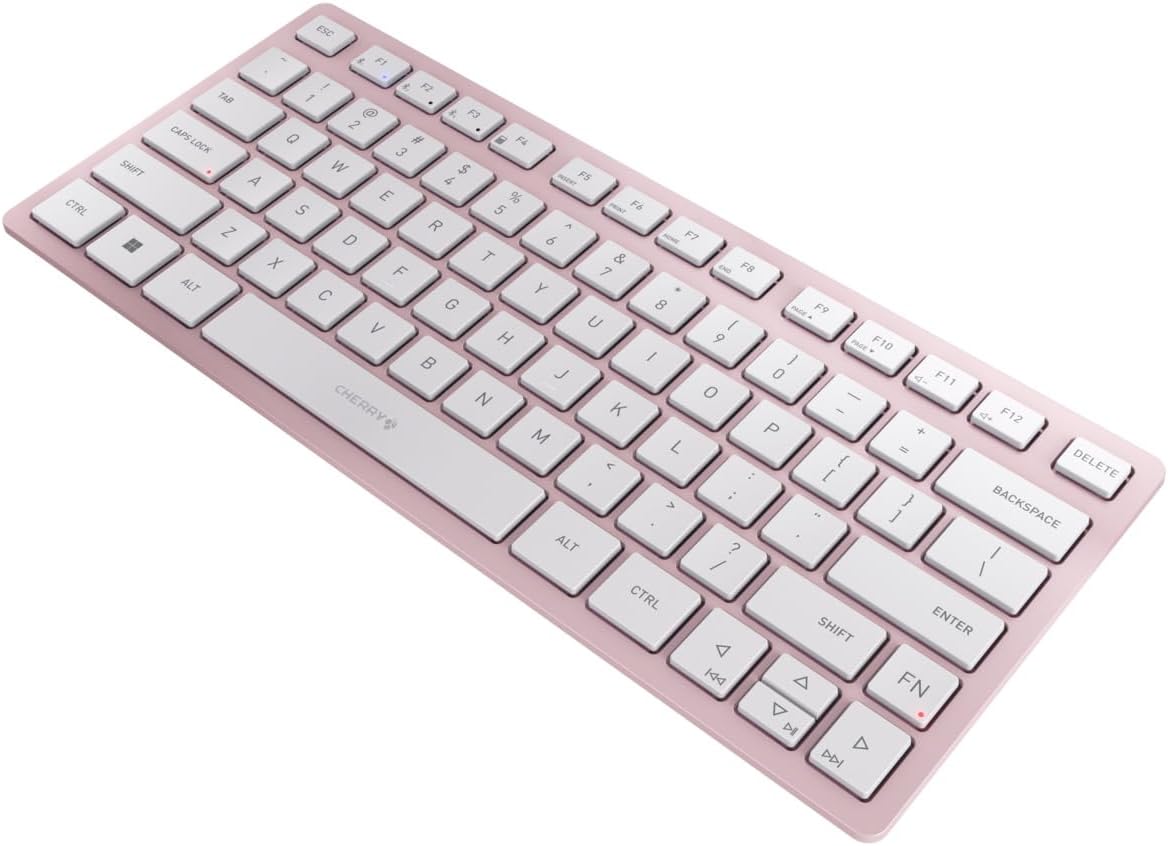
ຮູບທີ 3: ມຸມ view of the keyboard, highlighting its slim profile.

ຮູບ 4: ຂ້າງ view showing the adjustable feet extended for an ergonomic typing angle.
5. ບໍາລຸງຮັກສາ
5.1. ທໍາຄວາມສະອາດ
To clean your keyboard, gently wipe the keycaps and surface with a soft, lint-free cloth. For stubborn dirt, slightly dampen the cloth with water or a mild, non-abrasive cleaning solution. Avoid excessive moisture and do not spray cleaners directly onto the keyboard.
5.2. ການເກັບຮັກສາ
When not in use, especially during travel, store the keyboard in its included carrying case to protect it from dust, scratches, and minor impacts.

Figure 5: The keyboard stored in its protective carrying case.
6. ການແກ້ໄຂບັນຫາ
6.1. ແປ້ນພິມບໍ່ໄດ້ເຊື່ອມຕໍ່
- ກວດໃຫ້ແນ່ໃຈວ່າແປ້ນພິມເປີດຢູ່.
- ກວດເບິ່ງແບັດເຕີລີ່ ແລະປ່ຽນແທນຖ້າຈຳເປັນ.
- For Bluetooth, ensure the correct channel (F1, F2, or F3) is selected and the keyboard is in pairing mode (blinking LED).
- For 2.4 GHz wireless, ensure the nano receiver is securely plugged into a USB-A port.
- ລອງເຊື່ອມຕໍ່ຜ່ານສາຍ USB-C ເພື່ອແກ້ໄຂບັນຫາໄຮ້ສາຍ.
- ປິດເປີດອຸປະກອນຂອງທ່ານຄືນໃໝ່ ແລະລອງຈັບຄູ່ອີກຄັ້ງ.
6.2. ປຸ່ມບໍ່ຕອບສະໜອງ
- Check the connection as described above.
- ໃຫ້ແນ່ໃຈວ່າບໍ່ມີສິ່ງເສດເຫຼືອຢູ່ໃນກະແຈ.
- ຖ້າໃຊ້ການເຊື່ອມຕໍ່ແບບມີສາຍ, ລອງໃຊ້ພອດ USB ຫຼືສາຍອື່ນ.
6.3. ຊີວິດຫມໍ້ໄຟສັ້ນ
- ໃຫ້ແນ່ໃຈວ່າທ່ານກໍາລັງໃຊ້ແບດເຕີລີ່ AAA ສົດ, ຄຸນນະພາບສູງ.
- Turn off the keyboard when not in use to conserve battery power.
7. ຂໍ້ມູນຈໍາເພາະ
| ຄຸນສົມບັດ | ຂໍ້ມູນຈໍາເພາະ |
|---|---|
| ຊື່ຕົວແບບ | ກິໂລແມັດ 7100 |
| ໝາຍເລກຕົວແບບ | JK-7100US-19 |
| ຍີ່ຫໍ້ | ໝາກເຜັດ |
| ເຕັກໂນໂລຊີການເຊື່ອມຕໍ່ | Bluetooth 5.1 (3 channels), 2.4 GHz Wireless, USB-C Wired |
| ອຸປະກອນທີ່ເຂົ້າກັນໄດ້ | ແລັບທັອບ, ໂທລະສັບສະຫຼາດ, ແທັບເລັດ |
| ຄຳອະທິບາຍແປ້ນພິມ | Compact, Multi-Device |
| ກົນໄກກຸນແຈ | CHERRY SX Scissor Mechanism |
| ແຫຼ່ງພະລັງງານ | ແບັດເຕີຣີ 2x AAA |
| ການເຂົ້າລະຫັດ | AES-128 |
| ຂະໜາດສິນຄ້າ | 11.6 x 5.1 x 0.6 ນິ້ວ |
| ນ້ໍາຫນັກລາຍການ | 1.4 ປອນ |
| ວັດສະດຸ | ໂລຫະ, ພາດສະຕິກ |
| ສີ | Cherry Blossom |
8. ການຮັບປະກັນແລະການສະຫນັບສະຫນູນ
This product is covered by Cherry's standard manufacturer warranty. For detailed warranty information, technical support, or service inquiries, please visit the official Cherry website ຫຼືຕິດຕໍ່ສະຫນັບສະຫນູນລູກຄ້າຂອງເຂົາເຈົ້າໂດຍກົງ.
ຜູ້ຜະລິດ: ໝາກເຜັດ
Webເວັບໄຊ: www.cherry.de


