1. ບົດແນະນຳ
This manual provides detailed instructions for the setup, operation, maintenance, and troubleshooting of your CUPEISI YQ10S MAX Android 15 Tablet. Please read this manual thoroughly before using your device to ensure proper functionality and to maximize your user experience. Keep this manual for future reference.

Image 1.1: CUPEISI YQ10S MAX Android 15 Tablet with included accessories (keyboard, mouse, stylus, and protective case).
2. ເນື້ອໃນຊຸດ
ກວດສອບວ່າລາຍການທັງຫມົດທີ່ລະບຸໄວ້ຂ້າງລຸ່ມນີ້ແມ່ນມີຢູ່ໃນຊຸດຜະລິດຕະພັນຂອງທ່ານ:
- CUPEISI YQ10S MAX Android 15 Tablet
- ແປ້ນພິມໄຮ້ສາຍ
- ເມົາສ໌ Bluetooth
- Foldable Protective Cover
- ສະໄຕລັດ
- ສາຍ Type-C
- ເຄື່ອງສາກ
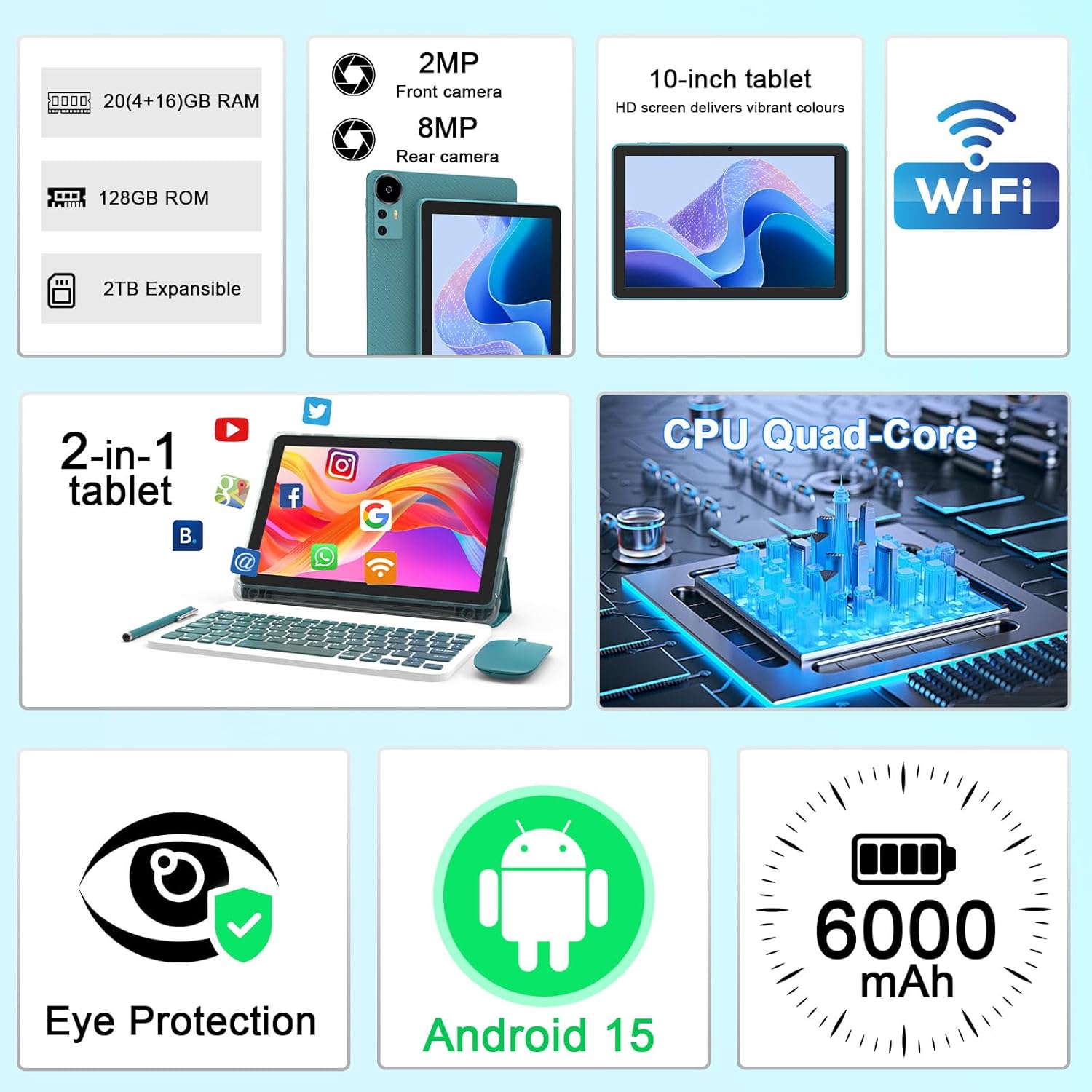
ຮູບພາບ 2.1: ຫຼາຍກວ່າview of key features and included components.
3. ການຕິດຕັ້ງເບື້ອງຕົ້ນ
3.1 ການເປີດ/ປິດ
- ເພື່ອເປີດເຄື່ອງ: Press and hold the power button located on the side of the tablet until the screen illuminates.
- ປິດເຄື່ອງ: ກົດປຸ່ມເປີດປິດຄ້າງໄວ້, ຈາກນັ້ນເລືອກ 'ປິດເຄື່ອງ' ຈາກຕົວເລືອກທີ່ປາກົດຢູ່ໜ້າຈໍ.
- ເພື່ອເລີ່ມຕົ້ນໃໝ່: Press and hold the power button, then select 'Restart' from the options.
3.2 ການສາກແທັບເລັດ
Before first use, fully charge the tablet. Use the provided Type-C cable and charger.
- ເຊື່ອມຕໍ່ສາຍ Type-C ກັບຊ່ອງສາກໄຟຂອງແທັບເລັດ.
- ເຊື່ອມຕໍ່ສົ້ນອື່ນຂອງສາຍກັບອະແດັບເຕີໄຟ.
- ສຽບອະແດບເຕີໄຟໃສ່ກັບປລັກສຽບໃສ່ຝາ.
- The battery icon on the screen will indicate charging status. A full charge typically takes several hours.

Image 3.1: Battery and charging information.
3.3 Connecting Accessories (Keyboard, Mouse, Stylus)
The tablet supports Bluetooth connectivity for the included keyboard and mouse.
- ເປີດໃຊ້ Bluetooth: ໄປທີ່ ການຕັ້ງຄ່າ > ອຸປະກອນທີ່ເຊື່ອມຕໍ່ > Bluetooth ແລະເປີດມັນ.
- Pair Keyboard/Mouse: Put the keyboard or mouse into pairing mode (refer to their individual instructions if needed). Select the device name from the list of available Bluetooth devices on your tablet to pair.
- ສະໄຕລ໌: The included stylus is typically passive and does not require pairing. It can be used directly on the screen for navigation or drawing.
3.4 ການເຊື່ອມຕໍ່ Wi-Fi
Connect your tablet to a Wi-Fi network for internet access.
- ໄປທີ່ ການຕັ້ງຄ່າ > ເຄືອຂ່າຍ ແລະອິນເຕີເນັດ > Wi-Fi.
- ເປີດ Wi-Fi. ແທັບເລັດຈະສະແກນຫາເຄືອຂ່າຍທີ່ມີຢູ່.
- ເລືອກເຄືອຂ່າຍທີ່ທ່ານຕ້ອງການຈາກບັນຊີລາຍຊື່.
- ຖ້າຖືກຖາມ, ໃຫ້ໃສ່ລະຫັດຜ່ານເຄືອຂ່າຍ ແລະ ແຕະ ເຊື່ອມຕໍ່.
4. ການດໍາເນີນງານພື້ນຖານ
4.1 ການນຳທາງ Android 15
Your tablet runs on Android 15, offering an intuitive user interface. Swipe gestures, tap actions, and the navigation bar (Back, Home, Recents) are standard for interaction. The Google Mobile Services (GMS) certification ensures access to the Google Play Store and other Google applications.

Image 4.1: Android 15 operating system features.
4.2 ການຕັ້ງຄ່າການສະແດງ
The 10.1-inch IPS display with 1280x800 resolution provides clear visuals. You can adjust display settings to suit your preferences:
- ຄວາມສະຫວ່າງ: Adjust screen brightness from the quick settings panel or in ການຕັ້ງຄ່າ > ຈໍສະແດງຜົນ.
- ໂໝດການອ່ານ: Enable 'Reading Mode' in display settings to reduce blue light emission, which can enhance comfort during extended reading sessions.
- ຂະ ໜາດ ຕົວອັກສອນ: Customize text size for better readability.

Image 4.2: Details of the 10.1-inch HD screen display.
4.3 ການຄຸ້ມຄອງການເກັບຮັກສາ
The tablet features 128GB of internal storage and 20GB RAM (4GB physical + 16GB virtual expansion). Storage can be expanded up to 2TB using a microSD card (not included).
- ກວດສອບການເກັບຮັກສາ: ໄປທີ່ ການຕັ້ງຄ່າ > ການເກັບຮັກສາ ກັບ view internal and external storage usage.
- ໃສ່ບັດ MicroSD: Locate the microSD card slot on the tablet, insert the card gently until it clicks into place.

Image 4.3: Storage and RAM configuration.
4.4 ການໃຊ້ກ້ອງຖ່າຍຮູບ
ແທັບເລັດມີກ້ອງຫຼັງ 8MP ແລະ ກ້ອງໜ້າ 2MP.
- ເປີດແອັບກ້ອງຖ່າຍຮູບ: ແຕະໄອຄອນກ້ອງຖ່າຍຮູບໃນໜ້າຈໍຫຼັກ ຫຼືແຖບລິ້ນຊັກແອັບຂອງທ່ານ.
- ສະຫຼັບກ້ອງຖ່າຍຮູບ: ໃຊ້ໄອຄອນສະວິດກ້ອງຖ່າຍຮູບເພື່ອສະຫຼັບລະຫວ່າງກ້ອງໜ້າ ແລະ ກ້ອງຫຼັງ.
- Capture Photos/Videos: ແຕະປຸ່ມຊັດເຕີເພື່ອຖ່າຍຮູບ ຫຼືເລີ່ມ/ຢຸດການບັນທຶກວິດີໂອ.

Image 4.4: Camera specifications and modes.
4.5 ການຫຼິ້ນມັນຕິມີເດຍ
The tablet supports Widevine L1, enabling high-definition streaming from platforms like Netflix, Hulu, YouTube, and Prime Video.
- Ensure a stable internet connection for optimal streaming quality.
- Download streaming apps from the Google Play Store.

Image 4.5: Widevine L1 support for multimedia streaming.
4.6 Multitasking
Android 15 enhances multitasking capabilities. Use the 'Recents' button to switch between open applications or utilize split-screen mode for running two apps simultaneously.
- Split-Screen: From the 'Recents' view, tap the app icon at the top of an app's card and select 'Split screen'. Choose a second app to open alongside it.
- The included keyboard and mouse facilitate a laptop-like experience for productivity tasks.

Image 4.6: Tablet used in 2-in-1 mode with keyboard and mouse.
5. ການດູແລແລະບໍາລຸງຮັກສາ
5.1 ການທໍາຄວາມສະອາດ
- ໃຊ້ຜ້າແພທີ່ອ່ອນໆ, ບໍ່ມີສານດ່າງເພື່ອເຮັດຄວາມສະອາດໜ້າຈໍ ແລະຕົວເຄື່ອງຂອງແທັບເລັດ.
- ຫຼີກລ່ຽງການໃຊ້ສານເຄມີທີ່ຮຸນແຮງ, ເຄື່ອງຂັດຂັດ, ຫຼືສີດ aerosol.
- ກວດໃຫ້ແນ່ໃຈວ່າແທັບເລັດຖືກປິດ ແລະຖອດປລັກອອກກ່ອນທຳຄວາມສະອາດ.
5.2 ການດູແລຫມໍ້ໄຟ
- ຫຼີກເວັ້ນການເປີດເຜີຍແທັບເລັດກັບອຸນຫະພູມທີ່ຮຸນແຮງ (ຮ້ອນຫຼືເຢັນ).
- ຢ່າປະໄວ້ໃຫ້ແທັບເລັດໝົດໄປເປັນໄລຍະເວລາທີ່ຍາວນານ.
- Use only the provided charger and cable to prevent damage to the battery.
5.3 ການປັບປຸງຊອບແວ
- ກວດສອບ ແລະຕິດຕັ້ງການອັບເດດຊອບແວເປັນປະຈໍາເພື່ອຮັບປະກັນປະສິດທິພາບທີ່ດີທີ່ສຸດ, ຄວາມປອດໄພ, ແລະການເຂົ້າເຖິງຄຸນສົມບັດໃຫມ່.
- ໄປທີ່ ການຕັ້ງຄ່າ > ລະບົບ > ອັບເດດລະບົບ ເພື່ອກວດສອບການອັບເດດທີ່ມີຢູ່.
6. ການແກ້ໄຂບັນຫາ
ຖ້າທ່ານພົບບັນຫາກັບແທັບເລັດຂອງທ່ານ, ໃຫ້ອ້າງອີງເຖິງບັນຫາ ແລະ ວິທີແກ້ໄຂທົ່ວໄປຕໍ່ໄປນີ້:
6.1 ບັນຫາພະລັງງານ
- ແທັບເລັດຈະບໍ່ເປີດ: ໃຫ້ແນ່ໃຈວ່າໄດ້ສາກໄຟແລ້ວ. ເຊື່ອມຕໍ່ສາຍສາກແລ້ວລໍຖ້າສອງສາມນາທີກ່ອນທີ່ຈະພະຍາຍາມເປີດເຄື່ອງອີກຄັ້ງ.
- ແທັບເລັດຄ້າງ: ກົດປຸ່ມເປີດປິດຄ້າງໄວ້ປະມານ 10-15 ວິນາທີເພື່ອບັງຄັບໃຫ້ຣີສະຕາດ.
6.2 ບັນຫາການເຊື່ອມຕໍ່
- Wi-Fi ບໍ່ເຊື່ອມຕໍ່: Check if Wi-Fi is enabled in settings. Restart your router and the tablet. Ensure you are entering the correct password.
- ອຸປະກອນ Bluetooth ບໍ່ໄດ້ຈັບຄູ່: Ensure the Bluetooth accessory is in pairing mode and within range. Restart Bluetooth on the tablet and try pairing again.
6.3 Performance Lags
- ປະສິດທິພາບຊ້າ: Close unused applications running in the background. Clear cache data for frequently used apps. Consider adding a microSD card for additional storage if internal storage is nearly full.
- ແອັບຂັດຂ້ອງ: Ensure apps are updated to their latest versions. Clear the app's cache and data (ການຕັ້ງຄ່າ > ແອັບ > [ຊື່ແອັບ] > ການເກັບຮັກສາ).
7. ຂໍ້ມູນຈໍາເພາະຂອງຜະລິດຕະພັນ
| ຄຸນສົມບັດ | ຂໍ້ມູນຈໍາເພາະ |
|---|---|
| ຍີ່ຫໍ້ | CUPEISI |
| ຊື່ຕົວແບບ | CP31M (Item model number: YQ10S MAX) |
| ລະບົບປະຕິບັດການ | Android 15 |
| ຂະໜາດໜ້າຈໍ | 10.1 ນິ້ວ |
| ຄວາມລະອຽດໜ້າຈໍ | 1280 x 800 ພິກເຊລ (HD) |
| ໂຮງງານຜະລິດ | 2.0 GHz Quad-core |
| RAM | 20GB (4GB ທາງກາຍະພາບ + ຂະຫຍາຍ 16GB) |
| ການເກັບຮັກສາພາຍໃນ | 128 GB |
| ການເກັບຮັກສາທີ່ຂະຫຍາຍໄດ້ | Up to 2TB with microSD card (not included) |
| ປະເພດໄຮ້ສາຍ | 802.11ax (Wi-Fi 6.0, 2.4G/5G) |
| Bluetooth | BT 5.0 |
| ກ້ອງຫຼັງ | 8 MP |
| ກ້ອງໜ້າ | 2 MP |
| ຄວາມອາດສາມາດຫມໍ້ໄຟ | 6000 mAh |
| ອາຍຸຫມໍ້ໄຟສະເລ່ຍ | 6-8 Hours (usage dependent) |
| ຂະໜາດ (LxWxH) | 9.7 x 6.5 x 0.3 ນິ້ວ |
| ນ້ໍາຫນັກລາຍການ | 0.176 ອອນ |
| ສີ | NavyBlue |
8. ການຮັບປະກັນແລະການສະຫນັບສະຫນູນ
For warranty information, please refer to the warranty card included in your product packaging or contact CUPEISI customer support directly. If you require technical assistance or have questions not covered in this manual, please reach out to our support team through the contact information provided with your purchase.


