1. ບົດແນະນຳ
This manual provides comprehensive instructions for the installation, operation, and maintenance of the Teltonika RUT241 Industrial Cellular Router. The RUT241 is designed for reliable 4G LTE and 3G connectivity, featuring Wi-Fi and two Ethernet ports, along with automatic WAN failover for continuous connection. Its robust industrial design and compact size make it suitable for various IoT and M2M applications, particularly in North America, with compatibility across Verizon, AT&T, and T-Mobile networks.
2. ຂໍ້ມູນຄວາມປອດໄພ
- Ensure the device is powered by the specified 9-30 VDC power supply. Using an incorrect power source may damage the device and void the warranty.
- ຢ່າເຮັດໃຫ້ອຸປະກອນຖືກຄວາມຊຸ່ມຊື່ນ, ອຸນຫະພູມສູງສຸດ, ຫຼືແສງແດດໂດຍກົງ.
- Avoid placing the device near heat sources or in poorly ventilated areas.
- Only use accessories and antennas approved by Teltonika.
- ຢ່າພະຍາຍາມເປີດ ຫຼືແກ້ໄຂອຸປະກອນ. ອ້າງອີງການບໍລິການທັງໝົດໃຫ້ກັບບຸກຄະລາກອນທີ່ມີຄຸນວຸດທິ.
- ກຳຈັດຂີ້ເຫຍື້ອເອເລັກໂຕຣນິກຢ່າງມີຄວາມຮັບຜິດຊອບຕາມລະບຽບການຂອງທ້ອງຖິ່ນ.
3. ເນື້ອໃນຊຸດ
ກວດສອບວ່າລາຍການທັງຫມົດແມ່ນມີຢູ່ໃນຊຸດ:
- ເຣົາເຕີ Teltonika RUT241
- ໜ່ວຍສະໜອງພະລັງງານ 9 ວັດ (PSU)
- 2 x LTE Antennas (swivel, SMA male)
- 1 x Wi-Fi Antenna (swivel, RP-SMA male)
- ສາຍອີເທີເນັດ (1.5 m)
- ຊຸດອະແດບເຕີຊິມ
- ຄູ່ມືເລີ່ມຕົ້ນດ່ວນ (QSG)
4. ອຸປະກອນເກີນview
The Teltonika RUT241 router features various ports, indicators, and connectors for its operation. Familiarize yourself with the device's layout before proceeding with installation.

ຮູບທີ 4.1: ດ້ານໜ້າ view of the RUT241 router, displaying the model number, Teltonika branding, power input specifications (9-30 VDC), and the default IP address (192.168.1.1).

ຮູບທີ 4.2: ມຸມ view of the RUT241, highlighting the WAN and LAN Ethernet ports, the 4-pin industrial DC power socket, and LED indicators for signal strength and network status.

ຮູບທີ 4.3: ມຸມອື່ນ view of the RUT241, showing the SMA male connectors for LTE antennas, the RP-SMA male connector for the Wi-Fi antenna, and the recessed reset button.
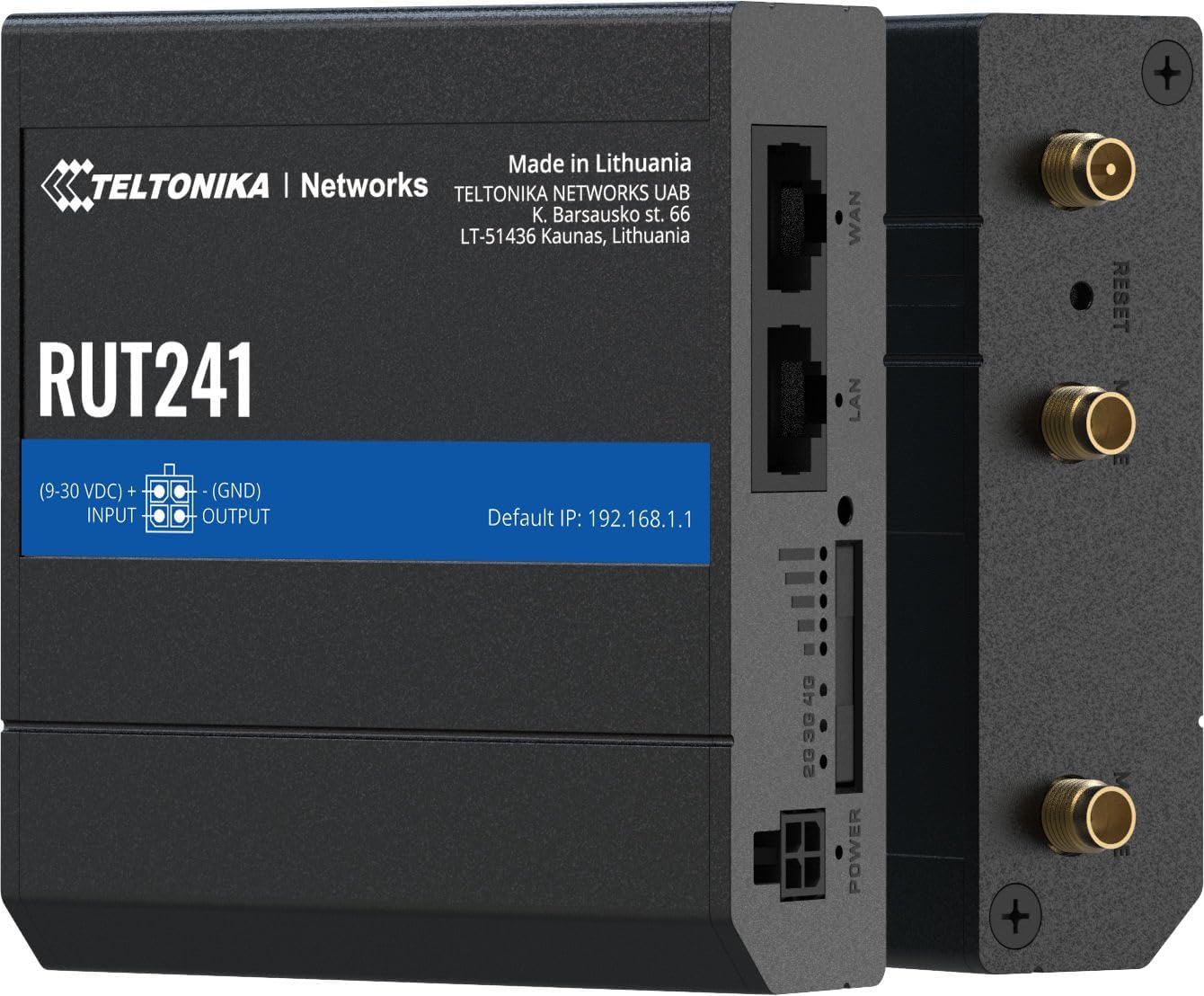
ຮູບທີ 4.4: ຂ້າງ view of the RUT241, providing a clear look at the WAN and LAN ports, power input, signal strength LEDs, and antenna connectors.

ຮູບທີ 4.5: ລຸ່ມ view of the RUT241, showing the SIM card slot cover and mounting screw points for industrial installations.

ຮູບທີ 4.6: ເທິງ view of the RUT241, detailing the Wi-Fi, Reset, and Mobile antenna connectors.
5. ຕັ້ງຄ່າ
5.1. ການຕິດຕັ້ງຊິມກາດ
- ໃຫ້ແນ່ໃຈວ່າ router ປິດ.
- Locate the SIM card slot on the bottom of the device (refer to Figure 4.5).
- Use the provided SIM adapter kit if your SIM card is not standard size.
- Insert the prepared SIM card into the slot until it clicks into place.
- Replace the SIM card slot cover securely.
5.2. ການເຊື່ອມຕໍ່ເສົາອາກາດ
- Connect the two LTE antennas to the SMA male connectors labeled "MOBILE" on the device (refer to Figure 4.6).
- ເຊື່ອມຕໍ່ເສົາອາກາດ Wi-Fi ເຂົ້າກັບຕົວເຊື່ອມຕໍ່ RP-SMA ເພດຜູ້ທີ່ມີປ້າຍຊື່ "WIFI" (ເບິ່ງຮູບທີ 4.6).
- ວາງສາຍອາກາດເພື່ອຮັບສັນຍານທີ່ດີທີ່ສຸດ.
5.3. ການເຊື່ອມຕໍ່ພະລັງງານ
- Connect the 9 W PSU to the 4-pin industrial DC power socket on the router.
- ສຽບ PSU ເຂົ້າກັບປລັກໄຟທີ່ເໝາະສົມ. ເຣົາເຕີຈະເປີດໂດຍອັດຕະໂນມັດ.
5.4. ການເຂົ້າເຖິງເບື້ອງຕົ້ນ
- Connect your computer to the router's LAN port using the provided Ethernet cable.
- ເປີດ ກ web ໂປຣແກຣມທ່ອງເວັບ ແລະ ໄປຫາທີ່ຢູ່ IP ເລີ່ມຕົ້ນ: 192.168.1.1.
- Follow the on-screen instructions to complete the initial configuration, including setting up a new password.
6. ຄໍາແນະນໍາການດໍາເນີນງານ
6.1. Mobile Connectivity
The RUT241 supports 4G LTE (Cat 4) and 3G connectivity. Once the SIM card is installed and the device is powered on, it will automatically attempt to establish a mobile connection. The signal strength LEDs on the device indicate the current mobile signal quality.
6.2. ການເຊື່ອມຕໍ່ WAN ລົ້ມເຫລວ
The router is equipped with WAN failover functionality, ensuring continuous internet access. If the primary WAN connection (e.g., Ethernet WAN) fails, the router will automatically switch to the available backup connection (e.g., cellular 4G LTE) to maintain network uptime.
6.3. Wi-Fi ຮັອດສະປອດ
The RUT241 functions as a wireless access point, providing Wi-Fi connectivity for up to 50 simultaneous users. Default Wi-Fi credentials can be found on the device label or in the Quick Start Guide. It is recommended to change the default Wi-Fi password during initial setup for security.
6.4. Remote Management and VPN
For advanced management and secure access, the RUT241 supports Teltonika Remote Management System (RMS) and various VPN services. Refer to the Teltonika Networks Wiki for detailed configuration guides on these features.
7. ບໍາລຸງຮັກສາ
- ການອັບເດດເຟີມແວ: Regularly check the Teltonika Networks webເວັບໄຊທ໌ສຳລັບການອັບເດດເຟີມແວລ່າສຸດເພື່ອຮັບປະກັນປະສິດທິພາບທີ່ດີທີ່ສຸດ, ຄວາມປອດໄພ ແລະ ການເຂົ້າເຖິງຄຸນສົມບັດໃໝ່ໆ.
- ທໍາຄວາມສະອາດ: ໃຊ້ຜ້າປຽກແຫ້ງເພື່ອເຮັດຄວາມສະອາດອຸປະກອນ. ຢ່າໃຊ້ເຄື່ອງເຮັດຄວາມສະອາດຂອງແຫຼວຫຼື aerosols.
- ເງື່ອນໄຂສິ່ງແວດລ້ອມ: Ensure the router operates within its specified temperature and humidity ranges to prevent damage.
- ການຕັ້ງຄ່າສໍາຮອງຂໍ້ມູນ: Periodically back up your router's configuration settings through the web interface to facilitate quick restoration if needed.
8. ການແກ້ໄຂບັນຫາ
8.1. ບໍ່ມີພະລັງງານ
- Verify that the 9 W PSU is correctly connected to the router and a working power outlet.
- ກວດເບິ່ງສາຍໄຟສໍາລັບຄວາມເສຍຫາຍໃດໆ.
- ຮັບປະກັນການປ້ອນຂໍ້ມູນ voltage is within the 9-30 VDC range if using an alternative power source.
8.2. No Internet Connection (Mobile)
- Confirm the SIM card is correctly inserted and activated with a data plan.
- Check the mobile signal strength LEDs on the router. If signal is weak, reposition antennas or the router.
- ກວດສອບການຕັ້ງຄ່າ APN ໃນເຣົາເຕີ web interface. The default is "Auto", but some carriers may require specific settings.
- Ensure the cellular network is available in your location and compatible with the RUT241 (Verizon, AT&T, T-Mobile in North America).
8.3. No Wi-Fi Connectivity
- ໃຫ້ແນ່ໃຈວ່າເສົາອາກາດ Wi-Fi ໄດ້ເຊື່ອມຕໍ່ຢ່າງປອດໄພແລ້ວ.
- Check if Wi-Fi is enabled in the router's web ການໂຕ້ຕອບ.
- Verify Wi-Fi network name (SSID) and password.
8.4. ບໍ່ສາມາດເຂົ້າເຖິງໄດ້ Web ການໂຕ້ຕອບ
- Ensure your computer is connected to the router's LAN port or Wi-Fi network.
- ກວດສອບວ່າການຕັ້ງຄ່າ IP ຂອງຄອມພິວເຕີຂອງທ່ານຖືກຕັ້ງໃຫ້ຮັບທີ່ຢູ່ IP ໂດຍອັດຕະໂນມັດ (DHCP).
- Confirm you are using the correct default IP address: 192.168.1.1.
- If you have changed the router's IP address, use the new address.
- If the issue persists, perform a factory reset by pressing and holding the reset button for approximately 10 seconds while the device is powered on. ຄຳເຕືອນ: ນີ້ຈະລຶບການຕັ້ງຄ່າທີ່ກຳນົດເອງທັງໝົດ.
9. ຂໍ້ມູນຈໍາເພາະ
| ປະເພດ | ຄຸນສົມບັດ | ລາຍລະອຽດ |
|---|---|---|
| ມືຖື | ໂມດູນມືຖື | 4G (LTE) - Cat 4 up to 150 Mbps, 3G - Up to 42 Mbps |
| APN | ອັດຕະໂນມັດ | |
| ໄຮ້ສາຍ | ໂໝດໄຮ້ສາຍ | IEEE 802.11b/g/n, ຈຸດເຂົ້າເຖິງ (AP), ສະຖານີ (STA) |
| WiFi Users | ເຖິງ 50 ເຊື່ອມຕໍ່ພ້ອມກັນ | |
| ອີເທີເນັດ | ພອດ WAN | 1 x WAN port 10/100 Mbps |
| ພອດ LAN | 1 x LAN port, 10/100 Mbps | |
| ເຄືອຂ່າຍ | ກຳນົດເສັ້ນທາງ | Static routing, Dynamic routing (BGP, OSPF v2, RIP v1/v2, NHRP) |
| DHCP | ການຈັດສັນ IP ແບບຄົງທີ່ແລະແບບເຄື່ອນໄຫວ, DHCP Relay, Relayd | |
| ລະບົບ | CPU | Mediatek MIPS 24Kc 580 MHz |
| RAM | 128 MB, DDR2 | |
| FLASH Storage | 16 MB, SPI Flash | |
| ພະລັງງານ | ຕົວເຊື່ອມຕໍ່ | ເຕົ້າສຽບໄຟຟ້າ DC ອຸດສາຫະກໍາ 4-pin |
| ການປ້ອນຂໍ້ມູນ Voltage ຂອບເຂດ | 9 - 30 VDC | |
| PoE (ຕົວຕັ້ງຕົວຕີ) | Passive PoE over spare pairs. 9-30 VDC | |
| ທາງກາຍ | Casing ວັດສະດຸ | ອາລູມີນຽມ |
| ຂະໜາດ (WxHxD) | 3.26 x 0.98 x 2.91 ນິ້ວ (82.8 x 24.9 x 73.9 ມມ) | |
| ນ້ຳໜັກ | 0.27 ປອນ (122.5 ກຣາມ) | |
| ສີ | ດຳ |
10. ການຮັບປະກັນແລະການສະຫນັບສະຫນູນ
ສຳລັບຂໍ້ມູນການຮັບປະກັນ ແລະ ການຊ່ວຍເຫຼືອດ້ານເຕັກນິກ, ກະລຸນາອ້າງອີງເຖິງ Teltonika Networks ຢ່າງເປັນທາງການ website or contact your authorized Teltonika Networks reseller. Detailed documentation, firmware updates, and support resources are available online.
ເຈົ້າໜ້າທີ່ຂອງ Teltonika Networks Webເວັບໄຊ: teltonika-networks.com


