1. ຜະລິດຕະພັນເກີນview
The TECLAST T40Air is a high-performance tablet designed for various tasks, from entertainment to productivity. It features a 10.4-inch display, 16GB RAM, 256GB ROM, and runs on Android 13, powered by an octa-core processor. Its lightweight design and robust battery ensure portability and extended usage.

ຮູບພາບ 1.1: ດ້ານໜ້າ ແລະ ດ້ານຫຼັງ view of the TECLAST T40Air Tablet, showcasing its sleek design and dual rear cameras.
ວິດີໂອທີ 1.1: ຢ່າງເປັນທາງການview of the TECLAST T40Air Android Tablet, highlighting its key features and design.
2. ການຕິດຕັ້ງເບື້ອງຕົ້ນ
2.1 ການແກະກ່ອງ ແລະ ການນຳໃຊ້ຄັ້ງທຳອິດ
Carefully remove the tablet and all accessories from the packaging. Inspect the device for any physical damage. Before first use, it is recommended to fully charge the tablet.
2.2 ການສາກແທັບເລັດ
Connect the provided USB-C cable to the tablet's charging port and the other end to the 18W PD fast charging adapter. Plug the adapter into a power outlet. The battery indicator on the screen will show the charging status. A full charge typically takes approximately 2-3 hours.
2.3 ການເປີດ/ປິດ
- ເພື່ອເປີດເຄື່ອງ: Press and hold the Power button located on the side of the tablet until the TECLAST logo appears on the screen.
- ປິດເຄື່ອງ: Press and hold the Power button until a power menu appears. Select 'Power off' and confirm.
- ເພື່ອເລີ່ມຕົ້ນໃໝ່: ຈາກເມນູພະລັງງານ, ໃຫ້ເລືອກ 'ເລີ່ມຕົ້ນໃໝ່'.
2.4 ການຕັ້ງຄ່າເບື້ອງຕົ້ນ
ເມື່ອເປີດເຄື່ອງທຳອິດ, ແທັບເລັດຈະແນະນຳທ່ານຜ່ານຂັ້ນຕອນການຕັ້ງຄ່າເບື້ອງຕົ້ນ:
- ການເລືອກພາສາ: ເລືອກພາສາທີ່ເຈົ້າມັກ.
- ການເຊື່ອມຕໍ່ Wi-Fi: ເລືອກເຄືອຂ່າຍ Wi-Fi ຂອງທ່ານແລະໃສ່ລະຫັດຜ່ານເພື່ອເຊື່ອມຕໍ່ກັບອິນເຕີເນັດ.
- ບັນຊີ Google: Sign in with your Google account or create a new one. This is essential for downloading apps from the Google Play Store and syncing data.
- ວັນທີ ແລະເວລາ: ຕັ້ງວັນທີ ແລະ ເວລາທີ່ຖືກຕ້ອງ ຫຼື ອະນຸຍາດໃຫ້ເຄືອຂ່າຍຕັ້ງຄ່າມັນໂດຍອັດຕະໂນມັດ.
- ຄວາມປອດໄພ: Set up a screen lock (PIN, pattern, password, or Face Unlock).
2.5 SIM Card Installation (Optional)
The T40Air supports 4G LTE connectivity. To install a SIM card:
- ຊອກຫາຖາດຊິມກາດຢູ່ດ້ານຂ້າງຂອງແທັບເລັດ.
- ໃຊ້ເຄື່ອງມືຖອດຊິມທີ່ສະໜອງໃຫ້ເພື່ອເປີດຖາດ.
- Place the Nano-SIM card(s) into the designated slots, ensuring correct orientation.
- ຍູ້ຖາດກັບໄປໃສ່ແທັບເລັດຄ່ອຍໆ ຈົນກວ່າມັນຈະກົດໃສ່ບ່ອນ.

Image 2.1: The TECLAST T40Air Tablet highlighting its 4G LTE support and SIM card tray location.
3. ຄໍາແນະນໍາການດໍາເນີນງານ
3.1 ການນຳທາງ Android 13
The TECLAST T40Air runs on Android 13, offering an intuitive user experience. Use touch gestures to navigate:
- ແຕະ: ເລືອກລາຍການ.
- ປັດ: ເລື່ອນຜ່ານໜ້າຈໍ ຫຼືລາຍການຕ່າງໆ.
- Pinch-to-zoom: ຊູມເຂົ້າ ຫຼືອອກໃນຮູບພາບ ແລະ web ໜ້າ.
- ກົດຄ້າງ: ເຂົ້າເຖິງເມນູບໍລິບົດ ຫຼືຍ້າຍໄອຄອນ.
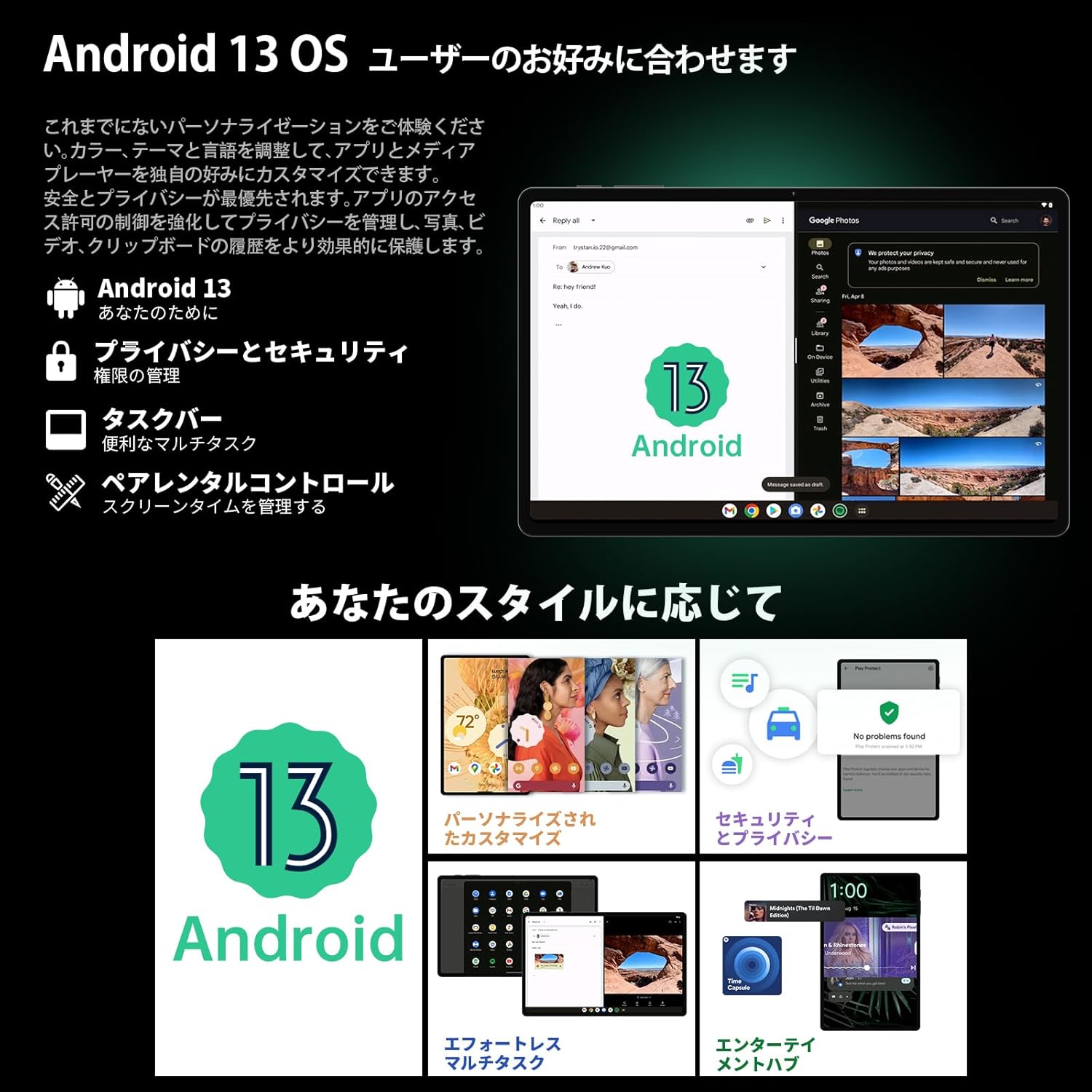
Image 3.1: The Android 13 interface on the TECLAST T40Air Tablet, showing personalization and security features.
3.2 ຄຸນສົມບັດການສະແດງ
The 10.4-inch 2K FHD IPS display provides vibrant colors and sharp details. It features:
- TDDI Fully Laminated: Enhances touch responsiveness and visual clarity.
- ໂໝດປົກປ້ອງຕາ: ຫຼຸດຜ່ອນແສງສີຟ້າເພື່ອປ້ອງກັນອາການເມື່ອຍລ້າຂອງຕາ.
- ໂໝດການອ່ານ: Optimizes the screen for comfortable reading.
- Dark Mode & Dim Mode: Adjusts screen brightness and color for different lighting conditions.

Image 3.2: Visual representation of the TECLAST T40Air Tablet's display features, including eye protection and reading modes.
3.3 ການໃຊ້ກ້ອງຖ່າຍຮູບ
The tablet is equipped with a 13MP rear dual camera and an 8MP front camera.
- ຖ່າຍຮູບ: ເປີດແອັບກ້ອງຖ່າຍຮູບ, ກອບຮູບຂອງເຈົ້າ, ແລະແຕະປຸ່ມຊັດເຕີ.
- ບັນທຶກວິດີໂອ: ປ່ຽນໄປໃຊ້ໂໝດວິດີໂອໃນແອັບກ້ອງຖ່າຍຮູບ ແລະ ແຕະປຸ່ມບັນທຶກ.
- ກ້ອງໜ້າ: Use for video calls and selfies.

Image 3.3: The TECLAST T40Air Tablet showcasing its camera capabilities and 3.5mm headphone jack.
3.4 ສຽງ ແລະການເຊື່ອມຕໍ່
- SWEET 4 Speakers: Enjoy immersive audio with the tablet's quad-speaker system and Smart K Digital Ampມີຊີວິດຊີວາ.
- Jack ຫູຟັງ 3.5 ມມ: Connect your wired headphones for private listening.
- Wi-Fi: Supports 2.4GHz and 5GHz dual-band Wi-Fi (802.11ac) for stable and fast internet.
- Bluetooth 5.0: ເຊື່ອມຕໍ່ອຸປະກອນເສີມໄຮ້ສາຍເຊັ່ນ: ຫູຟັງ, ແປ້ນພິມ, ແລະຫນູ.
- VoLTE: Enables high-quality voice calls over 4G LTE networks.
3.5 ການປົດລັອກດ້ວຍໜ້າ
The tablet supports Face Unlock for convenient and secure access. Set it up in the Security settings. Ensure good lighting conditions for optimal performance.
4. ບໍາລຸງຮັກສາ
4.1 ການເຮັດຄວາມສະອາດແທັບເລັດ
ເພື່ອເຮັດຄວາມສະອາດແທັບເລັດຂອງທ່ານ, ໃຫ້ໃຊ້ຜ້າທີ່ອ່ອນໆ, ບໍ່ມີເສັ້ນດ່າງ. ສໍາລັບ smudges stubborn, ເລັກນ້ອຍ dampເຊັດຜ້າດ້ວຍນໍ້າ ຫຼື ນໍ້າຢາລ້າງໜ້າຈໍ. ຫຼີກລ່ຽງການໃຊ້ສານເຄມີທີ່ຮຸນແຮງ, ວັດສະດຸຂັດ, ຫຼື ຄວາມຊຸ່ມຊື່ນຫຼາຍເກີນໄປ.
4.2 ການດູແລຫມໍ້ໄຟ
- ຫຼີກເວັ້ນການເປີດເຜີຍແທັບເລັດກັບອຸນຫະພູມທີ່ຮຸນແຮງ.
- ຢ່າປ່ອຍໃຫ້ຫມໍ້ໄຟຫມົດໄປເລື້ອຍໆ.
- Use the original charger or a certified 18W PD charger for optimal charging.
4.3 ການປັບປຸງຊອບແວ
ກວດສອບ ແລະຕິດຕັ້ງການອັບເດດຊອບແວເປັນປະຈຳເພື່ອຮັບປະກັນວ່າແທັບເລັດຂອງທ່ານມີຄຸນສົມບັດຫຼ້າສຸດ, ແຜ່ນປ້ອງກັນຄວາມປອດໄພ ແລະການປັບປຸງປະສິດທິພາບ. ໄປທີ່ ການຕັ້ງຄ່າ > ລະບົບ > ການປັບປຸງລະບົບ.
4.4 ການຄຸ້ມຄອງການເກັບຮັກສາ
The tablet comes with 256GB of internal storage, expandable via microSD card up to 1TB. Regularly manage your storage by:
- ການລົບທີ່ບໍ່ຈໍາເປັນ files ແລະກິດ.
- ການເຄື່ອນຍ້າຍຂະຫນາດໃຫຍ່ files ກັບບັດ microSD.
- Utilizing cloud storage services.

Image 4.1: The TECLAST T40Air Tablet highlighting its 16GB RAM, 256GB ROM, and support for microSD card expansion.
5. ການແກ້ໄຂບັນຫາ
This section addresses common issues you might encounter with your TECLAST T40Air Tablet.
5.1 ອຸປະກອນບໍ່ເປີດ
- ກວດໃຫ້ແນ່ໃຈວ່າໄດ້ສາກແບັດເຕີຣີພຽງພໍ. ເຊື່ອມຕໍ່ສາຍສາກແລ້ວລໍຖ້າສອງສາມນາທີກ່ອນທີ່ຈະພະຍາຍາມເປີດເຄື່ອງ.
- ກົດປຸ່ມເປີດປິດຄ້າງໄວ້ຢ່າງໜ້ອຍ 10-15 ວິນາທີເພື່ອບັງຄັບໃຫ້ຣີສະຕາດ.
5.2 ບັນຫາການເຊື່ອມຕໍ່ Wi-Fi
- Check if Wi-Fi is enabled in ການຕັ້ງຄ່າ > ເຄືອຂ່າຍ ແລະອິນເຕີເນັດ > Wi-Fi.
- ໃຫ້ແນ່ໃຈວ່າທ່ານໄດ້ໃສ່ລະຫັດຜ່ານ Wi-Fi ທີ່ຖືກຕ້ອງ.
- ຣີສະຕາດເລົາເຕີ Wi-Fi ແລະແທັບເລັດຂອງທ່ານ.
- Try connecting to a different Wi-Fi network to isolate the issue.
5.3 ການປະຕິບັດຊ້າ
- ປິດແອັບພລິເຄຊັນພື້ນຫຼັງທີ່ບໍ່ໄດ້ໃຊ້.
- Clear cache data for apps that are running slowly (ການຕັ້ງຄ່າ > ແອັບ > [ຊື່ແອັບ] > ບ່ອນເກັບຂໍ້ມູນ ແລະແຄດ > ລຶບແຄດ).
- ໃຫ້ແນ່ໃຈວ່າທ່ານມີພື້ນທີ່ຈັດເກັບຂໍ້ມູນຫວ່າງພຽງພໍ.
- ຣີສະຕາດແທັບເລັດ.
5.4 ໜ້າຈໍບໍ່ຕອບສະໜອງ
- ຣີສະຕາດແທັບເລັດໂດຍການກົດປຸ່ມເປີດປິດ.
- ກວດໃຫ້ແນ່ໃຈວ່າໜ້າຈໍສະອາດ ແລະບໍ່ມີຄວາມຊຸ່ມຊື່ນ ຫຼືສິ່ງເສດເຫຼືອ.
5.5 ຣີເຊັດເປັນຄ່າໂຮງງານ (ຣີສອດຄັ້ງສຸດທ້າຍ)
ຖ້າບັນຫາຍັງຄົງຢູ່, ທ່ານອາດຈະພິຈາລະນາດໍາເນີນການຣີເຊັດເປັນຄ່າໂຮງງານ. ຄຳເຕືອນ: ນີ້ຈະລຶບຂໍ້ມູນທັງໝົດໃນແທັບເລັດຂອງທ່ານ. ສໍາຮອງຂໍ້ມູນທີ່ສໍາຄັນກ່ອນທີ່ຈະດໍາເນີນການ.
ໄປທີ່ ການຕັ້ງຄ່າ > ລະບົບ > ຕົວເລືອກຣີເຊັດ > ລຶບຂໍ້ມູນທັງໝົດ (ຣີເຊັດເປັນຄ່າໂຮງງານ) ແລະປະຕິບັດຕາມຄໍາແນະນໍາໃນຫນ້າຈໍ.
6. ຂໍ້ມູນຈໍາເພາະ
Below are the technical specifications for the TECLAST T40Air Tablet:
| ຄຸນສົມບັດ | ຂໍ້ມູນຈໍາເພາະ |
|---|---|
| ໝາຍເລກຕົວແບບ | T40Air |
| ຂະຫນາດຈໍສະແດງຜົນ | 10.4 ນິ້ວ |
| ຄວາມລະອຽດໜ້າຈໍ | 1920 x 1080 pixels (2K FHD IPS) |
| RAM | 16 GB |
| ຂະໜາດຄວາມຈຳ Flash (ROM) | 256 GB |
| ຍີ່ຫໍ້ເຄື່ອງປະມວນຜົນ | Rockchip or Unisoc (Octa-core) |
| ລະບົບປະຕິບັດການ | Android 13 |
| ປະເພດໄຮ້ສາຍ | 5 GHz Radio Frequency, 802.11a/b/g/n/ac |
| Bluetooth | Bluetooth 5.0 |
| ອາຍຸຫມໍ້ໄຟສະເລ່ຍ | 5 ຊົ່ວໂມງ (7200mAh) |
| ນ້ໍາຫນັກລາຍການ | 1.01 ປອນ (ປະມານ 460g) |
| ຂະໜາດສິນຄ້າ | 9.6 x 6.1 x 0.3 ນິ້ວ |
| ຄຸນນະສົມບັດພິເສດ | ນ້ຳໜັກເບົາ |
7. ການຮັບປະກັນແລະການສະຫນັບສະຫນູນ
7.1 ການຮັບປະກັນຜະລິດຕະພັນ
The TECLAST T40Air Tablet comes with a standard manufacturer's warranty. Please refer to the warranty card included in your product packaging for specific terms, conditions, and duration. Keep your proof of purchase for warranty claims.
7.2 ສະຫນັບສະຫນູນລູກຄ້າ
If you encounter any issues not covered in this manual or require further assistance, please contact TECLAST customer support. You can typically find contact information on the official TECLAST webເວັບໄຊ ຫຼືຜ່ານຊ່ອງທາງການສະໜັບສະໜູນຂອງຜູ້ຄ້າປີກຂອງທ່ານ.
- Visit the official TECLAST webເວັບໄຊທ໌ສໍາລັບ FAQs ແລະຊັບພະຍາກອນສະຫນັບສະຫນູນ.
- Contact the seller or retailer for product-specific support and return policies.


