1. ບົດແນະນຳ
The CMSTEDCD USB C Docking Station with KVM Switch is designed to enhance your workspace efficiency by allowing two computers to share two monitors, a keyboard, mouse, and other peripherals. This device supports dual 4K@60Hz HDMI output, 1G Ethernet, multiple USB ports, and SD/microSD card slots, providing a comprehensive solution for managing multiple systems from a single workstation.

ຮູບພາບ 1: ດ້ານໜ້າ ແລະດ້ານຫຼັງ view of the CMSTEDCD USB C Docking Station with KVM Switch.
2. ເນື້ອໃນຊຸດ
ກະລຸນາກວດສອບວ່າລາຍການທັງໝົດມີຢູ່ໃນຊຸດ:
- CMSTEDCD USB C Docking Station with KVM Switch (Model SW524-Grey) x1
- DC12V Power Adapter x1
- ສາຍ USB-C ຫາ USB-C x1
- Desktop Controller x1
- ຄູ່ມືຜູ້ໃຊ້ x1
3. ຜະລິດຕະພັນເກີນview
The CMSTEDCD KVM Docking Station offers a comprehensive set of ports and features for enhanced connectivity and control.

Image 2: Detailed diagram of the KVM switch ports and components.
ແຜງໜ້າ:
- ຜອດ USB-A 3.2 (x2): ສໍາລັບການເຊື່ອມຕໍ່ອຸປະກອນ USB ຄວາມໄວສູງ.
- ພອດ USB-C 3.2 (x1): For data transfer only. Does not support PD charging or video transmission.
- SD/MicroSD Card Slots: For reading and transferring data from memory cards.
- ເລືອກປຸ່ມ: To manually switch between PC1 and PC2.
- Input Channel (LED): Indicates the currently active computer (PC1 or PC2).
- Extend Control Port: For connecting the external desktop controller.
ກະດານດ້ານຫລັງ:
- ປຸ່ມເປີດ/ປິດ: ການຄວບຄຸມພະລັງງານສໍາລັບອຸປະກອນ.
- ພະລັງງານເຂົ້າ DC12V: ເຊື່ອມຕໍ່ອະແດບເຕີໄຟທີ່ສະໜອງໃຫ້.
- USB-C PC1 IN / USB-C PC2 IN: Connect to the USB-C ports of your computers. These ports must support video transmission (DP Alt Mode or Thunderbolt 3/4/5).
- LAN IN (1G Ethernet): Connect to your network for wired internet access. Note: Network follows current channel switching and cannot be used by two computers simultaneously.
- ຜອດ USB 3.0 (x2): ສໍາລັບການເຊື່ອມຕໍ່ອຸປະກອນສຽບ USB ເພີ່ມເຕີມ.
- HDMI OUT A / HDMI OUT B: Connect to your monitors. Supports up to 4K@60Hz resolution.
4. ຄໍາແນະນໍາການຕິດຕັ້ງ
Follow these steps to set up your CMSTEDCD KVM Docking Station:
- ການເຊື່ອມຕໍ່ພະລັງງານ: Connect the DC12V Power Adapter to the KVM switch's DC12V input port and plug it into a power outlet. Turn on the KVM switch using the ON/OFF switch.
- ຕິດຕາມກວດກາການເຊື່ອມຕໍ່: Connect your two monitors to the HDMI OUT A and HDMI OUT B ports on the KVM switch using HDMI cables.
- ການເຊື່ອມຕໍ່ຄອມພິວເຕີ:
- Connect the USB-C PC1 IN port on the KVM switch to a USB-C port on your first computer (PC1) using a USB-C to USB-C cable. Ensure this USB-C port supports video transmission (DP Alt Mode or Thunderbolt).
- Connect the USB-C PC2 IN port on the KVM switch to a USB-C port on your second computer (PC2) using a USB-C to USB-C cable. Ensure this USB-C port also supports video transmission.
- ການເຊື່ອມຕໍ່ຂ້າງຄຽງ:
- Connect your keyboard, mouse, and other USB devices to the USB-A 3.2 ports on the front panel or the USB 3.0 ports on the rear panel.
- If desired, connect an Ethernet cable from your router/modem to the LAN IN port on the KVM switch.
- Insert SD or microSD cards into the respective slots if needed.
- Desktop Controller (ທາງເລືອກ): Connect the provided desktop controller to the Extend Control port for convenient remote switching.

ຮູບພາບ 3: ຕົວຢ່າງample setup showing two laptops connected to the KVM switch, sharing dual monitors and peripherals.
5. ຄໍາແນະນໍາການດໍາເນີນງານ
ສະຫຼັບລະຫວ່າງຄອມພິວເຕີ:
The KVM switch offers two methods for switching between connected computers:
- ປຸ່ມແຜງດ້ານໜ້າ: Press the 'Select' button on the front panel of the docking station to switch between PC1 and PC2. The LED indicator will show which computer is currently active.
- ຕົວຄວບຄຸມເດັສທັອບ: Press the button on the external desktop controller to switch between PC1 and PC2. This allows for switching even if the docking station is placed out of reach.
Note: Keyboard shortcuts (hotkeys) are not supported for switching.
ໂໝດສະແດງຜົນ:
The docking station supports various display configurations for Windows and macOS systems:
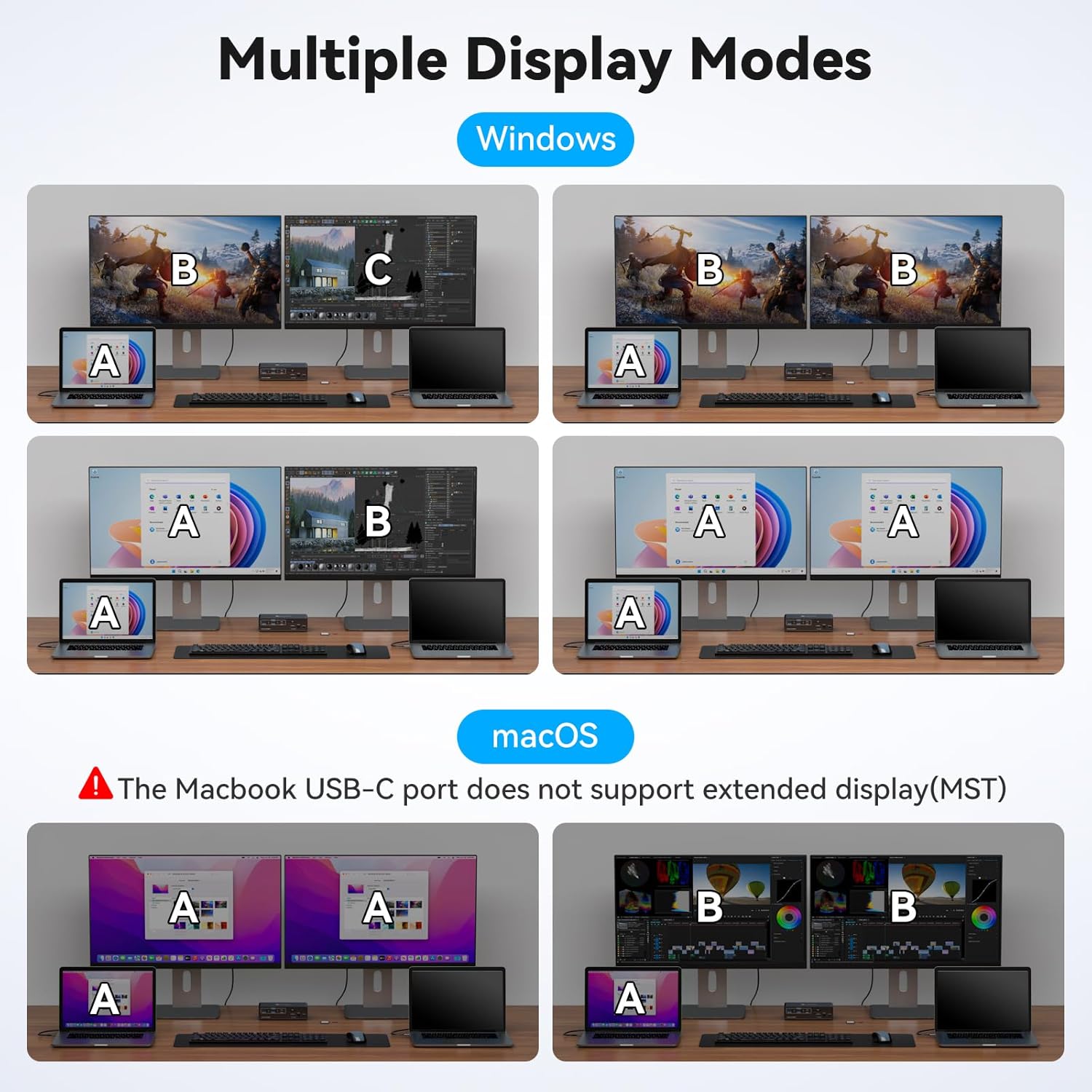
Image 4: Illustration of various display modes supported by the KVM switch for Windows and macOS.
- Windows: Supports dual screen docking mode (two monitors output different images) and dual screen mirroring mode (two monitors output the same image). Extended display (MST) is fully supported.
- macOS: Only supports mirroring mode. Due to macOS limitations, the USB-C port does not support extended display (MST).
ການຈຳລອງ EDID:
The KVM switch features EDID emulation, which helps maintain display settings and prevents resolution and icon rearrangement when switching between computers or when a computer wakes from sleep. This ensures a consistent desktop experience.

Image 5: Comparison illustrating how EDID emulation prevents desktop rearrangement upon switching.
6. ຄວາມເຂົ້າກັນໄດ້
This KVM docking station requires that your laptop's USB-C port supports DisplayPort Alternate Mode (DP Alt Mode) or is a Thunderbolt 3/4/5 port. Please verify your laptop's specifications for compatibility.
Examples of compatible laptop series include:
- HP Laptops: EliteBook 700/800, Omen, Elite Dragonfly, Elitebook Ultra series.
- ແລັບທັອບ Dell: XPS, Latitude, Precision, Pro series.
- Lenovo Laptops: ThinkPad, Yoga, ThinkBook, X1 series.
- Acer Laptops: Swift, Concept D, Neo 2023+ series.
- Asus Laptops: ROG, ProArt series.
For specific models or other brands, consult your laptop's manufacturer documentation.
7. ຂໍ້ມູນຈໍາເພາະ
| ຄຸນສົມບັດ | ລາຍລະອຽດ |
|---|---|
| ໝາຍເລກຕົວແບບ | SW524-Grey |
| ຍີ່ຫໍ້ | CMSTEDCD |
| ປະເພດຕົວເຊື່ອມຕໍ່ | USB C |
| ຮູບແບບການເຮັດວຽກ | ຄູ່ມື |
| ວິທີການຄວບຄຸມ | ປຸ່ມກົດ |
| ປະເພດວົງຈອນ | 2 ທາງ |
| ຈໍານວນຕໍາແໜ່ງ | 4 |
| ວັດສະດຸຕິດຕໍ່ | ຄໍາ |
| ປະເພດການຕິດຕັ້ງ | Rack Mount |
| ຂະຫນາດ Parcel | 20 x 14.6 x 5.6 cm |
| ນ້ໍາຫນັກລາຍການ | 580 g |
8. ການແກ້ໄຂບັນຫາ
ຖ້າທ່ານພົບບັນຫາ, ໃຫ້ອ້າງອີງເຖິງຂັ້ນຕອນການແກ້ໄຂບັນຫາຕໍ່ໄປນີ້:
Issue: USB devices not working
- Confirm that the USB-C to USB-C cables are properly connected between your computers and the KVM switch's PC IN ports.
- Verify that the USB ports on your computers are functioning correctly.
- Ensure that the latest USB drivers are installed on your computers.
Issue: Display has no image
- Confirm that the KVM switch is powered on and the correct input channel (PC1 or PC2) is selected.
- Verify that the HDMI cables are securely connected from the KVM switch's HDMI OUT ports to your monitors.
- Ensure that the USB-C PC IN ports on the KVM switch are correctly connected to your computers' USB-C ports that support video transmission. Input A corresponds to OUT-A display, and Input B to OUT-B display.
- Use high-quality HDMI cables, preferably 3.3 feet or shorter. Conversion cables are generally not supported.
- If an adapter is required for your monitor setup, ensure it is an active adapter.
- Check your computer's display settings to ensure the monitors are detected and configured correctly.
9. ບໍາລຸງຮັກສາ
To ensure the longevity and optimal performance of your CMSTEDCD KVM Docking Station, follow these maintenance guidelines:
- ທໍາຄວາມສະອາດ: ໃຊ້ຜ້າອ່ອນແລະແຫ້ງເພື່ອທຳຄວາມສະອາດດ້ານນອກຂອງອຸປະກອນ. ຫຼີກລ່ຽງການໃຊ້ນ້ຳຢາທຳຄວາມສະອາດ ຫຼື ນ້ຳຢາສີດ, ເຊິ່ງອາດຈະເຮັດໃຫ້ເຄື່ອງເສຍຫາຍໄດ້.
- ການລະບາຍອາກາດ: ໃຫ້ແນ່ໃຈວ່າອຸປະກອນຖືກວາງໄວ້ໃນບໍລິເວນທີ່ມີລະບາຍອາກາດດີເພື່ອປ້ອງກັນຄວາມຮ້ອນເກີນໄປ. ຢ່າອຸດຕັນຊ່ອງລະບາຍອາກາດ.
- ການເກັບຮັກສາ: ເມື່ອບໍ່ໄດ້ໃຊ້ເປັນເວລາດົນ, ໃຫ້ເກັບຮັກສາອຸປະກອນໄວ້ໃນບ່ອນທີ່ເຢັນ, ແຫ້ງແລ້ງຫ່າງຈາກແສງແດດໂດຍກົງ ແລະ ອຸນຫະພູມທີ່ຮຸນແຮງ.
- ການຄຸ້ມຄອງສາຍໄຟ: Keep cables organized and avoid sharp bends or excessive tension, which can damage connectors or internal wiring.
10. ການຮັບປະກັນແລະການສະຫນັບສະຫນູນ
Your CMSTEDCD KVM Docking Station comes with a ຮັບປະກັນ 24 ເດືອນ from the date of purchase. During this period, if you encounter any product issues, please contact our customer support for assistance.
We provide comprehensive technical support and offer product replacement or refund services for eligible issues.
For support, please refer to the contact information provided with your purchase or visit the official CMSTEDCD webເວັບໄຊ.

