1. ບົດແນະນຳ
1.1 ກ່ຽວກັບຄູ່ມືນີ້
This manual provides essential information for setting up, operating, maintaining, and troubleshooting your Fujitsu LIFEBOOK E546 laptop. Please read it carefully before using your device to ensure proper function and longevity.
1.2 ຜະລິດຕະພັນເກີນview
The Fujitsu LIFEBOOK E546 is a business-class laptop designed for productivity and reliability. This particular unit is a refurbished model, professionally tested and renewed to function like new. It features an Intel Core i5-6200U processor, 8GB of RAM, a 256GB SSD, and a 14-inch Full HD (1920x1080) display. It comes pre-installed with Windows 10 Pro.

Image: Fujitsu LIFEBOOK E546 laptop, closed, showing the top lid with the Fujitsu logo.
2. ຕັ້ງຄ່າ
2.1 ການຫຸ້ມຫໍ່
ເອົາສ່ວນປະກອບທັງຫມົດອອກຈາກການຫຸ້ມຫໍ່ຢ່າງລະມັດລະວັງ. ໃຫ້ແນ່ໃຈວ່າມີລາຍການຕໍ່ໄປນີ້:
- Fujitsu LIFEBOOK E546 ແລໍບທັອບ
- ອະແດບເຕີ AC
- ສາຍໄຟ
ຖ້າລາຍການໃດຂາດຫາຍໄປຫຼືເສຍຫາຍ, ກະລຸນາຕິດຕໍ່ສະຫນັບສະຫນູນລູກຄ້າທັນທີ.
2.2 ການເປີດເຄື່ອງເບື້ອງຕົ້ນ
Connect the AC adapter to the laptop's power input port and then to a functional power outlet. Open the laptop lid and press the power button, typically located near the keyboard. The system will guide you through the initial Windows 10 setup process, including language selection, network connection, and user account creation.

Image: Fujitsu LIFEBOOK E546 laptop open, viewed from an angle, showing the keyboard and screen. The power button is typically located near the keyboard.
3. ການດໍາເນີນງານ
3.1 ການຄຸ້ມຄອງພະລັງງານ
- ເພື່ອເປີດ: ກົດປຸ່ມເປີດປິດ.
- ເພື່ອປິດ: In Windows, click the Start button, then select Power > Shut down.
- ຮູບແບບການນອນ: Close the laptop lid or click the Start button, then select Power > Sleep.
3.2 ການເຊື່ອມຕໍ່ອຸປະກອນຕໍ່
The LIFEBOOK E546 offers various ports for connecting external devices:
- ພອດ USB: Connect USB devices such as mice, keyboards, external storage drives, or printers to the three USB-A 3.0 ports.
- ຜົນຜະລິດວິດີໂອ: Use the VGA or DisplayPort for connecting external monitors or projectors.
- ເຄືອຂ່າຍ: Connect to a wired network using the Gigabit LAN (Gb LAN) port for stable internet access.
- ສຽງ: Utilize the audio in/out ports for headphones, external speakers, or microphones.
- Card Reader: Insert compatible memory cards into the card reader slot for data transfer.
- ສະຖານີຈອດ: A dedicated connector allows for integration with a compatible docking station (sold separately) for expanded connectivity.

ຮູບພາບ: ຊ້າຍ view of the Fujitsu LIFEBOOK E546, showing audio jacks and USB ports.
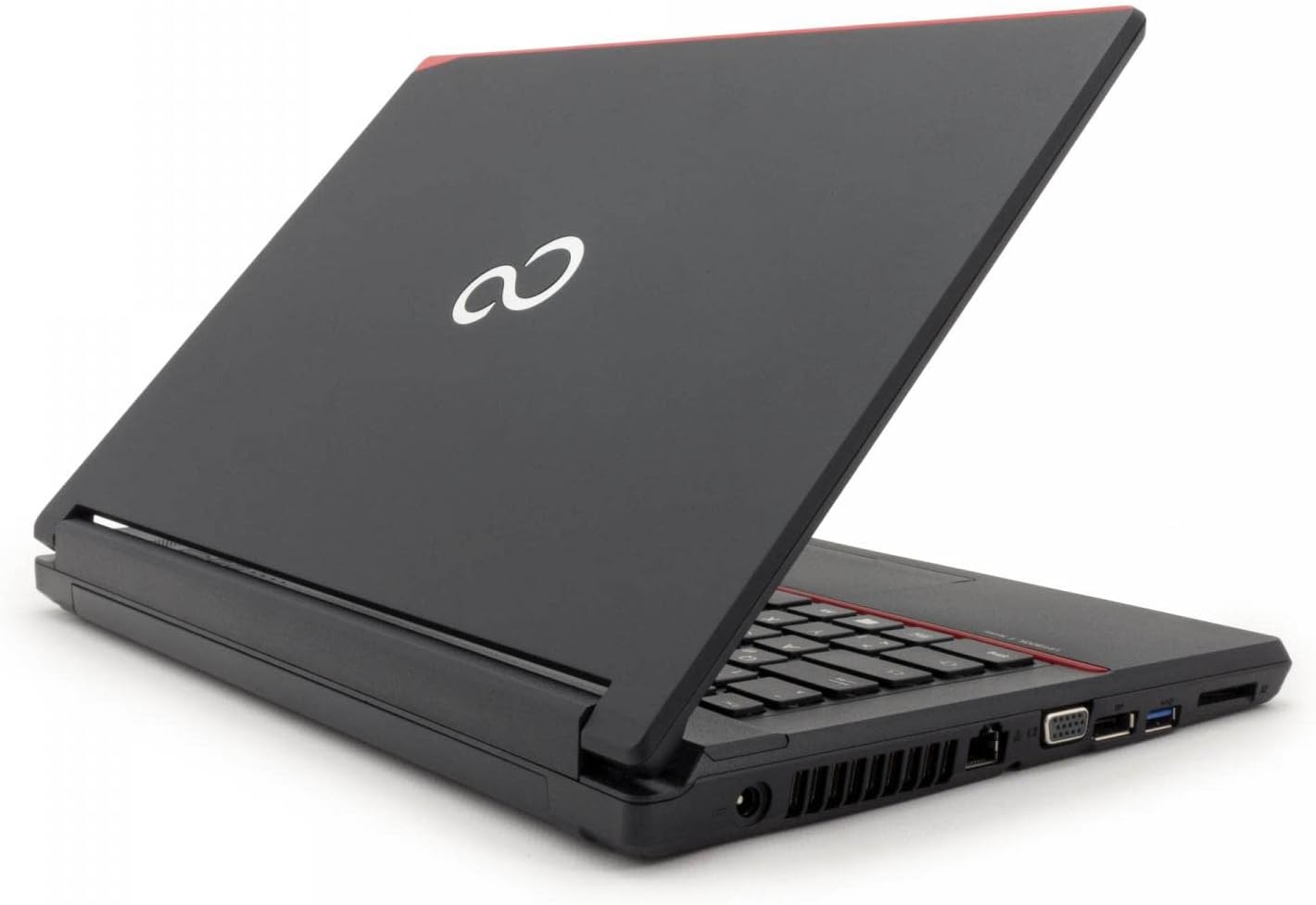
ຮູບພາບ: ເບື້ອງຂວາ view of the Fujitsu LIFEBOOK E546, showing VGA, DisplayPort, LAN, and other ports.
3.3 ການໃຊ້ແປ້ນພິມ ແລະ Touchpad
The laptop features a full-sized keyboard for comfortable typing. The integrated touchpad allows for precise cursor control and supports multi-touch gestures such as scrolling and zooming. Refer to Windows settings for touchpad customization options.
4. ບໍາລຸງຮັກສາ
4.1 ການທໍາຄວາມສະອາດ
ເພື່ອຮັກສາຮູບລັກສະນະ ແລະ ໜ້າທີ່ການເຮັດວຽກຂອງແລັບທັອບຂອງທ່ານ:
- ໃຊ້ຜ້າແພທີ່ອ່ອນໆ, ບໍ່ມີເສັ້ນດ່າງ, dampened with water or a screen cleaner, to clean the display.
- Wipe exterior surfaces with a soft, dry cloth.
- Avoid using harsh chemicals, abrasive cleaners, or solvents, as these can damage the surfaces.
- ກວດໃຫ້ແນ່ໃຈວ່າຄອມພິວເຕີປິດ ແລະຖອດປລັກອອກກ່ອນທຳຄວາມສະອາດ.
4.2 ການປັບປຸງຊອບແວ
ອັບເດດລະບົບປະຕິບັດການ Windows ແລະໄດຣເວີອຸປະກອນຂອງທ່ານເປັນປະຈຳເພື່ອຮັບປະກັນປະສິດທິພາບ, ຄວາມປອດໄພ ແລະ ຄວາມເຂົ້າກັນໄດ້ດີທີ່ສຸດ. ສາມາດເຂົ້າເຖິງການອັບເດດ Windows ໄດ້ຜ່ານເມນູການຕັ້ງຄ່າ.
4.3 ການດູແລຫມໍ້ໄຟ
To prolong the lifespan of your laptop's battery:
- ຫຼີກລ້ຽງການເປີດຄອມພິວເຕີກັບອຸນຫະພູມທີ່ສຸດ (ຮ້ອນຫຼາຍຫຼືເຢັນຫຼາຍ).
- Do not frequently fully discharge the battery. It is generally better to keep the charge between 20% and 80%.
- ຖ້າເກັບຮັກສາຄອມພິວເຕີໂນດບຸກເປັນເວລາດົນນານ, ໃຫ້ຮັບປະກັນວ່າແບັດເຕີຣີຖືກສາກໄວ້ປະມານ 50%.
5. ການແກ້ໄຂບັນຫາ
5.1 ບັນຫາທົ່ວໄປ ແລະການແກ້ໄຂ
- ແລັບທັອບບໍ່ເປີດ:
- Check power connection: Ensure the AC adapter is securely connected to the laptop and a working power outlet.
- Battery charge: If running on battery, ensure it is sufficiently charged.
- Screen is blank or no display:
- Check brightness settings: Increase screen brightness using the function keys.
- External monitor test: Connect an external monitor to the laptop to verify if the issue is with the laptop's internal display or the graphics output.
- ປະສິດທິພາບຊ້າ:
- Close unnecessary applications: Reduce the number of programs running simultaneously.
- Check for background processes: Use Task Manager (Ctrl+Shift+Esc) to identify and close resource-intensive background processes.
- Ensure sufficient free space: Verify that your 256GB SSD has adequate free space for optimal operation.
- ບໍ່ຮັບຮູ້ອຸປະກອນຕໍ່ພ່ວງ:
- Reconnect the device: Unplug and re-plug the peripheral.
- Try a different port: Test the device in another USB or relevant port.
- Update or reinstall drivers: Ensure the latest drivers for the peripheral are installed.
For more complex issues or persistent problems, refer to the official Fujitsu support webຫຼື ຕິດຕໍ່ຝ່າຍສະໜັບສະໜູນດ້ານວິຊາການຂອງເຂົາເຈົ້າເພື່ອຂໍຄວາມຊ່ວຍເຫຼືອເພີ່ມເຕີມ.
6. ຂໍ້ມູນຈໍາເພາະ
| ຄຸນສົມບັດ | ລາຍລະອຽດ |
|---|---|
| ຕົວແບບ | Fujitsu LIFEBOOK E546 |
| ໂຮງງານຜະລິດ | Intel Core i5-6200U (6th Generation) |
| RAM | 8 GB |
| ການເກັບຮັກສາ | SSD 256 GB |
| ຈໍສະແດງຜົນ | 14 inches, 1920 x 1080 pixels (Full HD) |
| ລະບົບປະຕິບັດການ | Windows 10 Pro |
| ຮູບພາບ | Intel HD Graphics 520 |
| ນ້ຳໜັກ | 1.9 ກິໂລກຣາມ |
| ທ່າເຮືອ | 3x USB-A 3.0, Gb LAN, VGA, DisplayPort, Audio in/out, Card Reader, Docking Station connector |
| ການໂຕ້ຕອບຂອງມະນຸດ | ໄມໂຄຣໂຟນ |
| ອົງປະກອບຫມໍ້ໄຟ | ລິດທຽມ-ໄອອອນ |
*Note: Specifications may vary slightly based on specific configuration or regional models.
7. ການຮັບປະກັນແລະການສະຫນັບສະຫນູນ
7.1 ຂໍ້ມູນການຮັບປະກັນ
This Fujitsu LIFEBOOK E546 comes with a 1-year warranty. Please retain your proof of purchase for any warranty claims. The warranty covers manufacturing defects and ensures the product functions as described. It does not cover damage caused by misuse, accidents, unauthorized modifications, or normal wear and tear.
7.2 ສະຫນັບສະຫນູນດ້ານວິຊາການ
For technical assistance, troubleshooting beyond this manual, or service requests, please visit the official Fujitsu support website or contact their customer service department. A "Recovery" shortcut is pre-installed on the desktop for system recovery options, which can help resolve software issues.


