1. ບົດແນະນຳ
Thank you for choosing the COOAU 6MP Outdoor Security Camera. This manual provides detailed instructions for the installation, operation, and maintenance of your camera. Please read this manual carefully before use to ensure proper functionality and to maximize your security experience.
2. ຜະລິດຕະພັນເກີນview
ຄຸນນະສົມບັດທີ່ສໍາຄັນ
- 6MP High-Resolution & 360° Coverage: Equipped with a 6MP CMOS image sensor and 3360*1890P ultra-clear lens for sharp, detailed images. Features horizontal 350° and vertical 90° rotation for 360° monitoring without blind spots.
- ການຕິດຕາມອັດຕະໂນມັດ: Automatically tracks and records movement upon human detection, ensuring no critical moments are missed.
- 20M Long-Range Night Vision & AI Human Detection: Features 3 infrared LEDs and light LEDs, offering two night vision modes (infrared black and white, full-color) up to 20m. AI human detection reduces false alarms from animals or light changes.
- Light Deterrent: Automatically activates a light alarm upon detecting intruders at night, preventing mischief.
- Multiple Data Storage Options & H.265 Video Compression: Supports MicroSD card (up to 128GB) and cloud storage. Advanced H.265 video compression saves up to 50% storage space compared to H.264 while maintaining video quality.
- Enhanced Antenna & Two-Way Audio: Powerful internal antenna provides stable and reliable Wi-Fi connection even through walls. Built-in microphone with noise cancellation allows clear two-way communication up to 8 meters.
- IP66 Weatherproofing: Dustproof and waterproof, suitable for use in various weather conditions including rain, sun, storms, and snow.
- ຄວາມເຂົ້າກັນໄດ້ຫຼາຍອຸປະກອນ: Compatible with iOS/Android/Windows via the "MIPC" app. Supports Alexa for voice control.
ເນື້ອໃນຊຸດ
- Camera body x 1
- ສາຍໄຟ USB 1 x
- ອະແດັບເຕີ AC x 1
- ສະກູ x 3
- ສະxໍ x 3
- ຄູ່ມືການສອນ x 1
3. ຕັ້ງຄ່າ
3.1 ການກວດສອບການຕິດຕັ້ງກ່ອນ
Before physical installation, connect your mobile phone to the camera and confirm that the camera is functioning correctly. This ensures the camera is operational before mounting.
3.2 ການຕິດຕັ້ງທາງດ້ານຮ່າງກາຍ
- ເຄື່ອງໝາຍເຈາະຮູ: Place the mounting base against the desired installation surface and use a pencil to mark the positions for drilling.
- ຮູເຈາະ: ໃຊ້ສະວ່ານເພື່ອສ້າງຮູຢູ່ຕຳແໜ່ງທີ່ໝາຍໄວ້.
- Inserting Wall Anchors: Gently tap the provided wall anchors into the drilled holes until they are flush with the surface.
- ການຕິດຕັ້ງຖານ: Align the mounting base with the anchors and secure it using the provided screws.
- ການຕິດກ້ອງຖ່າຍຮູບ: Slide the camera onto the mounted base until it clicks securely into place.
- ກຳລັງເຊື່ອມຕໍ່: Connect the USB power cable to the camera and plug the AC adapter into a power outlet. The camera will perform a self-test, rotating its lens and emitting a beep sound. This is normal.

Image: Step-by-step guide for mounting the camera base and attaching the camera.
Video: Demonstrates the physical installation process of the outdoor security camera.
3.3 ການຕິດຕັ້ງແອັບ ແລະ ການເຊື່ອມຕໍ່
- ດາວໂຫລດ App ໄດ້: Download the "MIPC" app from your smartphone's app store (iOS/Android).
- ລົງທະບຽນບັນຊີ: ເປີດແອັບ ແລະ ລົງທະບຽນບັນຊີຜູ້ໃຊ້ໃໝ່.
- ເພີ່ມອຸປະກອນ: ແຕະທີ່ໄອຄອນ "+" ເພື່ອເພີ່ມອຸປະກອນໃໝ່.
- Enable Bluetooth (Optional): If prompted, enable Bluetooth on your smartphone to allow the app to automatically search for nearby cameras.
- ເລືອກເຄືອຂ່າຍ Wi-Fi: Choose your 2.4GHz or 5GHz Wi-Fi network and enter the password. The camera supports both frequencies.
- ສະແກນລະຫັດ QR: The app will display a QR code. Position your smartphone 15-25 cm in front of the camera lens so the camera can scan the QR code. You will hear a beep sound upon successful scan.
- ການເຊື່ອມຕໍ່ສຳເລັດແລ້ວ: Once connected, the camera's blue indicator light will turn solid, and the app will confirm successful device addition.

Image: Visual guide for connecting the camera to the app via QR code.
Video: Instructions on how to add the camera to your smartphone app.
4. ຄໍາແນະນໍາການດໍາເນີນງານ
4.1 ການຕິດຕາມໄລຍະໄກ
ເຂົ້າເຖິງຟີດວິດີໂອສົດໆ ແລະບັນທຶກຂໍ້ມູນtage from anywhere using the MIPC app on your smartphone, tablet, or computer.
4.2 Pan/Tilt/Zoom (PTZ) Control
Use the app to remotely adjust the camera's viewມຸມກ້ອງ. ກ້ອງຖ່າຍຮູບຮອງຮັບການແພນອອກຕາມແນວນອນ 350° ແລະ ການອຽງຕັ້ງ 90°, ຊ່ວຍໃຫ້ທ່ານສາມາດຄອບຄຸມພື້ນທີ່ກວ້າງ.

Image: Illustrates the camera's 360° pan and tilt capabilities.
4.3 ໂໝດວິໄສທັດກາງຄືນ
ກ້ອງຖ່າຍຮູບສະເໜີໂໝດການເບິ່ງເຫັນໃນຕອນກາງຄືນສອງແບບຄື:
- Infrared Black and White: Provides clear black and white video in low-light conditions using infrared LEDs.
- ວິໄສທັດກາງຄືນເຕັມສີ: Activates light LEDs to capture full-color video at night, allowing for detailed identification of subjects and their clothing.
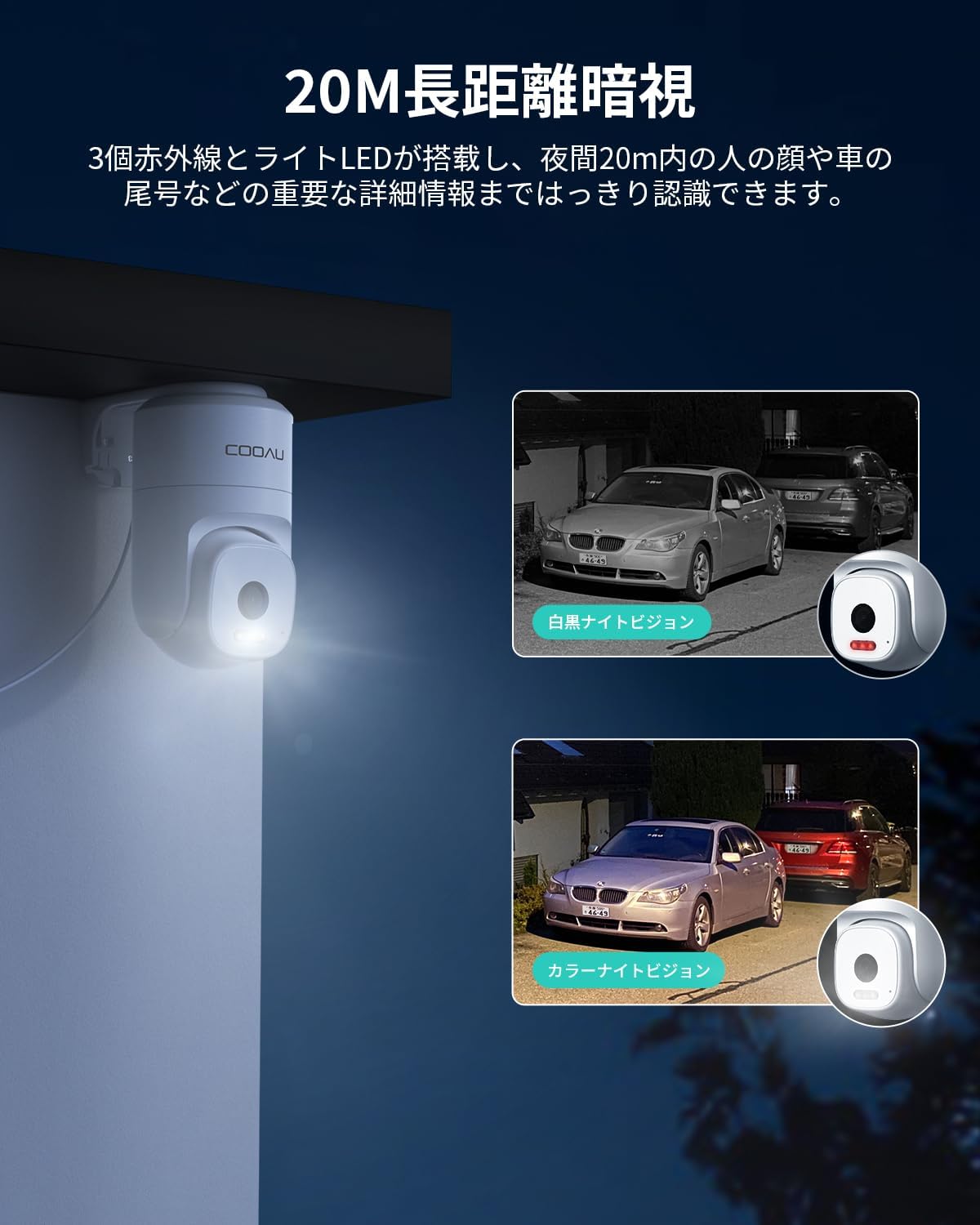
Image: Comparison of black and white infrared night vision and full-color night vision.
4.4 ການກວດຈັບມະນຸດດ້ວຍ AI ແລະ ການຕິດຕາມອັດຕະໂນມັດ
The camera's AI human detection feature accurately identifies human figures, minimizing false alarms from pets, shadows, or vehicles. When a person is detected, the camera automatically tracks their movement, ensuring continuous recording of the event.

Image: Demonstrates the camera's AI human detection accuracy.

Image: The camera's auto-tracking function following a person.
4.5 ສຽງສອງທາງ
Utilize the built-in microphone and speaker for real-time two-way communication through the app. This allows you to speak to visitors or deter intruders remotely.
4.6 Alarm Notifications & Light Deterrent
Receive real-time notifications on your smartphone when motion or human activity is detected. At night, the camera can automatically activate its light LEDs to deter potential intruders.
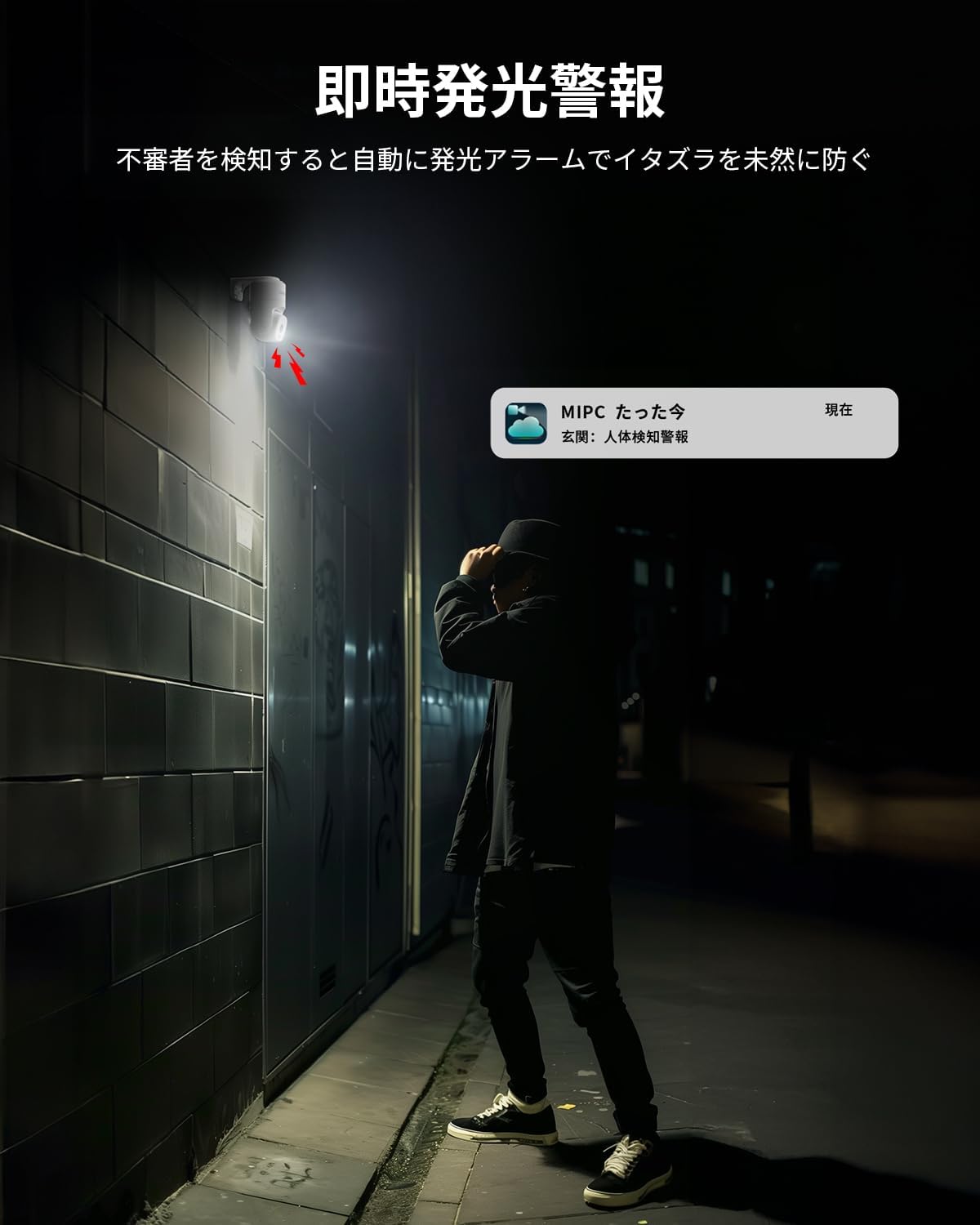
Image: The camera's light deterrent function in action.
4.7 ການບັນທຶກ & ການເກັບຮັກສາ
The camera supports various recording modes:
- 24-Hour Continuous Recording: Records continuously throughout the day.
- ການບັນທຶກການຊອກຄົ້ນຫາ Motion: ບັນທຶກພຽງແຕ່ເມື່ອມີການກວດພົບການເຄື່ອນໄຫວ.
- ກຳ ນົດການບັນທຶກ: Records during specified times.
Recorded videos can be stored on a MicroSD card (up to 128GB, not included) or via cloud storage (subscription may be required). The advanced H.265 video compression ensures efficient storage usage without compromising video quality.

Image: Illustrates the flexible storage options available for the camera.
4.8 ການເຊື່ອມໂຍງ Alexa
The camera is compatible with Alexa, allowing you to view live feeds on compatible Alexa-enabled devices using voice commands. For example, say "Alexa, show me the garden" to see your camera's view.

Image: Demonstrates Alexa integration for convenient monitoring.
5. ບໍາລຸງຮັກສາ
- ທໍາຄວາມສະອາດ Lens: ເຮັດຄວາມສະອາດເລນກ້ອງຖ່າຍຮູບເປັນປະຈຳດ້ວຍຜ້າອ່ອນໆແຫ້ງເພື່ອຮັບປະກັນຄຸນນະພາບຂອງຮູບພາບທີ່ຊັດເຈນ. ຫຼີກລ່ຽງການໃຊ້ສານເຄມີທີ່ຮຸນແຮງ.
- ກວດສອບການເຊື່ອມຕໍ່: Periodically inspect all cable connections for security and integrity, especially the power and network cables.
- ການອັບເດດເຟີມແວ: Check the MIPC app regularly for available firmware updates to ensure your camera has the latest features and security enhancements.
6. ການແກ້ໄຂບັນຫາ
6.1 ບັນຫາທົ່ວໄປ
- ກ້ອງຖ່າຍຮູບບໍ່ໄດ້ເຊື່ອມຕໍ່ກັບ Wi-Fi: Ensure your Wi-Fi password is correct and the camera is within range of your router. Try restarting both the camera and your router.
- ຄຸນນະພາບຮູບພາບທີ່ບໍ່ດີ: Check if the lens is clean. Ensure there is sufficient lighting, especially at night. Verify your internet connection speed.
- ສັນຍານເຕືອນທີ່ບໍ່ຖືກຕ້ອງເລື້ອຍໆ: Adjust the sensitivity of motion detection or enable AI human detection in the app settings to reduce unwanted alerts.
- ບໍ່ມີສຽງ: Check the microphone and speaker settings in the app. Ensure the volume on your smartphone is turned up.
6.2 ຣີເຊັດກ້ອງຖ່າຍຮູບ
If you encounter persistent issues, you may need to reset the camera to its factory settings. Locate the reset button (usually a small pinhole) on the camera. Press and hold the reset button for approximately 5 seconds until you hear a beep sound. The camera's red indicator light will slowly flash, indicating a successful reset. After resetting, you will need to reconfigure the camera through the app.
Video: Demonstrates how to reset the camera and its initial self-test.
7. ຂໍ້ມູນຈໍາເພາະ
| ຄຸນສົມບັດ | ຂໍ້ມູນຈໍາເພາະ |
|---|---|
| ຊື່ຕົວແບບ | 849 |
| ຄວາມລະອຽດການຖ່າຍວິດີໂອ | 6 ລ້ານພິກເຊວ (3360*1890P) |
| ຊ່ວງເລື່ອນ/ອຽງ | ລວງນອນ 350°, ຕັ້ງ 90° |
| ຂອບເຂດວິໄສທັດກາງຄືນ | ເຖິງ 20 ແມັດ |
| ການປະເມີນກັນນ້ໍາ | IP66 |
| ເຕັກໂນໂລຊີການເຊື່ອມຕໍ່ | Wireless (Wi-Fi, supports 2.4GHz & 5GHz) |
| ຕົວເລືອກການເກັບຮັກສາ | MicroSD card (Max 128GB), Cloud Storage |
| ການບີບອັດວິດີໂອ | H.265 |
| ຂະໜາດສິນຄ້າ | 45 x 55 x 75 ມມ |
| ນ້ຳໜັກສິນຄ້າ | 470 g |
| ການນໍາໃຊ້ທີ່ແນະນໍາ | ຄວາມປອດໄພໃນເຮືອນ |
| ອຸປະກອນທີ່ເຂົ້າກັນໄດ້ | Smartphones (iOS/Android), Alexa |
8. ການຮັບປະກັນແລະການສະຫນັບສະຫນູນ
We offer a 30-day return or exchange policy from the date of purchase. If you encounter any product quality issues or usage problems, please do not hesitate to contact us. We are committed to providing our customers with the highest level of after-sales service.
ຊ່ອງທາງການຕິດຕໍ່:
- ປະຫວັດການສັ່ງຊື້: Please contact the seller directly through your order history.
- ອີເມວທາງການ: You may also contact us via our official email address.


