ແນະນຳ
This manual provides instructions for the Matias Wired USB-C Keyboard for Mac with Numeric Keypad, Model FK316CS. It covers setup, operation, maintenance, troubleshooting, and product specifications to ensure optimal use of your keyboard.
ເນື້ອໃນຊຸດ
- Matias Wired USB-C Keyboard
ຕັ້ງຄ່າ
The Matias Wired USB-C Keyboard is designed for simple plug-and-play functionality with compatible Mac devices. No additional drivers or software installation is required.
- Locate an available USB-C port on your Mac computer (e.g., MacBook Pro, MacBook Air, iMac).
- Insert the USB-C connector of the keyboard into the USB-C port on your Mac.
- The keyboard should be recognized automatically by your operating system.
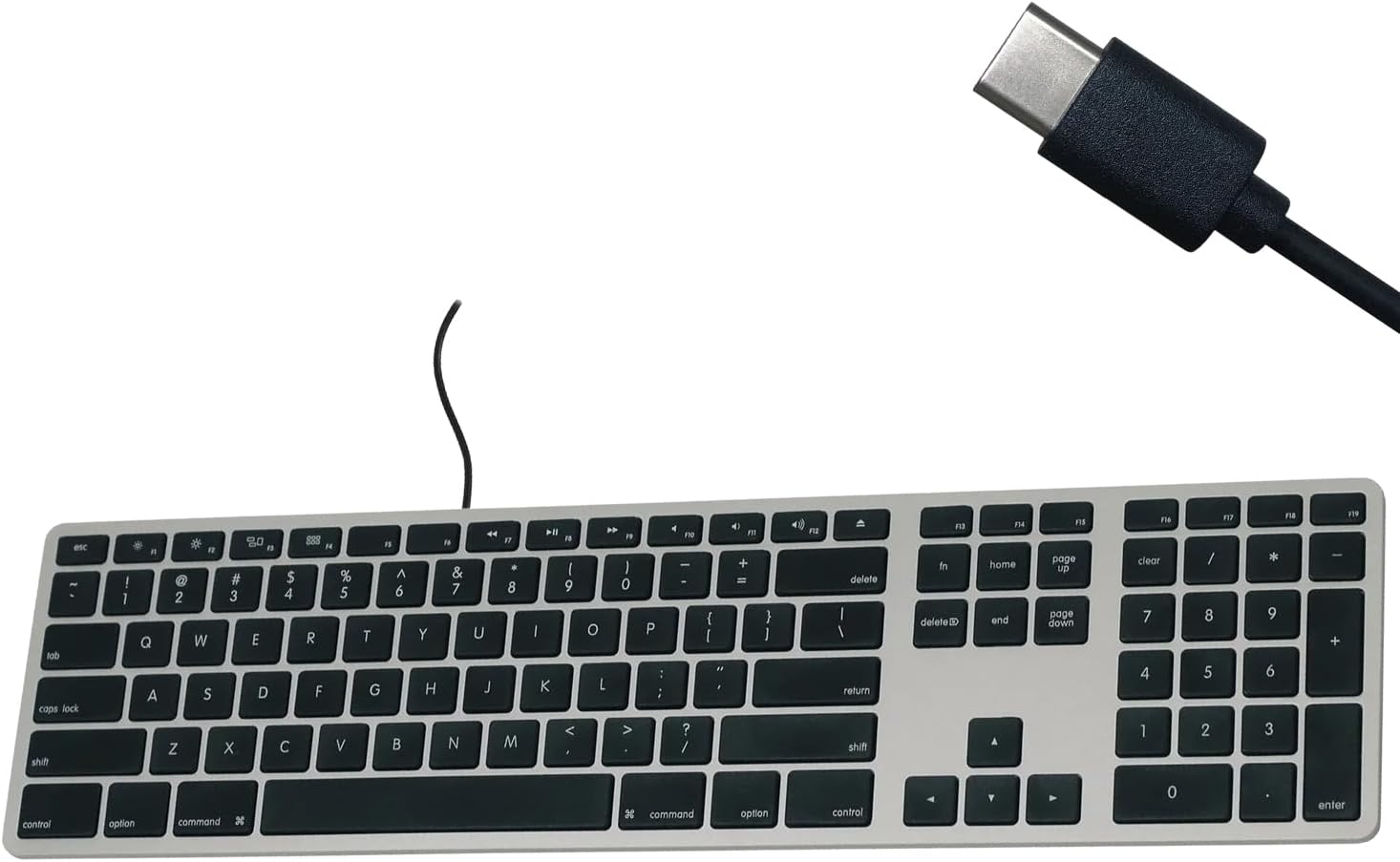
Figure 1: Matias USB-C Keyboard with its USB-C connector, ready for connection.

Figure 2: The keyboard connected to a Mac computer, demonstrating a typical setup.
ຄໍາແນະນໍາການດໍາເນີນງານ
ການພິມພື້ນຖານ
The keyboard features a standard QWERTY layout with a full numeric keypad. Simply begin typing after connecting the keyboard to your Mac.
ປຸ່ມຕົວເລກ ຈຳ ນວນຫລາຍ
The integrated numeric keypad allows for efficient data entry and calculations. Ensure the 'Num Lock' function is active if numbers are not registering (though typically not required on Mac keyboards for the numeric pad).
ປຸ່ມຟັງຊັນ Mac
The top row of keys (F1-F12) provides dedicated Mac-specific functions. These keys allow for quick access to controls such as screen brightness, volume adjustment, media playback, and Mission Control.

ຮູບທີ 3: ໄລຍະໃກ້ view of the Mac-specific function keys (F1-F12) on the keyboard.
ບໍາລຸງຮັກສາ
To maintain the performance and appearance of your Matias keyboard, follow these guidelines:
- ທໍາຄວາມສະອາດ: ໃຊ້ຜ້າແພທີ່ອ່ອນໆ ທີ່ບໍ່ມີເສັ້ນດ່າງ dampened with water or a mild, non-abrasive cleaner to wipe the surface of the keyboard. Avoid spraying liquids directly onto the keyboard.
- ການກຳຈັດຂີ້ຝຸ່ນ: ໃຊ້ອາກາດບີບອັດເພື່ອເອົາຂີ້ຝຸ່ນ ແລະສິ່ງເສດເຫຼືອອອກຈາກລະຫວ່າງກະແຈ.
- ການເກັບຮັກສາ: ເກັບຮັກສາແປ້ນພິມໄວ້ໃນສະພາບແວດລ້ອມທີ່ສະອາດ ແລະ ແຫ້ງເມື່ອບໍ່ໄດ້ໃຊ້ງານ.
ການແກ້ໄຂບັນຫາ
If you encounter issues with your Matias Wired USB-C Keyboard, consider the following steps:
- ແປ້ນພິມບໍ່ຕອບສະໜອງ:
- Ensure the USB-C cable is securely connected to both the keyboard and your Mac.
- Try connecting the keyboard to a different USB-C port on your Mac.
- Restart your Mac computer.
- Test the keyboard on another compatible Mac computer, if available, to determine if the issue is with the keyboard or the computer.
- ກະແຈບໍ່ເຮັດວຽກຢ່າງຖືກຕ້ອງ:
- Check for any physical obstructions or debris under the affected keys.
- Ensure your Mac's operating system is up to date.
ຖ້າຂັ້ນຕອນເຫຼົ່ານີ້ບໍ່ສາມາດແກ້ໄຂບັນຫາໄດ້, ກະລຸນາອ້າງອີງເຖິງພາກສ່ວນຊ່ວຍເຫຼືອເພື່ອການຊ່ວຍເຫຼືອເພີ່ມເຕີມ.
ຂໍ້ມູນຈໍາເພາະ
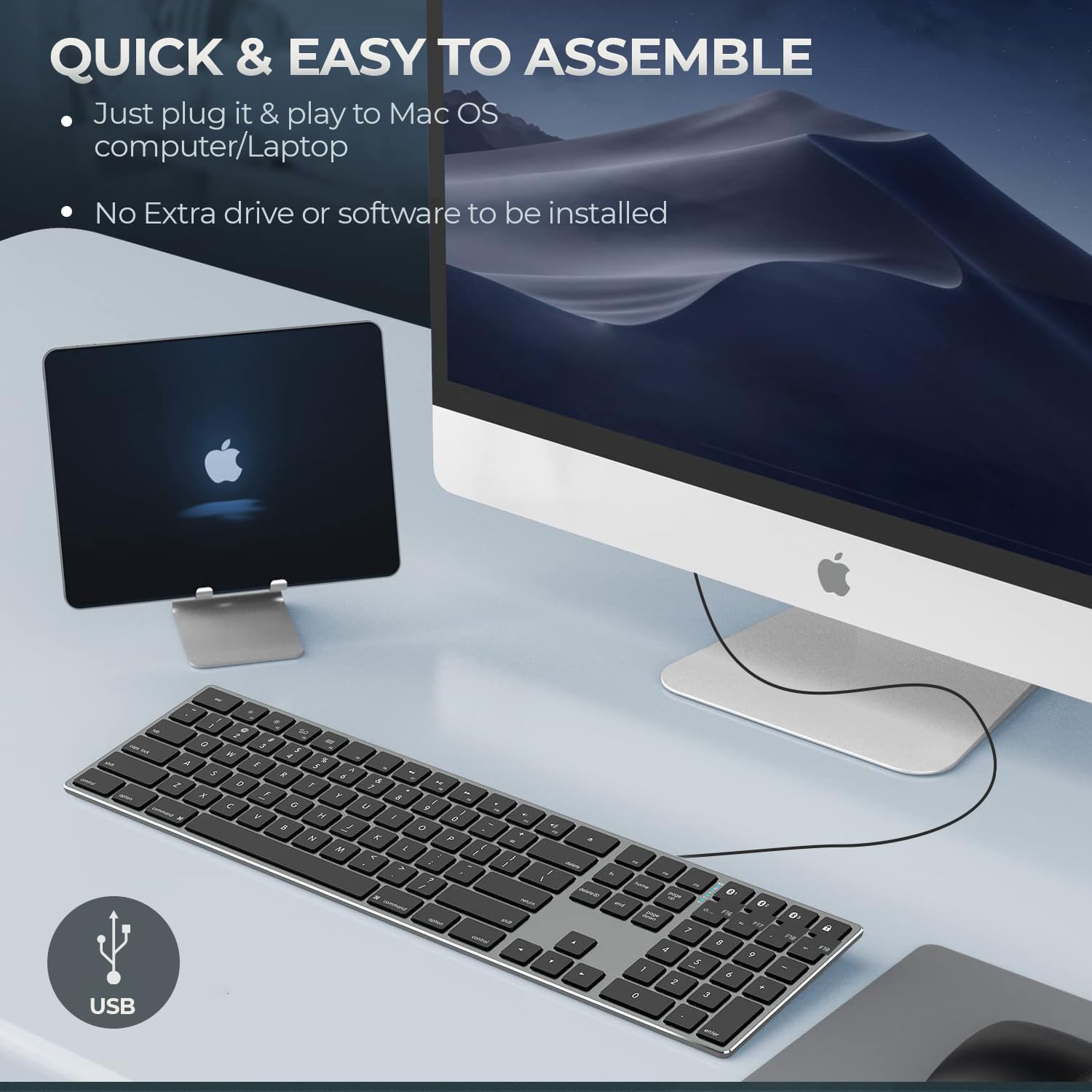
Figure 4: Key specifications of the Matias USB-C Keyboard.
| ຄຸນສົມບັດ | ລາຍລະອຽດ |
|---|---|
| ໝາຍເລກຕົວແບບ | FK316CS |
| ເຕັກໂນໂລຊີການເຊື່ອມຕໍ່ | USB-C (ມີສາຍ) |
| ອຸປະກອນທີ່ເຂົ້າກັນໄດ້ | MacBook Pro, MacBook Air, iMac, Mac OS X v.10.6.8 and later |
| ຂະໜາດສິນຄ້າ | 17.35 x 4.58 x 0.75 ນິ້ວ (44.07 x 11.63 x 1.91 cm) |
| ນ້ໍາຫນັກລາຍການ | 1.35 ປອນ (612 ກຣາມ) |
| ຄວາມຍາວສາຍ | 5 ຟຸດ (1.5 ແມັດ) |
| ວັດສະດຸ | Plastic keyframe |
| ສີ | Space Grey |

Figure 5: Keyboard dimensions and ergonomic tilt angle.
ຂໍ້ມູນການຮັບປະກັນ
Matias products are covered by a manufacturer's warranty. For specific details regarding the warranty period and terms, please refer to the warranty card included with your product or visit the official Matias webເວັບໄຊ.
ສະຫນັບສະຫນູນ
For further assistance, technical support, or to inquire about replacement parts, please contact Matias customer service through their official webເວັບໄຊ:
- Matias Official Webເວັບໄຊ: www.matias.ca
Please have your product model number (FK316CS) and purchase information ready when contacting support.


