1. ບົດແນະນຳ
Thank you for choosing the CUPEISI CP20 Android 15 Tablet. This manual provides essential information for setting up, operating, and maintaining your device. Please read it thoroughly to ensure optimal performance and longevity of your tablet.
2. ສິ່ງທີ່ຢູ່ໃນກ່ອງ
ກວດສອບວ່າລາຍການທັງຫມົດແມ່ນມີຢູ່ໃນຊຸດຂອງທ່ານ:
- CUPEISI CP20 Android 15 Tablet
- ແປ້ນພິມໄຮ້ສາຍ
- Foldable Protective Cover
- ເມົາສ໌ Bluetooth
- ສະໄຕລັດ
- ສາຍ Type-C
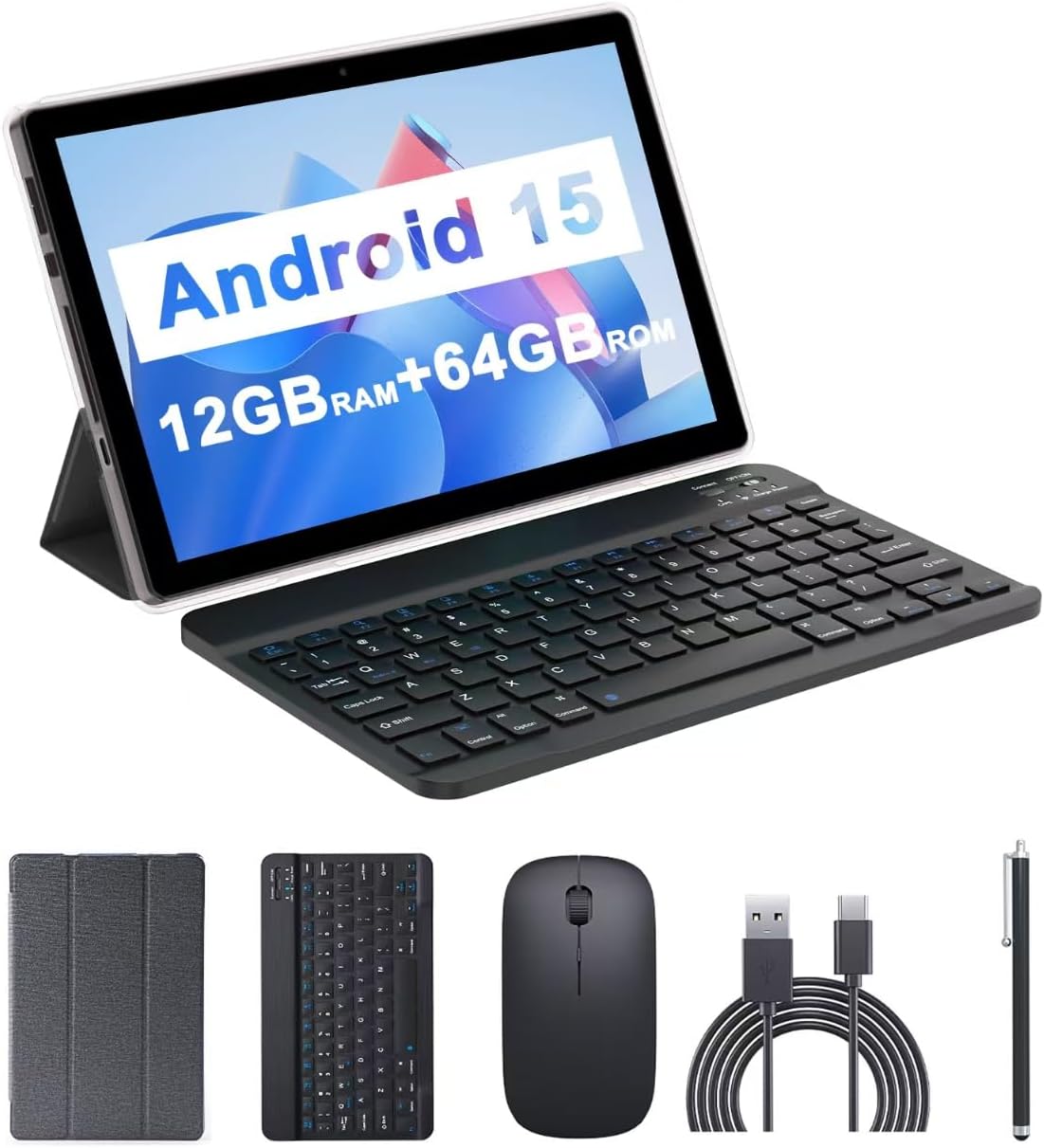
Image: The CUPEISI CP20 Tablet alongside its accessories, including the wireless keyboard, Bluetooth mouse, stylus, and foldable protective cover.
3. ຄຸນສົມບັດ ແລະ ອົງປະກອບຂອງຜະລິດຕະພັນ
The CUPEISI CP20 Tablet is designed for versatility and performance, offering a seamless user experience for both work and entertainment.
3.1 ລັກສະນະທີ່ສໍາຄັນ
- ລະບົບປະຕິບັດການ: Stable Android 15.0 system.
- ໜ່ວຍປະມວນຜົນ: Built-in 1.8GHz Quad-core CPU for efficient multitasking.
- ຫນ່ວຍຄວາມຈໍາ & ການເກັບຮັກສາ: 12GB RAM (4GB+8GB expansion) and 64GB ROM, expandable up to 1TB via microSD card.
- ຈໍສະແດງຜົນ: Stunning 10.1-inch 1280x800 IPS HD touch screen for immersive visuals and eye protection.
- ແບັດເຕີຣີ: Powered by a 6000mAh battery, providing approximately 6 hours of regular operation and up to 12 hours of standby time. Charges via 5V2A Type-C port.
- ກ້ອງຖ່າຍຮູບ: 8MP rear camera with auto-focus and flash, and a 2MP front camera for clear video calls and photos.
- ການເຊື່ອມຕໍ່: Supports 5G WiFi 6 and Bluetooth 5.0.
- ຟັງຊັນ 2-in-1: Transforms into a laptop or computer mode with the included Bluetooth keyboard, wireless mouse, and foldable protective case.

ຮູບພາບ: ຫຼາຍກວ່າview of the tablet's core specifications and features.
3.2 ອົງປະກອບທາງກາຍະພາບ
ເຮັດຄວາມຄຸ້ນເຄີຍກັບຮູບແບບທາງກາຍະພາບຂອງແທັບເລັດ:
- ປຸ່ມເປີດປິດ: ຕັ້ງຢູ່ດ້ານຂ້າງ, ໃຊ້ເພື່ອເປີດ/ປິດແທັບເລັດ ຫຼືປຸກ/ນອນໜ້າຈໍ.
- ປຸ່ມລະດັບສຽງ: ປັບລະດັບສຽງ.
- Type-C Port: ສໍາລັບການສາກໄຟແລະການໂອນຂໍ້ມູນ.
- ຊ່ອງສຽບ TF/ຊິມກາດ: Insert a microSD card for expanded storage.
- ກ້ອງໜ້າ: ສໍາລັບການໂທວິດີໂອ ແລະເຊວຟີ.
- ກ້ອງຫຼັງ ແລະ ແຟລດ: ສຳລັບຮູບພາບ ແລະ ວິດີໂອທີ່ມີຄຸນນະພາບສູງ.
- ລໍາໂພງ: Two speakers for audio output.

Image: Labeled diagram of the tablet's ports and buttons.
4. ຄູ່ມືການຕິດຕັ້ງ
4.1 ການສາກໄຟເບື້ອງຕົ້ນ
Before first use, fully charge your tablet. Connect the Type-C cable to the tablet's charging port and the other end to a compatible power adapter (5V2A recommended). The battery indicator will show charging status.
4.2 ການເປີດ/ປິດ
- ເພື່ອເປີດເຄື່ອງ: ກົດປຸ່ມເປີດປິດຄ້າງໄວ້ຈົນກວ່າໜ້າຈໍຈະສະຫວ່າງຂຶ້ນ.
- ປິດເຄື່ອງ: Press and hold the Power Button, then select 'Power off' from the options that appear on the screen.
- ເພື່ອເລີ່ມຕົ້ນໃໝ່: Press and hold the Power Button, then select 'Restart'.
4.3 ການເຊື່ອມຕໍ່ Wi-Fi
- ໄປທີ່ ການຕັ້ງຄ່າ > ເຄືອຂ່າຍ ແລະອິນເຕີເນັດ > Wi-Fi.
- ເປີດ Wi-Fi.
- ເລືອກເຄືອຂ່າຍ Wi-Fi ທີ່ທ່ານຕ້ອງການຈາກບັນຊີລາຍຊື່.
- ໃສ່ລະຫັດຜ່ານຖ້າຖືກຖາມ, ຈາກນັ້ນແຕະ ເຊື່ອມຕໍ່.
4.4 Pairing Bluetooth Accessories
To use the wireless keyboard and Bluetooth mouse, they must be paired with your tablet.
- ກວດໃຫ້ແນ່ໃຈວ່າແປ້ນພິມ ແລະເມົາສ໌ຖືກສາກ ແລະເປີດເຄື່ອງແລ້ວ.
- ໃນແທັບເລັດຂອງທ່ານ, ໄປທີ່ ການຕັ້ງຄ່າ > ອຸປະກອນທີ່ເຊື່ອມຕໍ່ > Bluetooth.
- ເປີດ Bluetooth.
- The tablet will scan for available devices. Select the keyboard or mouse from the list.
- ປະຕິບັດຕາມການກະຕຸ້ນໃນຫນ້າຈໍໃດຫນຶ່ງເພື່ອສໍາເລັດຂະບວນການການຈັບຄູ່.

Image: Instructions for connecting the wireless keyboard and mouse via Bluetooth.
4.5 ການໃສ່ບັດ MicroSD
To expand storage, insert a microSD card (up to 1TB) into the TF/SIM card slot. Ensure the tablet is powered off before inserting or removing the card.
5. ປະຕິບັດການແທັບເລັດຂອງທ່ານ
5.1 ການນໍາທາງພື້ນຖານ
Navigate the Android interface using touch gestures:
- ແຕະ: ເລືອກລາຍການ ຫຼືເປີດແອັບ.
- ປັດ: ເລື່ອນຜ່ານໜ້າ ຫຼືລາຍຊື່.
- Pinch-to-zoom: ຂະຫຍາຍຫຼືຫຍໍ້ເນື້ອໃນ.
- ກົດຄ້າງ: ເຂົ້າເຖິງເມນູບໍລິບົດ ຫຼືຍ້າຍໄອຄອນ.
5.2 Using Keyboard and Mouse
Once paired, the keyboard and mouse function similarly to a laptop. The keyboard allows for efficient typing, while the mouse provides precise cursor control, enhancing productivity.

Image: The tablet in laptop mode, demonstrating its use for productivity tasks.
5.3 ການໃຊ້ກ້ອງຖ່າຍຮູບ
Open the Camera app to capture photos and videos. Switch between the 2MP front camera and the 8MP rear camera as needed. The rear camera features auto-focus and flash for improved image quality.

Image: Demonstrating the tablet's front and rear camera functionality for video calls and photography.
5.4 App Installation and Management
Download and install applications from the Google Play Store. To manage installed apps, go to ການຕັ້ງຄ່າ > ແອັບ.

Image: The tablet running Android 15 OS, showing popular applications like YouTube, Google Play, and Netflix.
6. ບໍາລຸງຮັກສາ
6.1 ການທໍາຄວາມສະອາດ
ໃຊ້ຜ້າແພທີ່ອ່ອນໆ, ບໍ່ມີສານດ່າງເພື່ອເຮັດຄວາມສະອາດໜ້າຈໍ ແລະຕົວເຄື່ອງຂອງແທັບເລັດ. ຫຼີກເວັ້ນການນໍາໃຊ້ສານເຄມີທີ່ຮຸນແຮງຫຼືວັດສະດຸຂັດ. ສໍາລັບ smudges stubborn, ເລັກນ້ອຍ dampen ຜ້າທີ່ມີນ້ໍາຫຼືເຄື່ອງເຮັດຄວາມສະອາດຫນ້າຈໍທີ່ຖືກອອກແບບມາສໍາລັບເອເລັກໂຕຣນິກ.
6.2 ການປັບປຸງຊອບແວ
ກວດສອບ ແລະຕິດຕັ້ງການອັບເດດຊອບແວເປັນປະຈຳເພື່ອຮັບປະກັນວ່າແທັບເລັດຂອງທ່ານມີຄຸນສົມບັດຫຼ້າສຸດ, ແຜ່ນປ້ອງກັນຄວາມປອດໄພ ແລະການປັບປຸງປະສິດທິພາບ. ໄປທີ່ ການຕັ້ງຄ່າ > ລະບົບ > ອັບເດດລະບົບ.
6.3 ການຄຸ້ມຄອງການເກັບຮັກສາ
ເພື່ອຮັກສາປະສິດທິພາບທີ່ດີທີ່ສຸດ, ແຕ່ລະໄລຍະ review ແລະຈັດການບ່ອນຈັດເກັບຂໍ້ມູນແທັບເລັດຂອງທ່ານ. ລຶບທີ່ບໍ່ຈໍາເປັນ files, ຖອນການຕິດຕັ້ງແອັບຯທີ່ບໍ່ໄດ້ໃຊ້, ແລະຍ້າຍມີເດຍຂະຫນາດໃຫຍ່ files to external storage (microSD card) if applicable. Go to ການຕັ້ງຄ່າ > ການເກັບຮັກສາ ກັບ view ການນຳໃຊ້ ແລະສ້າງພື້ນທີ່ຫວ່າງ.
7. ການແກ້ໄຂບັນຫາ
This section addresses common issues you might encounter with your CUPEISI CP20 Tablet.
7.1 ແທັບເລັດບໍ່ເປີດ
- ໃຫ້ແນ່ໃຈວ່າແທັບເລັດສາກໄຟພຽງພໍ. ເຊື່ອມຕໍ່ມັນກັບເຄື່ອງສາກຢ່າງໜ້ອຍ 30 ນາທີ.
- Perform a forced restart by pressing and holding the Power Button for 10-15 seconds.
7.2 ການປະຕິບັດຊ້າ
- ປິດແອັບພລິເຄຊັນທີ່ບໍ່ໄດ້ໃຊ້ທີ່ເຮັດວຽກຢູ່ໃນພື້ນຫຼັງ.
- Clear cached data for apps (Settings > Apps > [App Name] > Storage & cache > Clear cache).
- ຮັບປະກັນພື້ນທີ່ຈັດເກັບຂໍ້ມູນຫວ່າງພຽງພໍ.
- ຣີສະຕາດແທັບເລັດເປັນໄລຍະ.
7.3 ບັນຫາການເຊື່ອມຕໍ່ Wi-Fi
- ປິດ/ເປີດ Wi-Fi ໃນການຕັ້ງຄ່າ.
- ຣີສະຕາດເຣົາເຕີ Wi-Fi ຂອງທ່ານ.
- Forget the network and reconnect (Settings > Network & internet > Wi-Fi > [Network Name] > Forget).
7.4 ແບັດເຕີຣີໝົດໄວ
- ຫຼຸດຄວາມສະຫວ່າງໜ້າຈໍ.
- ປິດໃຊ້ງານ Wi-Fi, Bluetooth, ແລະ GPS ເມື່ອບໍ່ໄດ້ໃຊ້.
- ຈຳກັດການໂຫຼດແອັບພື້ນຫຼັງຄືນໃໝ່.
- ກວດເບິ່ງການໃຊ້ແບັດເຕີຣີໃນການຕັ້ງຄ່າ > ແບັດເຕີຣີເພື່ອລະບຸແອັບທີ່ຫິວພະລັງງານ.
8. ຂໍ້ມູນຈໍາເພາະ
| ຄຸນສົມບັດ | ຂໍ້ມູນຈໍາເພາະ |
|---|---|
| ຍີ່ຫໍ້ | CUPEISI |
| ຊື່ຕົວແບບ | CP20 |
| ລະບົບປະຕິບັດການ | Android 15 |
| ຂະໜາດໜ້າຈໍ | 10 ນິ້ວ |
| ຄວາມລະອຽດໜ້າຈໍ | 1280 x 800 ພິກເຊລ (IPS HD) |
| ໂຮງງານຜະລິດ | 1.8 GHz Quad-core |
| RAM | 12 GB (4GB+8GB expansion) |
| ຂະໜາດຄວາມຈຳ Flash | 64 GB |
| ການເກັບຮັກສາທີ່ຂະຫຍາຍໄດ້ | ສູງສຸດ 1TB (microSD) |
| ຫລັງ Webຄວາມລະອຽດກ້ອງ | 8 MP |
| ຄວາມລະອຽດກ້ອງໜ້າ | 2 MP |
| ປະເພດໄຮ້ສາຍ | 802.11ax (5G WiFi 6) |
| Bluetooth | Bluetooth 5.0 |
| ຄວາມອາດສາມາດຫມໍ້ໄຟ | ໂພລີເມີລີທຽມ 6000mAh |
| ອາຍຸຫມໍ້ໄຟສະເລ່ຍ | 8 ຊົ່ວໂມງ |
| ນ້ໍາຫນັກລາຍການ | 1 ປອນ |
| ຂະໜາດສິນຄ້າ | 9.7 x 6.5 x 0.3 ນິ້ວ |
9. ການຮັບປະກັນແລະການສະຫນັບສະຫນູນ
For warranty information and technical support, please refer to the documentation included with your purchase or visit the official CUPEISI webເວັບໄຊ. ຮັກສາຫຼັກຖານການຊື້ຂອງທ່ານສໍາລັບການຮ້ອງຂໍການຮັບປະກັນ.
If you encounter issues not covered in this manual, please contact CUPEISI customer service for assistance.