1. ບົດແນະນຳ
Thank you for choosing the DELTACO Gaming PM80 Wireless Optical Gaming Mouse. This manual provides essential information for setting up, operating, and maintaining your new gaming mouse. Please read these instructions carefully before use to ensure optimal performance and longevity of your device.
2. ເນື້ອໃນຊຸດ
- DELTACO Gaming PM80 Wireless Optical Gaming Mouse
- ຕົວຮັບໄຮ້ສາຍ USB
- ສາຍສາກ USB
- ຄູ່ມືຜູ້ໃຊ້
3. ຜະລິດຕະພັນເກີນview
The DELTACO Gaming PM80 is a high-performance wireless optical gaming mouse designed for precision and comfort. It features 7 programmable buttons, adjustable DPI up to 4800, and customizable illumination. The mouse is rechargeable, ensuring uninterrupted gaming sessions.
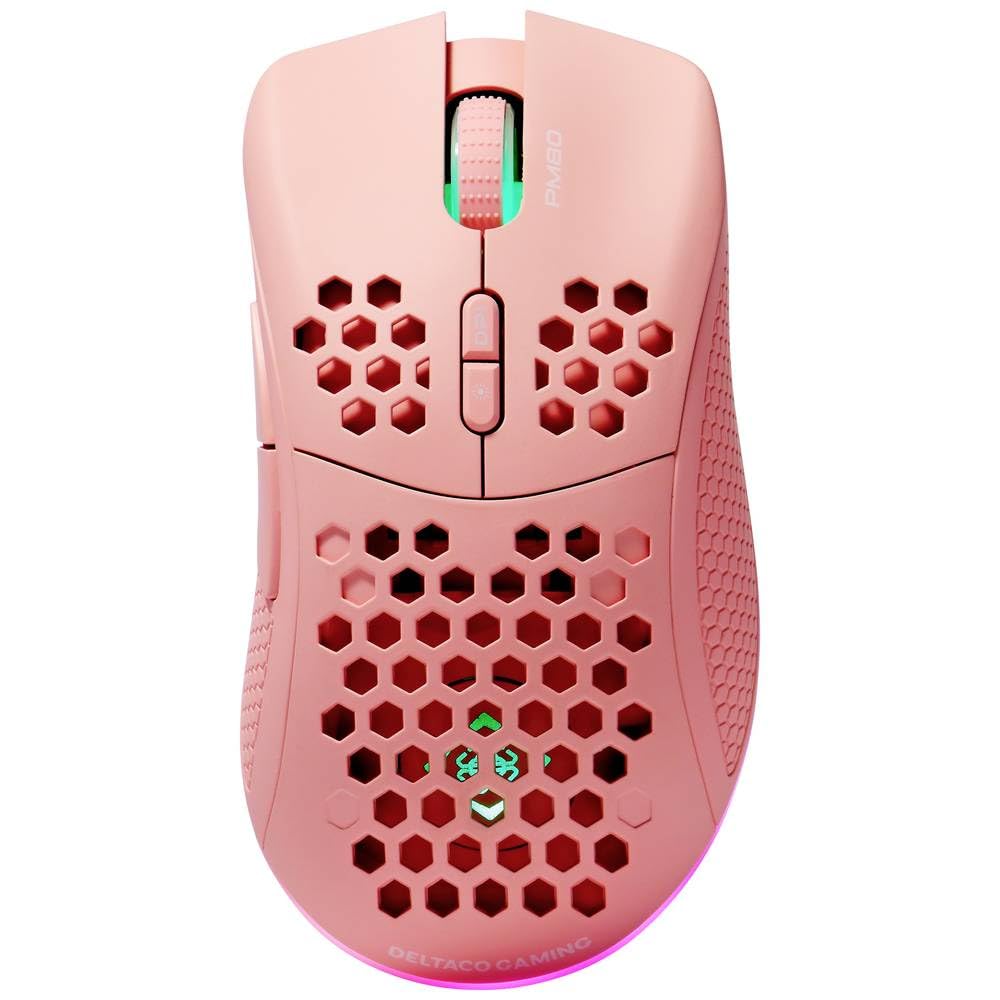
Image: DELTACO Gaming PM80 Wireless Optical Gaming Mouse. This image displays the mouse from a top-down perspective, highlighting its ergonomic design, the central scroll wheel, and the arrangement of its seven buttons.
ຟັງຊັນປຸ່ມ:
- ປຸ່ມກົດຊ້າຍ: ຟັງຊັນການຄລິກຫຼັກມາດຕະຖານ.
- ປຸ່ມກົດຂວາ: ຟັງຊັນການຄລິກຂັ້ນສອງມາດຕະຖານ.
- ລໍ້ເລື່ອນ: ເລື່ອນຂຶ້ນ/ລົງ, ແລະເຮັດໜ້າທີ່ເປັນປຸ່ມຄລິກກາງ.
- ປຸ່ມວົງຈອນ DPI: Changes the mouse's sensitivity (DPI).
- ປຸ່ມສົ່ງຕໍ່: ນຳທາງໄປຂ້າງໜ້າ web ຕົວທ່ອງເວັບຫຼື file ນັກສຳຫຼວດ.
- ປຸ່ມກັບຄືນ: ນຳທາງກັບຄືນໃນ web ຕົວທ່ອງເວັບຫຼື file ນັກສຳຫຼວດ.
- Illumination Mode Button: Cycles through different lighting effects or turns illumination on/off.
4. ຕັ້ງຄ່າ
4.1. ການສາກໄຟຂອງຫນູ
- Connect the small end of the USB charging cable to the charging port on the front of the mouse.
- Connect the larger end of the USB charging cable to an available USB port on your computer or a USB wall adapter.
- The mouse's illumination will indicate charging status (e.g., breathing effect, specific color). A full charge typically takes 2-3 hours.
- Once fully charged, the illumination may change or turn off. Disconnect the charging cable.
4.2. Connecting the USB Wireless Receiver
- ຊອກຫາຕົວຮັບສັນຍານໄຮ້ສາຍ USB, ໂດຍປົກກະຕິແລ້ວເກັບໄວ້ໃນຊ່ອງທີ່ຢູ່ດ້ານລຸ່ມຂອງເມົ້າ.
- ເອົາຕົວຮັບອອກຈາກຊ່ອງເກັບຮັກສາຂອງມັນ.
- ສຽບເຄື່ອງຮັບສັນຍານໄຮ້ສາຍ USB ເຂົ້າກັບພອດ USB ທີ່ມີຢູ່ໃນຄອມພິວເຕີຂອງທ່ານ.
- ຄອມພິວເຕີຂອງທ່ານຄວນຈະກວດພົບແລະຕິດຕັ້ງໄດເວີທີ່ຈໍາເປັນໂດຍອັດຕະໂນມັດ. ອັນນີ້ອາດຈະໃຊ້ເວລາເລັກນ້ອຍ.
4.3. ເປີດ / ປິດພະລັງງານ
- ຊອກຫາສະວິດໄຟຢູ່ດ້ານລຸ່ມຂອງເມົາສ໌.
- Slide the switch to the 'ON' position to power on the mouse. The illumination will light up.
- To conserve battery life, slide the switch to the 'OFF' position when the mouse is not in use for extended periods.
5. ຄໍາແນະນໍາການດໍາເນີນງານ
5.1. ການນໍາໃຊ້ພື້ນຖານ
Once connected and powered on, the mouse is ready for use. Move the mouse on a flat surface to control the cursor on your screen. Use the left and right click buttons for primary and secondary actions, and the scroll wheel for navigation.
5.2. ການປັບ DPI
The DPI (Dots Per Inch) setting determines the sensitivity of your mouse. The DELTACO Gaming PM80 offers multiple DPI levels up to 4800 DPI. To adjust the DPI:
- ກົດ ປຸ່ມວົງຈອນ DPI (typically located behind the scroll wheel).
- Each press will cycle through the available DPI settings. The mouse's illumination may change color or flash to indicate the current DPI level.
- Select the DPI setting that best suits your preference for gaming or general use.
5.3. ການຄວບຄຸມແສງສະຫວ່າງ
The DELTACO Gaming PM80 features customizable illumination. To change the lighting effects:
- ກົດ Illumination Mode Button (refer to Product Overview ສໍາລັບສະຖານທີ່).
- Each press will cycle through different lighting modes, such as static colors, breathing effects, or off.
6. ບໍາລຸງຮັກສາ
6.1. ທໍາຄວາມສະອາດ
- ໃຫ້ແນ່ໃຈວ່າເມົາສ໌ຖືກປິດແລ້ວກ່ອນທີ່ຈະທຳຄວາມສະອາດ.
- ໃຊ້ຜ້າອ່ອນ, ແຫ້ງ, ແລະ ບໍ່ມີຂົນເພື່ອເຊັດໜ້າຜິວຂອງໜູ.
- ສໍາລັບຝຸ່ນ stubborn, ເລັກນ້ອຍ dampໃສ່ຜ້າດ້ວຍນ້ໍາຫຼືຢາເຮັດຄວາມສະອາດອ່ອນໆ, ບໍ່ມີສານຂັດ. ຫຼີກເວັ້ນຄວາມຊຸ່ມຊື່ນຫຼາຍເກີນໄປ.
- Do not use harsh chemicals, solvents, or abrasive materials, as these can damage the mouse's finish.
- Use a cotton swab or compressed air to clean around the scroll wheel and button crevices.
6.2. ການເກັບຮັກສາ
When not in use for extended periods, store the mouse in a cool, dry place away from direct sunlight and extreme temperatures. Ensure the power switch is in the 'OFF' position to preserve battery life.
7. ການແກ້ໄຂບັນຫາ
- ເມົ້າບໍ່ຕອບສະໜອງ:
- ກວດໃຫ້ແນ່ໃຈວ່າເມົາສ໌ເປີດຢູ່.
- Check if the USB wireless receiver is securely plugged into a working USB port.
- Verify the mouse battery is charged. Connect the charging cable and try again.
- ລອງສຽບຕົວຮັບເຂົ້າໃສ່ພອດ USB ອື່ນ.
- ປິດເປີດຄອມພິວເຕີຂອງທ່ານຄືນໃໝ່.
- ການເຊື່ອມຕໍ່ທີ່ຊັກຊ້າຫຼືຕິດຕໍ່ພົວພັນ:
- Ensure the mouse is within close proximity to the USB receiver (ideally within 10 meters).
- ຫຼີກລ່ຽງການວາງເຄື່ອງຮັບສັນຍານໄວ້ໃກ້ກັບອຸປະກອນໄຮ້ສາຍອື່ນໆ ຫຼື ແຫຼ່ງລົບກວນ (ເຊັ່ນ: ເຣົາເຕີ Wi-Fi, ໂທລະສັບໄຮ້ສາຍ).
- ກວດໃຫ້ແນ່ໃຈວ່າເມົາສ໌ຖືກສາກເຕັມແລ້ວ.
- ການເຄື່ອນໄຫວຕົວກະພິບແມ່ນຜິດພາດ ຫຼື ບໍ່ຊັດເຈນ:
- ເຮັດຄວາມສະອາດເຊັນເຊີ optical ຢູ່ດ້ານລຸ່ມຂອງຫນູດ້ວຍຜ້າອ່ອນ, ແຫ້ງ.
- ໃຫ້ແນ່ໃຈວ່າທ່ານກໍາລັງໃຊ້ຫນູຢູ່ໃນຫນ້າດິນທີ່ເຫມາະສົມ (ເຊັ່ນ: ແຜ່ນຫນູ). ຫຼີກເວັ້ນການສະທ້ອນສູງຫຼືຫນ້າໂປ່ງໃສ.
- Adjust the DPI setting to a lower sensitivity if the cursor is too fast.
- Illumination not working:
- ກວດໃຫ້ແນ່ໃຈວ່າເມົາສ໌ເປີດຢູ່.
- Press the Illumination Mode Button to cycle through modes, ensuring it's not set to 'off'.
- Check battery level; low battery might disable illumination.
8. ຂໍ້ມູນຈໍາເພາະ
| ຄຸນສົມບັດ | ລາຍລະອຽດ |
|---|---|
| ຍີ່ຫໍ້ | ເກມ DELTACO |
| ໝາຍເລກຕົວແບບ | GAM-120-P |
| ການເຊື່ອມຕໍ່ | ໄຮ້ສາຍ (ຕົວຮັບ USB) |
| ປະເພດເຊັນເຊີ | Optical |
| DPI | ສູງສຸດ 4800 DPI (ສາມາດປັບໄດ້) |
| ຈໍານວນປຸ່ມ | 7 |
| ທິດທາງມື | ສິດ |
| ແສງໄຟ | ແມ່ນແລ້ວ |
| ສາມາດສາກໄຟໄດ້ | ແມ່ນແລ້ວ |
| ຕ້ອງໃຊ້ແບັດເຕີຣີ | No (Internal Rechargeable) |
9. ການຮັບປະກັນແລະການສະຫນັບສະຫນູນ
For warranty information and technical support, please refer to the warranty card included with your product or visit the official DELTACO Gaming webເວັບໄຊ. ຮັກສາຫຼັກຖານການຊື້ຂອງທ່ານສໍາລັບການຮຽກຮ້ອງການຮັບປະກັນໃດໆ.


