1. ບົດແນະນຳ
Thank you for choosing the Cherry KW 9100 Slim Wireless Rechargeable Keyboard. This extra-slim, low-profile keyboard is designed for Mac computers, offering versatile connectivity options and a comfortable typing experience. This manual provides essential information for setting up, operating, maintaining, and troubleshooting your new keyboard.
The keyboard features dual wireless connectivity (Bluetooth and 2.4 GHz wireless USB receiver), allowing you to easily switch between devices. It incorporates high-quality CHERRY SC scissor technology for quiet and precise keystrokes, and includes AES-128 encryption for secure data transmission. The integrated rechargeable battery provides weeks of use on a single charge, and the keyboard can be charged while in use via the included USB-A to USB-C cable.

Image 1.1: The Cherry KW 9100 Slim Wireless Rechargeable Keyboard, showcasinຮູບແບບເຕັມຮູບແບບ ແລະ slim pro ຂອງມັນfile.
2. ຂໍ້ມູນຄວາມປອດໄພ
- Do not expose the keyboard to liquids, excessive moisture, or extreme temperatures.
- ຫຼີກລ້ຽງການຫຼຸດລົງຫຼືກົດແປ້ນພິມທີ່ມີຜົນກະທົບທີ່ເຂັ້ມແຂງ.
- Keep the keyboard away from strong magnetic fields.
- ຢ່າພະຍາຍາມຖອດປະກອບ ຫຼື ດັດແປງແປ້ນພິມ. ການເຮັດແບບນີ້ຈະເຮັດໃຫ້ການຮັບປະກັນເປັນໂມຄະ.
- ໃຊ້ສະເພາະສາຍ USB-A ຫາ USB-C ທີ່ໃຫ້ມາສຳລັບການສາກໄຟເທົ່ານັ້ນ.
3. ເນື້ອໃນຊຸດ
ກວດສອບວ່າລາຍການທັງຫມົດແມ່ນມີຢູ່ໃນຊຸດຂອງທ່ານ:
- Cherry KW 9100 Slim Wireless Rechargeable Keyboard
- ສາຍ USB-A ຫາ USB-C
- 2.4 GHz Wireless USB Receiver
- Magnetic Strip (for angle adjustment)
- ຄູ່ມືຜູ້ໃຊ້ (ເອກະສານນີ້)
4. ຕັ້ງຄ່າ
4.1. ກຳລັງສາກແປ້ນພິມ
Before first use, or when the battery indicator shows low power, connect the keyboard to a USB power source (e.g., computer USB port, USB wall adapter) using the provided USB-A to USB-C cable. The keyboard can be used while charging.
4.2. Connecting via 2.4 GHz Wireless USB Receiver
- Locate the 2.4 GHz wireless USB receiver.
- Insert the USB receiver into an available USB-A port on your Mac computer.
- On the keyboard, slide the connectivity switch (located on the side) to the 'RF' position.
- The keyboard should automatically connect to your computer.
4.3. ການເຊື່ອມຕໍ່ຜ່ານ Bluetooth
Ensure your Mac computer has Bluetooth 4.0 or higher.
- On the keyboard, slide the connectivity switch (located on the side) to the 'BT' position.
- ໃນ Mac ຂອງທ່ານ, ໄປຫາ ການຕັ້ງຄ່າລະບົບ (ຫຼື ການຕັ້ງຄ່າລະບົບ) > Bluetooth.
- ຮັບປະກັນ Bluetooth ຖືກເປີດໃຊ້ງານ.
- The keyboard should appear in the list of discoverable devices (e.g., "CHERRY KW 9100"). Select it to pair.
- ປະຕິບັດຕາມການກະຕຸ້ນໃນຫນ້າຈໍໃດຫນຶ່ງເພື່ອສໍາເລັດຂະບວນການການຈັບຄູ່.

ຮູບພາບ 4.1: ຂ້າງ view of the keyboard, highlighting the RF/BT connectivity switch and the USB-C charging port.
4.4. ການປັບມຸມແປ້ນພິມ
The keyboard includes a removable magnetic strip that can be attached to the underside to adjust the typing angle for improved ergonomics. Simply attach the strip to the designated area on the bottom of the keyboard.
5. ການໃຊ້ງານຄີບອດ
5.1. Switching Between Connectivity Modes
Use the slide switch on the side of the keyboard to toggle between 'RF' (2.4 GHz wireless) and 'BT' (Bluetooth) modes. This allows you to seamlessly switch between two connected devices, for example, a laptop via Bluetooth and a desktop PC via the USB receiver.
5.2. Key Functions and Mac Layout
The keyboard features a Mac-specific layout, including Command, Option, and Control keys. The function keys (F1-F15) provide quick access to various system functions such as brightness, media control, and volume. Some function keys may require pressing the 'Fn' key simultaneously depending on your Mac's system settings.
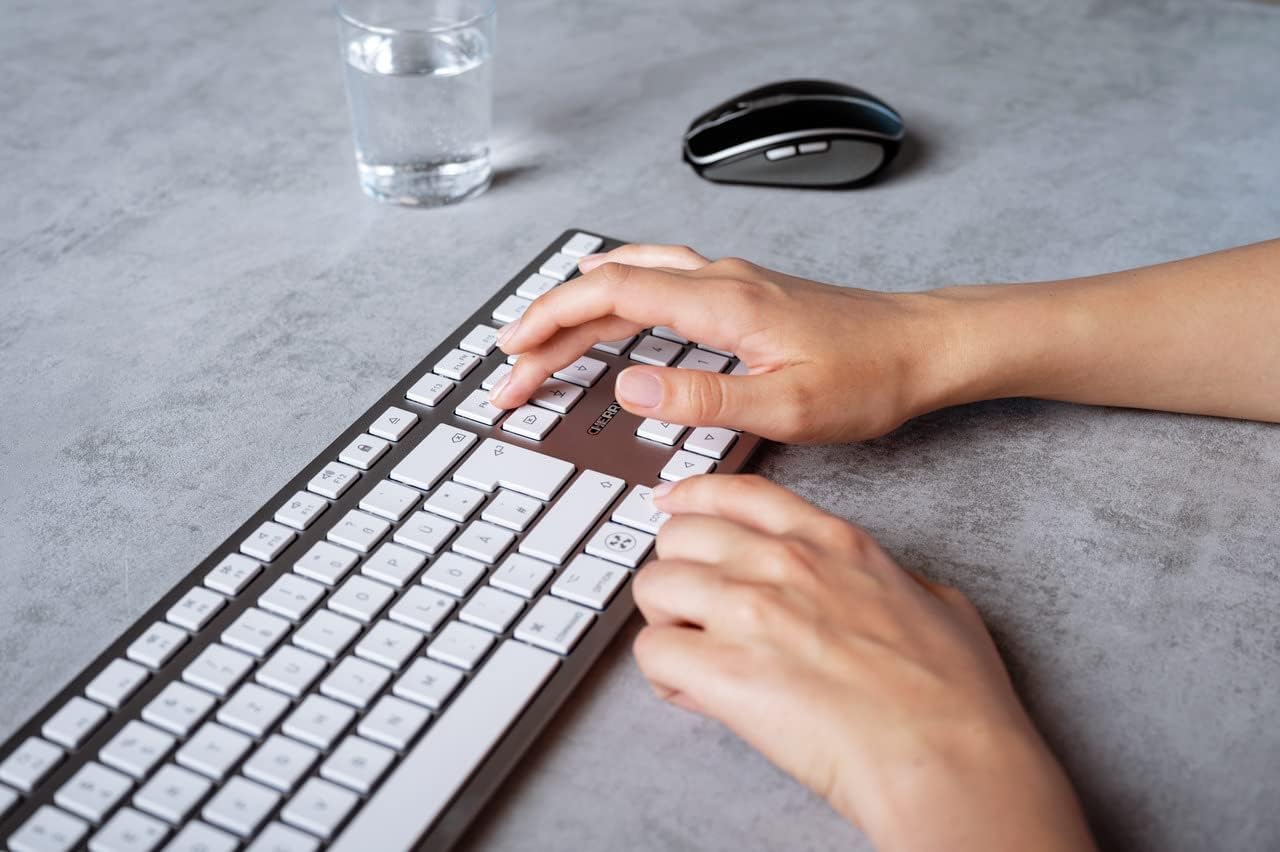
Image 5.1: A user typing on the Cherry KW 9100 keyboard, demonstrating its ergonomic design and key spacing.
5.3. ການຄຸ້ມຄອງພະລັງງານ
To conserve battery life, the keyboard will enter a sleep mode after a period of inactivity. To wake it up, simply press any key. The keyboard will reconnect automatically to the last active device.
6. ບໍາລຸງຮັກສາ
6.1. ທໍາຄວາມສະອາດ
To clean the keyboard, gently wipe the surface with a soft, lint-free cloth. For stubborn dirt, slightly dampen the cloth with water or a mild, non-abrasive cleaning solution. Ensure no liquid enters the keyboard. Do not use harsh chemicals or abrasive materials.
6.2. ການເກັບຮັກສາ
When not in use for extended periods, store the keyboard in a dry, cool place. It is recommended to fully charge the battery before long-term storage.
7. ການແກ້ໄຂບັນຫາ
| ບັນຫາ | ສາເຫດທີ່ເປັນໄປໄດ້ | ການແກ້ໄຂ |
|---|---|---|
| Keyboard not connecting via 2.4 GHz. | USB receiver not properly inserted; keyboard switch in 'BT' mode; low battery. | Ensure receiver is fully inserted. Slide keyboard switch to 'RF'. Charge the keyboard. Try a different USB port. |
| ແປ້ນພິມບໍ່ໄດ້ເຊື່ອມຕໍ່ຜ່ານ Bluetooth. | Keyboard switch in 'RF' mode; Bluetooth off on Mac; low battery; pairing issue. | Slide keyboard switch to 'BT'. Ensure Bluetooth is enabled on your Mac. Charge the keyboard. Remove and re-pair the keyboard in Mac's Bluetooth settings. |
| ກະແຈບໍ່ຕອບສະໜອງ ຫຼື ຊັກຊ້າ. | Low battery; interference; keyboard in sleep mode. | Charge the keyboard. Move closer to the receiver/Mac. Press any key to wake the keyboard. |
| Function keys (F1-F15) not working as expected. | System settings; 'Fn' key usage. | Check your Mac's Keyboard settings (System Settings > Keyboard) for function key behavior. Try pressing the 'Fn' key simultaneously with the desired function key. |
| ແບັດເຕີຣີໝົດໄວ. | Frequent use; keyboard not entering sleep mode. | Ensure the keyboard is allowed to enter sleep mode when idle. Fully charge the keyboard. |
8. ຂໍ້ມູນຈໍາເພາະ
| ຄຸນສົມບັດ | ລາຍລະອຽດ |
|---|---|
| ໝາຍເລກຕົວແບບ | JK-9110US-1 |
| ຍີ່ຫໍ້ | ໝາກເຜັດ |
| ເຕັກໂນໂລຊີການເຊື່ອມຕໍ່ | Bluetooth, USB-A (for receiver), USB-C (for charging) |
| ອຸປະກອນທີ່ເຂົ້າກັນໄດ້ | Mac computers with Bluetooth 4.0 or higher and USB-A connections |
| ຄຳອະທິບາຍແປ້ນພິມ | ມືອາຊີບຕໍ່າfile, extra-slim, wireless, scissor-switch keyboard with adjustable angle and rechargeable battery |
| ຄຸນນະສົມບັດພິເສດ | Magnetic (for angle adjustment), Travel |
| ສີ | ເງິນ |
| ວັດສະດຸ | ໂລຫະ, ພາດສະຕິກ |
| ຂະໜາດສິນຄ້າ | 17.32 x 5.12 x 0.59 ນິ້ວ (44 x 13 x 1.5 cm) |
| ນ້ໍາຫນັກລາຍການ | 1.94 ປອນ (0.88 ກິໂລ) |
| ຜູ້ຜະລິດ | ເຊຣີ |
9. ການຮັບປະກັນແລະການສະຫນັບສະຫນູນ
Your Cherry KW 9100 Slim Wireless Rechargeable Keyboard is covered by a manufacturer's warranty. For detailed warranty information, technical support, or service inquiries, please visit the official Cherry website ຫຼືຕິດຕໍ່ສະຫນັບສະຫນູນລູກຄ້າຂອງເຂົາເຈົ້າໂດຍກົງ. ຮັກສາຫຼັກຖານການຊື້ຂອງທ່ານສໍາລັບການຮ້ອງຂໍການຮັບປະກັນ.
ສະຫນັບສະຫນູນອອນໄລນ໌: www.cherry.de