1. ບົດແນະນຳ
Thank you for choosing the Cherry KW 9100 Slim Wireless Keyboard. This manual provides essential information for setting up, operating, and maintaining your new keyboard. The KW 9100 Slim is designed for both work and home office environments, offering flexible connectivity options and a comfortable typing experience with its silent SX Scissor Mechanism.

ຮູບ 1.1: ເທິງລົງລຸ່ມ view of the Cherry KW 9100 Slim Wireless Keyboard, showcasinຮູບແບບທີ່ຄົບຖ້ວນ ແລະ ການອອກແບບທີ່ທັນສະໄໝຂອງມັນ.
2. ເນື້ອໃນຊຸດ
ກະລຸນາກວດສອບວ່າລາຍການທັງໝົດມີຢູ່ໃນຊຸດຂອງທ່ານ:
- Cherry KW 9100 Slim Wireless Keyboard
- ສາຍ USB (USB-A ຫາ USB-C)
- USB Receiver (2.4 GHz RF dongle)
- ຄູ່ມືແນະ ນຳ (ເອກະສານນີ້)
- Magnetic Support Bar (pre-attached or separate)
3. ຄຸນນະສົມບັດທີ່ສໍາຄັນ
- ການເຊື່ອມຕໍ່ຄູ່: Seamlessly switch between wireless RF (2.4 GHz) and Bluetooth transmission modes.
- ແບັດເຕີຣີທີ່ສາມາດສາກໄດ້: Built-in lithium rechargeable battery with USB-C connection for convenient charging.
- SX Scissor Mechanism: Cherry's proprietary low-profile scissor technology ensures a quiet and precise typing experience.
- Slim and Stable Design: Features a thin profile with a built-in metal plate for maximum stability and rigidity.
- Adjustable Typing Angle: Includes a removable magnetic support bar for a steeper typing angle preference.
- LEDs ສະຖານະ: Integrated LEDs for CAPS LOCK, NUM, and SCROLL keys.
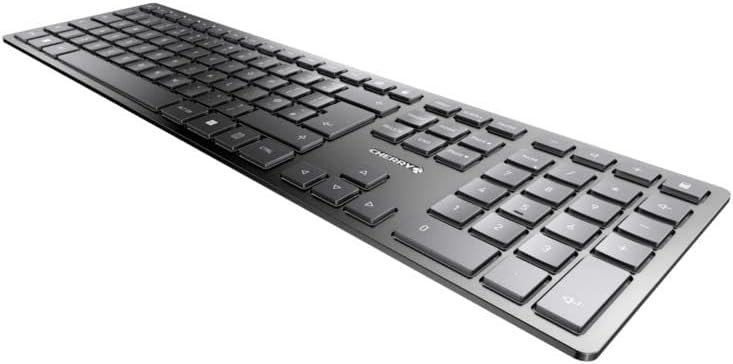
ຮູບທີ 3.1: ມຸມ view highlighting the slim profile and key layout of the keyboard.

ຮູບທີ 3.2: ໄລຍະໃກ້ view of the keys, illustrating the low-profile design and quiet SX Scissor Mechanism.
4. ການຕິດຕັ້ງແລະການເຊື່ອມຕໍ່
4.1 ການສາກແປ້ນພິມ
Before first use, it is recommended to fully charge the keyboard.
- Connect the supplied USB-A to USB-C cable to the USB-C port on the keyboard.
- Connect the other end of the cable to a USB-A port on your computer or a compatible USB power adapter.
- The charging indicator LED will illuminate. The keyboard can be used while charging.

Figure 4.1: Location of the USB-C charging port on the Cherry KW 9100 Slim keyboard.
4.2 Connecting via 2.4 GHz RF Wireless
For a stable and fast wireless connection, use the included USB receiver.
- Locate the USB receiver (dongle) in the package.
- ສຽບຕົວຮັບ USB ເຂົ້າໄປໃນຜອດ USB-A ທີ່ມີຢູ່ໃນຄອມພິວເຕີຂອງທ່ານ.
- On the keyboard, locate the connectivity switch (usually on the back or side) and set it to the "RF" or 2.4 GHz icon position.
- The keyboard should automatically connect to your computer.
4.3 ການເຊື່ອມຕໍ່ຜ່ານ Bluetooth
The keyboard supports Bluetooth connectivity for devices with Bluetooth capabilities.
- On the keyboard, set the connectivity switch to the "Bluetooth" icon position.
- The Bluetooth indicator LED on the keyboard will start blinking, indicating it's in pairing mode.
- ໃນຄອມພິວເຕີ ຫຼືອຸປະກອນຂອງທ່ານ, ເປີດການຕັ້ງຄ່າ Bluetooth.
- ຊອກຫາ new devices and select "Cherry KW 9100 Slim" from the list.
- ປະຕິບັດຕາມການກະຕຸ້ນໃນຫນ້າຈໍໃດຫນຶ່ງເພື່ອສໍາເລັດຂະບວນການການຈັບຄູ່.
4.4 Attaching the Magnetic Support Bar
The keyboard comes with a magnetic support bar that can be attached to adjust the typing angle.
- Locate the magnetic support bar.
- Align the bar with the magnetic strip on the underside of the keyboard.
- The magnets will snap the bar into place, providing an elevated typing angle.
- To remove, simply pull the bar away from the keyboard.

ຮູບ 4.2: ຂ້າງ view of the keyboard demonstrating the elevated angle with the magnetic support bar attached.

Figure 4.3: Illustration of how the magnetic support bar attaches to the keyboard's underside.
5. ການດໍາເນີນງານ
5.1 ການນຳໃຊ້ພື້ນຖານ
Once connected, the Cherry KW 9100 Slim functions as a standard keyboard. Type as you normally would.

Figure 5.1: A user demonstrating typing on the Cherry KW 9100 Slim keyboard in an office setting.
5.2 Function Keys (F-Keys)
The F-keys (F1-F12) on the top row may have secondary functions accessible by pressing the Fn key simultaneously. Refer to the keycap legends for specific functions such as media control, volume adjustment, or brightness control.
5.3 ສະຖານະພາບໄຟ LED
The keyboard features indicator LEDs for:
- Caps lock: ຈະສະຫວ່າງຂຶ້ນເມື່ອປຸ່ມ Caps Lock ເປີດໃຊ້ງານ.
- NUM: ຈະສະຫວ່າງຂຶ້ນເມື່ອ Num Lock ເປີດໃຊ້ງານ.
- ເລື່ອນ: Illuminates when Scroll Lock is active.
- Battery/Charging: Indicates charging status or low battery.
6. ບໍາລຸງຮັກສາ
6.1 ການທໍາຄວາມສະອາດແປ້ນພິມ
ເພື່ອຮັກສາຮູບລັກສະນະ ແລະການເຮັດວຽກຂອງແປ້ນພິມ:
- ຕັດການເຊື່ອມຕໍ່ແປ້ນພິມຈາກຄອມພິວເຕີຂອງທ່ານກ່ອນທີ່ຈະທໍາຄວາມສະອາດ.
- ໃຊ້ຜ້າແພທີ່ອ່ອນໆ ທີ່ບໍ່ມີເສັ້ນດ່າງ dampຜະສົມດ້ວຍນ້ໍາຫຼືການແກ້ໄຂການທໍາຄວາມສະອາດອ່ອນໆ.
- ຫຼີກລ່ຽງຄວາມຊຸ່ມຊື່ນຫຼາຍເກີນໄປ ແລະ ຢ່າສີດນໍ້າຢາທຳຄວາມສະອາດໃສ່ແປ້ນພິມໂດຍກົງ.
- ສໍາລັບຂີ້ຝຸ່ນແລະສິ່ງເສດເຫຼືອລະຫວ່າງກະແຈ, ໃຊ້ອາກາດບີບອັດ.
6.2 ການດູແລຫມໍ້ໄຟ
The built-in rechargeable battery is designed for long life.
- ສາກແປ້ນພິມຄືນໃໝ່ເມື່ອໄຟສະແດງແບັດເຕີຣີສະແດງພະລັງງານຕໍ່າ.
- ຫຼີກເວັ້ນການປົດສາກແບັດເຕີຣີໃຫ້ເຕັມທີ່ເລື້ອຍໆເພື່ອຍືດອາຍຸຂອງມັນ.
- ເກັບຮັກສາແປ້ນພິມໄວ້ໃນບ່ອນທີ່ເຢັນແລະແຫ້ງຖ້າບໍ່ໄດ້ໃຊ້ເປັນເວລາດົນ.
7. ການແກ້ໄຂບັນຫາ
| ບັນຫາ | ສາເຫດທີ່ເປັນໄປໄດ້ | ການແກ້ໄຂ |
|---|---|---|
| Keyboard not responding (RF) | USB receiver not plugged in; keyboard not in RF mode; low battery. | Ensure USB receiver is securely plugged in. Set keyboard switch to RF mode. Charge the keyboard. Try a different USB port. |
| ແປ້ນພິມບໍ່ຕອບສະໜອງ (Bluetooth) | Keyboard not in Bluetooth mode; not paired; out of range; low battery. | Set keyboard switch to Bluetooth mode. Ensure keyboard is paired with the device. Move keyboard closer to the device. Charge the keyboard. |
| ປຸ່ມໜຽວ ຫຼື ບໍ່ຕອບສະໜອງ | Debris under keys; liquid spill. | Clean the keyboard using compressed air. If liquid spill, disconnect immediately and allow to dry completely before use. Do not attempt to disassemble. |
| ແບັດເຕີຣີບໍ່ໄດ້ສາກ | Faulty USB cable or port; power source issue. | Try a different USB cable and/or USB port. Ensure the power source is active. |
8. ຂໍ້ມູນຈໍາເພາະ
| ຄຸນສົມບັດ | ລາຍລະອຽດ |
|---|---|
| ໝາຍເລກຕົວແບບ | JK-9100US-2 |
| ການເຊື່ອມຕໍ່ | Bluetooth, 2.4 GHz RF (with USB receiver), USB-C (for charging) |
| ຄຳອະທິບາຍແປ້ນພິມ | Wireless, Full-size |
| ກົນໄກກຸນແຈ | SX Scissor Mechanism |
| ຈໍານວນກະແຈ | 108 |
| ສີ | ດຳ |
| ວັດສະດຸ | Metal (built-in plate) |
| ນ້ໍາຫນັກລາຍການ | 1.49 ປອນ (ປະມານ 676 ກຣາມ) |
| ຂະໜາດແພັກເກັດ | 18.19 x 6.69 x 1.26 ນິ້ວ |
| ຜູ້ຜະລິດ | ເຊຣີ |
| ອຸປະກອນທີ່ເຂົ້າກັນໄດ້ | PC |
| ການນໍາໃຊ້ທີ່ແນະນໍາ | Gaming, Office, Work |
9. ການຮັບປະກັນແລະການສະຫນັບສະຫນູນ
For warranty information and technical support, please refer to the official Cherry website or contact Cherry customer service. Keep your proof of purchase for warranty claims.
Official Cherry Webເວັບໄຊ: www.cherry.de/en/
ບໍລິການລູກຄ້າ: ອີງຕາມພາກສ່ວນການຕິດຕໍ່ກ່ຽວກັບທາງການ webເວັບໄຊສໍາລັບລາຍລະອຽດການຊ່ວຍເຫຼືອພາກພື້ນ.


