1. ບົດແນະນຳ
This manual provides detailed instructions for the installation, operation, and maintenance of your Tbest 9-inch Android Car GPS Navigation Multimedia Player. Please read this manual thoroughly before using the product to ensure proper function and safety.
2. ຂໍ້ມູນຄວາມປອດໄພ
- ປະຕິບັດອຸປະກອນຢ່າງມີຄວາມຮັບຜິດຊອບ ແລະສອດຄ່ອງກັບກົດໝາຍຈະລາຈອນທ້ອງຖິ່ນສະເໝີ.
- Do not attempt to install or service the device if you are not qualified. Improper installation can lead to damage or injury.
- ຫຼີກເວັ້ນການເປີດເຜີຍອຸປະກອນກັບອຸນຫະພູມທີ່ຮຸນແຮງ, ແສງແດດໂດຍກົງສໍາລັບໄລຍະເວລາທີ່ຍາວນານ, ຫຼືຄວາມຊຸ່ມຊື່ນຫຼາຍເກີນໄປ.
- ໃຫ້ແນ່ໃຈວ່າສາຍໄຟທັງໝົດຖືກເຊື່ອມຕໍ່ຢ່າງຖືກຕ້ອງເພື່ອປ້ອງກັນການເກີດໄຟຟ້າລັດວົງຈອນ ຫຼື ອັນຕະລາຍຈາກໄຟຟ້າ.
3. ເນື້ອໃນຊຸດ
ກວດສອບວ່າລາຍການທັງຫມົດທີ່ລະບຸໄວ້ຂ້າງລຸ່ມນີ້ແມ່ນລວມຢູ່ໃນຊຸດຂອງທ່ານ:
- 1 x Navigator Unit (9-inch Android Multimedia Player)
- 10 x Various Connection Cables
- 4 x Camera Units
- 1 x ເສົາອາກາດ GPS
- 1 x ຄູ່ມືຜູ້ໃຊ້
- ວົງແຫວນຂະ ໜາດ 2 x
- 1 x ຮູເຈາະ
- 2 x Buffer Rings
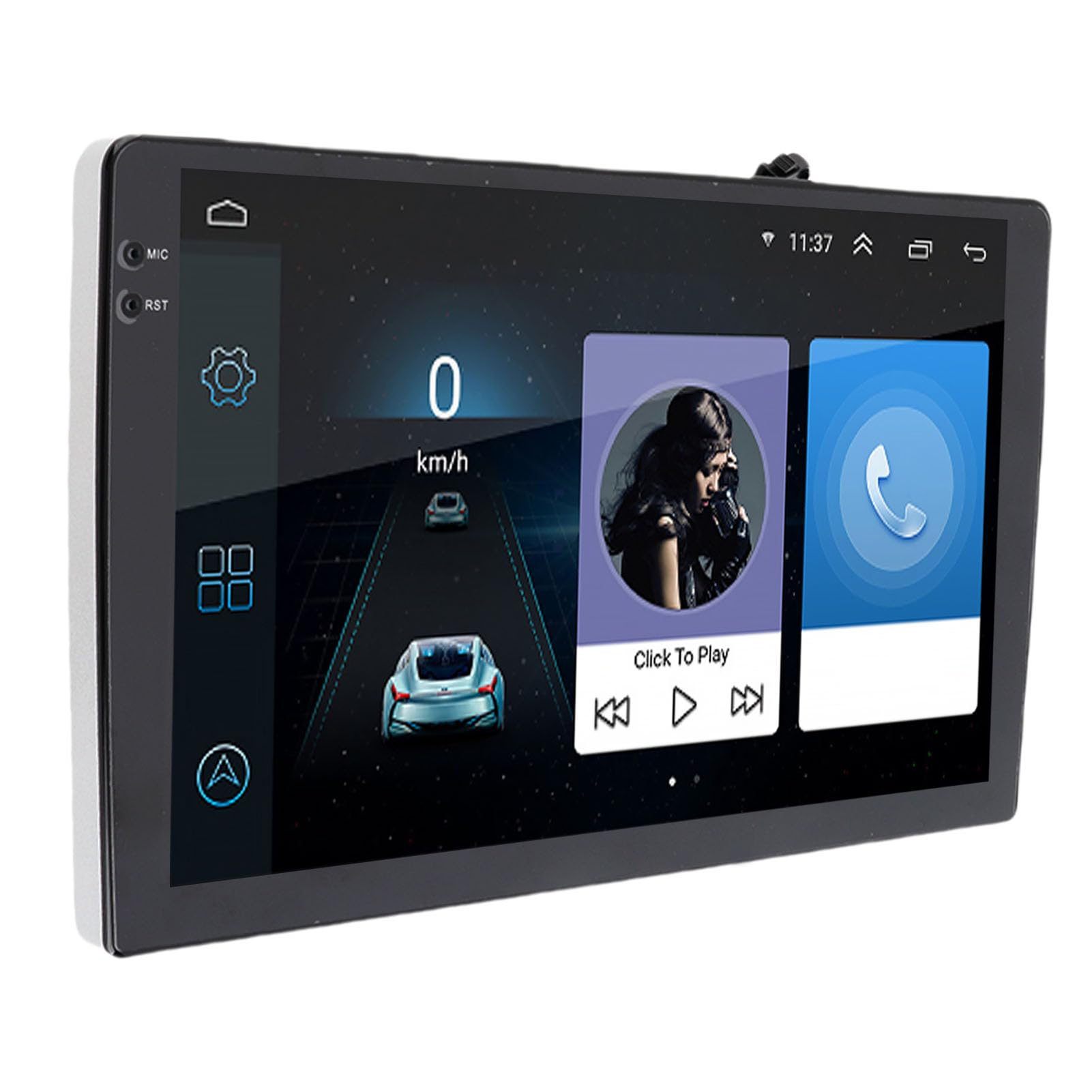
Image: The Tbest 9-inch Android Car GPS Navigation Multimedia Player unit shown with all accompanying cables, cameras, GPS antenna, mounting brackets, and other accessories.
4. ການຕິດຕັ້ງແລະການຕິດຕັ້ງ
4.1 ຂໍ້ແນະນຳການຕິດຕັ້ງທົ່ວໄປ
The Tbest multimedia player is designed for universal fit in various car models. Due to variations in vehicle dashboards, professional installation is recommended. Ensure the mounting location allows for clear visibility and safe operation.
4.2 ການເຊື່ອມຕໍ່ສາຍໄຟ
Carefully connect all necessary cables. Refer to your vehicle's wiring diagram and the provided cable labels for correct connections. Key connections include:
- ສາຍໄຟ: Connect to the vehicle's power supply (ACC, B+, Ground).
- ສາຍລຳໂພງ: Connect to your car's speaker system.
- RCA Terminals: For reverse input, video input, and audio output.
- ພອດ USB: For external devices or media.
- ເສົາອາກາດ GPS: ເຊື່ອມຕໍ່ເສົາອາກາດ GPS ແລະວາງມັນໄວ້ໃນສະຖານທີ່ທີ່ມີບ່ອນໂລ່ງແຈ້ງ view ຂອງທ້ອງຟ້າສໍາລັບການຮັບສັນຍານທີ່ດີທີ່ສຸດ.
- ການເຊື່ອມຕໍ່ກ້ອງຖ່າຍຮູບ: Connect the four camera units to the designated camera inputs for panoramic view ການທໍາງານ.

ຮູບພາບ: A ລາຍລະອຽດ view of the Tbest multimedia player's rear connections and the array of cables provided for power, audio, video, and peripheral devices.
5. ຄໍາແນະນໍາການດໍາເນີນງານ
5.1 ເປີດ/ປິດ
The unit will typically power on automatically when the vehicle's ignition is turned on. To manually power off, press and hold the power button (if available) or turn off the vehicle's ignition.
5.2 ການເຮັດວຽກຂອງຫນ້າຈໍສໍາຜັດ
The device features a 9-inch capacitive touch screen. Navigate through menus, select applications, and control functions by tapping, swiping, and pinching gestures similar to a smartphone or tablet.
5.3 GPS Navigation
The unit has built-in GPS reception. You can download navigation applications and maps directly from the Application Store for offline use. Ensure the GPS antenna is properly installed for accurate positioning.
5.4 ຟັງຊັນ Bluetooth
The device includes Bluetooth 4.0 for hands-free calling and music streaming (A2DP).
- ການຈັບຄູ່: Go to the Bluetooth settings on the device, enable Bluetooth, and search for available devices. Select your phone from the list and confirm the pairing code.
- ໂທຟຣີ: Once paired, you can make and receive calls directly through the multimedia player. The phone book can be automatically loaded.
- ເພງ Bluetooth: Stream audio from your paired phone to the car's speakers.
5.5 ການຫຼິ້ນມັນຕິມີເດຍ
The player supports various audio formats including MP3, FLAC, APE, WMA, WAV, AAC, AMR. Video playback is also supported. You can play media from USB drives or via Bluetooth streaming.
5.6 Panoramic Camera and Recorder
The integrated 360-degree panoramic camera system provides a comprehensive view around your vehicle, aiding in safe parking. The system also supports recording, allowing you to retain video evidence if needed. Playback functionality is available directly on the unit.
5.7 ການຄວບຄຸມພວງມາໄລ
The unit supports steering wheel control functions, allowing you to manage audio and other features without taking your hands off the wheel. Configuration may be required in the settings menu.
5.8 Mobile Internet (Mirror Link)
The device supports screen mirroring for both iOS (one-way projection) and Android phones (two-way connection). This allows you to display your phone's screen on the multimedia player.
5.9 ວິທະຍຸ
Access FM, AM, and RDS radio bands. Use the touch screen interface to scan for stations and save presets.

Image: The Tbest multimedia player's 9-inch screen showing a typical user interface with navigation on the left and media playback controls on the right.
6. ບໍາລຸງຮັກສາ
6.1 ການທໍາຄວາມສະອາດຫນ້າຈໍ
ໃຊ້ຜ້າທີ່ອ່ອນນຸ່ມ, ບໍ່ມີສານດ່າງເພື່ອເຊັດໜ້າຈໍຢ່າງຄ່ອຍໆ. ສໍາລັບ smudges stubborn, ເລັກນ້ອຍ dampເຊັດຜ້າດ້ວຍນ້ຳ ຫຼື ນ້ຳຢາທຳຄວາມສະອາດໜ້າຈໍທີ່ອອກແບບມາສຳລັບເຄື່ອງໃຊ້ໄຟຟ້າ. ຫຼີກລ່ຽງສານເຄມີຮຸນແຮງ ຫຼື ວັດສະດຸທີ່ມີສີຂັດ.
6.2 ການປັບປຸງຊອບແວ
Periodically check for software updates to ensure optimal performance and access to new features. Updates can usually be performed via a Wi-Fi connection or USB. Follow the on-screen prompts for any available updates.
7. ການແກ້ໄຂບັນຫາ
If you encounter issues with your Tbest multimedia player, refer to the following common problems and solutions:
| ບັນຫາ | ສາເຫດທີ່ເປັນໄປໄດ້ | ການແກ້ໄຂ |
|---|---|---|
| ບໍ່ມີພະລັງງານ | ສາຍໄຟບໍ່ຖືກຕ້ອງ, ຟິວເປົ່າ, ບັນຫາໄຟລົດ. | Check power cable connections, inspect vehicle fuses, ensure ignition is on. |
| ບໍ່ມີສັນຍານ GPS | GPS antenna not connected, antenna obstructed, poor satellite reception. | ໃຫ້ແນ່ໃຈວ່າເສົາອາກາດ GPS ໄດ້ເຊື່ອມຕໍ່ຢ່າງແໜ້ນໜາ ແລະ ວາງໄວ້ບ່ອນທີ່ໂປ່ງໃສ view ຂອງທ້ອງຟ້າ. ຍ້າຍໄປພື້ນທີ່ເປີດ. |
| Bluetooth ບໍ່ເຊື່ອມຕໍ່ | Bluetooth off on device/phone, incorrect pairing, interference. | Ensure Bluetooth is enabled on both devices. Delete previous pairings and re-pair. Restart both devices. |
| ໜ້າຈໍສໍາຜັດບໍ່ຕອບສະໜອງ | ຊອບແວມີບັນຫາ, ໜ້າຈໍເສຍຫາຍ. | ປິດເຄື່ອງໃໝ່. ຖ້າບັນຫາຍັງຄົງຢູ່, ໃຫ້ຕິດຕໍ່ຝ່າຍຊ່ວຍເຫຼືອ. |
| ກ້ອງຖ່າຍຮູບ View Not Displaying | Camera cables loose, camera malfunction. | Check all camera connections. Ensure the vehicle is in reverse (if applicable for rear camera). |
ຖ້າບັນຫາຍັງຄົງຢູ່ຫຼັງຈາກພະຍາຍາມແກ້ໄຂເຫຼົ່ານີ້, ກະລຸນາຕິດຕໍ່ຝ່າຍຊ່ວຍເຫຼືອລູກຄ້າ.
8. ຂໍ້ມູນຈໍາເພາະ
| ຄຸນສົມບັດ | ຂໍ້ມູນຈໍາເພາະ |
|---|---|
| ຂະໜາດໜ້າຈໍ | 9 ນິ້ວ |
| ລະບົບປະຕິບັດການ | Android |
| ຄວາມລະອຽດໜ້າຈໍ | 1024 x 600 |
| GPS ນໍາທາງ | Support (Offline maps via app store) |
| ລຸ້ນ Bluetooth | 4.0 (A2DP, Hands-free, Phone Book) |
| ແຖບວິທະຍຸ | FM, AM, RDS |
| ພະລັງງານ AmpLifier Chip | TDA7388 |
| Camera Host Chip | For HiSilicon 3520DV300 |
| ມຸມກ້ອງ | 181 ອົງສາ |
| ກ້ອງຖ່າຍຮູບ Pixel | 1MP (Resolution: 1280 x 720P) |
| ການເຮັດວຽກ Voltage | ຊິງຕັນດີຊີ 9V-24V |
| ປະຈຸບັນເຮັດວຽກ | 500mA (DC12V) |
| ອຸນຫະພູມປະຕິບັດການ | 35°C - 75°C (Host), -25°C - 90°C (Camera) |
| ການເຊື່ອມຕໍ່ | USB, Wi-Fi |
| ຮູບແບບສຽງທີ່ຮອງຮັບ | MP3, FLAC, APE, WMA, WAV, AAC, AMR, etc. |
| ຜົນຜະລິດວິດີໂອ | CVBS, VGA |
| Waterproof Grade (Camera) | IP67 |
| ຂະໜາດສິນຄ້າ | 9 x 9 x 9 ນິ້ວ |
| ນ້ໍາຫນັກລາຍການ | 3.38 ປອນ |
9. ການຮັບປະກັນແລະການສະຫນັບສະຫນູນ
Your Tbest multimedia player comes with a standard manufacturer's warranty. Please refer to the warranty card included in your package for specific terms and conditions. For technical support, troubleshooting assistance, or warranty claims, please contact your retailer or the Tbest customer service department.
ຂໍ້ມູນຕິດຕໍ່: (Please refer to your purchase documentation or the official Tbest webເວັບໄຊທ໌ສຳລັບລາຍລະອຽດການຕິດຕໍ່ໃນປະຈຸບັນ.)


