1. ບົດແນະນຳ
The FINGERS Lil’Clicks is a versatile mini keyboard designed for seamless connectivity across multiple devices and operating systems. It offers dual connectivity options: Bluetooth and 2.4 GHz Wireless, allowing you to switch between your laptop, tablet, or smartphone effortlessly. This manual provides detailed instructions for setup, operation, maintenance, and troubleshooting to ensure optimal use of your keyboard.

Image 1.1: The FINGERS Lil’Clicks Bluetooth Wireless Mini Keyboard, showcasing ການອອກແບບຫນາແຫນ້ນຂອງມັນ.
2. ເນື້ອໃນຊຸດ
ກະລຸນາກວດເບິ່ງກ່ອງສໍາລັບລາຍການຕໍ່ໄປນີ້:
- 1 x FINGERS Lil’Clicks Bluetooth Wireless Mini Keyboard
- 1 x Wireless USB Receiver (for 2.4 GHz connection)
- 1 x ສາຍສາກ Micro USB
- 1 x ຄູ່ມືການນຳໃຊ້ດ່ວນ
- 1 x ຫມາຍເຫດຍີ່ຫໍ້

Image 2.1: Contents included in the FINGERS Lil’Clicks keyboard package.
3. ການຕິດຕັ້ງ ແລະການເຊື່ອມຕໍ່
The Lil’Clicks keyboard offers two primary connection methods: Bluetooth and 2.4 GHz Wireless.
3.1. ກຳລັງສາກແປ້ນພິມ
Before initial use, ensure the keyboard is fully charged. Connect the provided Micro USB charging cable to the keyboard's charging port and the other end to a USB power source (e.g., computer USB port, USB wall adapter). The charging indicator light will show the charging status.
3.2. ການເຊື່ອມຕໍ່ໄຮ້ສາຍ 2.4 GHz
- Locate the USB Wireless Receiver in the keyboard package.
- ສຽບຕົວຮັບ USB ເຂົ້າໄປໃນຜອດ USB ທີ່ມີຢູ່ໃນຄອມພິວເຕີ ຫຼືອຸປະກອນຂອງທ່ານ.
- ເປີດແປ້ນພິມໂດຍໃຊ້ສະວິດເປີດປິດ, ໂດຍປົກກະຕິແລ້ວຈະຕັ້ງຢູ່ດ້ານຂ້າງ ຫຼື ດ້ານຫຼັງ.
- The keyboard should automatically connect to your device. No additional drivers are typically required.
3.3. ການເຊື່ອມຕໍ່ Bluetooth (ສູງສຸດ 3 ອຸປະກອນ)
The Lil’Clicks keyboard can connect to up to three Bluetooth devices simultaneously.
- ເປີດແປ້ນພິມໂດຍໃຊ້ສະວິດໄຟ.
- ກົດຄ້າງໄວ້ Fn ກະແຈ ແລະ ໜຶ່ງໃນກະແຈ Bluetooth (BT1, BT2, ຫຼື BT3) for 3-5 seconds until the corresponding Bluetooth indicator light starts blinking. This indicates the keyboard is in pairing mode.
- On your device (laptop, tablet, smartphone), go to Bluetooth settings and enable Bluetooth.
- ຊອກຫາ available devices. You should see "FINGERS Lil’Clicks" or a similar name appear in the list.
- Select the keyboard to pair. If prompted, enter the displayed code on the keyboard and press ເຂົ້າ.
- ເມື່ອຈັບຄູ່ແລ້ວ, ໄຟສັນຍານຈະຢຸດກະພິບ ແລະ ຄົງຄ້າງເປັນເວລາສອງສາມວິນາທີກ່ອນທີ່ຈະດັບລົງ.
- To connect another device, repeat steps 2-5 using a different Bluetooth key (BT2 or BT3).
3.4. ການປ່ຽນລະຫວ່າງອຸປະກອນທີ່ເຊື່ອມຕໍ່
To switch between paired Bluetooth devices or the 2.4 GHz wireless connection:
- For Bluetooth devices: Briefly press the Fn key along with the desired Bluetooth key (BT1, BT2, ຫຼື BT3).
- For 2.4 GHz Wireless: Briefly press the Fn ກະແຈພ້ອມກັບ 2.4ກ key (if available, otherwise ensure the USB receiver is plugged in and no Bluetooth connection is active).

Image 3.1: The Lil’Clicks keyboard demonstrating multi-device connectivity with a laptop, monitor, phone, and tablet.
4. ການໃຊ້ງານຄີບອດ
4.1. ການພິມພື້ນຖານ
The keyboard features a standard QWERTY layout. Simply type as you would on any other keyboard.
4.2. ການຄວບຄຸມສື່
The Lil’Clicks keyboard includes 12 soft-touch media control keys. These functions are typically accessed by pressing the Fn key simultaneously with the corresponding function key (F1-F12 or dedicated media keys).
- Fn+F1-F12: Access various media functions such as play/pause, volume control, track skipping, and more. Refer to the quick usage guide for specific key mappings.

ຮູບພາບທີ 4.1: ໄລຍະໃກ້ view of the keyboard layout, highlighting the media control keys and function row.
4.3. Using the Built-in Cradle
The keyboard features a built-in cradle designed to hold most phones and tablets up to 10 mm thick and 265 mm wide. This allows you to position your device at an optimal viewing angle for comfortable typing.
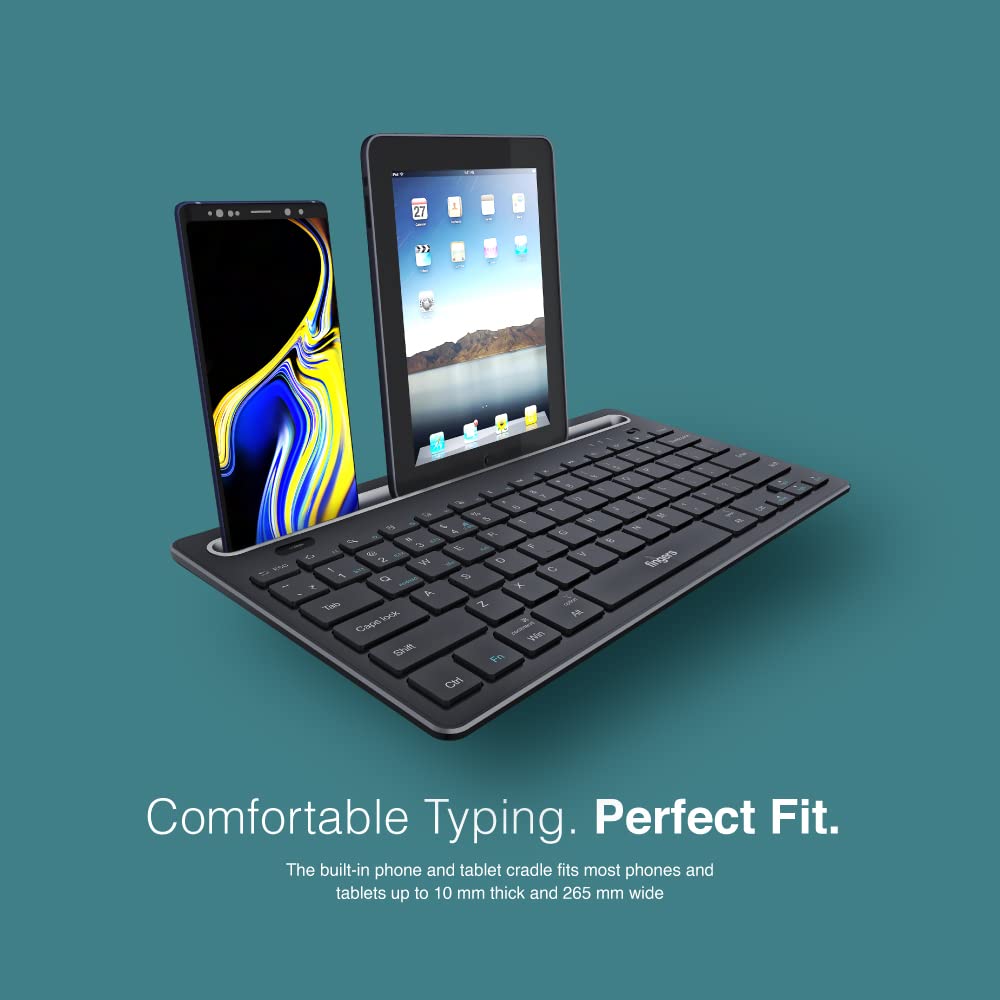
Image 4.2: The keyboard's integrated cradle holding a smartphone and a tablet for ergonomic viewing.
4.4. ຄວາມເຂົ້າກັນໄດ້ຂອງລະບົບປະຕິບັດການ
The Lil’Clicks keyboard is compatible with a wide range of operating systems:
- Windows
- macOS
- Android
- Linux
- Chrome OS
The keyboard automatically adapts to the connected operating system for optimal functionality. Some function key behaviors may vary slightly depending on the OS.
5. ບໍາລຸງຮັກສາ
5.1. ທໍາຄວາມສະອາດ
ເພື່ອທຳຄວາມສະອາດແປ້ນພິມຂອງທ່ານ, ຄ່ອຍໆເຊັດພື້ນຜິວດ້ວຍຜ້າອ່ອນໆ.amp, lint-free cloth. Avoid using harsh chemicals, abrasive cleaners, or excessive moisture, as these can damage the keyboard. The membrane-coated sheet beneath the keys helps protect against dust and minor spills.
5.2. ການດູແລຫມໍ້ໄຟ
The keyboard features a long-lasting battery, providing up to 45 days of usage on a single charge. To prolong battery life:
- ສາກແປ້ນພິມໃຫ້ເຕັມກ່ອນທີ່ຈະໃຊ້ຄັ້ງທໍາອິດ.
- ຫຼີກລ້ຽງການຫມົດຫມໍ້ໄຟເລື້ອຍໆ.
- ຖ້າເກັບຮັກສາແປ້ນພິມໄວ້ເປັນເວລາດົນ, ໃຫ້ສາກໄຟໃຫ້ປະມານ 50% ແລະເກັບຮັກສາໄວ້ໃນບ່ອນທີ່ເຢັນແລະແຫ້ງ.
5.3. ການເກັບຮັກສາ
When not in use, store the keyboard in a clean, dry environment away from extreme temperatures and direct sunlight. Its compact and lightweight design makes it easy to carry and store.

Image 5.1: The Lil’Clicks keyboard's portability, shown being carried and used in a cafe setting.
6. ການແກ້ໄຂບັນຫາ
If you encounter issues with your FINGERS Lil’Clicks keyboard, please refer to the following troubleshooting steps:
6.1. Keyboard Not Connecting/Pairing
- ກວດສອບພະລັງງານ: Ensure the keyboard is turned on and has sufficient battery charge.
- ເຂົ້າສູ່ໂໝດການຈັບຄູ່ຄືນໃໝ່: For Bluetooth, press and hold Fn + BT1/BT2/BT3 until the indicator blinks. For 2.4 GHz, ensure the USB receiver is securely plugged in.
- ບລູທູດອຸປະກອນ: ໃຫ້ແນ່ໃຈວ່າ Bluetooth ຖືກເປີດໃຊ້ຢູ່ໃນອຸປະກອນຂອງທ່ານແລະມັນສາມາດຄົ້ນພົບໄດ້.
- Forget Device (Bluetooth): If previously paired, try removing/forgetting the keyboard from your device's Bluetooth list and then re-pairing.
- ຕົວຮັບ USB: Try plugging the 2.4 GHz USB receiver into a different USB port on your device.
- ແຊກແຊງ: ຍ້າຍແປ້ນພິມໃຫ້ໃກ້ກັບອຸປະກອນຂອງທ່ານ ແລະ ຫ່າງຈາກອຸປະກອນໄຮ້ສາຍອື່ນໆທີ່ອາດຈະເຮັດໃຫ້ເກີດການລົບກວນ.
6.2. Keys Not Responding or Typing Incorrectly
- ລະດັບຫມໍ້ໄຟ: A low battery can affect key responsiveness. Charge the keyboard fully.
- ຄວາມໝັ້ນຄົງຂອງການເຊື່ອມຕໍ່: Ensure a stable connection. If using Bluetooth, try switching to a different Bluetooth channel (BT1, BT2, BT3) or re-pairing. If using 2.4 GHz, ensure the receiver is firmly connected.
- ແຊກແຊງ: Wireless interference can sometimes cause missed keystrokes. Try moving to a different location or reducing other wireless activity.
- ກະແຈທີ່ສະອາດ: Check for any debris or foreign objects under the keys that might be obstructing their movement.
- Operating System Mode: Ensure the keyboard is in the correct operating system mode if there are specific key combinations for OS switching (e.g., Fn + Android/Win/Mac keys).
6.3. ແບັດເຕີຣີບໍ່ໄດ້ສາກ
- ກວດສອບສາຍ: Ensure the Micro USB charging cable is securely connected to both the keyboard and the power source.
- ແຫຼ່ງພະລັງງານ: Try a different USB power source (e.g., another USB port on your computer, a different wall adapter).
- ຄວາມສົມບູນຂອງສາຍ: Inspect the charging cable for any signs of damage. Try using a different Micro USB cable if available.
7. ຂໍ້ມູນຈໍາເພາະ
| ຍີ່ຫໍ້ | ນິ້ວມື |
| ຕົວແບບ | Lil’Clicks |
| ການເຊື່ອມຕໍ່ | Bluetooth, 2.4 GHz Wireless |
| ຄວາມເຂົ້າກັນໄດ້ | Windows, macOS, Android, Linux, Chrome OS |
| ສີ | ດຳ |
| ຂະໜາດ (LxWxH) | 29 x 16 x 2 cm |
| ນ້ໍາຫນັກລາຍການ | 400 g |
| ຊີວິດຫມໍ້ໄຟ | Up to 45 days (on a single charge) |
| ຊີວິດການກົດດັນ | 5 ລ້ານກົດແປ້ນພິມ |
| Cradle Dimensions | Fits devices up to 10 mm thick and 265 mm wide |
| ແຫຼ່ງພະລັງງານ | ພະລັງງານຫມໍ້ໄຟ |
8. ການຮັບປະກັນແລະການສະຫນັບສະຫນູນ
8.1. ຂໍ້ມູນການຮັບປະກັນ
The FINGERS Lil’Clicks Bluetooth Wireless Mini Keyboard comes with a ຮັບປະກັນ 1 ປີ ນັບຈາກວັນທີ່ຊື້. ການຮັບປະກັນນີ້ກວມເອົາຂໍ້ບົກພ່ອງຈາກການຜະລິດພາຍໃຕ້ການນໍາໃຊ້ປົກກະຕິ. ກະລຸນາເກັບໃບຮັບເງິນຊື້ຂອງທ່ານໄວ້ເປັນຫຼັກຖານການຊື້ສໍາລັບການຮຽກຮ້ອງການຮັບປະກັນ.
ການຮັບປະກັນບໍ່ໄດ້ກວມເອົາຄວາມເສຍຫາຍທີ່ເກີດຈາກ:
- Accidental damage, misuse, abuse, or negligence.
- ການສ້ອມແປງ ຫຼື ການດັດແປງໂດຍບໍ່ໄດ້ຮັບອະນຸຍາດ.
- ການສວມໃສ່ແລະ້ໍາຕາປົກກະຕິ.
8.2. Manufacturer and Importer Details
ຜູ້ຜະລິດ: Dynamic Conglomerate Pvt. Ltd., 329/330, GIDC Phase II, Near Sardar Chowk, Vapi, Dist. Valsad, Gujarat - 396195.
ຜູ້ນໍາເຂົ້າ: Dynamic Conglomerate Pvt. Ltd. 4th Floor, Simba Tower, Vishveshwar Nagar, Goregaon (E), Mumbai - 400063, Maharashtra
8.3. ການຊ່ວຍເຫຼືອລູກຄ້າ
For technical assistance, warranty claims, or any other inquiries, please contact FINGERS customer support through their official website or the contact information provided in your Quick Usage Guide.


