ແນະນຳ
This manual provides essential information for the proper setup, operation, and maintenance of your AOC CU34V5C 34-inch Ultrawide QHD VA monitor. The CU34V5C features a curved panel with Ultrawide QHD 21:9 resolution, designed for an immersive viewing experience and enhanced productivity. It includes USB-C with Power Delivery up to 65W, multiple USB ports, and HDMI connectivity, along with Picture by Picture MultiView ການທໍາງານ.
ຕັ້ງຄ່າ
1. Unpacking and Stand Assembly
Carefully remove the monitor and all components from the packaging. Place the monitor face down on a soft, clean surface to prevent scratches. Assemble the stand base to the stand column, then attach the assembled stand to the monitor. Ensure all screws are securely tightened.
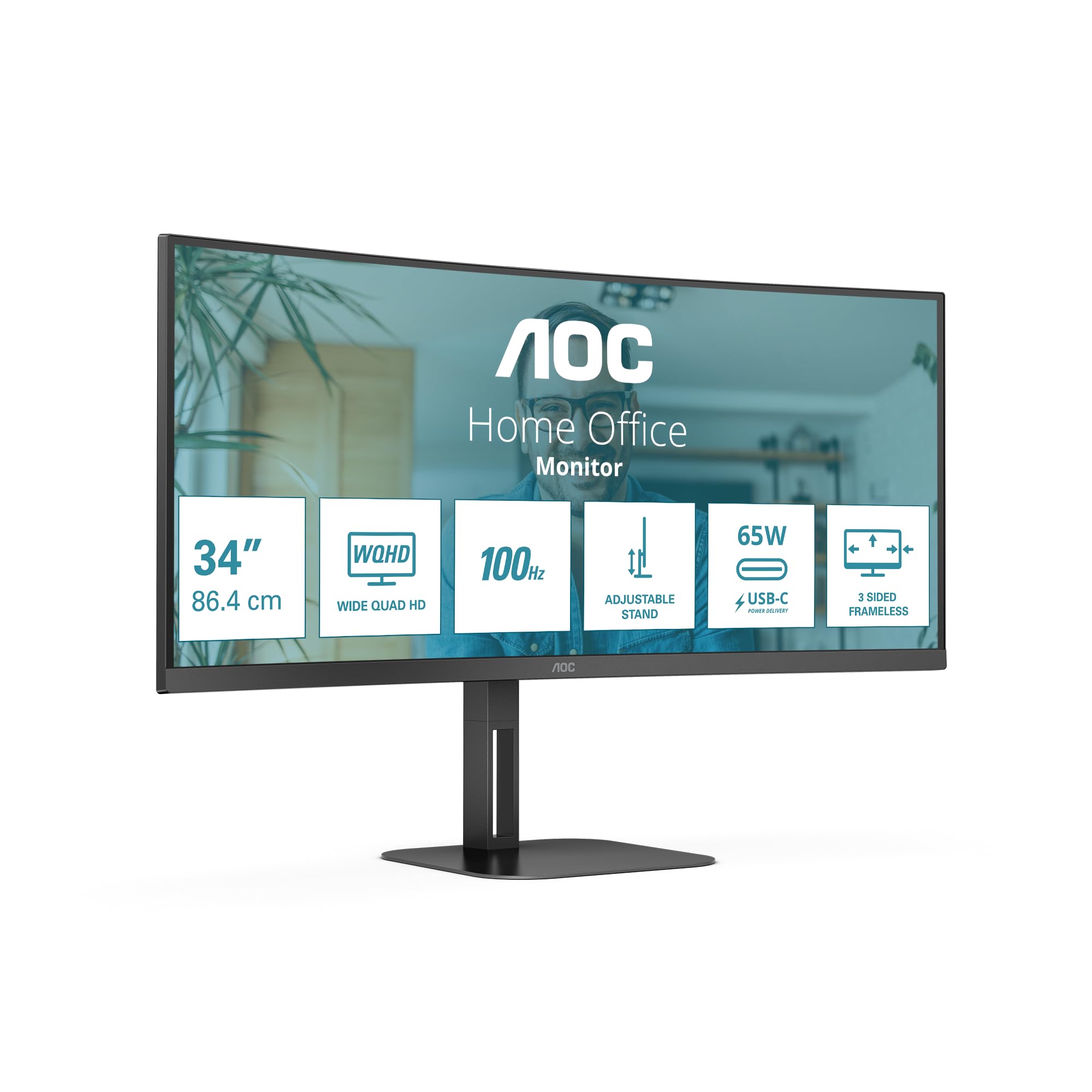
ຮູບພາບ: ທາງຫນ້າ view of the AOC CU34V5C monitor, illustrating its curved screen and adjustable stand.
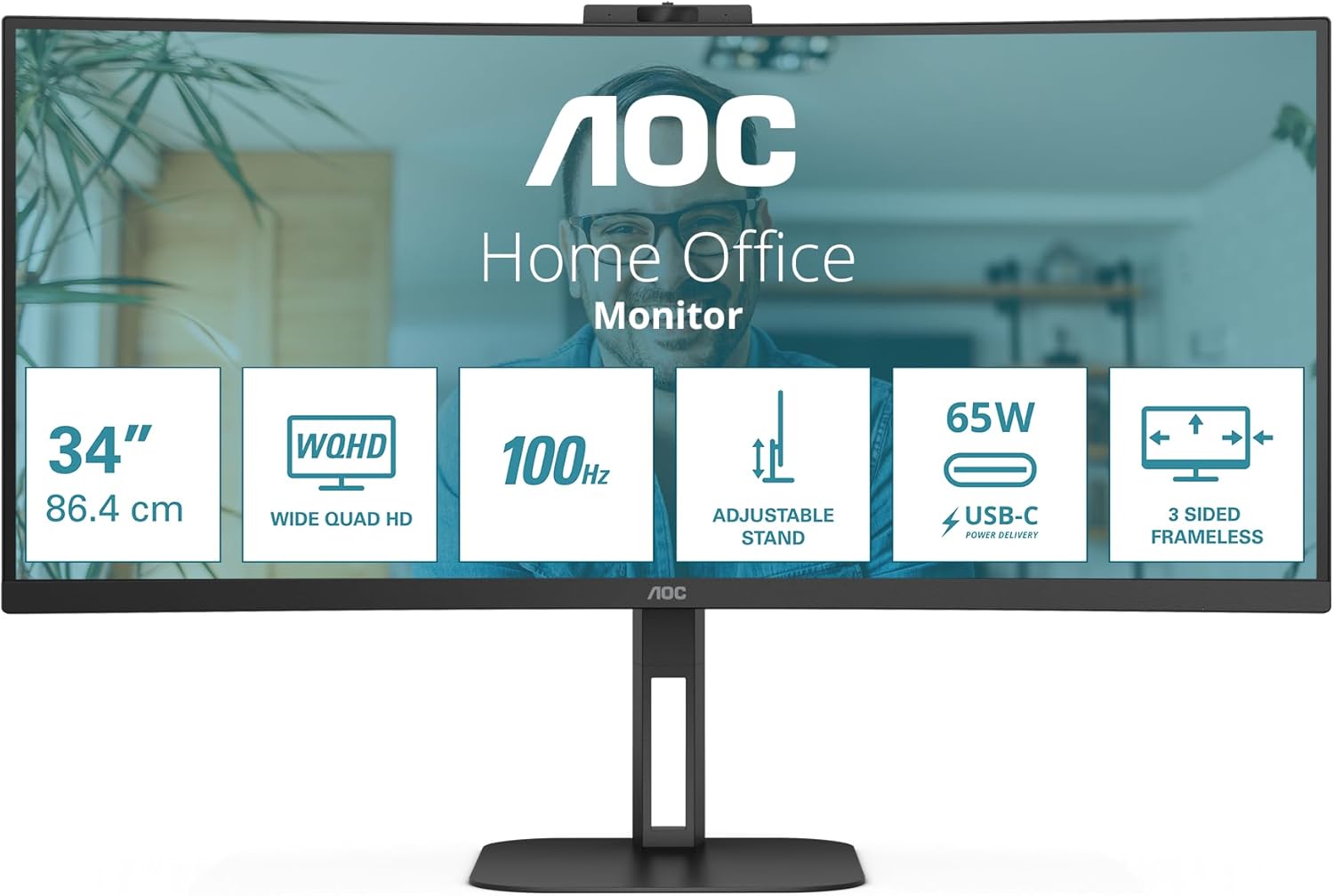
ຮູບພາບ: ດ້ານຫລັງ view of the AOC CU34V5C monitor, showing the attachment point for the stand and the overall design.
2. ສາຍເຊື່ອມຕໍ່
Connect the necessary cables to the monitor's input ports. The monitor supports various connections for versatility.
- ສາຍໄຟ: Connect the AC power cable to the monitor's power input and then to a power outlet.
- HDMI: Use an HDMI cable to connect your computer or other video source to the monitor's HDMI 1x2.0 port.
- DisplayPort: For optimal performance, connect your computer to the monitor using a DisplayPort cable.
- USB-C: Connect a USB-C cable from your compatible device to the monitor's USB-C port. This port supports video, data transfer, and Power Delivery up to 65W, allowing you to charge your device while displaying content.
- Hub USB: Utilize the integrated USB hub by connecting the upstream USB cable (if not using USB-C for data) from your computer to the monitor. Then, connect your USB peripherals (keyboard, mouse, etc.) to the monitor's 4x USB 3.2 ports.
- ອອກສຽງ: ເຊື່ອມຕໍ່ລຳໂພງ ຫຼືຫູຟັງພາຍນອກກັບຜອດສຽງອອກຖ້າຕ້ອງການ.
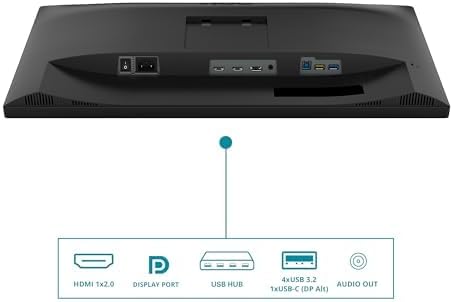
Image: Diagram illustrating the various input and output ports on the AOC CU34V5C monitor, including HDMI, DisplayPort, USB Hub, USB-C, and Audio Out.
3. ການປັບຂາຕັ້ງ
The monitor features an adjustable stand for ergonomic viewing. You can adjust the tilt and height of the display to suit your preference.
- ການປັບຄວາມສູງ: Gently push or pull the monitor up or down to adjust its height. The stand allows for up to 130 mm of vertical adjustment.
- ການປັບຕົວອຽງ: Tilt the screen forward or backward to find your optimal viewມຸມ ing.

ຮູບພາບ: ຂ້າງ view of the AOC CU34V5C monitor, highlighting the range of height adjustment available with its stand.
ຄໍາແນະນໍາການດໍາເນີນງານ
1. ເປີດ/ປິດ
Press the power button, usually located on the bottom right or rear of the monitor, to turn the display on or off. The power indicator light will illuminate when the monitor is active.
2. ເມນູການສະແດງເທິງໜ້າຈໍ (OSD).
The OSD menu allows you to configure various monitor settings. Use the control buttons (joystick or individual buttons) typically found on the bottom or rear of the monitor to navigate the menu.
- ການຕັ້ງຄ່າຮູບ: ປັບຄວາມສະຫວ່າງ, ຄວາມຄົມຊັດ, ອຸນຫະພູມສີ ແລະ ພາລາມິເຕີຮູບພາບອື່ນໆ.
- ການຄັດເລືອກການປ້ອນຂໍ້ມູນ: ເລືອກແຫຼ່ງປ້ອນຂໍ້ມູນດ້ວຍຕົນເອງ (HDMI, DisplayPort, USB-C).
- ການຕັ້ງຄ່າສຽງ: Control volume and other audio-related options for the built-in speakers or audio output.
- ການຕັ້ງຄ່າ OSD: Customize the OSD menu's language, transparency, and timeout.
3. ຫຼາຍView (Picture by Picture)
The AOC CU34V5C supports MultiView, specifically Picture by Picture (PbP) mode. This feature allows you to display content from two different input sources simultaneously on the screen, side-by-side. Refer to the OSD menu for specific instructions on activating and configuring PbP mode.
4. USB-C Functionality
The USB-C port provides a single-cable solution for compatible devices, offering:
- ສັນຍານວິດີໂອ: Display content from your device.
- ການໂອນຂໍ້ມູນ: Access devices connected to the monitor's USB hub.
- Power Delivery (65W): Charge your connected laptop or device directly through the monitor.
ບໍາລຸງຮັກສາ
1. ການທໍາຄວາມສະອາດຫນ້າຈໍ
ເພື່ອອະນາໄມໜ້າຈໍຈໍສະແດງຜົນ, ຄ່ອຍໆເຊັດມັນດ້ວຍຜ້າອ່ອນໆ, ທີ່ບໍ່ມີຜ້າປູ. ສໍາລັບຮອຍແຂງ, ເບົາບາງ dampen the cloth with water or a non-abrasive, monitor-safe cleaning solution. Avoid using harsh chemicals, alcohol, or ammonia-based cleaners, as these can damage the screen surface.
2. ການດູແລທົ່ວໄປ
- ຮັກສາຈໍພາບໃຫ້ຫ່າງຈາກແສງແດດໂດຍກົງ, ຄວາມຮ້ອນທີ່ເກີນ, ແລະ ຄວາມຊຸ່ມຊື່ນ.
- ຮັບປະກັນການລະບາຍອາກາດຢ່າງພຽງພໍຮອບຈໍເພື່ອປ້ອງກັນຄວາມຮ້ອນເກີນ.
- ຫຼີກເວັ້ນການວາງວັດຖຸໜັກໃສ່ຈໍພາບ ຫຼືສາຍຂອງມັນ.
- Unplug the monitor from the power outlet during electrical storms or when not in use for extended periods.
ການແກ້ໄຂບັນຫາ
ຖ້າທ່ານພົບບັນຫາກັບຈໍພາບຂອງທ່ານ, ໃຫ້ອ້າງອີງເຖິງຂັ້ນຕອນການແກ້ໄຂບັນຫາທົ່ວໄປຕໍ່ໄປນີ້:
- ບໍ່ມີພະລັງງານ: ກວດໃຫ້ແນ່ໃຈວ່າສາຍໄຟຖືກເຊື່ອມຕໍ່ຢ່າງປອດໄພກັບທັງຈໍພາບ ແລະປລັກສຽບໄຟ. ກວດເບິ່ງວ່າປລັກສຽບໄຟເຮັດວຽກຫຼືບໍ່.
- ບໍ່ມີສັນຍານ: Verify that the video cable (HDMI, DisplayPort, or USB-C) is correctly connected to both the monitor and your computer. Ensure the correct input source is selected in the monitor's OSD menu.
- ຮູບພາບທີ່ກະພິບ ຫຼືບິດເບືອນ: Check the video cable for damage. Try a different cable or input port. Ensure your computer's graphics drivers are up to date.
- Image Too Dark/Bright: ປັບການຕັ້ງຄ່າຄວາມສະຫວ່າງ ແລະຄວາມຄົມຊັດໃນເມນູ OSD.
- ພອດ USB ບໍ່ເຮັດວຽກ: Ensure the USB upstream cable (or USB-C cable) is connected from the monitor to your computer. Check device manager on your computer for any USB driver issues.
If problems persist after trying these steps, contact AOC customer support for further assistance.
ຂໍ້ມູນຈໍາເພາະ
Key technical specifications for the AOC CU34V5C monitor:
| ຄຸນສົມບັດ | ຂໍ້ມູນຈໍາເພາະ |
|---|---|
| ຂະໜາດໜ້າຈໍ | 34 ນິ້ວ (86.36 ຊມ) |
| ປະເພດແຜງ | VA |
| ຄວາມລະອຽດ | 3440 x 1440 Pixels (QHD Ultra Wide) |
| ອັດຕາສ່ວນ | 21:9 |
| ຫນ້າຈໍ | ໂຄ້ງ |
| ຄວາມສະຫວ່າງຂອງຮູບພາບ | 300 cd/m² |
| ອັດຕາການໂຫຼດຂໍ້ມູນຄືນໃໝ່ | 100 Hz |
| ພອດ USB ທັງໝົດ | 4 (USB 3.2) |
| ການຈັດສົ່ງພະລັງງານ USB-C | ສູງເຖິງ 65W |
| ຂະໜາດສິນຄ້າ | 7.36 x 19.57 x 42.44 ນິ້ວ |
| ນ້ໍາຫນັກລາຍການ | 26.6 ປອນ |
| ຜູ້ຜະລິດ | AOC |
| ໝາຍເລກຕົວແບບ | CU34V5C/BK |
ຂໍ້ມູນພະລັງງານ
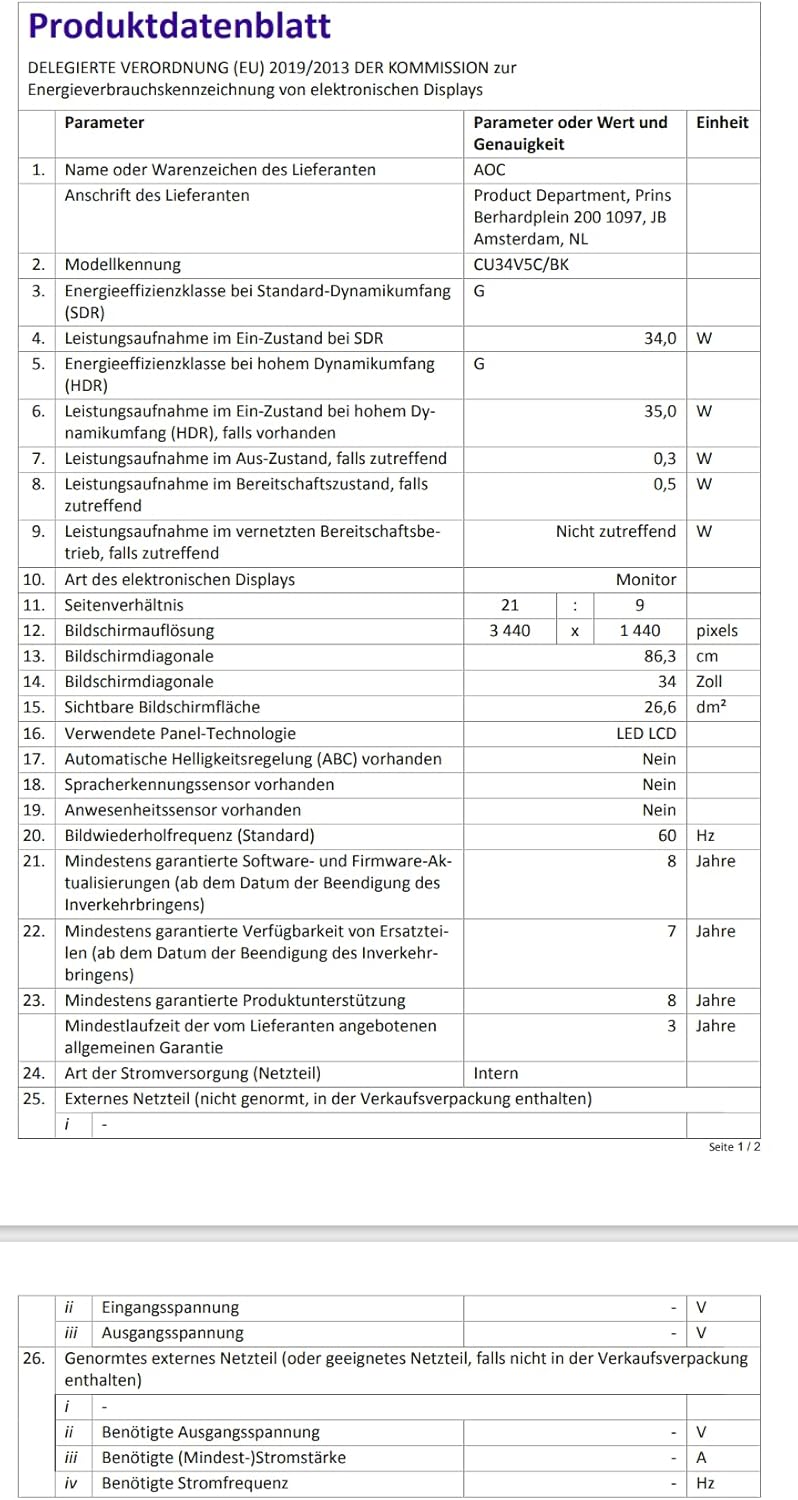
Image: EU Energy Label for the AOC CU34V5C monitor, indicating its energy efficiency class and consumption.
For detailed product information and energy efficiency data, please visit the EPREL database: https://eprel.ec.europa.eu/qr/1245431
ຂໍ້ມູນການຮັບປະກັນ
AOC monitors typically come with a limited warranty. The exact terms and duration of your warranty may vary by region and retailer. Please refer to the warranty card included with your purchase or visit the official AOC website for detailed warranty information specific to your product and location. Keep your proof of purchase for warranty claims.
ສະຫນັບສະຫນູນ
For technical assistance, troubleshooting beyond this manual, or warranty inquiries, please contact AOC customer support. You can usually find contact information, FAQs, and driver downloads on the official AOC webເວັບໄຊ.
ຂອບໃຈທີ່ເລືອກ AOC.


