1. ບົດແນະນຳ
This manual provides detailed instructions for setting up, operating, and maintaining your MINIX X35-i Plus 4K Ultra HD Industrial Android Player. This device is designed for reliable performance in digital signage and various industrial applications, offering robust connectivity and a pre-rooted Android 11 firmware.

Image 1.1: MINIX X35-i Plus Industrial Android Player. This image displays the compact black device alongside icons indicating its key features: 4K Ultra HD resolution, WiFi 6 connectivity, and Android 11 operating system.
2. ເນື້ອໃນຊຸດ
ກະລຸນາກວດສອບວ່າລາຍການທັງຫມົດທີ່ລະບຸໄວ້ຂ້າງລຸ່ມນີ້ແມ່ນລວມຢູ່ໃນຊຸດຂອງທ່ານ:
- MINIX X35-i Plus Unit
- ເສົາອາກາດສອງແຖບ
- ສາຍ HDMI
- ສາຍ USB-C ຫາ USB-A
- 12V 2A Power Adapter (with multiple plug types)
- ການຄວບຄຸມໄລຍະໄກ
- ຄູ່ມືການຕິດຕັ້ງ

Image 2.1: Contents of the MINIX X35-i Plus package. This image shows the main unit, a power adapter with interchangeable international plugs, a remote control, an HDMI cable, a USB-C to USB-A cable, a dual-band antenna, and a setup guide.
3. ຜະລິດຕະພັນເກີນview
The MINIX X35-i Plus features a compact design with various ports for comprehensive connectivity. Understanding the layout of these ports is essential for proper setup and operation.
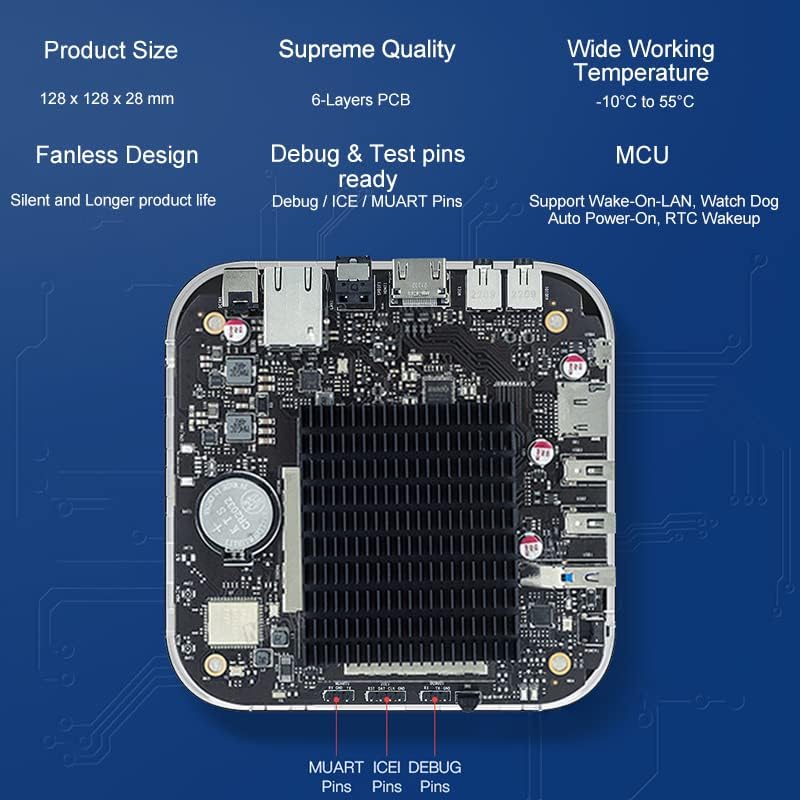
Image 3.1: MINIX X35-i Plus device with port labels and dimensions. The image highlights the device's dimensions (128mm x 128mm x 28mm) and labels its ports: Power Button, USB 3.0, 2x USB 2.0, TF Card Slot, OTG, Kensington Lock, Headphone Jack, Microphone Jack, HDMI 2.0, Gigabit Ethernet, S/PDIF, and DC 12V Power Jack.
ການອອກແບບພາຍໃນ
The device incorporates industrial-grade components and a 6-layer PCB for stable, long-term operation. Its fanless design ensures silent operation and extended product life, suitable for continuous 24/7 use.

ຮູບພາບ 3.2: ພາຍໃນ view of the MINIX X35-i Plus PCB. This image shows the internal circuit board, highlighting the fanless heatsink design and debug/test pins (MUART, ICEI, DEBUG) for advanced users or developers.
4. ຄູ່ມືການຕິດຕັ້ງ
Follow these steps to set up your MINIX X35-i Plus:
- ເຊື່ອມຕໍ່ເສົາອາກາດ: Screw the dual-band antenna onto the designated connector at the rear of the device.
- ເຊື່ອມຕໍ່ກັບຈໍສະແດງຜົນ: Connect one end of the HDMI cable to the HDMI port on the MINIX X35-i Plus and the other end to an HDMI input on your display (TV, monitor, projector).
- ເຊື່ອມຕໍ່ກັບເຄືອຂ່າຍ (ທາງເລືອກ):
- ການເຊື່ອມຕໍ່ສາຍ: Connect an Ethernet cable from your router or network switch to the Gigabit Ethernet port on the device.
- ການເຊື່ອມຕໍ່ໄຮ້ສາຍ: The device supports 802.11ax Dual-Band Wi-Fi 6. You will configure the Wi-Fi connection after initial power-on.
- ເຊື່ອມຕໍ່ອຸປະກອນເສີມ (ທາງເລືອກ):
- ອຸປະກອນ USB: Connect USB keyboards, mice, or other peripherals to the available USB 3.0 (x1) or USB 2.0 (x2) ports.
- ອຸປະກອນສຽງ: Connect headphones or external speakers to the 3.5mm Headphone Jack. For digital audio, use the S/PDIF port.
- ໄມໂຄຣໂຟນ: Connect a microphone to the 3.5mm Microphone Jack.
- ເປີດ: Connect the 12V 2A power adapter to the DC 12V Power Jack on the device, then plug the adapter into a power outlet. The device should automatically power on or can be turned on using the power button.
5. ຄໍາແນະນໍາການດໍາເນີນງານ
5.1 Initial Boot and Android 11 System
Upon first power-on, the device will boot into the Android 11 operating system. Follow the on-screen prompts for initial setup, including language selection and network configuration. The device features a pre-rooted firmware, allowing for advanced customization.

Image 5.1: Android 11 operating system interface. This image illustrates the Android 11 system running on the MINIX X35-i Plus, emphasizing its 'rooted firmware' and 'customization accept' features.
5.2 ການເຊື່ອມຕໍ່ເຄືອຂ່າຍ (Wi-Fi 6)
The MINIX X35-i Plus supports Wi-Fi 6 (802.11ax) for faster and more reliable wireless connections. To connect to Wi-Fi:
- ທ່ອງໄປຫາ ການຕັ້ງຄ່າ > ເຄືອຂ່າຍ ແລະອິນເຕີເນັດ > Wi-Fi.
- ເປີດ Wi-Fi On.
- ເລືອກເຄືອຂ່າຍທີ່ທ່ານຕ້ອງການຈາກບັນຊີລາຍຊື່ແລະໃສ່ລະຫັດຜ່ານຖ້າຫາກວ່າ prompted.

Image 5.2: Illustration of Wi-Fi 6 capabilities. This image highlights the device's Wi-Fi 6 support, indicating speeds up to 2400Mbps, which is three times faster than Wi-Fi 5.
5.3 ຄຸນສົມບັດຂັ້ນສູງ
- Wake On LAN (WOL): Allows the device to be powered on remotely via a network message. Ensure this feature is enabled in the system settings if required.
- ພະລັງງານອັດຕະໂນມັດ: Configures the device to automatically power on when electricity is supplied, ideal for unattended installations.
- RTC (Real-Time Clock) Wakeup: Enables scheduled power-on times.
- Watchdog: A hardware feature that monitors system operation and can automatically restart the device if it becomes unresponsive, ensuring continuous uptime.
- ສະຫນັບສະຫນູນຫນ້າຈໍສໍາພັດ: The device supports touch screen displays, making it suitable for interactive digital signage applications.
Image 5.3: MINIX X35-i Plus connected to a touch screen display. This image demonstrates the device's compatibility with touch screen interfaces, suitable for interactive kiosks or digital signage.
5.4 ສະຖານະການນຳໃຊ້
The MINIX X35-i Plus is versatile and can be deployed in various industrial and commercial settings:
- ປ້າຍດິຈິຕອນ
- ເຄື່ອງຂາຍ
- ອຸປະກອນການແພດ
- ເກມ Consoles
- Robot Assistance
- Digital POS Registers

Image 5.4: Various use cases for the MINIX X35-i Plus. This image depicts the device being used in diverse environments such as vending machines, medical equipment, game consoles, robot assistance, digital POS registers, and advertising machines.
6. ບໍາລຸງຮັກສາ
The MINIX X35-i Plus is designed for low maintenance due to its fanless construction and robust components.
- ທໍາຄວາມສະອາດ: Use a soft, dry cloth to clean the exterior of the device. Avoid using liquid cleaners or aerosols directly on the unit.
- ການລະບາຍອາກາດ: Although fanless, ensure the device is placed in a location with adequate airflow to prevent heat buildup, especially during continuous operation.
- ການອັບເດດເຟີມແວ: Periodically check the official MINIX webເວັບໄຊທ໌ສໍາລັບການອັບເດດເຟີມແວເພື່ອຮັບປະກັນປະສິດທິພາບ ແລະຄວາມປອດໄພທີ່ດີທີ່ສຸດ.
7. ການແກ້ໄຂບັນຫາ
If you encounter issues with your MINIX X35-i Plus, refer to the following common solutions:
- ບໍ່ມີພະລັງງານ:
- ໃຫ້ແນ່ໃຈວ່າອະແດັບເຕີໄຟເຊື່ອມຕໍ່ຢ່າງປອດໄພກັບທັງອຸປະກອນ ແລະປລັກສຽບໄຟທີ່ເຮັດວຽກ.
- ກວດສອບວ່າປ່ຽງໄຟແມ່ນເຮັດວຽກໄດ້.
- ບໍ່ມີການສະແດງຜົນອອກ:
- Check that the HDMI cable is firmly connected to both the device and the display.
- Ensure your display is set to the correct HDMI input source.
- ລອງສາຍ HDMI ຫຼືຈໍສະແດງຜົນອື່ນຖ້າເປັນໄປໄດ້.
- Remote Control Unresponsive:
- ກວດໃຫ້ແນ່ໃຈວ່າບໍ່ມີສິ່ງກີດຂວາງລະຫວ່າງຣີໂໝດ ແລະເຄື່ອງຮັບ IR ຂອງອຸປະກອນ.
- ປ່ຽນແບັດເຕີລີຄວບຄຸມໄລຍະໄກ.
- Consider using a USB keyboard and mouse for easier navigation if the remote remains problematic.
- Cannot Connect to Wi-Fi/Network:
- Verify that the Wi-Fi antenna is properly attached.
- ກວດເບິ່ງເຣົາເຕີ ແລະການເຊື່ອມຕໍ່ອິນເຕີເນັດຂອງທ່ານ.
- ໃຫ້ແນ່ໃຈວ່າທ່ານກໍາລັງໃສ່ລະຫັດຜ່ານ Wi-Fi ທີ່ຖືກຕ້ອງ.
- ຖ້າໃຊ້ການເຊື່ອມຕໍ່ແບບມີສາຍ, ໃຫ້ແນ່ໃຈວ່າສາຍອີເທີເນັດຖືກເຊື່ອມຕໍ່ຢ່າງປອດໄພ.
- Issues with Google Account or Bluetooth Pairing:
- Ensure the device has a stable internet connection for Google account services.
- For Bluetooth, ensure the peripheral is in pairing mode and within range.
- Restart the device and attempt pairing again.
- ລະບົບບໍ່ຕອບສະໜອງ:
- Press and hold the power button for 5-10 seconds to force a shutdown, then restart the device.
- If the issue persists, a factory reset may be necessary (refer to advanced settings, this will erase all data).
8. ຂໍ້ມູນຈໍາເພາະ
| ຄຸນສົມບັດ | ຂໍ້ມູນຈໍາເພາະ |
|---|---|
| ຊື່ຕົວແບບ | X35-i Plus |
| CPU | RK3566 Cortex-A55 Quad-Core |
| GPU | ມາລີ-G52-2EE |
| ຄວາມຊົງຈໍາ | 2GB DDR4 |
| ການເກັບຮັກສາພາຍໃນ | 32GB eMMC 5.1 |
| ລະບົບປະຕິບັດການ | Android 11 (Pre-Rooted Firmware) |
| ຜົນຜະລິດວິດີໂອ | HDMI 2.0, up to 4K@60Hz |
| ສຽງອອກ | HDMI 2.0, 3.5mm stereo jack, optical S/PDIF |
| ການເຊື່ອມຕໍ່ໄຮ້ສາຍ | 802.11ax Dual-Band Wi-Fi 6, Bluetooth 5.0 |
| ເຄືອຂ່າຍສາຍ | RJ-45 Gigabit Ethernet |
| ອິນເຕີເຟດ ສຳ ພັດ | Micro SD card reader, USB 3.0 x1, USB 2.0 x2, OTG port x1, Kensington Lock, 3.5mm Headphone jack, 3.5mm Microphone jack, IR Receiver |
| ການສະຫນອງພະລັງງານ | 12V/2A adapter (CE, FCC certified) |
| ຄຸນນະສົມບັດພິເສດ | Wake On LAN, Auto Power, RTC, Watchdog, HDMI CEC, Portrait mode, Miracast, Electrostatic Prevention for interfaces, Gigabit Ethernet Port with lightning protection design, Over-voltage ການປົກປ້ອງ |
| ຂະໜາດສິນຄ້າ | 5.04 x 5.04 x 1.1 ນິ້ວ (128 x 128 x 28 ມມ) |
| ນ້ໍາຫນັກລາຍການ | 1.61 ປອນ (730 ກຣາມ) |
| ສີ | ດຳ |
9. ຂໍ້ມູນການຮັບປະກັນ
For detailed warranty information, please refer to the official MINIX website or contact your point of purchase. Warranty terms and conditions may vary by region and retailer.
10. ສະຫນັບສະຫນູນ
If you require further assistance or have questions not covered in this manual, please utilize the following support channels:
- Official MINIX Webເວັບໄຊ: ຢ້ຽມຢາມ www.minix.com.hk for product information, FAQs, and firmware downloads.
- MINIX Forum: Engage with the community and find solutions at www.theminixforum.com.
- Amazon Customer Support: For purchase-related inquiries, log in to your Amazon account, go to 'Your Orders', and select 'Ask Product Question' for the MINIX X35-i Plus.
- ສື່ສັງຄົມ: Connect with MINIX on Facebook at http://www.facebook.com/minixtech.


