1. ເກີນview
The FIFINE K669PRO2 is a USB condenser microphone designed for various applications including podcasting, gaming, streaming, voice-overs, and online meetings. It features RGB lighting, a tap-to-mute function, a gain control knob, and a cardioid pickup pattern for clear audio capture. This manual provides instructions for setting up, operating, and maintaining your microphone.
2. ເນື້ອໃນຊຸດ
ກະລຸນາກວດສອບເນື້ອໃນຂອງຊຸດເພື່ອໃຫ້ແນ່ໃຈວ່າລາຍການທັງຫມົດມີຢູ່:
- FIFINE K669PRO2 USB Condenser Microphone with Pop Filter
- USB-C to USB-A Cable (6.5ft / 2m)
- ຂາຕັ້ງໂຕະ
- ຄູ່ມືຜູ້ໃຊ້

Figure 2.1: Package Contents. Includes the microphone with pop filter, USB cable, tripod stand, and user manual.
3. ຄູ່ມືການຕິດຕັ້ງ
Follow these steps to set up your FIFINE K669PRO2 microphone:
3.1 ສະພາກາຍະພາບ
- Attach the Tripod Stand: Screw the microphone onto the included tripod stand. Ensure it is firmly attached and stable on your desk.
- ຕິດຕັ້ງ Pop Filter: Attach the pop filter to the microphone's shock mount. This helps reduce plosive sounds for clearer audio.

Figure 3.1: Plug and Play setup. The microphone connects directly to your computer via the provided USB cable.
3.2 ການເຊື່ອມຕໍ່ກັບອຸປະກອນຂອງທ່ານ
- ເຊື່ອມຕໍ່ສາຍ USB: Plug the USB-C end of the cable into the microphone and the USB-A end into an available USB port on your computer (PC/Mac) or gaming console (PS4/PS5).
- ການຮັບຮູ້ລະບົບ: Your operating system should automatically detect and install the necessary drivers. The microphone is plug-and-play, requiring no additional software installation.
- ເລືອກເປັນອຸປະກອນປ້ອນຂໍ້ມູນ:
- Windows: ທ່ອງໄປຫາ ການຕັ້ງຄ່າສຽງ > ປ້ອນຂໍ້ມູນ and select "FIFINE K669PRO2" as your input device.
- macOS: ທ່ອງໄປຫາ ການຕັ້ງຄ່າລະບົບ > ສຽງ > ປ້ອນຂໍ້ມູນ and select "FIFINE K669PRO2".
- PS4/PS5: ທ່ອງໄປຫາ ການຕັ້ງຄ່າ > ອຸປະກອນ > ອຸປະກອນສຽງ and select "FIFINE K669PRO2" as your input device.
4. ຄໍາແນະນໍາການດໍາເນີນງານ
4.1 ໄດ້ຮັບການຄວບຄຸມ
The microphone features a gain control knob on the front. Rotate the knob to adjust the microphone's input sensitivity. Turn clockwise to increase gain and counter-clockwise to decrease it. Adjust the gain to achieve optimal audio levels without distortion.

Figure 4.1: Front panel controls, including the gain knob for volume adjustment.
4.2 ຟັງຊັນປິດສຽງ
Tap the mute button on the front of the microphone to instantly mute or unmute your audio. The LED indicator will change color to show the mute status (e.g., green for active, red for muted), providing a visual reminder.
Figure 4.2: Front panel controls, highlighting the tap-to-mute button.
4.3 ການຄວບຄຸມແສງ RGB
The microphone features customizable RGB lighting. Use the RGB control key on the back of the microphone to cycle through different lighting modes and colors. There are three lighting modes and over nine color options available.

Figure 4.3: RGB lighting in action, showcasing dynamic solid-color, dynamic multi-color, and static solid color modes.

ຮູບ 4.4: ດ້ານຫລັງ view of the microphone, indicating the RGB control button.
4.4 ຮູບແບບການຮັບເອົາ Cardioid
The K669PRO2 utilizes a cardioid polar pattern. This means the microphone primarily picks up sound from the front, reducing unwanted noise from the sides and rear. Position the microphone directly towards the sound source (e.g., your mouth) for optimal voice capture.
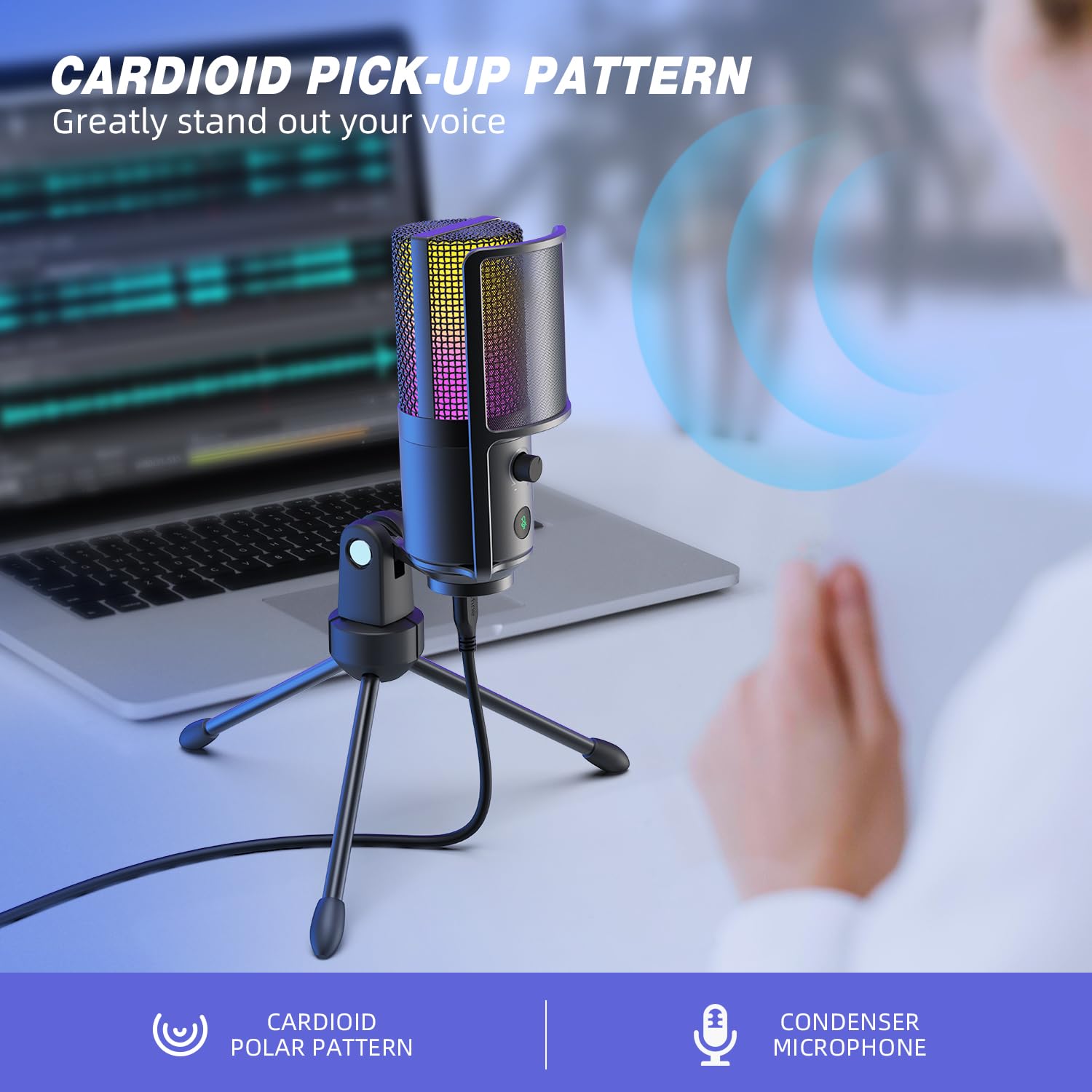
Figure 4.5: Cardioid pickup pattern illustration, demonstrating focused sound capture.
5. ບໍາລຸງຮັກສາ
- ທໍາຄວາມສະອາດ: Use a soft, dry cloth to clean the microphone's exterior. Avoid using liquid cleaners or solvents, as they may damage the device.
- ການເກັບຮັກສາ: When not in use, store the microphone in a dry, dust-free environment.
- ການຈັດການ: ໃຫ້ຈັບໄມໂຄຣໂຟນດ້ວຍຄວາມລະມັດລະວັງ. ຫຼີກລ່ຽງການຕົກ ຫຼື ການກະທົບທີ່ຮຸນແຮງ ເຊິ່ງສາມາດສົ່ງຜົນກະທົບຕໍ່ປະສິດທິພາບຂອງມັນໄດ້.
6. ການແກ້ໄຂບັນຫາ
| ບັນຫາ | ສາເຫດທີ່ເປັນໄປໄດ້ | ການແກ້ໄຂ |
|---|---|---|
| ບໍ່ມີສຽງອອກຈາກໄມໂຄຣໂຟນ. |
|
|
| Low volume or weak audio. |
|
|
| ສຽງບິດເບືອນ ຫຼື ບໍ່ຊັດເຈນ. |
|
|
| ໄຟ RGB ບໍ່ເຮັດວຽກ. |
|
|
7. ຂໍ້ມູນຈໍາເພາະ
| ຕົວແບບ | K669PRO2 |
| ຮູບແບບຂົ້ວໂລກ | Unidirectional (Cardioid) |
| ເຕັກໂນໂລຊີການເຊື່ອມຕໍ່ | USB |
| ປະເພດຕົວເຊື່ອມຕໍ່ | USB-C (on mic), USB-A (on cable) |
| ອຸປະກອນທີ່ເຂົ້າກັນໄດ້ | PC, Mac, PS4, PS5 |
| ວັດສະດຸ | ໂລຫະ |
| ການຕອບສະໜອງຄວາມຖີ່ | 20 Hz - 20 kHz |
| ອັດຕາສ່ວນສັນຍານເຖິງສຽງດັງ | 70 dB |
| ແຫຼ່ງພະລັງງານ | ໄຟຟ້າມີສາຍ (USB Powered) |
| ນ້ໍາຫນັກລາຍການ | 508 g |
| ອົງປະກອບລວມ | Microphone, USB Cable, Tripod Stand, Pop Filter |
8. ການຮັບປະກັນແລະການສະຫນັບສະຫນູນ
For warranty information, technical support, or customer service inquiries, please refer to the official FIFINE website or contact their customer support directly. Details can typically be found on the product packaging or the manufacturer's official online channels.
You can visit the FIFINE store for more information: FIFINE Official Store


