1. ບົດແນະນຳ
This manual provides detailed instructions for the setup, operation, and maintenance of your KECAG 10.1 Inch Digital Picture Frame. Please read this manual thoroughly before using the device to ensure proper functionality and to maximize your user experience. Keep this manual for future reference.
2. ຜະລິດຕະພັນເກີນview
2.1 ລັກສະນະທີ່ສໍາຄັນ
- 10.1 Inch 1080P HD IPS Screen: Features a 1920x1080 resolution with a 180° wide-angle IPS display for clear viewຈາກມຸມຕ່າງໆ.
- ການຫຼິ້ນມັນຕິມີເດຍ: Supports photo slideshows, video playback, and music playback.
- ເຊັນເຊີກວດຈັບການເຄື່ອນໄຫວ: Automatically turns the frame on/off based on detected movement to conserve energy.
- Timing On/Off Function: Allows scheduled power on and off times.
- Versatile Media Support: Compatible with SD cards and USB flash drives.
- ການໂຕ້ຕອບຜູ້ເປັນມິດ: Simple main menu for easy navigation.
- ການຄວບຄຸມໄລຍະໄກ: Provides convenient operation from a distance.
- ຟັງຊັນເພີ່ມເຕີມ: Includes calendar and alarm features.
2.2 ເນື້ອໃນຊຸດ
- KECAG 10.1 Inch Digital Picture Frame
- 32GB USB Flash Drive
- ການຄວບຄຸມໄລຍະໄກ
- Power Adapter
- ຄູ່ມືຜູ້ໃຊ້

ຮູບທີ 2.2.1: The KECAG 10.1 Inch Digital Picture Frame displaying a family photo, accompanied by its remote control.
3. ຕັ້ງຄ່າ
3.1 ການເຊື່ອມຕໍ່ພະລັງງານ
- Locate the power adapter included in the package.
- Connect the small end of the power adapter cable to the DC IN port on the back of the digital picture frame.
- ສຽບປາຍອື່ນຂອງອະແດບເຕີໄຟເຂົ້າໄປໃນປລັກໄຟຟ້າມາດຕະຖານ.
- The frame will automatically power on or enter standby mode.
3.2 Inserting Media (USB Drive or SD Card)
The digital picture frame supports both USB flash drives and SD cards for media playback.
- Identify the USB port and SD card slot on the side or back of the frame.
- For a USB drive: Carefully insert the USB flash drive into the USB port.
- For an SD card: Insert the SD card into the SD card slot with the metal contacts facing down, until it clicks into place.
- Ensure the media is inserted correctly to avoid damage.

ຮູບທີ 3.2.1: Illustrated steps for connecting media (USB/SD card) and power to the digital picture frame.
3.3 Initial Power On and Language Settings
- Once powered on, the frame may display a language selection screen.
- Use the remote control's navigation buttons (Up/Down/Left/Right) to select your preferred language.
- ກົດ ປ້ອນ ປຸ່ມເພື່ອຢືນຢັນການເລືອກຂອງທ່ານ.
4. ຄໍາແນະນໍາການດໍາເນີນງານ
4.1 ຫນ້າທີ່ຄວບຄຸມໄລຍະໄກ
The remote control allows for convenient navigation and setting adjustments. Ensure the remote is aligned with the infrared sensor on the frame during use.
- ເມນູ: Access the main menu or return to the previous menu.
- ຮູບພາບ: Directly enter photo playback mode.
- ດົນຕີ: Directly enter music playback mode.
- ຮູບເງົາ: Directly enter video playback mode.
- ອອກ: Exit current function or menu.
- ຕື່ມ: Confirm selection or play/pause media.
- ຕັ້ງຄ່າ: ເຂົ້າເຖິງການຕັ້ງຄ່າລະບົບ.
- ປຸ່ມນຳທາງ (ຂຶ້ນ/ລົງ/ຊ້າຍ/ຂວາ): ນຳທາງຜ່ານເມນູ ແລະຕົວເລືອກຕ່າງໆ.
- VOL+/VOL-: Adjust volume during video or music playback.
4.2 ເມນູຫຼັກນໍາທາງ
From the main menu, you can select different functions:
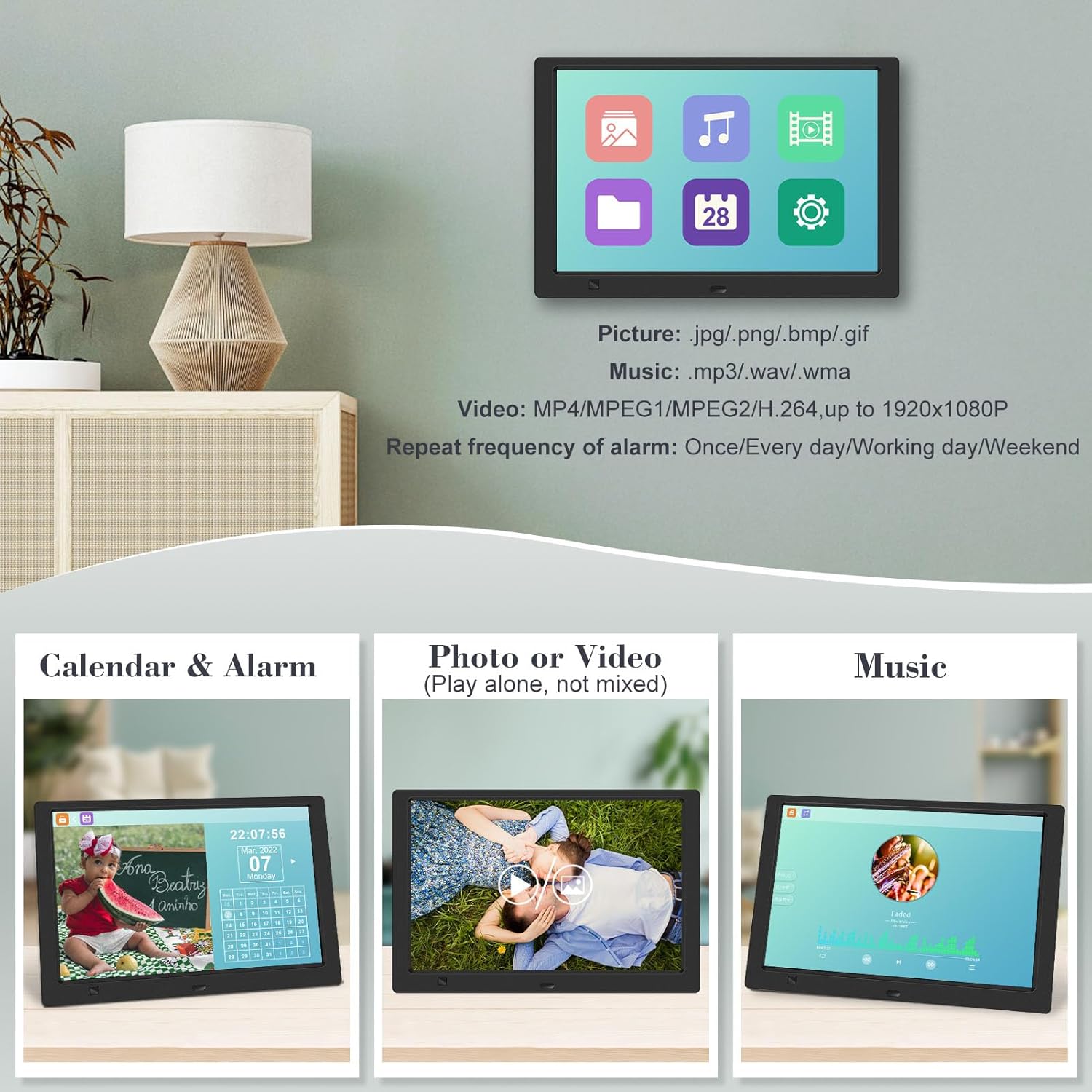
- ຮູບ: View photos in a slideshow.
- ດົນຕີ: ຫຼິ້ນສຽງ files.
- ປະຕິທິນ: Display calendar and set alarms.
- ການຕັ້ງຄ່າ: ຕັ້ງຄ່າການຕັ້ງຄ່າອຸປະກອນ.

ຮູບທີ 4.2.1: The digital picture frame's interface showing options for Calendar, Photo/Video, and Music playback.
4.3 Photo Playback
- ຈາກເມນູຫລັກ, ເລືອກ ຮູບ ຫຼືກົດ ຮູບ ປຸ່ມໃນຣີໂໝດ.
- The frame will automatically start a slideshow of photos found on the inserted media.
- ລຳ ດັບການຫຼິ້ນ: In settings, you can choose between Shuffle, Sequential, or Repeat All.
- ຜົນກະທົບການປ່ຽນແປງ: Select from various effects like Up/Down, Mosaic, Left/Right, or Random.
- ຮູບກ່ອນview: Access a thumbnail view of your photos.
- ການໝຸນຮູບ: Adjust the orientation of images (vertical/horizontal).
- ຄວາມສະຫວ່າງຫນ້າຈໍ: Adjust the display brightness in the settings menu.
ຮູບທີ 4.3.1: The digital picture frame displaying a photo slideshow with background music and various image transition options.

ຮູບທີ 4.3.2: Visual representation of slideshow and image preview options, including settings for playback order, display scale, picture rotation, time window, and screen brightness adjustment.
4.4 Video and Music Playback
- ຈາກເມນູຫລັກ, ເລືອກ ຮູບເງົາ or ດົນຕີ, or use the corresponding buttons on the remote.
- ທ່ອງໄປຫາທີ່ຕ້ອງການ file using the remote control and press ປ້ອນ ຫຼິ້ນ.
- Supported video formats: MP4/MPEG1/MPEG2/H.264 up to 1920x1080.
- Supported music formats: MP3/WAV/WMA.
4.5 Motion Sensor Function
The motion sensor helps save energy by automatically turning the frame on or off.
- To enable/disable the motion sensor, go to the ການຕັ້ງຄ່າ ເມນູ.
- Select the motion sensor option and toggle it On or Off.
- When enabled, the frame will power on when movement is detected and turn off after a period of inactivity.
4.6 Timing On/Off Function
Set specific times for the frame to automatically power on and off.
- ເຂົ້າເຖິງ ການຕັ້ງຄ່າ ເມນູ.
- Locate the Timing On/Off function.
- Set your desired power-on time and power-off time. You can also configure this for specific days (e.g., weekdays, weekends, every day).

ຮູບທີ 4.6.1: Demonstrates the smart motion sensor turning on the frame when movement is detected and the timing on/off function for scheduled operation.
5. ບໍາລຸງຮັກສາ
5.1 ການທໍາຄວາມສະອາດຫນ້າຈໍ
ເພື່ອເຮັດຄວາມສະອາດໜ້າຈໍ, ເຊັດມັນຄ່ອຍໆດ້ວຍຜ້າອ່ອນ, ແຫ້ງ, ບໍ່ມີສານຂັດ. ສໍາລັບຮອຍແຂງ, ເລັກນ້ອຍ dampເຊັດຜ້າດ້ວຍນ້ຳ ຫຼື ນ້ຳຢາທຳຄວາມສະອາດທີ່ໃຊ້ກັບໜ້າຈໍໄດ້. ຫຼີກລ່ຽງການໃຊ້ສານເຄມີທີ່ຮຸນແຮງ ຫຼື ວັດສະດຸທີ່ມີສີຂັດ.
5.2 ການເບິ່ງແຍງທົ່ວໄປ
- Keep the frame away from direct sunlight, heat sources, and excessive moisture.
- ຫຼີກລ້ຽງການວາງອຸປະກອນລົງ ຫຼືຖືກຜົນກະທົບທີ່ຮຸນແຮງ.
- Do not attempt to disassemble the frame; this will void the warranty.
- ຮັບປະກັນການລະບາຍອາກາດທີ່ເຫມາະສົມຮອບອຸປະກອນ.
6. ການແກ້ໄຂບັນຫາ
If you encounter issues with your digital picture frame, please refer to the following common problems and solutions:
| ບັນຫາ | ສາເຫດທີ່ເປັນໄປໄດ້ | ການແກ້ໄຂ |
|---|---|---|
| ເຟຣມບໍ່ເປີດ. | ອະແດບເຕີໄຟບໍ່ໄດ້ເຊື່ອມຕໍ່ ຫຼືປລັກສຽບເກີດຄວາມຜິດພາດ. | ໃຫ້ແນ່ໃຈວ່າອະແດບເຕີໄຟຟ້າໄດ້ເຊື່ອມຕໍ່ກັບໂຄງຢ່າງແໜ້ນໜາ ແລະ ປລັກສຽບໄຟຟ້າທີ່ໃຊ້ໄດ້. ລອງໃຊ້ປລັກສຽບອື່ນ. |
| No photos/videos/music displayed. | No media inserted, media not recognized, or unsupported file ຮູບແບບ. | Ensure a USB drive or SD card is properly inserted. Check if files are in supported formats (JPG/PNG/BMP/GIF for photos; MP4/MPEG1/MPEG2/H.264 for video; MP3/WAV/WMA for music). Try reformatting the media (backup data first). |
| ການຄວບຄຸມໄລຍະໄກບໍ່ເຮັດວຽກ. | Battery depleted, remote not aimed correctly, or sensor obstructed. | Replace the remote control battery. Ensure the remote is pointed directly at the frame's infrared sensor. Remove any obstructions between the remote and the frame. |
| ໜ້າຈໍຫວ່າງເປົ່າ ຫຼື ຈຶ້ງ. | ຄວາມຜິດພາດຂອງຊອບແວຊົ່ວຄາວ. | ຖອດອະແດບເຕີໄຟອອກ, ລໍຖ້າ 10 ວິນາທີ, ຈາກນັ້ນສຽບປລັກຄືນໃໝ່ເພື່ອເປີດກອບຄືນໃໝ່. |
7. ຂໍ້ມູນຈໍາເພາະ
| ຄຸນສົມບັດ | ຂໍ້ມູນຈໍາເພາະ |
|---|---|
| ຂະໜາດໜ້າຈໍ | 10.1 ນິ້ວ |
| ຄວາມລະອຽດ | 1920 x 1080 (1080p HD IPS) |
| ອັດຕາສ່ວນ | 16:9 |
| Viewໃນມຸມ | 180° |
| ອຸປະກອນທີ່ເຂົ້າກັນໄດ້ | SD Card, USB Drive |
| ຮູບແບບຮູບພາບທີ່ຮອງຮັບ | JPG, PNG, BMP, GIF |
| ຮູບແບບວິດີໂອສະຫນັບສະຫນູນ | MP4, MPEG1, MPEG2, H.264 (up to 1920x1080) |
| ຮູບແບບດົນຕີສະຫນັບສະຫນູນ | MP3, WAV, WMA |
| ເຊັນເຊີກວດຈັບການເຄື່ອນໄຫວ | ແມ່ນແລ້ວ |
| ໝາຍເລກຕົວແບບ | KECAG-CA-001 |
| ຂະໜາດສິນຄ້າ | 6.4 x 9.7 x 0.99 ນິ້ວ |
| ນ້ໍາຫນັກລາຍການ | 1.59 ປອນ |
| ໝໍ້ໄຟ (ຣີໂໝດ) | 1 ແບດເຕີຣີ້ໂລຫະ Lithium (ລວມ) |
| ຜູ້ຜະລິດ | KECAG |
8. ການຮັບປະກັນແລະການສະຫນັບສະຫນູນ
For warranty information, please refer to the documentation included with your product packaging. KECAG provides 24-hour customer service to assist with any issues or questions you may have regarding your digital picture frame. Please contact customer support for assistance.


