1. ບົດແນະນຳ
Thank you for choosing the ROADOM Portable Monitor Z1-5S. This 15.6-inch Full HD (1920x1080) IPS display is designed to enhance your productivity and entertainment experience on the go. Featuring HDR mode, a 178° wide viewing angle, and versatile connectivity options, it serves as an excellent external display for laptops, smartphones, gaming consoles, and more. This manual provides essential information for setting up, operating, and maintaining your monitor.
ເນື້ອໃນຊຸດ
- ROADOM Portable Monitor Z1-5S
- Smart Protective Cover (doubles as a stand)
- USB-C to USB-C Cable (for power and video)
- Mini HDMI to HDMI Cable (for video)
- ສາຍ USB-A ຫາ USB-C (ສໍາລັບພະລັງງານ)
- Power Adapter
- ຄູ່ມືຜູ້ໃຊ້ (ເອກະສານນີ້)

ຮູບພາບ 1.1: The ROADOM Portable Monitor Z1-5S showcasing its visual capabilities, including Full HD 1080P resolution, IPS panel technology, 100% sRGB color gamut, 178° viewing angle, and HDR support for a perfect visual experience.
2. ຄໍາແນະນໍາການຕິດຕັ້ງ
Follow these steps to connect your ROADOM Portable Monitor to various devices.
2.1 ການເປີດເຄື່ອງຕິດຕາມ
The monitor can be powered via the included power adapter or directly from a compatible device using a USB-C cable.
- ການນໍາໃຊ້ Power Adapter: Connect the USB-A to USB-C cable to the power adapter, then plug the USB-C end into one of the monitor's USB-C ports (labeled 'PD' or 'Power'). Plug the adapter into a wall outlet.
- Using USB-C from Device: If your laptop or smartphone supports power delivery via USB-C, connect a full-featured USB-C to USB-C cable from your device to one of the monitor's USB-C ports. This single cable can provide both power and video signal.
2.2 ການເຊື່ອມຕໍ່ກັບອຸປະກອນ
The monitor offers multiple connectivity options for various devices.
- For Laptops/PCs (USB-C): Use a full-featured USB-C to USB-C cable to connect your laptop's USB-C port to one of the monitor's USB-C ports. This provides both video and power.
- For Laptops/PCs (HDMI): Connect the Mini HDMI to HDMI cable from the monitor's Mini HDMI port to your laptop's HDMI port. You will also need to power the monitor separately using the power adapter or a USB-A to USB-C cable connected to a power source.
- For Smartphones (USB-C): If your smartphone supports DisplayPort Alternate Mode (DP Alt Mode) via USB-C, connect it to the monitor using a full-featured USB-C to USB-C cable. This enables screen mirroring or desktop mode (e.g., Samsung DeX).
- For Gaming Consoles (PS4/Xbox/Switch): Connect the gaming console via the Mini HDMI to HDMI cable. Ensure the monitor is powered separately. For Nintendo Switch, a full-featured USB-C cable can also be used, and the monitor can reverse charge the Switch.

ຮູບພາບ 2.1: The monitor connected to a laptop and a smartphone, illustrating the ease of connection using USB-C for both power and video, enabling extended display for productivity or entertainment.
2.3 ການໃຊ້ Smart Cover ເປັນຂາຕັ້ງ
The included magnetic smart cover protects your monitor and doubles as an adjustable stand.
- ພັບຝາປິດຕາມຮອຍພັບຂອງມັນເພື່ອສ້າງເປັນຂາຕັ້ງຮູບສາມຫຼ່ຽມ.
- Place the monitor into the grooves of the folded cover to achieve desired viewing angles. The cover supports two different angles.
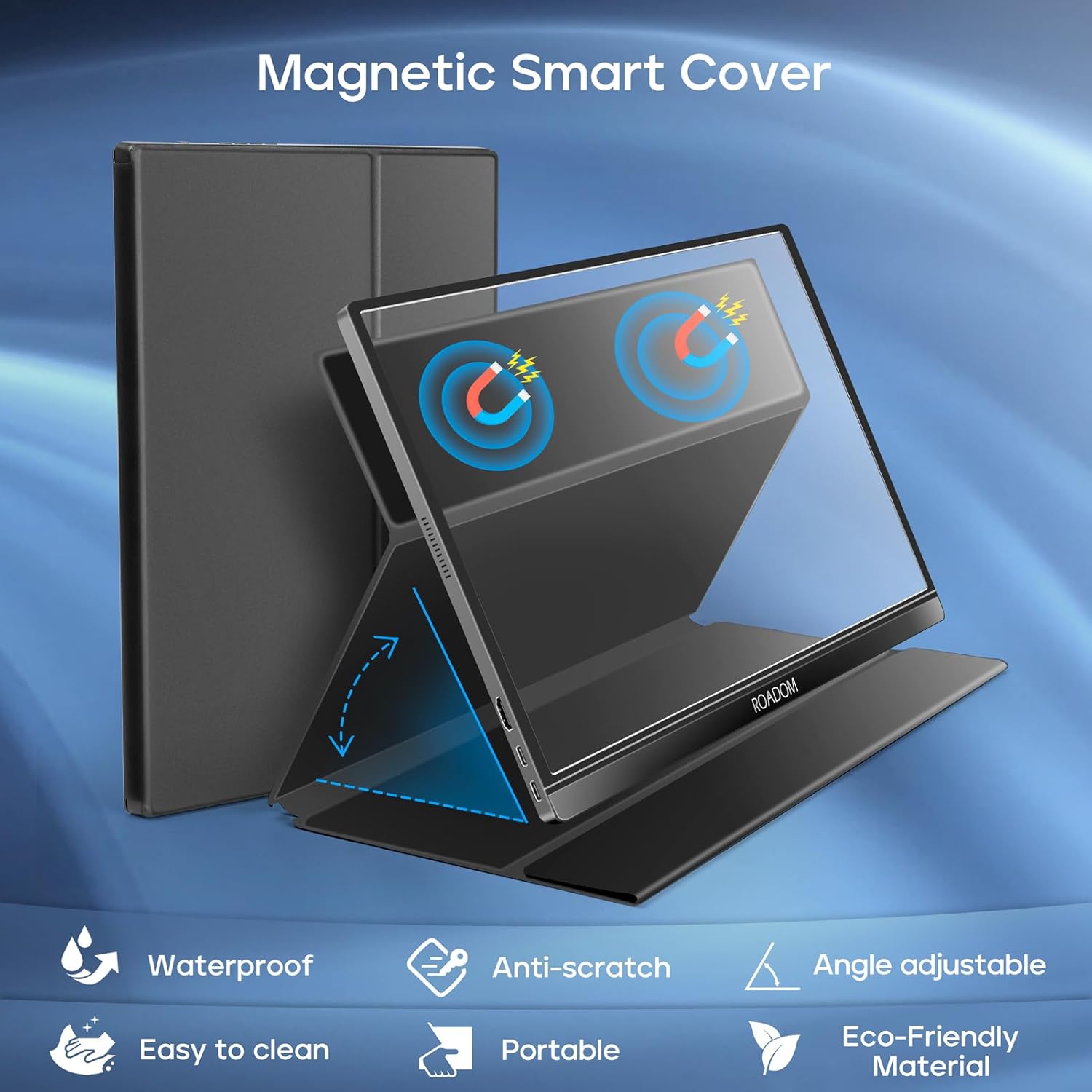
ຮູບພາບ 2.2: The magnetic smart cover in use, demonstrating its dual function as a protective case and an adjustable stand, allowing for versatile placement of the monitor.
3. ຄໍາແນະນໍາການດໍາເນີນງານ
3.1 ເປີດ/ປິດ
Press the power button located on the side of the monitor to turn it on or off.
3.2 ເມນູການສະແດງເທິງໜ້າຈໍ (OSD).
The monitor features an OSD menu for adjusting various settings. Use the control buttons on the side of the monitor to navigate and select options.
- ປຸ່ມເມນູ: ກົດເພື່ອເປີດເມນູ OSD.
- ປຸ່ມຂຶ້ນ/ລົງ: ທ່ອງໄປຫາຕົວເລືອກເມນູ.
- ໃສ່ປຸ່ມ: ເລືອກຕົວເລືອກ ຫຼືຢືນຢັນການຕັ້ງຄ່າ.
- ປຸ່ມອອກ: Go back or exit the menu.
ເຄັດລັບດ່ວນ: Some buttons may have shortcuts. For example, one button might directly adjust brightness, and another might adjust volume.
3.3 ຮູບແບບການສະແດງ
The monitor supports multiple display modes to suit your needs:
- ໂໝດຊໍ້າກັນ: ສ່ອງໜ້າຈໍຫຼັກຂອງທ່ານ, ເໝາະສຳລັບການນຳສະເໜີ ຫຼືການແບ່ງປັນເນື້ອຫາ.
- ຂະຫຍາຍໂໝດ: Extends your desktop, providing more screen real estate for multitasking.
- ໂໝດໜ້າຈໍທີສອງ: ໃຊ້ພຽງແຕ່ຈໍພາບພົກພາເປັນຈໍສະແດງຜົນເທົ່ານັ້ນ.
- ໂໝດພູມສັນຖານ: Standard horizontal orientation.
- ແບບ Portrait: Vertical orientation, useful for coding, document viewing, or specific applications.
To switch between landscape and portrait modes, you may need to adjust settings on your connected device's operating system (e.g., Display Settings on Windows, System Preferences on macOS).
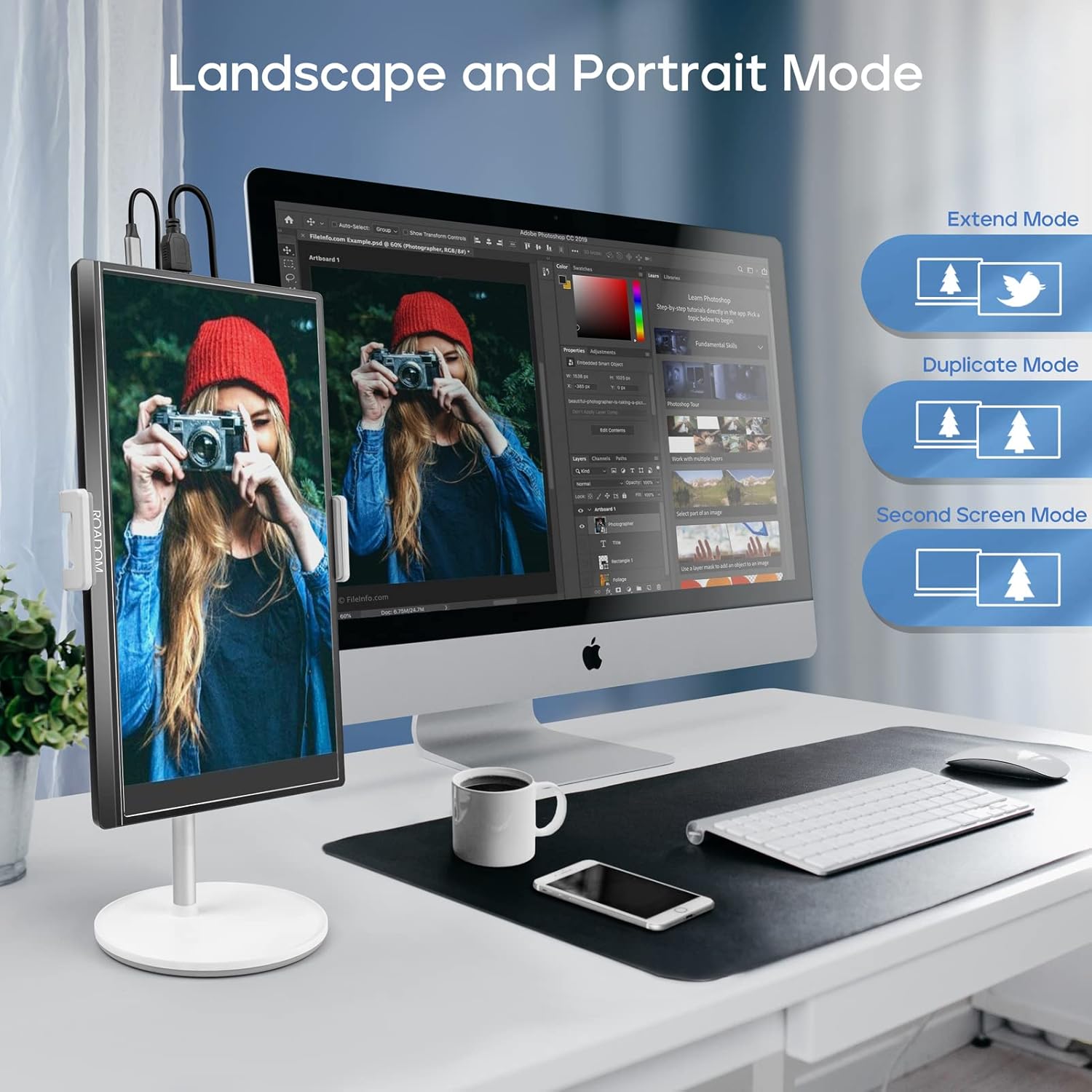
ຮູບພາບ 3.1: The monitor configured in both landscape and portrait orientations, demonstrating its flexibility for different work and viewing scenarios, including extend and duplicate display modes.
3.4 ການຕັ້ງຄ່າສຽງ
The monitor has built-in dual speakers. You can adjust the volume through the OSD menu or via quick access buttons. For private listening, connect headphones to the 3.5mm audio port.
3.5 ຄຸນສົມບັດການດູແລຕາ
The monitor incorporates flicker-free technology and a blue light filter to reduce eye strain during prolonged use. These settings can be adjusted in the OSD menu.
4. ບໍາລຸງຮັກສາ
Proper care and maintenance will ensure the longevity and optimal performance of your ROADOM Portable Monitor.
4.1 ການທໍາຄວາມສະອາດຫນ້າຈໍ
- Always turn off the monitor and disconnect it from power before cleaning.
- ໃຊ້ຜ້າແພທີ່ອ່ອນໆ, ບໍ່ມີເສັ້ນດ່າງ, dampຫຸ້ມດ້ວຍນ້ໍາຫຼືເຄື່ອງເຮັດຄວາມສະອາດຫນ້າຈໍທີ່ບໍ່ມີການຂັດ.
- ເຊັດໜ້າຈໍເບົາໆ. ຫຼີກເວັ້ນການໃຊ້ຄວາມກົດດັນຫຼາຍເກີນໄປ.
- ຢ່າໃຊ້ເຫຼົ້າ, ເຄື່ອງເຮັດຄວາມສະອາດທີ່ມີອາໂມເນຍ, ຫຼືວັດສະດຸຂັດ, ເພາະວ່າສິ່ງເຫຼົ່ານີ້ສາມາດທໍາລາຍຫນ້າຈໍໄດ້.
4.2 ການເບິ່ງແຍງທົ່ວໄປ
- Avoid exposing the monitor to extreme temperatures, direct sunlight, or high humidity.
- ຮັກສາຈໍພາບໃຫ້ຫ່າງຈາກຂອງແຫຼວ ແລະ ຝຸ່ນ.
- Use the protective smart cover when transporting the monitor to prevent scratches and damage.
- Handle the monitor by its edges; avoid touching the screen directly.
5. ການແກ້ໄຂບັນຫາ
ຖ້າທ່ານພົບບັນຫາກັບຈໍພາບຂອງທ່ານ, ໃຫ້ອ້າງອີງເຖິງບັນຫາທົ່ວໄປຕໍ່ໄປນີ້ແລະວິທີແກ້ໄຂ.
5.1 ບໍ່ມີສັນຍານ / ຈໍດຳ
- ກວດສອບສາຍ: Ensure all video (USB-C or HDMI) and power cables are securely connected to both the monitor and the source device.
- ແຫຼ່ງພະລັງງານ: Verify the monitor is receiving adequate power. If using a single USB-C cable for power and video, ensure your device supports sufficient power output. Try connecting the monitor to its dedicated power adapter.
- ແຫຼ່ງປ້ອນຂໍ້ມູນ: Use the OSD menu to manually select the correct input source (USB-C or HDMI).
- Device Output: Confirm your source device (laptop, phone, console) is configured to output video to an external display. Try restarting the source device.
5.2 Display Flickering or "Blips"
- ຄຸນະພາບສາຍໄຟ: Ensure you are using the provided high-quality cables. Faulty or low-quality cables can cause signal instability.
- ສະຖຽນລະພາບພະລັງງານ: Inconsistent power supply can cause flickering. Ensure the monitor is connected to a stable power source.
- ອັດຕາການໂຫຼດຂໍ້ມູນຄືນໃໝ່: Check the display settings on your source device to ensure the refresh rate is compatible with the monitor (60Hz).
5.3 Settings Not Saving
- After making changes in the OSD menu, ensure you select "Save" or "Exit" properly if prompted.
- Some settings, particularly brightness, might reset upon power cycle depending on the power source and device connection. This is sometimes expected behavior for portable monitors.
5.4 No Audio from Speakers
- ລະດັບສຽງ: Check the volume setting in the monitor's OSD menu and on your source device.
- ສຽງອອກ: Ensure your source device is configured to output audio to the external monitor.
- ຫູຟັງ: If headphones are plugged into the 3.5mm jack, the built-in speakers will be muted.
6. ຂໍ້ມູນຈໍາເພາະ
| ຍີ່ຫໍ້ | ຖະໜົນ |
| ໝາຍເລກຕົວແບບ | Z1-5S |
| ຂະໜາດໜ້າຈໍ | 15.6 ນິ້ວ |
| ຄວາມລະອຽດການສະແດງ | 1920 x 1080 ພິກເຊລ (FHD 1080p) |
| ປະເພດແຜງ | IPS |
| ອັດຕາສ່ວນ | 16:9 |
| ອັດຕາການໂຫຼດຂໍ້ມູນຄືນໃໝ່ | 60 Hz |
| ເວລາຕອບສະຫນອງ | 1 ມິນລິວິນາທີ |
| ອັດຕາສ່ວນພາບກົງກັນຂ້າມ | 1000:1 |
| ຄວາມສະຫວ່າງ | 300 cd/m² (nits) |
| ການເຊື່ອມຕໍ່ | 2x USB-C (Full-featured), 1x Mini HDMI, 1x 3.5mm Audio Jack |
| ຄຸນນະສົມບັດພິເສດ | Blue Light Filter, Built-In Speakers, Flicker-Free, Portable, HDR |
| ຂະໜາດສິນຄ້າ | 0.89 x 36.83 x 22.35 cm |
| ນ້ໍາຫນັກລາຍການ | 771.11 g (ປະມານ 1.7 lbs) |
7. ການຮັບປະກັນແລະການສະຫນັບສະຫນູນ
For warranty information and technical support, please refer to the warranty card included in your product packaging or visit the official ROADOM website. If you have any questions or require assistance, please contact ROADOM customer service.


