1. ບົດແນະນຳ
This manual provides comprehensive instructions for the setup, operation, and maintenance of your Cherry MW 9100 Wireless Rechargeable Mouse. The MW 9100 is a compact, versatile mouse offering dual connectivity options (Bluetooth or 2.4 GHz USB receiver) and a convenient rechargeable battery.
ຄຸນນະສົມບັດທີ່ສໍາຄັນປະກອບມີ:
- Compact design with charging functionality.
- Flexible operation: use while charging via USB-C cable.
- Dual connectivity: Bluetooth or 2.4 GHz USB receiver.
- Magnetic storage for the USB receiver, ideal for travel.
- Adjustable DPI settings for varied usage.
2. ເນື້ອໃນຊຸດ
ກວດສອບວ່າລາຍການທັງຫມົດແມ່ນມີຢູ່ໃນຊຸດ:
- Cherry MW 9100 Wireless Rechargeable Mouse
- ສາຍສາກ USB-C
- ຕົວຮັບ USB 2.4 GHz
- ກະເປົ໋າປ້ອງກັນ
- ຄູ່ມືແນະ ນຳ (ເອກະສານນີ້)
3. ຕັ້ງຄ່າ
3.1 ການສາກໄຟຂອງຫນູ
The Cherry MW 9100 mouse features a built-in rechargeable battery. Before initial use, or when the battery is low, connect the included USB-C cable to the mouse and to a USB power source (e.g., computer USB port, USB wall adapter). The mouse can be used normally while charging.

ຮູບພາບ 3.1: ເທິງ view of the Cherry MW 9100 mouse, showing the charging indicator light.
3.2 ການເຊື່ອມຕໍ່ຫນູ
The MW 9100 offers two connection methods: 2.4 GHz wireless via USB receiver or Bluetooth.
3.2.1 2.4 GHz Wireless Connection
- Locate the USB receiver. It is magnetically stored in a compartment on the underside of the mouse.
- ສຽບຕົວຮັບ USB ເຂົ້າໄປໃນພອດ USB ທີ່ມີຢູ່ໃນຄອມພິວເຕີຂອງທ່ານ.
- On the underside of the mouse, slide the switch to the "RF" position.
- ເມົ້າຄວນເຊື່ອມຕໍ່ກັບຄອມພິວເຕີຂອງທ່ານໂດຍອັດຕະໂນມັດ.
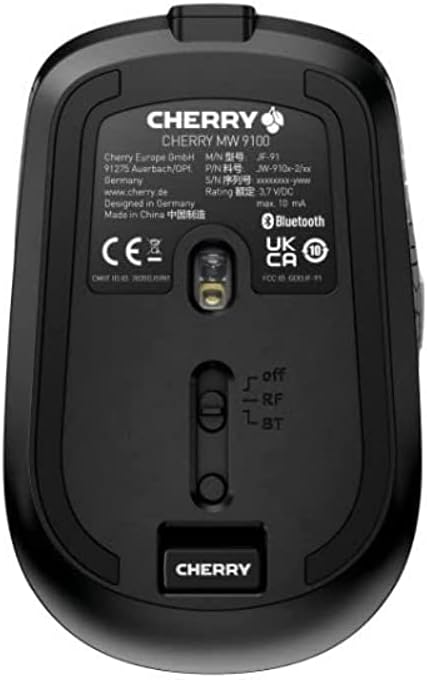
ຮູບພາບ 3.2: Underside of the Cherry MW 9100 mouse, highlighting the USB receiver storage and the connection mode switch.
3.2.2 ການເຊື່ອມຕໍ່ Bluetooth
- On the underside of the mouse, slide the switch to the "BT" (Bluetooth) position.
- Press and hold the small pairing button located near the connection switch on the underside of the mouse until the LED indicator on the mouse starts blinking, indicating pairing mode.
- ໃນຄອມພິວເຕີ ຫຼືອຸປະກອນຂອງທ່ານ, ເປີດການຕັ້ງຄ່າ Bluetooth ແລະຊອກຫາອຸປະກອນໃໝ່.
- Select "Cherry MW 9100" from the list of available devices to complete the pairing process.
4. ຄໍາແນະນໍາການດໍາເນີນງານ
4.1 ຫນ້າທີ່ພື້ນຖານ
The Cherry MW 9100 mouse features standard left and right click buttons, a scroll wheel (which also functions as a middle click button), and two side buttons for navigation (typically forward/back).
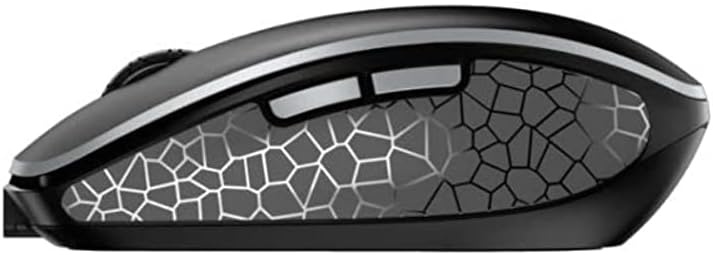
ຮູບພາບ 4.1: ຂ້າງ view of the Cherry MW 9100 mouse, illustrating the ergonomic design and side buttons.
4.2 ການປັບ DPI
The mouse includes a DPI (Dots Per Inch) button, usually located near the scroll wheel, allowing you to adjust the cursor sensitivity. Press this button to cycle through different DPI settings to match your preference or task requirements.

ຮູບພາບ 4.2: A hand demonstrating the comfortable grip on the Cherry MW 9100 mouse during use.
5. ບໍາລຸງຮັກສາ
To ensure optimal performance and longevity of your Cherry MW 9100 mouse:
- ທໍາຄວາມສະອາດ: ໃຊ້ຜ້າອ່ອນໆແຫ້ງເພື່ອທຳຄວາມສະອາດໜ້າຜິວຂອງເມົາສ໌. ສຳລັບຝຸ່ນທີ່ຝັງແໜ້ນ, ໃຫ້ເຊັດອອກເລັກນ້ອຍamp cloth can be used, but ensure no moisture enters the device. Avoid harsh chemicals or abrasive materials.
- ການເກັບຮັກສາ: When not in use, especially during travel, store the mouse in the provided protective pouch to prevent scratches and damage.
- ການດູແລຫມໍ້ໄຟ: ຫຼີກລ່ຽງການສາກແບັດເຕີຣີໃຫ້ໝົດເລື້ອຍໆ. ສາກເມົ້າຄືນເມື່ອໄຟສະແດງວ່າແບັດເຕີຣີຕໍ່າປະກົດຂຶ້ນ.
6. ການແກ້ໄຂບັນຫາ
| ບັນຫາ | ສາເຫດທີ່ເປັນໄປໄດ້ | ການແກ້ໄຂ |
|---|---|---|
| ເມົ້າບໍ່ຕອບສະໜອງ | Low battery, incorrect connection mode, USB receiver not connected, Bluetooth not paired. |
|
| Intermittent connection (Bluetooth) | Interference, device driver issues, distance from device. |
|
| ການເຄື່ອນໄຫວຕົວກະພິບແມ່ນຜິດພາດ ຫຼືຊ້າ | Dirty optical sensor, low battery, incorrect DPI setting. |
|
7. ຂໍ້ມູນຈໍາເພາະ
| ຄຸນສົມບັດ | ລາຍລະອຽດ |
|---|---|
| ຍີ່ຫໍ້ | ໝາກເຜັດ |
| ໝາຍເລກຕົວແບບ | JW-9100US-2 |
| ເຕັກໂນໂລຊີການເຊື່ອມຕໍ່ | Bluetooth, 2.4 GHz USB Wireless |
| ການກວດຈັບການເຄື່ອນໄຫວ | Optical |
| ຄຸນນະສົມບັດພິເສດ | ນ້ຳໜັກເບົາ, ພົກພາໄດ້, ສາມາດສາກໄຟໄດ້ |
| ຂະໜາດສິນຄ້າ | 4 x 3 x 2 ນິ້ວ |
| ນ້ໍາຫນັກລາຍການ | 6.4 ອອນ |
| ສີ | ດຳ |
8. ການຮັບປະກັນແລະການສະຫນັບສະຫນູນ
For warranty information and technical support, please refer to the official Cherry website or contact Cherry customer service directly. Keep your proof of purchase for warranty claims.
ຜູ້ຜະລິດ: ເຊຣີ
Webເວັບໄຊ: www.cherry.de


