1. ບົດແນະນຳ
The Poly Studio R30 is an integrated USB video bar designed for small and huddle rooms, providing a comprehensive solution for video conferencing. It combines a 4K camera, advanced microphones, and a powerful speaker into a single device, ensuring high-quality audio and video experiences. This manual provides essential information for setting up, operating, maintaining, and troubleshooting your Poly Studio R30.

ຮູບ 1: ດ້ານຫນ້າ view of the Poly Studio R30 4K Video Conference System.
2. ສິ່ງທີ່ຢູ່ໃນກ່ອງ
ກວດສອບວ່າລາຍການທັງຫມົດແມ່ນມີຢູ່ໃນຊຸດ:
- Poly Studio R30 4K Video Conference System
- Power Adapter
- ສາຍ USB
- ຕິດຕາມ Clamp (included for flexible mounting options)
3. ຜະລິດຕະພັນເກີນview
The Poly Studio R30 integrates several key components into a sleek bar design:
- ກ້ອງ 4K: Features a 120-degree field of view and 5x digital zoom for clear video.
- Array ໄມໂຄຣໂຟນ: An advanced 3-microphone array designed to capture voices clearly while filtering out background noise.
- ລໍາໂພງປະສົມປະສານ: Provides rich and clear audio output for all participants.
- ຕົວເລືອກການຕິດຕັ້ງ: Includes an adjustable monitor clamp for easy attachment to displays.

ຮູບ 2: ຂ້າງ view of the Poly Studio R30, highlighting its compact design.
4. ຕັ້ງຄ່າ
The Poly Studio R30 is designed for quick and easy plug-and-play setup:
- ການຕິດຕັ້ງ: Attach the Poly Studio R30 to your display using the included monitor clamp. Ensure it is securely fastened and positioned to capture the desired area of the room.
- ການເຊື່ອມຕໍ່ພະລັງງານ: Connect the power adapter to the Poly Studio R30 and plug it into an electrical outlet.
- ການເຊື່ອມຕໍ່ USB: Connect the provided USB cable from the Poly Studio R30 to an available USB port on your PC or Mac.
- ການຮັບຮູ້ຊອບແວ: Your computer should automatically recognize the Poly Studio R30 as a camera, microphone, and speaker device. No additional drivers are typically required.

Figure 3: Illustration of the simple plug-and-play setup for the Poly Studio R30.
5. ຄໍາແນະນໍາການດໍາເນີນງານ
Once set up, the Poly Studio R30 integrates seamlessly with popular video conferencing platforms:
- Launch Conferencing Application: Open your preferred video conferencing software (e.g., Zoom, Microsoft Teams, Google Meet).
- ເລືອກອຸປະກອນ: In the application's audio and video settings, select "Poly Studio R30" as your camera, microphone, and speaker.
- Start Meeting: Begin your meeting. The Poly Studio R30 will automatically activate its intelligent features.
Key Features in Operation:
- Poly DirectorAI: This technology provides automatic framing and tracking, ensuring all participants are seen clearly. It can frame groups or track individual speakers.
- NoiseBlockAI: Intelligently blocks distracting background noises, allowing voices to be heard without interruption.
- Acoustic Fence: Creates a virtual sound barrier, focusing the microphone pickup on the area within the fence and eliminating sounds from outside that zone.

Figure 4: The 120-degree field of view ensures everyone is seen in the meeting room.

Figure 5: Dynamic video with DirectorAI close-up feature for clear facial expressions and body language.

Figure 6: Remarkable audio features including NoiseBlockAI and Acoustic Fence technology.
6. ການຄຸ້ມຄອງ
The Poly Studio R30 can be managed and configured using Poly Lens software:
- Poly Lens Desktop App: Install the Poly Lens Desktop application on your PC or Mac to control device settings, customize camera behaviors, and update firmware.
- Poly Lens Cloud Management: For IT administrators, Poly Lens cloud management software allows for remote management, monitoring, and deployment of devices over Wi-Fi, providing intelligent insights and scalable control.
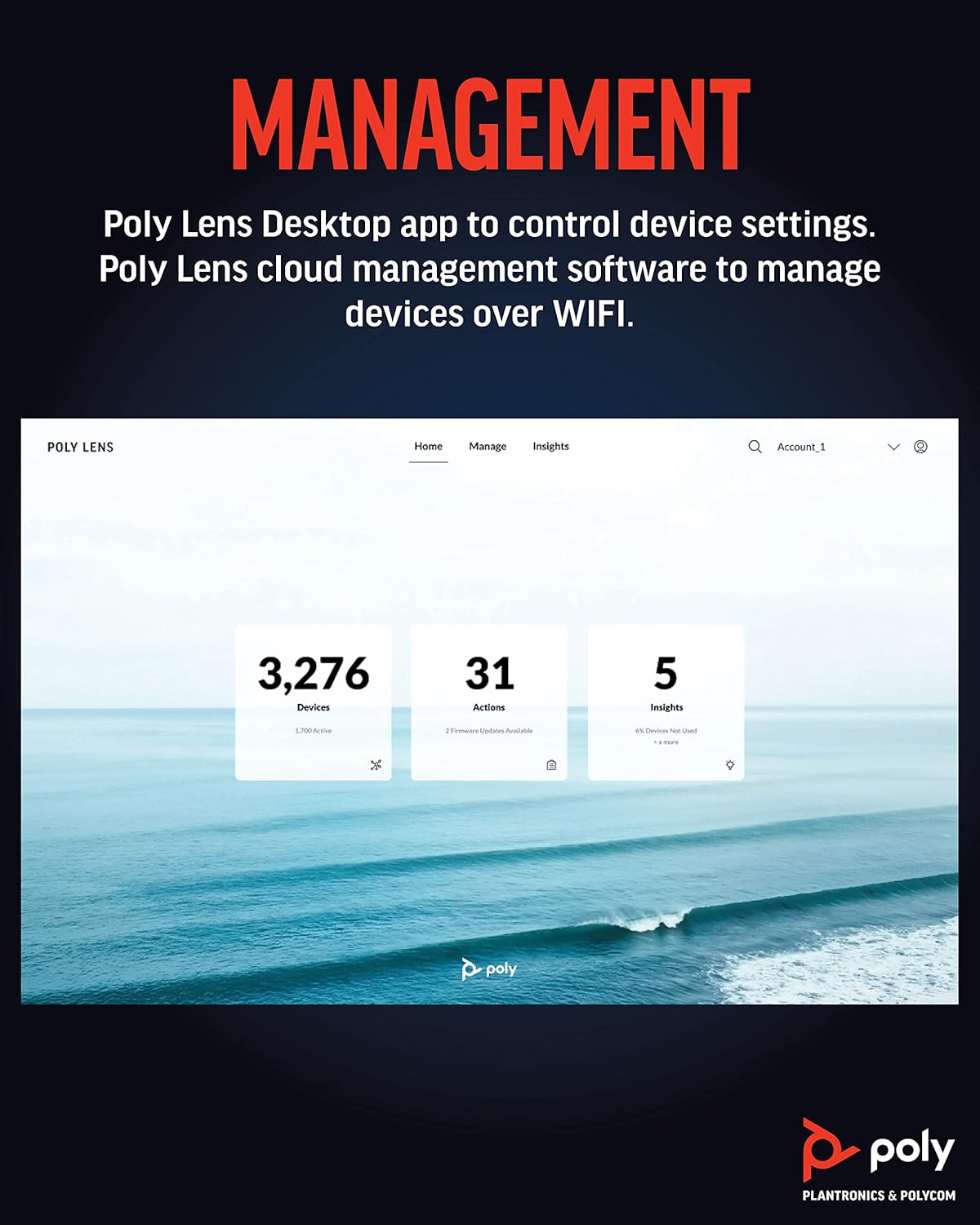
Figure 7: Poly Lens interface for device management and insights.
7. ບໍາລຸງຮັກສາ
To ensure optimal performance and longevity of your Poly Studio R30, follow these maintenance guidelines:
- ທໍາຄວາມສະອາດ: Use a soft, dry, lint-free cloth to clean the exterior of the device. Do not use liquid cleaners or aerosol sprays directly on the unit.
- ການດູແລເລນ: Gently wipe the camera lens with a microfiber cloth specifically designed for optics. Avoid abrasive materials.
- ການອັບເດດເຟີມແວ: Regularly check for and install firmware updates via the Poly Lens Desktop app or cloud management. Updates often include performance improvements and new features.
- ການເກັບຮັກສາ: ເມື່ອບໍ່ໄດ້ໃຊ້ເປັນເວລາດົນ, ໃຫ້ເກັບຮັກສາອຸປະກອນໄວ້ໃນບ່ອນທີ່ເຢັນ, ແຫ້ງແລ້ງຫ່າງຈາກແສງແດດໂດຍກົງ.
8. ການແກ້ໄຂບັນຫາ
If you encounter issues with your Poly Studio R30, try the following steps:
| ບັນຫາ | ການແກ້ໄຂທີ່ເປັນໄປໄດ້ |
|---|---|
| No video/audio in conferencing app |
|
| ຄຸນນະພາບວິດີໂອບໍ່ດີ |
|
| Poor audio quality (echo, muffled sound) |
|
| ອຸປະກອນບໍ່ຮັບຮູ້ໂດຍຄອມພິວເຕີ |
|
9. ຂໍ້ມູນຈໍາເພາະ
| ຄຸນສົມບັດ | ລາຍລະອຽດ |
|---|---|
| ໝາຍເລກຕົວແບບ | 2200-69390-001 |
| ຂະໜາດສິນຄ້າ | 20.59 x 8.94 x 3.98 ນິ້ວ |
| ນ້ໍາຫນັກລາຍການ | 2.87 ປອນ |
| ຄວາມລະອຽດການຖ່າຍວິດີໂອ | 4K |
| ພາກສະຫນາມຂອງ View | 120 ອົງສາ |
| ຊູມດິຈິຕອລ | 5x |
| Array ໄມໂຄຣໂຟນ | 3-microphone array |
| ເທັກໂນໂລຍີສຽງ | NoiseBlockAI, Acoustic Fence |
| ເຕັກໂນໂລຊີວິດີໂອ | Poly DirectorAI (auto-framing, speaker tracking) |
| ເຕັກໂນໂລຊີການເຊື່ອມຕໍ່ | USB |
| ສີ | ດຳ |
| ເວທີທີ່ສະຫນັບສະຫນູນ | Zoom, Microsoft Teams, Google Meet, and other PC/Mac video applications |
10. ການຮັບປະກັນແລະການສະຫນັບສະຫນູນ
ສຳລັບຂໍ້ມູນການຮັບປະກັນລະອຽດ, ກະລຸນາອ້າງອີງບັດຮັບປະກັນທີ່ມາພ້ອມກັບຜະລິດຕະພັນຂອງທ່ານ ຫຼື ເຂົ້າເບິ່ງທີ່ Poly ຢ່າງເປັນທາງການ website. For technical support, product registration, and additional resources, please visit the Poly support portal or contact their customer service.
You can find more information and support at the official Poly webເວັບໄຊ: www.poly.com


