1. ບົດແນະນຳ
This manual provides essential information for setting up, operating, maintaining, and troubleshooting your HP Pavilion 15 Laptop. Designed for everyday computing, this laptop features an 11th Gen Intel Core i3-1115G4 Processor, 16 GB RAM, and a 512 GB PCIe SSD, running on Windows 10. Please read this manual thoroughly to ensure optimal performance and longevity of your device.

ຮູບທີ 1.1: The HP Pavilion 15 Laptop in a typical usage environment, demonstrating its compact design suitable for various settings.
2. ຕັ້ງຄ່າ
2.1 Unboxing ແລະ Initial Inspection
ເອົາສ່ວນປະກອບທັງໝົດອອກຈາກການຫຸ້ມຫໍ່ຢ່າງລະມັດລະວັງ. ກວດສອບວ່າລາຍການທັງໝົດທີ່ລະບຸໄວ້ຂ້າງລຸ່ມນີ້ແມ່ນມີຢູ່ ແລະ ບໍ່ເສຍຫາຍ.

ຮູບທີ 2.1: Contents of the box, including the HP 15 Laptop, 45 W Smart AC power adapter, and setup poster. The image also details the laptop's dimensions and port locations.
- ແລັບທັອບ HP 15
- ໝໍ້ ແປງໄຟຟ້າ 45 AC Smart AC
- ຕິດຕັ້ງໂປສເຕີ
2.2 ການເຊື່ອມຕໍ່ອະແດບເຕີໄຟຟ້າ
Connect the AC power adapter to the laptop's power port and then plug it into a wall outlet. It is recommended to fully charge the battery before initial use.
2.3 ການເປີດເຄື່ອງເບື້ອງຕົ້ນ ແລະ ການຕິດຕັ້ງລະບົບປະຕິບັດການ
ກົດປຸ່ມເປີດ/ປິດເພື່ອເປີດຄອມພິວເຕີໂນດບຸກ. ປະຕິບັດຕາມຄຳແນະນຳໃນໜ້າຈໍເພື່ອເຮັດສຳເລັດການຕັ້ງຄ່າ Windows 10 Home, ລວມທັງການເລືອກພາສາ, ການເຊື່ອມຕໍ່ເຄືອຂ່າຍ ແລະ ການສ້າງບັນຊີຜູ້ໃຊ້.
3. ການປະຕິບັດ Laptop ຂອງທ່ານ
3.1 ແປ້ນພິມ ແລະ ແຜ່ນສໍາຜັດ
The HP Pavilion 15 features a full-size keyboard with an integrated numeric keypad for efficient data entry. The touchpad supports multi-touch gestures for navigation.
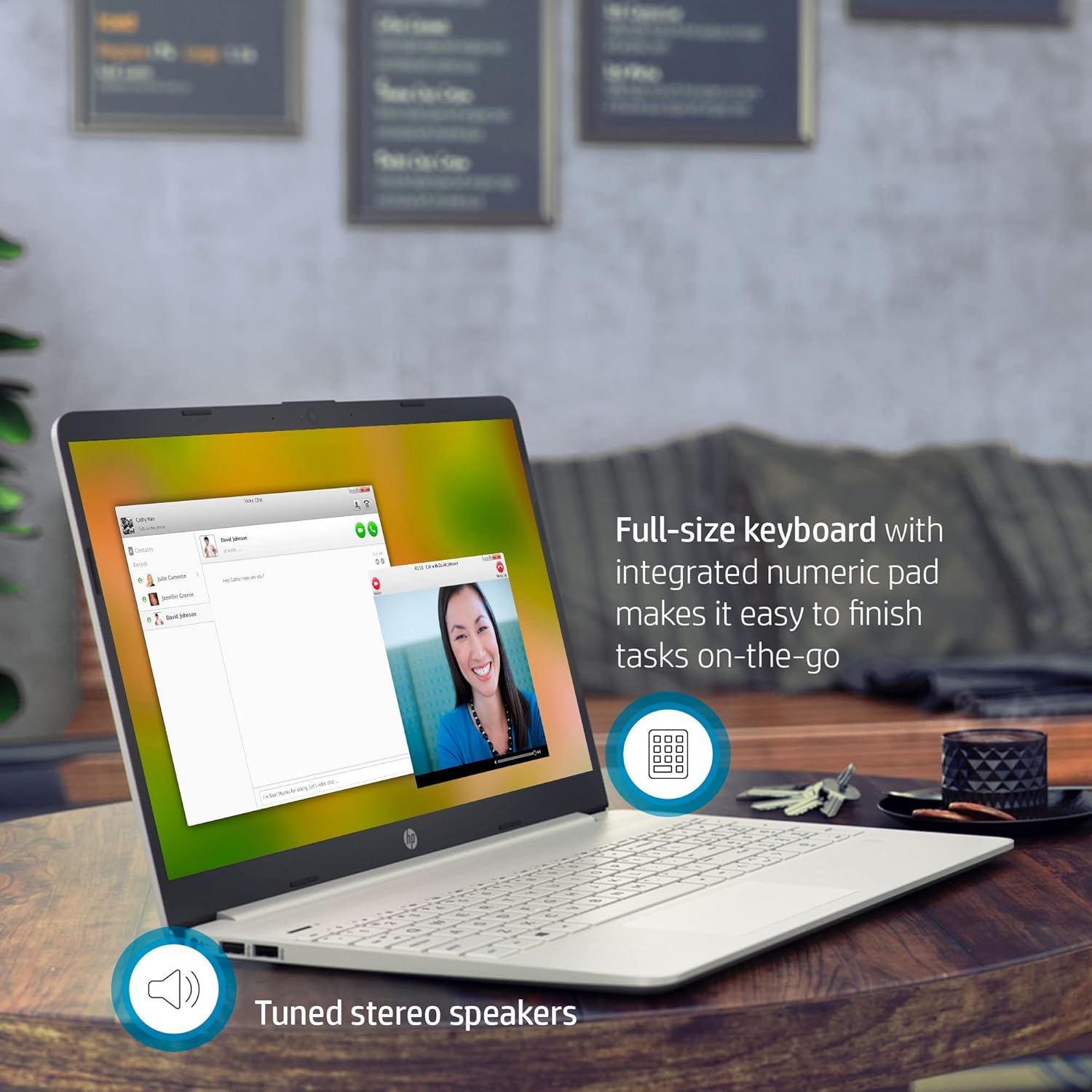
ຮູບທີ 3.1: The HP Pavilion 15 Laptop showcasing its full-size keyboard with numeric pad and the location of the tuned stereo speakers.
3.2 ການເຊື່ອມຕໍ່ອຸປະກອນພາຍນອກ (ພອດ)
ແລັບທັອບຂອງເຈົ້າມີພອດຕ່າງໆເພື່ອເຊື່ອມຕໍ່ອຸປະກອນພາຍນອກ:
- 1 SuperSpeed USB Type-C® 5Gbps signaling rate: ສຳລັບການໂອນຂໍ້ມູນຄວາມໄວສູງ ແລະ ການເຊື່ອມຕໍ່ອຸປະກອນ USB-C ທີ່ເຂົ້າກັນໄດ້.
- 2 SuperSpeed USB Type-A 5Gbps signaling rate: ສໍາລັບການເຊື່ອມຕໍ່ອຸປະກອນ USB ມາດຕະຖານເຊັ່ນ: ເມົາສ໌, ແປ້ນພິມ, ຫຼືໄດຣຟ໌ພາຍນອກ.
- 1 HDMI 1.4b: ສໍາລັບການເຊື່ອມຕໍ່ກັບຈໍສະແດງຜົນພາຍນອກຫຼືໂປເຈັກເຕີ.
- 1 AC smart pin: ສໍາລັບການເຊື່ອມຕໍ່ອະແດບເຕີພະລັງງານ.
- 1 Headphone/microphone combo: ສໍາລັບການປ້ອນຂໍ້ມູນສຽງແລະຜົນຜະລິດ.
- ເຄື່ອງອ່ານກາດມີເດຍ SD ຫຼາຍຮູບແບບ: ສໍາລັບການອ່ານກາດຫນ່ວຍຄວາມຈໍາ SD.
3.3 ການເຊື່ອມຕໍ່ໄຮ້ສາຍ
The laptop supports Intel Wireless Wi-Fi for internet access and Bluetooth for connecting wireless peripherals.
- Wi-Fi: Access network settings in Windows to connect to available Wi-Fi networks.
- Bluetooth: Enable Bluetooth in Windows settings to pair with devices such as headphones or speakers.
3.4 ກ້ອງຖ່າຍຮູບ ແລະສຽງ
The HP Pavilion 15 includes an HP True Vision Camera with a dual array digital microphone, ideal for video conferencing and online communication. Tuned stereo speakers provide clear audio output.

ຮູບທີ 3.2: The HP Pavilion 15 Laptop in use for a video call, demonstrating the HP True Vision Camera and the edge-to-edge HD micro-edge display.
3.5 ການຄຸ້ມຄອງຫມໍ້ໄຟ
The laptop is designed to provide up to 11 hours of battery life under optimal conditions. To maximize battery longevity:
- ປັບຄວາມສະຫວ່າງໜ້າຈໍໃຫ້ຢູ່ໃນລະດັບທີ່ສະດວກສະບາຍ.
- ປິດແອັບພລິເຄຊັນທີ່ບໍ່ໄດ້ໃຊ້.
- ໃຊ້ໂຫມດປະຫຍັດພະລັງງານຂອງ Windows.
- ຫຼີກເວັ້ນອຸນຫະພູມທີ່ຮຸນແຮງ.
4. ບໍາລຸງຮັກສາ
4.1 ການເຮັດຄວາມສະອາດແລັບທັອບຂອງເຈົ້າ
- ໃຊ້ຜ້າແພທີ່ອ່ອນໆ ທີ່ບໍ່ມີເສັ້ນດ່າງ dampສໍາເລັດດ້ວຍນ້ໍາຫຼືເຄື່ອງເຮັດຄວາມສະອາດຫນ້າຈໍສໍາລັບຈໍສະແດງຜົນ.
- ສໍາລັບແປ້ນພິມ ແລະຕົວເຄື່ອງ, ໃຫ້ໃຊ້ຜ້າອ່ອນໆ. ຫຼີກເວັ້ນການສານເຄມີທີ່ຮຸນແຮງ.
- ໃຊ້ລົມອັດເປັນໄລຍະເພື່ອກຳຈັດຝຸ່ນອອກຈາກຊ່ອງລະບາຍອາກາດ.
4.2 ການປັບປຸງຊອບແວ
ປັບປຸງລະບົບປະຕິບັດການ Windows ແລະໄດເວີຂອງທ່ານເປັນປະຈໍາເພື່ອຮັບປະກັນຄວາມປອດໄພ ແລະປະສິດທິພາບທີ່ດີທີ່ສຸດ. ເຂົ້າເຖິງ Windows Update ຜ່ານເມນູການຕັ້ງຄ່າ.
4.3 ການຄຸ້ມຄອງການເກັບຮັກສາ
ແຕ່ລະໄລຍະview ແລະລຶບສິ່ງທີ່ບໍ່ຈໍາເປັນ files to maintain sufficient free space on your 512 GB PCIe SSD, which contributes to faster system performance.
5. ການແກ້ໄຂບັນຫາ
5.1 ບັນຫາທົ່ວໄປ ແລະການແກ້ໄຂ
- ແລັບທັອບບໍ່ເປີດ: ໃຫ້ແນ່ໃຈວ່າອະແດັບເຕີໄຟເຊື່ອມຕໍ່ຢ່າງປອດໄພ ແລະ ແບັດເຕີຣີມີຄ່າພຽງພໍ. ລອງປລັກສຽບໄຟອື່ນ.
- ບໍ່ມີການສະແດງຜົນ: ເຊື່ອມຕໍ່ຈໍພາບພາຍນອກເພື່ອກວດເບິ່ງວ່າບັນຫາຢູ່ໃນໜ້າຈໍຂອງແລັບທັອບຫຼືບໍ່. ຣີສະຕາດແລັບທັອບ.
- ບັນຫາການເຊື່ອມຕໍ່ Wi-Fi: ກວດເບິ່ງວ່າ Wi-Fi ຖືກເປີດໃຊ້ຢູ່ໃນການຕັ້ງຄ່າ Windows. ຣີສະຕາດເຣົາເຕີ ແລະແລັບທັອບຂອງເຈົ້າ.
- ປະສິດທິພາບຊ້າ: ປິດແອັບພລິເຄຊັນທີ່ບໍ່ຈຳເປັນ, ກວດສອບມັລແວຣ ແລະ ຮັບປະກັນພື້ນທີ່ເກັບຂໍ້ມູນທີ່ພຽງພໍ.
ສໍາລັບການແກ້ໄຂບັນຫາລາຍລະອຽດເພີ່ມເຕີມ, ອ້າງອີງເຖິງການຊ່ວຍເຫຼືອຂອງ HP website or the Windows Help documentation.
6. ຂໍ້ມູນຈໍາເພາະ
| ຄຸນສົມບັດ | ລາຍລະອຽດ |
|---|---|
| ຊື່ຕົວແບບ | HP Pavilion 15 |
| ໂຮງງານຜະລິດ | 11th Gen Intel Core i3-1115G4 (up to 4.1 GHz) |
| ຮູບພາບ | Intel UHD Graphics (ປະສົມປະສານ) |
| RAM | 16 GB DDR4 SDRAM |
| ການເກັບຮັກສາ | ໄດຣຟ໌ສະເຕດ PCIe NVMe M.2 ຂະໜາດ 512 GB |
| ຈໍສະແດງຜົນ | 15.6-inch HD (1366 x 768) Micro-Edge, Anti-Glare |
| ລະບົບປະຕິບັດການ | Windows 10 Home (64-bit) |
| ທ່າເຮືອ | 1x SuperSpeed USB Type-C, 2x SuperSpeed USB Type-A, 1x HDMI 1.4b, 1x AC Smart Pin, 1x Headphone/Mic Combo, Multi-format SD Card Reader |
| ການເຊື່ອມຕໍ່ໄຮ້ສາຍ | Intel Wireless Wi-Fi, Bluetooth |
| ກ້ອງຖ່າຍຮູບ | HP True Vision Camera with dual array digital microphone |
| ສຽງ | High Definition Audio, Tuned stereo speakers |
| ຊີວິດຫມໍ້ໄຟ | ສູງສຸດ 11 ຊົ່ວໂມງ (ສະເລ່ຍ) |
| ຂະໜາດ (LxWxH) | 14.11 x 9.53 x 0.71 ນິ້ວ (35.84 x 24.21 x 1.80 cm) |
| ນ້ຳໜັກ | 3.72 lbs (1.69 ກິໂລ) |
| ສີ | ເງິນທໍາມະຊາດ |
7. ຂໍ້ມູນການຮັບປະກັນ
Your HP Pavilion 15 Laptop is covered by a standard manufacturer's warranty. Specific warranty terms and conditions may vary by region and purchase date. Please refer to the warranty documentation included with your product or visit the official HP support website for detailed information regarding your warranty coverage, including duration and service options.
8. ການຊ່ວຍເຫຼືອລູກຄ້າ
ສໍາລັບການຊ່ວຍເຫຼືອດ້ານວິຊາການ, ການດາວໂຫຼດໄດເວີ, ຫຼືການຊ່ວຍເຫຼືອເພີ່ມເຕີມ, ກະລຸນາເຂົ້າໄປທີ່ການຊ່ວຍເຫຼືອຂອງ HP ຢ່າງເປັນທາງການ webເວັບໄຊ. ທ່ານຍັງສາມາດຊອກຫາ FAQs ແລະກອງປະຊຸມຊຸມຊົນຢູ່ທີ່ນັ້ນ.
- ສະຫນັບສະຫນູນ HP Webເວັບໄຊ: support.hp.com
- ເອກະສານອອນໄລນ໌: Access additional manuals and guides specific to your model.