1. ບົດແນະນຳ
This manual provides essential information for the proper use and maintenance of your Gateway 15.6-inch FHD Ultra Slim Laptop, Model GTW15G. This device is equipped with an AMD Ryzen 5 3450U Mobile Processor, 8GB of DDR4 RAM, and a 256GB Solid State Drive (SSD). It features a 15.6-inch Full HD (1920x1080) IPS display, a built-in fingerprint scanner, and runs on Windows 10, with an available free upgrade to Windows 11.
Please read this manual thoroughly before operating your laptop to ensure optimal performance and longevity.
2. ຕັ້ງຄ່າ
2.1 ການຫຸ້ມຫໍ່ແລະການກວດກາເບື້ອງຕົ້ນ
Carefully remove the laptop and all accessories from the packaging. Verify that all components are present and undamaged. The package should include the laptop, power adapter, and this user manual.
2.2 ການເຊື່ອມຕໍ່ອະແດບເຕີໄຟຟ້າ
Before first use, connect the power adapter to the laptop's charging port and then to a power outlet. Allow the battery to charge for at least 30 minutes before powering on for the first time.

Figure 2.1: Gateway 15.6-inch Ultra Slim Laptop overview.
2.3 ເປີດເຄື່ອງທຳອິດ ແລະ ຕັ້ງຄ່າ Windows
Press the power button located on the keyboard. The laptop will boot up and guide you through the Windows 10 initial setup process. Follow the on-screen instructions to configure your region, language, network connection, and user account.
2.4 Fingerprint Scanner Setup (Windows Hello)
During or after the initial Windows setup, you can configure the built-in fingerprint scanner for secure login using Windows Hello. Navigate to ການຕັ້ງຄ່າ > ບັນຊີ > ຕົວເລືອກການເຂົ້າສູ່ລະບົບ and follow the prompts to set up your fingerprint.
3. ຄໍາແນະນໍາການດໍາເນີນງານ
3.1 ເປີດ/ປິດ ແລະ ໂໝດນອນ
- ເປີດ: ກົດປຸ່ມເປີດປິດ.
- ປິດລົງ: ຄລິກທີ່ ເລີ່ມ ປຸ່ມ, ຈາກນັ້ນ ພະລັງງານ > ປິດ.
- ຮູບແບບການນອນ: Close the lid or click the ເລີ່ມ ປຸ່ມ, ຈາກນັ້ນ ພະລັງງານ > ນອນ.
3.2 ການນໍາໃຊ້ Precision Touchpad
The laptop features a precision touchpad for navigation. It supports multi-touch gestures for scrolling, zooming, and other functions. Refer to Windows settings for customizing touchpad gestures.
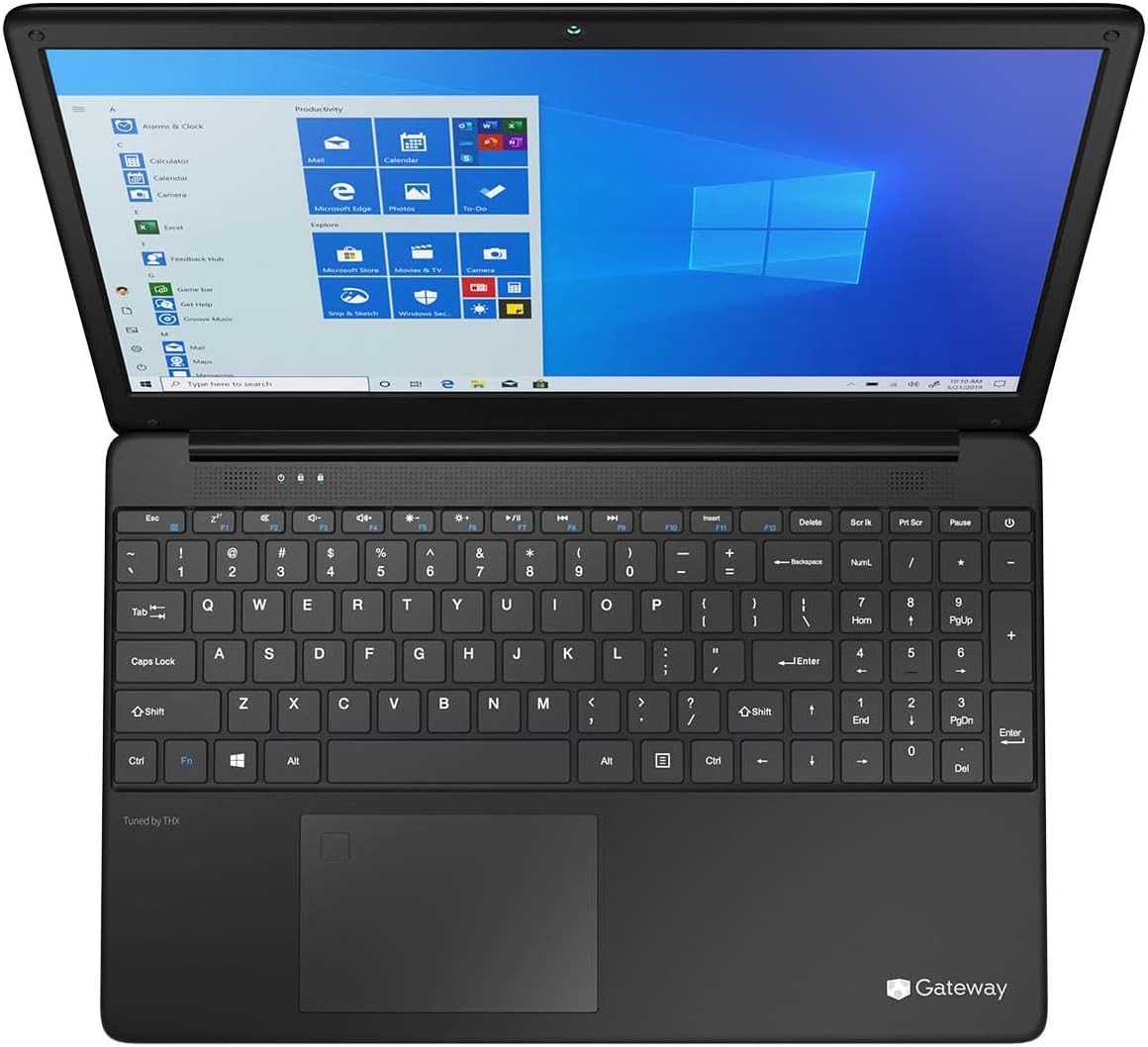
Figure 3.1: Keyboard and Precision Touchpad layout.
3.3 ການເຊື່ອມຕໍ່ອຸປະກອນພາຍນອກ
ແລັບທັອບມີພອດຕ່າງໆສຳລັບເຊື່ອມຕໍ່ອຸປະກອນເສີມຕ່າງໆ:
- ຜອດ USB 3.0 (x2): ສໍາລັບການເຊື່ອມຕໍ່ອຸປະກອນ USB ເຊັ່ນ: ຮາດໄດພາຍນອກ, ເມົາສ໌, ຫຼືແປ້ນພິມ.
- ພອດ USB Type-C (x1): Supports both charging and data transfer.
- HDMI Output (x1): ເຊື່ອມຕໍ່ກັບຈໍພາບພາຍນອກ ຫຼືໂທລະພາບ.
- ຊ່ອງສຽບ Micro SD (x1): Supports Micro SD cards up to 512 GB for expanded storage.
- ລັອກ Kensington: ສໍາລັບຄວາມປອດໄພທາງດ້ານຮ່າງກາຍ.
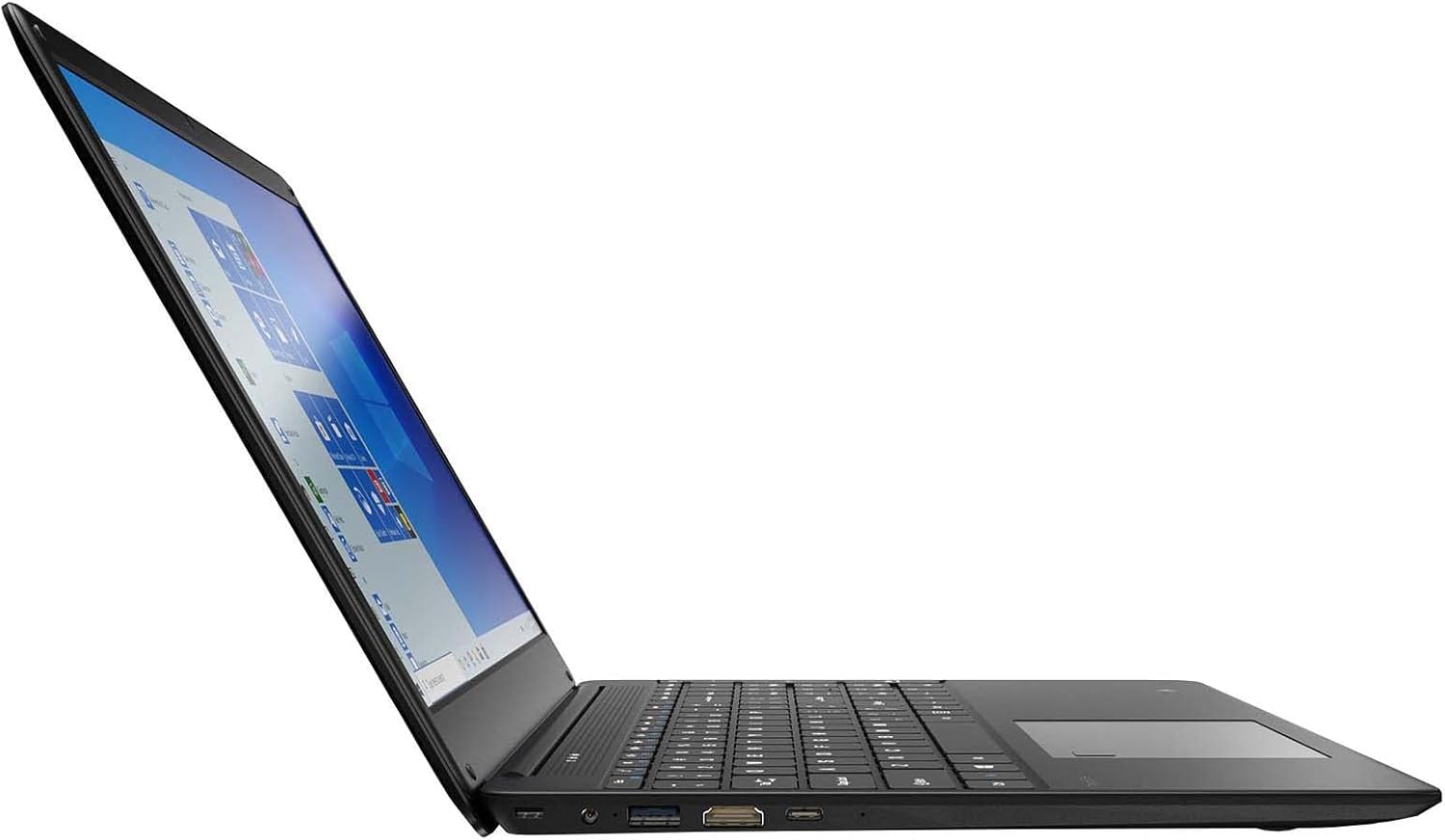
Figure 3.2: Left side ports (USB, HDMI, USB Type-C).
3.4 ການເຊື່ອມຕໍ່ໄຮ້ສາຍ
The laptop supports Wi-Fi and Bluetooth 5.1 for wireless connections. Access network settings via the Windows taskbar or ການຕັ້ງຄ່າ> ເຄືອຂ່າຍແລະອິນເຕີເນັດ to connect to Wi-Fi networks or pair Bluetooth devices.
3.5 ຄຸນສົມບັດສຽງ
The built-in stereo speakers are tuned by THX Audio, providing enhanced sound quality. Adjust volume using the function keys on the keyboard or through Windows sound settings.
4. ບໍາລຸງຮັກສາ
4.1 ການເຮັດຄວາມສະອາດແລັບທັອບ
- ໜ້າຈໍ: ໃຊ້ຜ້າແພທີ່ອ່ອນໆ ທີ່ບໍ່ມີເສັ້ນດ່າງ dampສໍາເລັດດ້ວຍນ້ໍາຫຼືເຄື່ອງເຮັດຄວາມສະອາດຫນ້າຈໍ. ຢ່າສີດຂອງແຫຼວໂດຍກົງໃສ່ຫນ້າຈໍ.
- ໂຄງລົດ ແລະ ແປ້ນພິມ: ໃຊ້ຜ້າອ່ອນ, ແຫ້ງ. ສໍາລັບຝຸ່ນ stubborn, a ເລັກນ້ອຍ damp ຜ້າສາມາດນໍາໃຊ້ໄດ້. ຫຼີກເວັ້ນການສານເຄມີທີ່ຮຸນແຮງ.
- ຮູ: ທຳຄວາມສະອາດຊ່ອງລະບາຍອາກາດເປັນໄລຍະດ້ວຍລົມອັດເພື່ອປ້ອງກັນການສະສົມຂອງຝຸ່ນເຊິ່ງສາມາດສົ່ງຜົນກະທົບຕໍ່ການເຮັດໃຫ້ເຢັນ.
4.2 ການດູແລຫມໍ້ໄຟ
ເພື່ອເພີ່ມອາຍຸແບັດເຕີຣີ ແລະອາຍຸຍືນໃຫ້ສູງສຸດ:
- ຫຼີກລ້ຽງການປະຖິ້ມຫມໍ້ໄຟຢ່າງສົມບູນເລື້ອຍໆ.
- ຢ່າເຮັດໃຫ້ແລັບທັອບມີອຸນຫະພູມສູງເກີນໄປ.
- ຖ້າເກັບຮັກສາແລັບທັອບເປັນເວລາດົນ, ໃຫ້ແນ່ໃຈວ່າແບດເຕີລີ່ຖືກຄິດຄ່າປະມານ 50-70%.
- Optimize power settings in Windows to conserve battery power.
4.3 ການປັບປຸງຊອບແວ
Regularly check for and install Windows updates to ensure your system has the latest security patches and performance improvements. Navigate to ການຕັ້ງຄ່າ > ອັບເດດ ແລະຄວາມປອດໄພ > Windows Update.
4.4 ການສໍາຮອງຂໍ້ມູນ
ສຳຮອງຂໍ້ມູນສຳຄັນຂອງທ່ານໃສ່ໄດຣຟ໌ພາຍນອກ ຫຼືບ່ອນເກັບຂໍ້ມູນຄລາວເປັນປະຈຳເພື່ອປ້ອງກັນການສູນເສຍຂໍ້ມູນ.
5. ການແກ້ໄຂບັນຫາ
ພາກສ່ວນນີ້ແກ້ໄຂບັນຫາທົ່ວໄປທີ່ເຈົ້າອາດຈະພົບກັບແລັບທັອບຂອງເຈົ້າ.
5.1 ແລັບທັອບບໍ່ເປີດ
- ໃຫ້ແນ່ໃຈວ່າອະແດັບເຕີໄຟເຊື່ອມຕໍ່ຢ່າງປອດໄພກັບແລັບທັອບ ແລະປລັກສຽບໄຟທີ່ເຮັດວຽກໄດ້.
- ກວດສອບວ່າປລັກສຽບໄຟເຮັດວຽກໄດ້ໂດຍການສຽບໃສ່ອຸປະກອນອື່ນ.
- Allow the laptop to charge for some time before attempting to power it on again.
5.2 ບັນຫາການເຊື່ອມຕໍ່ Wi-Fi
- ກວດເບິ່ງວ່າ Wi-Fi ຖືກເປີດໃຊ້ໃນການຕັ້ງຄ່າ Windows.
- ຣີສະຕາດເຣົາເຕີ ແລະໂມເດັມຂອງທ່ານ.
- ໃຫ້ແນ່ໃຈວ່າທ່ານຢູ່ໃນຂອບເຂດຂອງເຄືອຂ່າຍ Wi-Fi ແລະໄດ້ໃສ່ລະຫັດຜ່ານທີ່ຖືກຕ້ອງ.
- ເປີດໃຊ້ຕົວແກ້ໄຂບັນຫາເຄືອຂ່າຍ Windows (Settings > Network & Internet > Status > Network troubleshooter).
5.3 ການປະຕິບັດຊ້າ
- ປິດແອັບພລິເຄຊັນທີ່ບໍ່ຈໍາເປັນທີ່ເຮັດວຽກຢູ່ໃນພື້ນຫຼັງ.
- ກວດເບິ່ງ ແລະຕິດຕັ້ງການອັບເດດ Windows ທີ່ຍັງຄ້າງຢູ່.
- Ensure there is sufficient free space on your SSD.
- ສະແກນຫາ malware ຫຼືໄວຣັສ.
5.4 ຄວາມຮ້ອນເກີນ
If the laptop feels excessively warm, ensure that the ventilation vents are not blocked. Operate the laptop on a hard, flat surface to allow for proper airflow. Avoid using it on soft surfaces like beds or couches that can obstruct vents.
5.5 ບັນຫາອື່ນໆ
For issues not covered here, refer to the Windows help documentation or contact Gateway customer support.
6. ຂໍ້ມູນຈໍາເພາະ
| ຄຸນສົມບັດ | ຂໍ້ມູນຈໍາເພາະ |
|---|---|
| ຊື່ຕົວແບບ | Gateway GWTN156 (GTW15G) |
| ຂະຫນາດຈໍສະແດງຜົນ | 15.6 ນິ້ວ |
| ຄວາມລະອຽດໜ້າຈໍ | 1920 x 1080 ພິກເຊລ (FHD) |
| ໂຮງງານຜະລິດ | AMD Ryzen 5 3450U (2.1 GHz, ສູງສຸດ 3.50 GHz) |
| RAM | 8 GB DDR4 |
| ການເກັບຮັກສາ | SSD 256 GB |
| Graphics Coprocessor | ກຣາບຟິກ AMD Radeon Vega 8 |
| ລະບົບປະຕິບັດການ | Windows 10 (Free Upgrade to Windows 11) |
| ປະເພດໄຮ້ສາຍ | Wi-Fi, Bluetooth 5.1 |
| ທ່າເຮືອ | 1x HDMI, 1x USB Type-C (Charge + Data), 2x USB 3.0, 1x Micro SD Slot (Up to 512 GB) |
| ຄຸນນະສົມບັດພິເສດ | Built-in Fingerprint Scanner (Windows Hello), Stereo Speakers Tuned by THX Audio, HD Webກ້ອງ |
| ນ້ໍາຫນັກລາຍການ | 5.5 ປອນ |
| ຂະໜາດແພັກເກັດ | 16.65 x 11.73 x 2.8 ນິ້ວ |
7. ການຮັບປະກັນແລະການສະຫນັບສະຫນູນ
For warranty information and technical support, please refer to the official Gateway website or contact Gateway customer service directly. Keep your proof of purchase for warranty claims.
This product may be eligible for separate protection plans. Details regarding these plans are available from your retailer at the time of purchase.


