1. ບົດແນະນຳ
The Milestone MPT-II is a compact and portable 58mm thermal printer designed for various business applications, including retail, restaurants, and mobile logistics. It offers high-speed, clear printing and features Bluetooth connectivity for seamless integration with Android and iOS devices. Its lightweight design and long-lasting battery make it ideal for on-the-go printing needs.

2. ຄຸນນະສົມບັດທີ່ສໍາຄັນ
- ການພິມ Bluetooth: Supports Android and iOS devices for wireless printing.
- ການພົກພາ: Light and compact design allows for printing anywhere, anytime.
- Low Operating Cost: Direct thermal printing eliminates the need for ink ribbons or cartridges, requiring only thermal paper.
- ຊີວິດຫມໍ້ໄຟຍາວ: Built-in 7.4V/2500mAh rechargeable lithium battery provides up to 4 hours of continuous printing.
- Versatile Interface: Equipped with both USB and Bluetooth connectivity.
- ESC/POS Compatible: Supports standard ESC/POS print commands for broad software compatibility.

3. ການຕິດຕັ້ງເບື້ອງຕົ້ນ
3.1 Unboxing ແລະເນື້ອໃນ
Carefully unpack the printer and verify all components are present:
- 1 x Milestone MPT-II Thermal Printer
- 1 x ສາຍ USB
- 1 x USB Adaptor
- 1 x ມ້ວນເຈ້ຍ
- 1 x ຄູ່ມືຜູ້ໃຊ້ (ເອກະສານນີ້)
3.2 ການສາກໄຟເຄື່ອງພິມ
- Connect the USB cable to the printer's charging port.
- Plug the USB adaptor into a standard power outlet.
- The charging indicator light will illuminate. Charge the printer fully before first use (approximately 2.5-3 hours for continuous printing).
3.3 ການໂຫຼດເຈ້ຍຄວາມຮ້ອນ
- Open the paper compartment cover by gently pushing the latch.
- Insert the thermal paper roll with the printing side facing outwards (as shown in Figure 2). Ensure the roll is seated correctly.
- ດຶງເຈ້ຍຍາວໜ້ອຍໜຶ່ງອອກມານອກຂອບຕັດ.
- ປິດຝາປິດຊ່ອງໃສ່ເຈ້ຍໃຫ້ແໜ້ນຈົນກວ່າມັນຈະກົດໃສ່ບ່ອນ.
4. ຄໍາແນະນໍາການດໍາເນີນງານ
4.1 ການເປີດ/ປິດ
- ເພື່ອເປີດເຄື່ອງ: ກົດປຸ່ມເປີດປິດຄ້າງໄວ້ຈົນກ່ວາໄຟຕົວຊີ້ວັດຈະສະຫວ່າງ.
- ເພື່ອປິດເຄື່ອງ: ກົດປຸ່ມເປີດປິດຄ້າງໄວ້ຈົນກວ່າໄຟຊີ້ບອກຈະປິດ.
4.2 ການເຊື່ອມຕໍ່ Bluetooth
The MPT-II printer supports Bluetooth connectivity for mobile devices.
- ໃຫ້ແນ່ໃຈວ່າເຄື່ອງພິມເປີດຢູ່ ແລະ ຢູ່ພາຍໃນຂອບເຂດຂອງອຸປະກອນມືຖືຂອງທ່ານ.
- On your mobile device (Android/iOS), go to Bluetooth settings and turn Bluetooth on.
- ຊອກຫາ available devices. The printer will appear as "MPT-II".
- Select "MPT-II" to pair. If prompted for a password, enter 1234 or 0000.
- Once paired, the printer is ready for use with compatible applications.
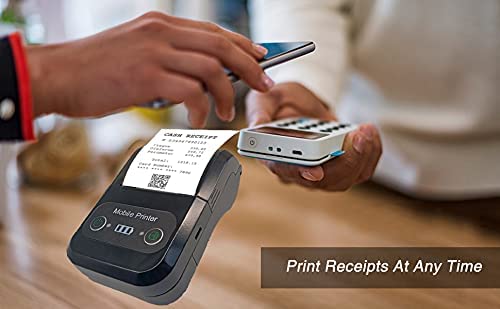
4.3 ການນໍາໃຊ້ກັບຄໍາຮ້ອງສະຫມັກ
For mobile printing, you will need a compatible application. Milestone recommends downloading RAWBT Printer App or MYXPrint App from the Google Play Store. For iOS, search for compatible thermal printer apps in the App Store.
- Open your chosen printing application.
- Navigate to the printer settings within the app.
- Select the "MPT-II" printer from the list of available Bluetooth devices.
- You can now send print commands from the application.
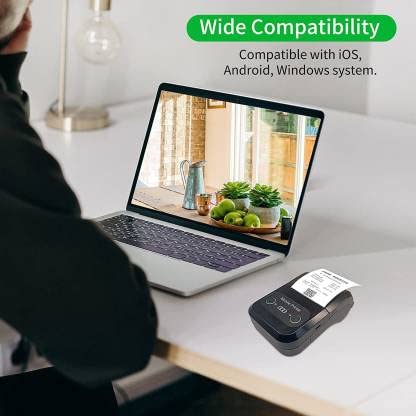

4.4 USB Connection (for PC)
The printer can also be connected to a PC via USB. You may need to install a printer driver, which is typically available from the manufacturer's website or included on a CD with the product (if applicable).
5. ບໍາລຸງຮັກສາ
5.1 ການທໍາຄວາມສະອາດເຄື່ອງພິມ
To ensure optimal performance and print quality, regularly clean the printer:
- ຫົວພິມ: ໃຊ້ຜ້າຝ້າຍເບົາໆ ງampened with isopropyl alcohol to gently wipe the thermal print head. Allow it to dry completely before use.
- ເສັ້ນທາງເຈ້ຍ: Use a soft, dry cloth or a small brush to remove any paper dust or debris from the paper path.
- ພາຍນອກ: ເຊັດດ້ານນອກຂອງເຄື່ອງພິມດ້ວຍຄວາມອ່ອນ, ງamp ຜ້າ. ຫຼີກເວັ້ນການນໍາໃຊ້ສານເຄມີທີ່ຮຸນແຮງຫຼືເຄື່ອງເຮັດຄວາມສະອາດຂັດ.
5.2 ການດູແລຫມໍ້ໄຟ
- ໄລ່ແບັດເຕີຣີໃຫ້ເຕັມກ່ອນທີ່ຈະໃຊ້ຄັ້ງ ທຳ ອິດ.
- ຫຼີກລ້ຽງການຫມົດຫມໍ້ໄຟເລື້ອຍໆ.
- If storing the printer for an extended period, charge it to about 50% and recharge every few months to prevent battery degradation.
6. ການແກ້ໄຂບັນຫາ
| ບັນຫາ | ສາເຫດທີ່ເປັນໄປໄດ້ | ການແກ້ໄຂ |
|---|---|---|
| ເຄື່ອງພິມບໍ່ເປີດ. | ແບັດເຕີຣີເຫຼືອໜ້ອຍ ຫຼືໝົດແລ້ວ. | Charge the printer using the provided USB cable and adaptor. |
| ບໍ່ສາມາດເຊື່ອມຕໍ່ຜ່ານ Bluetooth ໄດ້. | Bluetooth is off on device; incorrect pairing password; printer not discoverable. | Ensure Bluetooth is enabled on your device. Re-attempt pairing with password 1234 or 0000. Restart both printer and device. |
| No print output or blank paper. | Paper loaded incorrectly; out of paper; print head dirty. | Check paper orientation (printing side out). Replace paper roll if empty. Clean the thermal print head (refer to Maintenance section). |
| Poor print quality (faded, lines). | Print head dirty; low battery; poor quality thermal paper. | Clean the print head. Charge the printer fully. Use high-quality thermal paper. |
| Printer beeps continuously. | Paper alarm (out of paper or paper jam); low battery reminder. | Check and replace paper roll or clear jam. Charge the printer. |
7. ຂໍ້ກໍານົດດ້ານວິຊາການ
| ຄຸນສົມບັດ | ຂໍ້ມູນຈໍາເພາະ |
|---|---|
| ວິທີການພິມ | ການພິມສາຍຄວາມຮ້ອນ |
| ຄວາມກວ້າງການພິມ | Paper width 58mm, effective width 58mm |
| ຄວາມ ໜາ ແໜ້ນ ຂອງການພິມ | 576 ຈຸດ/ເສັ້ນ |
| ຄວາມລະອຽດ | 8 dots/mm, 203 DPI |
| ຄວາມໄວພິມ | 70mm/s (Max Print speed Monochrome: 50 ppm) |
| Printer Core Life | 50KM (25% print density or less than 100 million pulses) |
| Printable Content | English, numbers, symbols, characters, pictures, 1D/2D barcode, multi-languages |
| ການໂຕ້ຕອບການສື່ສານຂໍ້ມູນ | USB/Bluetooth |
| ການສະຫນອງພະລັງງານ | Machine charging 9V-1.5A |
| ແບັດເຕີຣີ | Built-in rechargeable 2600mAh lithium-ion battery (7.4V/2500mAh) |
| ເວລາພິມຢ່າງຕໍ່ເນື່ອງ | 2.5-3 ຊົ່ວໂມງ |
| ຊຸດຄໍາແນະນໍາ | ESC / POS ເຂົ້າກັນໄດ້ |
| ການຕັດເຈ້ຍ | Manually tear |
| ຄວາມເຂົ້າກັນໄດ້ຂອງລະບົບປະຕິບັດການ | Android, iOS, Windows |
| ຂະໜາດສິນຄ້າ | 15D x 12W x 6H ຊມ |
| ນ້ໍາຫນັກລາຍການ | 310 ກຣາມ |
| ອົງປະກອບລວມ | 1 x Thermal Printer, 1 x USB Cable, 1 x USB Adaptor, 1 x Paper Roll, 1 x User Manual |
8. ການຮັບປະກັນແລະການສະຫນັບສະຫນູນ
This product comes with a 10-day warranty as per the purchase terms. For any technical assistance, troubleshooting beyond this manual, or warranty claims, please contact your retailer or the manufacturer's customer support. Refer to your purchase documentation for specific contact details.
ຜູ້ຜະລິດ: ເປົ້າໝາຍ
ຜູ້ນໍາເຂົ້າ: SB RETAILS, SECTOR 28, PRADHIKARAN, PUNE-44, +918888881631


