1. ບົດແນະນຳ
This manual provides detailed instructions for the setup, operation, and maintenance of your TECLAST Mini PC N10. This compact desktop computer features an Intel Celeron N4000 processor, 6GB DDR4 RAM, 128GB SSD, and comes pre-installed with Windows 11 Pro. It is designed for various applications including office work, multimedia playback, and general computing tasks.
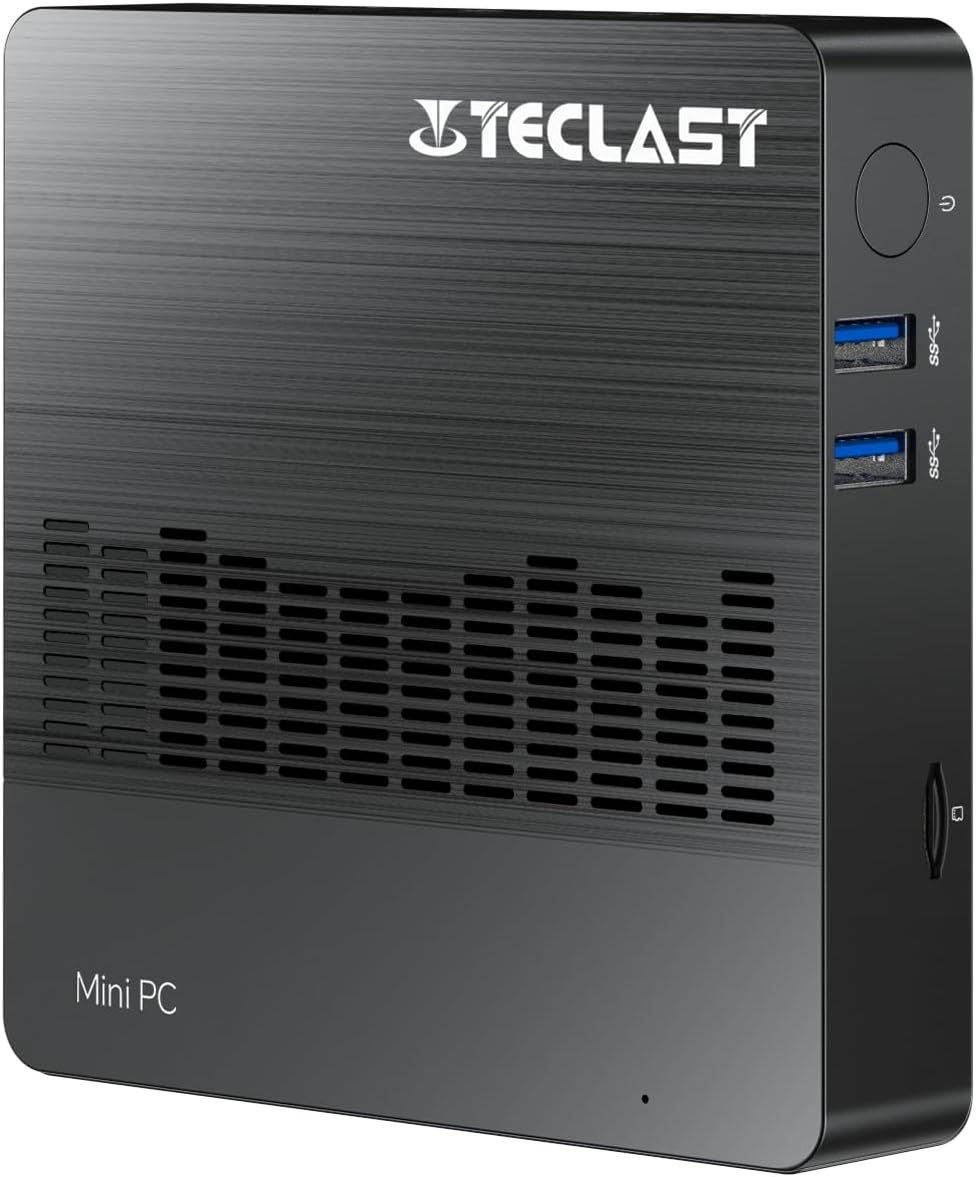
ຮູບພາບ 1.1: ດ້ານຫນ້າ view of the TECLAST Mini PC N10, showing its compact design and front ports.
2. ເນື້ອໃນຊຸດ
ກະລຸນາກວດເບິ່ງຊຸດສຳລັບລາຍການຕໍ່ໄປນີ້:
- TECLAST Mini PC N10 Unit
- Power Adapter
- ຄູ່ມືຜູ້ໃຊ້
ຖ້າລາຍການໃດຂາດຫາຍໄປຫຼືເສຍຫາຍ, ກະລຸນາຕິດຕໍ່ຝ່າຍຊ່ວຍເຫຼືອລູກຄ້າ.
3. ຜະລິດຕະພັນເກີນview
3.1. Physical Dimensions and Design
The TECLAST Mini PC N10 is designed to be compact and lightweight, making it suitable for various environments. Its dimensions are approximately 11.9 x 11.9 x 2.4 cm, and it weighs around 700g.

Image 3.1: Illustration of the TECLAST Mini PC N10's compact dimensions (120mm x 120mm x 24mm) and lightweight design (200g, note: product specifications state 700g).
3.2. ຮູບແບບພອດ
The Mini PC N10 features a variety of ports for connectivity, located on its right, left, and back sides.

ຮູບພາບ 3.2: ລາຍລະອຽດ view of the TECLAST Mini PC N10's expansion ports.
- ເບື້ອງຂວາ: TF (MicroSD) Card Reader x 1, USB 3.2 x 2, Power Button x 1
- ຊ້າຍ: VGA Port x 1
- ດ້ານຫຼັງ: Reset Button x 1, DC Power Input x 1, USB 3.2 x 1, HDMI Port x 1, RJ45 Ethernet Port x 1, 3.5mm Headphone Output x 1
4. ການຕິດຕັ້ງເບື້ອງຕົ້ນ
Follow these steps to set up your TECLAST Mini PC N10:
- ເຊື່ອມຕໍ່ກັບຈໍສະແດງຜົນ: Connect your monitor or TV to the Mini PC using either the HDMI port or the VGA port. For optimal resolution, use the HDMI port.
- ເຊື່ອມຕໍ່ອຸປະກອນຕໍ່ພ່ວງ: Plug in your keyboard and mouse to the available USB 3.2 ports.
- ເຊື່ອມຕໍ່ກັບພະລັງງານ: Connect the power adapter to the DC power input port on the back of the Mini PC, then plug the adapter into a power outlet.
- ເປີດ: Press the power button located on the right side of the Mini PC. The system will boot up.
- ການຕິດຕັ້ງ Windows ເບື້ອງຕົ້ນ: ປະຕິບັດຕາມຄໍາແນະນໍາໃນຫນ້າຈໍເພື່ອເຮັດສໍາເລັດການຕິດຕັ້ງ Windows 11 Pro, ລວມທັງພາສາ, ພາກພື້ນ, ການເຊື່ອມຕໍ່ເຄືອຂ່າຍ, ແລະການສ້າງບັນຊີຜູ້ໃຊ້.
5. ຄໍາແນະນໍາການດໍາເນີນງານ
5.1. ກຳລັງເຊື່ອມຕໍ່ອິນເຕີເນັດ
- ການເຊື່ອມຕໍ່ສາຍ: Connect an Ethernet cable from your router or modem to the RJ45 Ethernet port on the back of the Mini PC.
- ການເຊື່ອມຕໍ່ໄຮ້ສາຍ: The Mini PC supports 2.4GHz and 5GHz Wi-Fi. During Windows setup or via Windows settings, select your Wi-Fi network and enter the password.
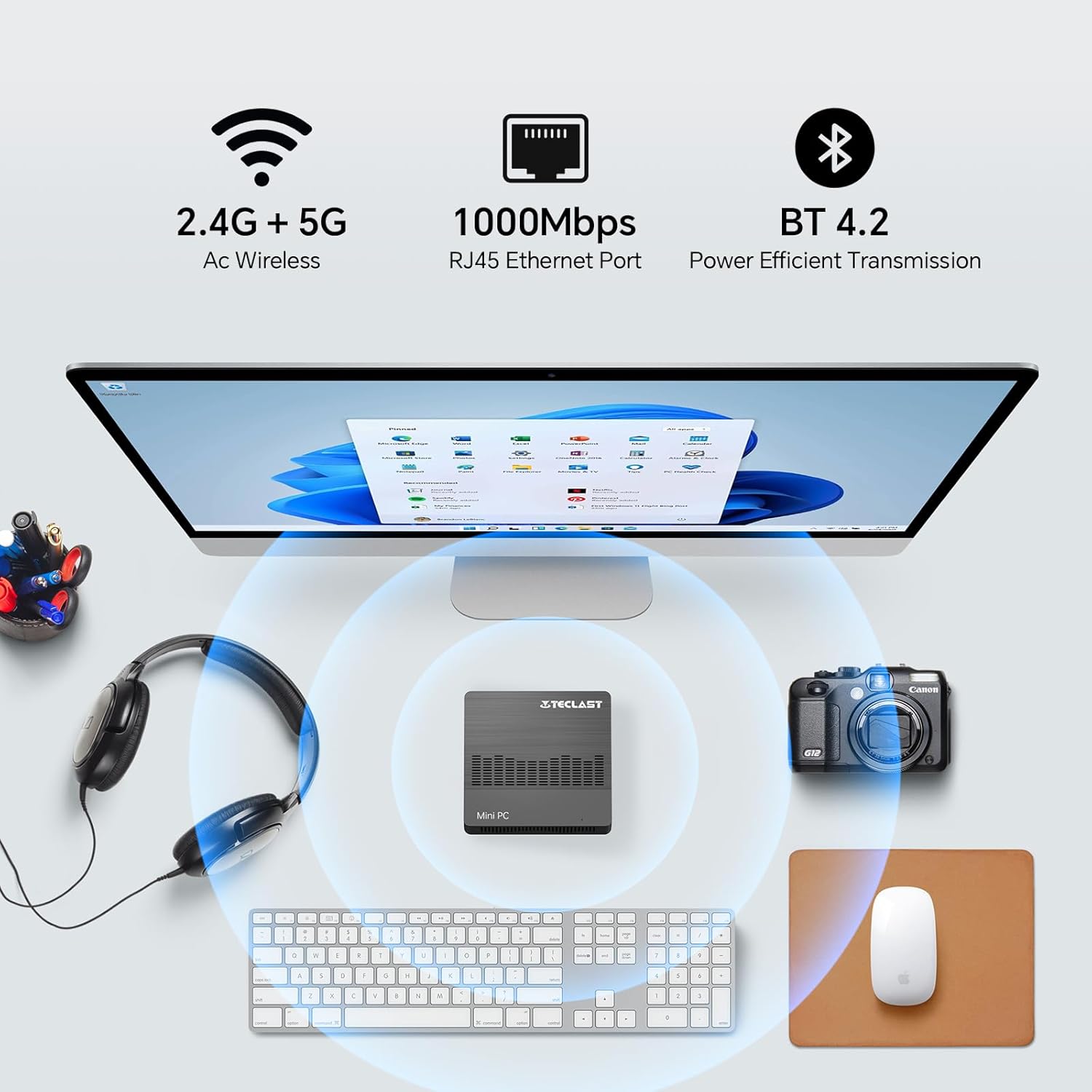
Image 5.1: The Mini PC N10 supports 2.4G+5G Wi-Fi, 1000Mbps RJ45 Ethernet, and Bluetooth 4.2 for versatile connectivity.
5.2. ການຕັ້ງຄ່າຈໍສະແດງຜົນຄູ່
The TECLAST Mini PC N10 supports dual display output via its HDMI and VGA ports, allowing you to extend your desktop across two screens or duplicate your display.
- ເຊື່ອມຕໍ່ຈໍພາບຫຼັກຂອງທ່ານກັບຜອດ HDMI.
- Connect your secondary monitor to the VGA port.
- Once both monitors are connected and powered on, Windows 11 should automatically detect them.
- To configure display settings (extend, duplicate, resolution), right-click on the desktop, select 'Display settings', and adjust as needed. The HDMI port supports up to 4K@60Hz resolution.

Image 5.2: The Mini PC N10 connected to two monitors via HDMI and VGA for dual display output.
5.3. ການຂະຫຍາຍການເກັບຮັກສາ
The Mini PC N10 includes 128GB of internal SSD storage. For additional storage, it supports SATA protocol for M.2 SSD expansion (2242 length, M.2 interface, not included). A TF (MicroSD) card reader is also available for removable storage.
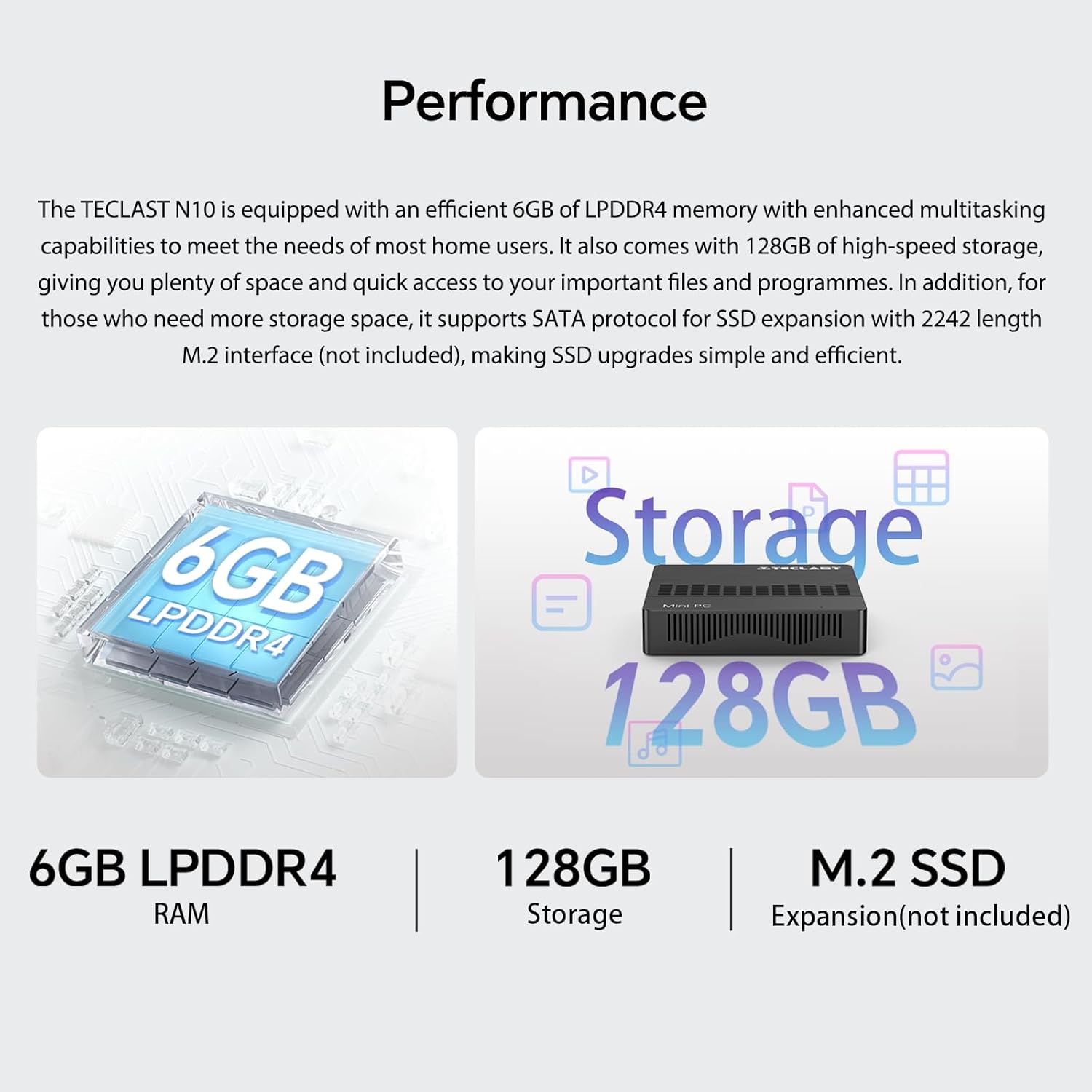
ຮູບພາບ 5.3: ຫຼາຍກວ່າview of the Mini PC N10's 6GB LPDDR4 RAM, 128GB storage, and M.2 SSD expansion capability.
6. ຂໍ້ມູນຈໍາເພາະ
| ຄຸນສົມບັດ | ລາຍລະອຽດ |
|---|---|
| ຍີ່ຫໍ້ | TECLAST |
| ຊື່ຕົວແບບ | N10 |
| ຂະໜາດສິນຄ້າ | 11.9 x 11.9 x 2.4 cm |
| ນ້ຳໜັກສິນຄ້າ | 700 g |
| ສີ | ດຳ |
| ລະບົບປະຕິບັດການ | Windows 11 Pro |
| ຜູ້ຜະລິດໂປເຊດເຊີ | Intel |
| ປະເພດໂປເຊດເຊີ | Intel Celeron N4000 |
| ຄວາມໄວປະມວນຜົນ | 2.6 GHz (Turbo Frequency) |
| ຈໍານວນຜູ້ປະມວນຜົນ | 2 |
| ຄວາມອາດສາມາດ RAM | 6 GB |
| ເທັກໂນໂລຢີຄວາມຈຳ | DDR4 |
| ລາຍລະອຽດ Hard Drive | SSD |
| ຄວາມອາດສາມາດເກັບຮັກສາຫນ່ວຍຄວາມຈໍາ | 128 GB |
| Graphics Coprocessor | Intel UHD Graphics 600 |
| ລາຍລະອຽດບັດກາຟິກ | ປະສົມປະສານ |
| ຄວາມລະອຽດສູງສຸດ | 3840 x 2160 (4K) |
| ປະເພດການເຊື່ອມຕໍ່ | Wi-Fi, Bluetooth |
| ປະເພດການເຊື່ອມຕໍ່ໄຮ້ສາຍ | 2.4GHz + 5GHz Wi-Fi, Bluetooth 5.0 |
| ທ່າເຮືອ | HDMI x 1, VGA x 1, USB 3.2 x 3, RJ45 Ethernet x 1, 3.5mm Audio x 1, TF (MicroSD) x 1 |

Image 6.1: Details of the Intel Celeron N4000 processor, featuring 14nm process, Gemini Lake Architecture, 4MB cache, and up to 2.6GHz turbo frequency.
7. ບໍາລຸງຮັກສາ
- ທໍາຄວາມສະອາດ: Use a soft, dry cloth to clean the exterior of the Mini PC. Avoid using liquid cleaners or sprays directly on the device.
- ການລະບາຍອາກາດ: Ensure the ventilation openings are not blocked to prevent overheating. Place the Mini PC on a flat, stable surface.
- ອັບເດດຊອບແວ: ກວດສອບ ແລະຕິດຕັ້ງການອັບເດດ Windows ເປັນປະຈຳເພື່ອຮັບປະກັນຄວາມໝັ້ນຄົງ ແລະຄວາມປອດໄພຂອງລະບົບ.
- ການສໍາຮອງຂໍ້ມູນ: ສຳຮອງຂໍ້ມູນສຳຄັນໄວ້ໃນໄດຣຟ໌ພາຍນອກ ຫຼືບ່ອນເກັບຂໍ້ມູນຄລາວເປັນໄລຍະໆເພື່ອປ້ອງກັນການສູນເສຍຂໍ້ມູນ.
8. ການແກ້ໄຂບັນຫາ
8.1. ບໍ່ມີພະລັງງານ
- ໃຫ້ແນ່ໃຈວ່າອະແດັບເຕີໄຟເຊື່ອມຕໍ່ຢ່າງປອດໄພກັບທັງ Mini PC ແລະປລັກສຽບໄຟທີ່ເຮັດວຽກໄດ້.
- ກວດສອບວ່າປລັກສຽບໄຟເຮັດວຽກໄດ້ໂດຍການສຽບໃສ່ອຸປະກອນອື່ນ.
8.2. ບໍ່ມີຈໍສະແດງຜົນ
- ກວດສອບວ່າສາຍ HDMI ຫຼື VGA ໄດ້ເຊື່ອມຕໍ່ກັບທັງ Mini PC ແລະ ຈໍພາບຢ່າງແໜ້ນໜາແລ້ວ.
- ໃຫ້ແນ່ໃຈວ່າຈໍພາບເປີດຢູ່ ແລະ ຕັ້ງເປັນແຫຼ່ງສັນຍານເຂົ້າທີ່ຖືກຕ້ອງ (HDMI/VGA).
- ລອງເຊື່ອມຕໍ່ກັບຈໍສະແດງຜົນອື່ນ ຫຼືໃຊ້ສາຍອື່ນເພື່ອຄວບຄຸມອົງປະກອບທີ່ຜິດພາດ.
8.3. ບໍ່ມີການເຊື່ອມຕໍ່ອິນເຕີເນັດ
- Wired: ກວດເບິ່ງການເຊື່ອມຕໍ່ສາຍອີເທີເນັດ. ກວດສອບເຣົາເຕີ/ໂມເດັມຂອງເຈົ້າເຮັດວຽກຢ່າງຖືກຕ້ອງ.
- ໄຮ້ສາຍ: Ensure Wi-Fi is enabled in Windows settings. Check if you are connected to the correct network and have entered the password correctly. Restart your router/modem.
8.4. ລະບົບຊ້າລົງ
- ປິດແອັບພລິເຄຊັນທີ່ບໍ່ຈໍາເປັນທີ່ເຮັດວຽກຢູ່ໃນພື້ນຫຼັງ.
- ກວດເບິ່ງ ແລະຕິດຕັ້ງການອັບເດດ Windows ທີ່ຍັງຄ້າງຢູ່.
- ໃຫ້ແນ່ໃຈວ່າມີພື້ນທີ່ຫວ່າງພຽງພໍໃນ SSD.
- ດໍາເນີນການສະແກນໄວຣັສເພື່ອກວດເບິ່ງ malware.
9. ການຮັບປະກັນແລະການສະຫນັບສະຫນູນ
9.1. ຂໍ້ມູນການຮັບປະກັນ
The TECLAST Mini PC N10 comes with a 2-year warranty, valid immediately after purchase. Please retain your proof of purchase for warranty claims.
9.2. ການຊ່ວຍເຫຼືອລູກຄ້າ
If you require assistance or have any questions regarding your TECLAST Mini PC N10, please contact our customer support team. Send us a message, and our specialists will respond within 1 business day. We are committed to providing support for our products.


