1. ບົດແນະນຳ
The EZVIZ C3W Pro is a high-performance wired outdoor smart Wi-Fi security camera designed to provide reliable surveillance for your property. Featuring 1080p Full HD video, advanced color night vision, and AI-powered human shape detection, this camera offers comprehensive monitoring day and night. Its IP67 weather-resistant design ensures durability in various outdoor conditions. The camera also supports two-way talk, local storage via MicroSD card, and seamless integration with smart home ecosystems like Amazon Alexa and Google Assistant.

Figure 1: EZVIZ C3W Pro Outdoor Smart Wi-Fi Security Camera.
2. ສິ່ງທີ່ຢູ່ໃນກ່ອງ
Upon unboxing your EZVIZ C3W Pro camera, verify that all the following items are included:
- EZVIZ C3W Pro Camera
- Power Adapter
- ຖານຕິດຕັ້ງ
- screws mounting ແລະ plugs ຝາ
- ແມ່ແບບເຈາະ
- ຊຸດກັນນ້ຳສຳລັບສາຍເຄເບີ້ນເຄືອຂ່າຍ
- ຄູ່ມືເລີ່ມຕົ້ນດ່ວນ

Figure 2: Included items in the EZVIZ C3W Pro package.
3. ຕັ້ງຄ່າ
3.1. ການຕິດຕັ້ງທາງດ້ານຮ່າງກາຍ
- ເລືອກສະຖານທີ່ຕິດຕັ້ງ: ເລືອກສະຖານທີ່ກາງແຈ້ງທີ່ມີຄວາມຊັດເຈນ view of the area you wish to monitor. Ensure the camera is within Wi-Fi range and has access to a power outlet. The camera is IP67 rated for dust and water resistance.
- ໃຊ້ແມ່ແບບການເຈາະ: Place the provided drill template on the desired mounting surface and mark the screw holes.
- ຮູເຈາະ: Drill pilot holes at the marked positions. Insert the wall plugs if mounting on masonry or concrete.
- ພູຖານ: ຍຶດຖານຕິດຕັ້ງກ້ອງຖ່າຍຮູບໃຫ້ແໜ້ນກັບພື້ນຜິວໂດຍໃຊ້ສະກູທີ່ໃຫ້ມາ.
- ຕິດກ້ອງ: Attach the camera to the mounting base and adjust its angle for optimal coverage.
Figure 3: EZVIZ C3W Pro camera mounted for outdoor use.
3.2. ການຕິດຕັ້ງບັດ MicroSD (ທາງເລືອກ)
For local video storage, you can install a MicroSD card (up to 256GB). Locate the MicroSD card slot on the camera, typically protected by a cover secured with screws. Carefully open the cover, insert the MicroSD card, and then re-secure the cover to maintain the camera's weather resistance.
3.3. ເປີດເຄື່ອງ
Connect the camera to the power adapter and plug it into a suitable outdoor power outlet. The camera will power on and its indicator light will begin to flash blue, indicating it's ready for network configuration.
3.4. EZVIZ App Configuration
- ດາວໂຫຼດແອັບ EZVIZ: Download and install the EZVIZ app from the App Store (iOS) or Google Play Store (Android).
- ສ້າງບັນຊີ: Launch the app and register for a new EZVIZ account if you don't already have one.
- ເພີ່ມອຸປະກອນ: Log in to your EZVIZ account. Tap the '+' icon in the upper right corner of the home screen to add a new device. Select 'Cameras'.
- ສະແກນລະຫັດ QR: ສະແກນລະຫັດ QR ທີ່ຕັ້ງຢູ່ໃນຕົວກ້ອງຖ່າຍຮູບ ຫຼືຢູ່ໃນຄູ່ມືເລີ່ມຕົ້ນດ່ວນ.
- ເຊື່ອມຕໍ່ກັບ Wi-Fi: Follow the in-app prompts to connect your camera to your 2.4GHz Wi-Fi network. Ensure your phone is connected to the same 2.4GHz Wi-Fi network during this process.
- ສຳເລັດການຕິດຕັ້ງ: Once connected, you can name your camera and adjust initial settings.
Video 1: EZVIZ C3W Pro Setup Guide. This video demonstrates the step-by-step setup process for the camera.
4. ປະຕິບັດການກ້ອງຖ່າຍຮູບ
4.1. ມີຊີວິດ View & Basic Controls
Access the live video feed from your camera through the EZVIZ app. From the live view ໃນການໂຕ້ຕອບ, ທ່ານສາມາດ:
- Take Snapshots: ບັນທຶກພາບຖ່າຍຈາກຟີດສົດ.
- ບັນທຶກວິດີໂອ: Manually record video clips.
- ຊູມດິຈິຕອນ: Zoom in up to 8x to view ລາຍລະອຽດ.
4.2. ສົນທະນາສອງທາງ
The C3W Pro features a built-in microphone and speaker, allowing for two-way communication. Tap the 'Talk' button in the app to speak through the camera and hear responses from the monitored area.
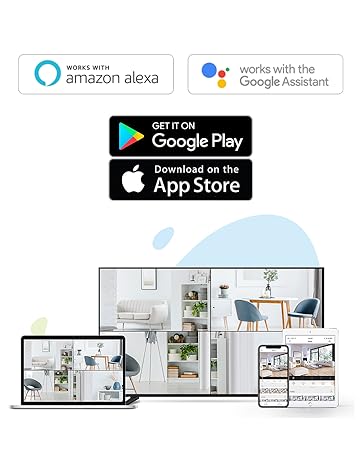
Figure 4: Using the two-way talk feature via the EZVIZ app.
4.3. ໂໝດວິໄສທັດກາງຄືນ
ກ້ອງຖ່າຍຮູບມີສາມໂຫມດວິໄສທັດໃນຕອນກາງຄືນ:
- IR Mode (Black & White): Standard infrared night vision for clear black and white images in low light.
- ໂໝດສີ: Utilizes built-in spotlights to provide full-color night vision, even in complete darkness.
- ວິໄສທັດກາງຄືນອັດສະລິຍະ: By default, the camera operates in black and white mode. When motion is detected, it automatically switches to color night vision and activates the spotlights.

Figure 5: Night vision modes: Color Night Vision and Black & White Vision.
4.4. ກວດຈັບການເຄື່ອນໄຫວ ແລະການແຈ້ງເຕືອນ
The C3W Pro uses AI-powered human shape detection to minimize false alarms. You can customize detection settings:
- ການກວດຈັບຮູບຮ່າງຂອງມະນຸດ: Enable this feature to only receive alerts when a human shape is detected.
- ພື້ນທີ່ກວດຈັບການເຄື່ອນໄຫວ: ກຳນົດເຂດສະເພາະພາຍໃນກ້ອງຖ່າຍຮູບ view where motion detection will be active. This helps to ignore irrelevant movements (e.g., trees swaying).
- ຄວາມໄວໃນການກວດຈັບການເຄື່ອນໄຫວ: Adjust the sensitivity level to fine-tune how easily motion triggers an alert.
- ການປ້ອງກັນຢ່າງຫ້າວຫັນ: When motion is detected, the camera can trigger a loud siren and flash its spotlights to deter intruders.

Figure 6: AI-Powered Person Detection in action.
4.5. Smart Home Integration
The EZVIZ C3W Pro is compatible with popular smart home platforms:
- Amazon Alexa: ໃຊ້ ຄຳ ສັ່ງສຽງເພື່ອ view your camera feed on compatible Alexa devices.
- ຜູ້ຊ່ວຍ Google: Integrate with Google Assistant for voice control and viewing on Google Home devices.

Figure 7: EZVIZ C3W Pro working with Amazon Alexa.
ວິດີໂອທີ 2: ຢ່າງເປັນທາງການແລ້ວview of the EZVIZ C3W Pro's key features, including color night vision, AI detection, and two-way talk.
5. ບໍາລຸງຮັກສາ
- ທໍາຄວາມສະອາດປົກກະຕິ: ເຮັດຄວາມສະອາດເລນກ້ອງຖ່າຍຮູບ ແລະ ທີ່ຢູ່ອາໃສເປັນໄລຍະໆດ້ວຍເຄື່ອງອ່ອນ, ງamp ຜ້າເພື່ອຮັບປະກັນຄຸນນະພາບຂອງຮູບພາບທີ່ຊັດເຈນ. ຫຼີກລ່ຽງສານເຄມີທີ່ຮຸນແຮງ.
- ການອັບເດດເຟີມແວ: Keep your camera's firmware updated through the EZVIZ app to ensure optimal performance, security, and access to new features.
- ກວດສອບການເຊື່ອມຕໍ່: Regularly inspect power and network cable connections for any signs of wear or damage, especially in outdoor environments.
6. ການແກ້ໄຂບັນຫາ
6.1. No Power / Offline
- ໃຫ້ແນ່ໃຈວ່າອະແດັບເຕີໄຟເຊື່ອມຕໍ່ຢ່າງປອດໄພກັບທັງກ້ອງຖ່າຍຮູບ ແລະປລັກສຽບໄຟທີ່ເຮັດວຽກ.
- ກວດເບິ່ງວ່າປລັກສຽບໄຟເຮັດວຽກຫຼືບໍ່ໂດຍການສຽບອຸປະກອນອື່ນ.
- ກວດສອບວ່າເຄືອຂ່າຍ Wi-Fi ຂອງທ່ານເປີດໃຊ້ງານຢູ່ ແລະ ກ້ອງຖ່າຍຮູບຢູ່ພາຍໃນຂອບເຂດ.
6.2. ຄຸນນະພາບຮູບພາບທີ່ບໍ່ດີ
- ເຮັດຄວາມສະອາດເລນກ້ອງຖ່າຍຮູບເພື່ອກຳຈັດຝຸ່ນ ຫຼື ຮອຍເປື້ອນຕ່າງໆ.
- ໃຫ້ແນ່ໃຈວ່າບໍ່ມີສິ່ງກີດຂວາງຢູ່ທາງຫນ້າຂອງເລນ.
- Check your Wi-Fi signal strength in the EZVIZ app; a weak signal can affect video quality.
- Adjust the video resolution settings in the app if your network bandwidth is limited.
6.3. Excessive False Alarms
- Enable AI-powered Human Shape Detection in the app settings.
- Adjust the Motion Detection Area to exclude areas with frequent irrelevant motion (e.g., trees, busy roads).
- Lower the Motion Detection Sensitivity in the app.
7. ຂໍ້ມູນຈໍາເພາະ
| ໝາຍເລກຕົວແບບ | EZC3W3H2L28 |
| ຄວາມລະອຽດການຖ່າຍວິດີໂອ | 1080p |
| ເຕັກໂນໂລຊີການເຊື່ອມຕໍ່ | Wireless (Wi-Fi 2.4GHz with Dual External Antennas) |
| ການຈັດອັນດັບການປົກປ້ອງສາກົນ | IP67 (ກັນອາກາດ ແລະ ກັນຝຸ່ນ) |
| ຂອບເຂດວິໄສທັດກາງຄືນ | 98 ຟຸດ |
| ຄຸນນະສົມບັດພິເສດ | Motion Sensor, Night Vision (Color, Black & White, Smart), AI-Powered Human Detection, Two-Way Talk, Active Defense (Siren & Strobe Light) |
| ການເກັບຮັກສາ | MicroSD Slot (up to 256GB), Secure Cloud Storage (Optional) |
| ອຸປະກອນທີ່ເຂົ້າກັນໄດ້ | iOS, Android, Amazon Alexa, Google Assistant |
| ແຫຼ່ງພະລັງງານ | Wired (Power Adapter Included) |
| ຂະໜາດ (L x W x H) | 9 x 4.1 x 3.7 ນິ້ວ |
| ນ້ໍາຫນັກລາຍການ | 1.28 ປອນ |
8. ການຮັບປະກັນແລະການສະຫນັບສະຫນູນ
ສຳລັບຂໍ້ມູນການຮັບປະກັນ, ການຊ່ວຍເຫຼືອດ້ານເຕັກນິກ, ຫຼື ການສອບຖາມກ່ຽວກັບການບໍລິການ, ກະລຸນາອ້າງອີງເຖິງ EZVIZ ຢ່າງເປັນທາງການ website or contact their customer support directly. Details can typically be found in the Quick Start Guide or on the product packaging.


