1. ບົດແນະນຳ
This manual provides detailed instructions for the setup, operation, and maintenance of your CHERRY DW 9100 Slim Wireless Keyboard and Mouse Set. This rechargeable desktop set offers both 2.4 GHz wireless and Bluetooth connectivity, featuring a slim design and silent keystroke SX Scissor Mechanism for comfortable and efficient use in various environments.

Image 1.1: The CHERRY DW 9100 Slim Wireless Keyboard and Mouse Set, including the USB nano receiver.
2. ເນື້ອໃນຊຸດ
ກະລຸນາກວດເບິ່ງເນື້ອໃນຂອງແພັກເກັດເມື່ອ unboxing ເພື່ອຮັບປະກັນວ່າອົງປະກອບທັງໝົດມີຢູ່:
- CHERRY DW 9100 Slim Wireless Keyboard
- CHERRY DW 9100 Slim Wireless Mouse
- ຕົວຮັບ USB Nano
- ສາຍສາກ USB-C
- ຄູ່ມືຜູ້ໃຊ້ (ເອກະສານນີ້)
3. ຕັ້ງຄ່າ
3.1 ການສາກໄຟອຸປະກອນ
ທັງແປ້ນພິມ ແລະເມົາສ໌ແມ່ນອຸປະກອນພ້ອມດ້ວຍແບັດເຕີຣີ lithium ທີ່ສາມາດສາກໄຟໄດ້.
- ເຊື່ອມຕໍ່ສາຍສາກໄຟ USB-C ທີ່ສະໜອງໃຫ້ເຂົ້າກັບພອດ USB-C ໃນແປ້ນພິມ ແລະ ເມົ້າສ໌.
- ເຊື່ອມຕໍ່ອີກສົ້ນຂອງສາຍກັບພອດ USB ທີ່ໃຊ້ພະລັງງານ (ເຊັ່ນ: ຄອມພິວເຕີ, ຕົວແປງໄຟ USB).
- The status LED on each device will indicate the charging status. A full charge is indicated when the LED changes color or turns off (refer to Section 4.3 for LED indicators).
3.2 Connecting via 2.4 GHz Wireless
For a stable and fast wireless connection, use the included USB nano receiver.
- Locate the USB nano receiver.
- ສຽບຕົວຮັບ USB nano ເຂົ້າໄປໃນຜອດ USB ທີ່ມີຢູ່ໃນຄອມພິວເຕີຂອງທ່ານ.
- On both the keyboard and mouse, locate the connectivity switch. Set the switch to the 2.4 GHz position (often indicated by a receiver icon or "RF").
- ອຸປະກອນຄວນເຊື່ອມຕໍ່ກັບຄອມພິວເຕີຂອງທ່ານໂດຍອັດຕະໂນມັດ.
3.3 ການເຊື່ອມຕໍ່ຜ່ານ Bluetooth
The set supports Bluetooth connectivity for devices that have Bluetooth capabilities.
- On both the keyboard and mouse, locate the connectivity switch. Set the switch to the Bluetooth position (often indicated by a Bluetooth icon).
- On your computer or device, open the Bluetooth settings.
- Initiate the pairing process on your device. The keyboard and mouse should appear in the list of discoverable devices (e.g., "CHERRY DW 9100 Keyboard", "CHERRY DW 9100 Mouse").
- Select each device to pair them. Follow any on-screen prompts, such as entering a pairing code for the keyboard.
ໝາຍເຫດ: The keyboard and mouse can be paired with multiple Bluetooth devices. Use the connectivity switch to toggle between paired devices or 2.4 GHz mode.
4. ຄໍາແນະນໍາການດໍາເນີນງານ
4.1 ຟັງຊັນຄີບອດ
The CHERRY DW 9100 Slim Keyboard features a full-size layout with an SX Scissor Mechanism for silent and precise keystrokes.
- ກະແຈມາດຕະຖານ: ປຸ່ມຕົວອັກສອນ ແລະ ຕົວເລກມາດຕະຖານທັງໝົດເຮັດວຽກຕາມທີ່ຄາດໄວ້.
- ປຸ່ມຟັງຊັນ (F1-F12): These keys may have secondary functions (e.g., media control, volume, brightness) accessible by pressing the Fn key simultaneously. Refer to your operating system's settings for specific function key behavior.
- ປຸ່ມກົດຕົວເລກ: Provides dedicated number entry.

ຮູບພາບ 4.1: Side profile of the CHERRY DW 9100 Slim Keyboard, highlighting its thin design.

Image 4.2: Visual representation of the CHERRY SX Scissor Mechanism, responsible for silent and precise keystrokes.
4.2 ການທໍາງານຂອງຫນູ
The CHERRY DW 9100 Slim Mouse features 6 buttons and a scroll wheel for versatile navigation.
- ຄລິກຊ້າຍ/ຂວາ: ປຸ່ມເມົາສ໌ມາດຕະຖານ.
- ລໍ້ເລື່ອນ: ສໍາລັບການເລື່ອນຕາມແນວຕັ້ງແລະເປັນປຸ່ມຄລິກກາງ.
- ປຸ່ມຂ້າງ: ໂດຍປົກກະຕິແລ້ວໃຊ້ສຳລັບການນຳທາງໄປໜ້າ/ຫຼັງໃນ web ຕົວທ່ອງເວັບ.
- DPI Switch: A button, usually near the scroll wheel, allows adjustment of the mouse's sensitivity (DPI - Dots Per Inch). Pressing this button cycles through different DPI settings, indicated by the mouse's status LED.

ຮູບພາບ 4.3: ທາງເທິງ view of the CHERRY DW 9100 Slim Mouse, showing the left/right click buttons, scroll wheel, and DPI switch.
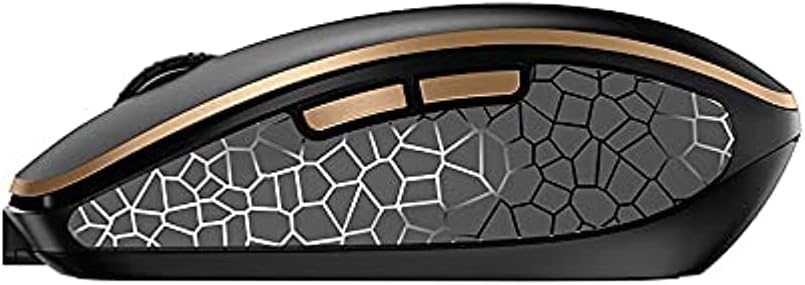
ຮູບພາບ 4.4: ຂ້າງ view of the CHERRY DW 9100 Slim Mouse, illustrating the ergonomic design and side buttons.
4.3 ສະຖານະພາບໄຟ LED
Both the keyboard and mouse feature status LEDs to provide information on battery level, charging status, and mouse resolution.
- ແບັດເຕີຣີຕໍ່າ: The LED will flash or illuminate in a specific color (e.g., red) when the battery level is low, indicating that charging is required.
- ການສາກໄຟ: The LED will illuminate while charging and typically change color or turn off when fully charged.
- Mouse Resolution (DPI): When adjusting the DPI, the mouse LED may briefly flash to indicate the current setting.
5. ບໍາລຸງຮັກສາ
5.1 ການທໍາຄວາມສະອາດ
To maintain the performance and appearance of your devices:
- ຕັດການເຊື່ອມຕໍ່ອຸປະກອນຕ່າງໆອອກຈາກຄອມພິວເຕີຂອງທ່ານກ່ອນການທຳຄວາມສະອາດ.
- ໃຊ້ຜ້າແພທີ່ອ່ອນໆ ທີ່ບໍ່ມີເສັ້ນດ່າງ dampຜະສົມດ້ວຍນ້ໍາຫຼືການແກ້ໄຂການທໍາຄວາມສະອາດອ່ອນໆ.
- Avoid using harsh chemicals, abrasive cleaners, or solvents, as these can damage the surfaces.
- ສໍາລັບແປ້ນພິມ, ໃຊ້ອາກາດບີບອັດເພື່ອເອົາຝຸ່ນແລະສິ່ງເສດເຫຼືອອອກຈາກລະຫວ່າງກະແຈ.
5.2 ການດູແລຫມໍ້ໄຟ
The integrated lithium batteries are designed for long-term use.
- ສາກອຸປະກອນຄືນໃໝ່ເມື່ອໄຟສະແດງແບັດເຕີຣີຕໍ່າປະກົດຂຶ້ນ.
- Avoid fully discharging the batteries frequently to prolong their lifespan.
- If storing the devices for an extended period, charge them to approximately 50% before storage.
6. ການແກ້ໄຂບັນຫາ
If you encounter issues with your CHERRY DW 9100 Slim set, refer to the following common solutions:
6.1 ບັນຫາການເຊື່ອມຕໍ່
- No Connection (2.4 GHz):
- Ensure the USB nano receiver is securely plugged into a working USB port.
- Verify the keyboard and mouse connectivity switches are set to the 2.4 GHz ຕໍາແຫນ່ງ.
- ລອງສຽບຕົວຮັບເຂົ້າໃສ່ພອດ USB ອື່ນ.
- Ensure the devices are sufficiently charged.
- No Connection (Bluetooth):
- Ensure the keyboard and mouse connectivity switches are set to the Bluetooth ຕໍາແຫນ່ງ.
- Confirm Bluetooth is enabled on your computer/device.
- Remove previous pairings from your device's Bluetooth settings and attempt to re-pair.
- Ensure the devices are sufficiently charged.
6.2 ບັນຫາພະລັງງານ ແລະ ການສາກໄຟ
- ອຸປະກອນບໍ່ໄດ້ສາກໄຟ:
- Check that the USB-C charging cable is properly connected to both the device and the power source.
- Try a different USB-C cable or a different USB power source.
- ກວດໃຫ້ແນ່ໃຈວ່າແຫຼ່ງພະລັງງານເປີດຢູ່.
- ອາຍຸແບັດເຕີຣີສັ້ນ:
- Ensure devices are fully charged before use.
- Battery life can vary based on usage patterns.
6.3 Mouse Tracking Issues
- Inaccurate or No Tracking:
- ໃຫ້ແນ່ໃຈວ່າເຊັນເຊີເມົາສ໌ສະອາດ ແລະ ບໍ່ມີສິ່ງເສດເຫຼືອ.
- Use the mouse on a suitable surface (e.g., mouse pad). Highly reflective or transparent surfaces may cause issues.
- Adjust the DPI setting using the DPI switch on the mouse.
7. ຂໍ້ມູນຈໍາເພາະ
| ຄຸນສົມບັດ | ລາຍລະອຽດ |
|---|---|
| ໝາຍເລກຕົວແບບ | JD-9100US-2 |
| ຂະໜາດສິນຄ້າ | 17.32 x 5.12 x 0.59 ນິ້ວ |
| ນ້ໍາຫນັກລາຍການ | 2.35 ປອນ |
| ໝໍ້ໄຟ | Rechargeable Lithium (USB-C) |
| ເຕັກໂນໂລຊີການເຊື່ອມຕໍ່ | Bluetooth, 2.4 GHz Radio Frequency (USB) |
| ຄຸນນະສົມບັດພິເສດ | Rechargeable, Silent Keystroke (SX Scissor Mechanism) |
| ອຸປະກອນທີ່ເຂົ້າກັນໄດ້ | ຄອມພິວເຕີສ່ວນບຸກຄົນ |
| ຜູ້ຜະລິດ | ເຊຣີ |
Note on Batteries: The product description indicates USB-C rechargeable lithium batteries. The specification "1 AA batteries required. (included)" in the source data appears to be a discrepancy. Please rely on the USB-C rechargeable feature for this model.
8. ການຮັບປະກັນແລະການສະຫນັບສະຫນູນ
CHERRY products are manufactured to high-quality standards. For detailed warranty information, including terms and conditions, please refer to the official CHERRY webເວັບໄຊ ຫຼືບັດຮັບປະກັນລວມຢູ່ໃນຜະລິດຕະພັນຂອງທ່ານ.
For technical support, troubleshooting assistance beyond this manual, or to inquire about replacement parts, please visit the official CHERRY support portal or contact their customer service directly.
- Official CHERRY Webເວັບໄຊ: www.cherry.de/en/ (or regional equivalent)
- ການຊ່ວຍເຫຼືອລູກຄ້າ: ອ້າງເຖິງ webເວັບໄຊທ for ສໍາລັບລາຍລະອຽດການຕິດຕໍ່.