1. ບົດແນະນຳ
ຂອບໃຈສໍາລັບການຊື້asing the Rapoo N300 Optical Wired Gaming Mouse. This manual provides detailed instructions for setting up, operating, and maintaining your new mouse. Please read this manual thoroughly before use to ensure optimal performance and longevity of the product.
2. ຜະລິດຕະພັນເກີນview
2.1 ລັກສະນະທີ່ສໍາຄັນ
- ການຕິດຕາມດ້ວຍແສງທີ່ມີຄວາມແມ່ນຍໍາສູງ: Equipped with a 2000 DPI tracking engine for accurate and responsive cursor control.
- 6 ປຸ່ມ: Includes left, right, scroll wheel, DPI switch, and two side buttons for enhanced functionality.
- 2D Anti-Slip Scroll Wheel: Provides precise scrolling and tactile feedback.
- ການອອກແບບຜິດປົກກະຕິ: Ergonomically designed for comfortable use by both left and right-handed users.
- ການເຊື່ອມຕໍ່ USB ແບບມີສາຍ: Ensures a stable and lag-free connection.
2.2 ເນື້ອໃນຊຸດ
- Rapoo N300 Optical Wired Gaming Mouse
- ຄູ່ມືຜູ້ໃຊ້ (ເອກະສານນີ້)
2.3 ແຜນວາດຜະລິດຕະພັນ

ຮູບທີ 1: ເທິງ view of the Rapoo N300 mouse, showing the left and right click buttons, scroll wheel, and DPI switch button. The Rapoo logo is visible at the base.

ຮູບທີ 2: ຂ້າງ view of the Rapoo N300 mouse, highlighting the two side buttons and the textured grip area for improved handling.
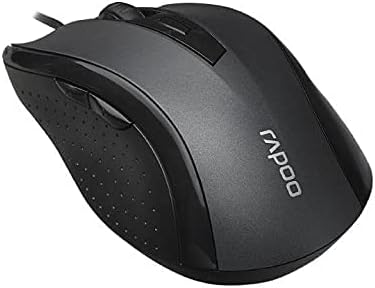
ຮູບທີ 3: ມຸມ view of the Rapoo N300 mouse, showcasing its ergonomic contour and the placement of the scroll wheel and side buttons.

ຮູບທີ 4: ລຸ່ມ view of the Rapoo N300 mouse, displaying the optical sensor, product model number (N300), interface type (USB), and regulatory compliance markings.
3. ຄໍາແນະນໍາການຕິດຕັ້ງ
- ເຊື່ອມຕໍ່ຫນູ: Locate an available USB port on your computer (desktop or laptop). Insert the USB connector of the Rapoo N300 mouse firmly into the USB port.
- ການຕິດຕັ້ງໄດເວີ: The Rapoo N300 mouse is a plug-and-play device. Your operating system (Windows XP, Windows 7, Linux, or newer versions) will automatically detect and install the necessary drivers. This process may take a few moments.
- ການຢັ້ງຢືນ: Once the drivers are installed, the mouse cursor should become responsive. Move the mouse to confirm functionality.
ໂດຍປົກກະຕິແລ້ວບໍ່ຈຳເປັນຕ້ອງມີການຕິດຕັ້ງຊອບແວເພີ່ມເຕີມສຳລັບການເຮັດວຽກພື້ນຖານ.
4. ຄໍາແນະນໍາການດໍາເນີນງານ
4.1 ຫນ້າທີ່ພື້ນຖານ
- ຄລິກຊ້າຍ: Primary action, selection, opening items.
- ກົດຂວາ: ເປີດເມນູຕາມສະພາບການ.
- ລໍ້ເລື່ອນ: ເລື່ອນເອກະສານ ແລະ web pages vertically. Can also be pressed for middle-click functionality (application-dependent).
4.2 ການປັບ DPI
The Rapoo N300 features a dedicated DPI switch button, usually located behind the scroll wheel. Press this button to cycle through different DPI (Dots Per Inch) sensitivity settings. Each press will change the cursor speed, allowing you to adjust it to your preference for various tasks, from precise editing to fast-paced gaming.
4.3 ປຸ່ມຂ້າງຄຽງ
The two side buttons typically function as "Forward" and "Backward" in web ຕົວທ່ອງເວັບແລະ file explorers. Their functionality may be customizable through operating system settings or third-party software, if available.
5. ບໍາລຸງຮັກສາ
- ທໍາຄວາມສະອາດ: ໃຊ້ຜ້າແຫ້ງທີ່ອ່ອນໆເຊັດພື້ນຜິວຂອງຫນູ. ສໍາລັບຝຸ່ນ stubborn, ເລັກນ້ອຍ dampen ຜ້າດ້ວຍນ້ໍາຫຼືການແກ້ໄຂການທໍາຄວາມສະອາດອ່ອນໆ. ຫຼີກເວັ້ນການນໍາໃຊ້ສານເຄມີທີ່ຮຸນແຮງຫຼືວັດສະດຸຂັດ.
- ເຊັນເຊີແສງ: Ensure the optical sensor on the bottom of the mouse remains clean and free of dust or debris for optimal tracking performance. Do not attempt to disassemble the mouse.
- ການດູແລສາຍໄຟ: ຫຼີກເວັ້ນການງໍແຫຼມຫຼືດຶງຫຼາຍເກີນໄປກ່ຽວກັບສາຍ USB ເພື່ອປ້ອງກັນຄວາມເສຍຫາຍ.
6. ການແກ້ໄຂບັນຫາ
| ບັນຫາ | ການແກ້ໄຂທີ່ເປັນໄປໄດ້ |
|---|---|
| ເມົ້າບໍ່ຕອບສະໜອງ |
|
| ການເຄື່ອນໄຫວຕົວກະພິບແມ່ນຜິດພາດ ຫຼືກະພິບ |
|
| ປຸ່ມ DPI ບໍ່ປ່ຽນແປງຄວາມອ່ອນໄຫວ |
|
7. ຂໍ້ມູນຈໍາເພາະ
| ຄຸນສົມບັດ | ລາຍລະອຽດ |
|---|---|
| ຕົວແບບ | N300 |
| Tracking Engine | Optical |
| DPI | ເຖິງ 2000 DPI |
| ຈໍານວນປຸ່ມ | 6 (Left, Right, Scroll Wheel, DPI, Side Button 1, Side Button 2) |
| ລໍ້ເລື່ອນ | 2D Anti-Slip |
| ທິດທາງມື | ຂີ້ຄ້ານ |
| ປະເພດການໂຕ້ຕອບ | USB ມີສາຍ |
| ຄວາມເຂົ້າກັນໄດ້ຂອງລະບົບປະຕິບັດການ | Windows XP, Windows 7, Linux, and newer versions |
| ສີ | ດຳ |
| ນ້ໍາຫນັກລາຍການ | ປະມານ 100g |
| ຂະໜາດ (ຊຸດ) | 15.4 x 8.4 x 4.2 cm |
8. ການຮັບປະກັນແລະການສະຫນັບສະຫນູນ
Rapoo products are designed for reliability and performance. For specific warranty information and support details, please refer to the warranty card included with your product or visit the official Rapoo webເວັບໄຊ. ຮັກສາໃບຮັບເງິນການຊື້ຂອງທ່ານໄວ້ເປັນຫຼັກຖານການຊື້ສໍາລັບການຮ້ອງຂໍການຮັບປະກັນ.
For technical assistance or further inquiries, please contact Rapoo customer support through their official channels.


