1. ບົດແນະນຳ
The Poly Studio is an all-in-one USB video and audio conferencing system designed for home offices and small meeting rooms. It integrates a 4K camera, smart microphones, and a speaker into a single, sleek bar, offering a plug-and-play solution for enhanced virtual meetings.

Image: Poly Studio Premium USB Video & Audio Conferencing System, showcasing ການອອກແບບຫນາແຫນ້ນຂອງມັນ.
ຄຸນນະສົມບັດທີ່ສໍາຄັນ:
- All-in-One Solution: Combines a 4K camera, smart microphone, and speaker into a single bar, ideal for small meeting rooms and home offices.
- ການເຊື່ອມຕໍ່ USB plug-and-play: No software required for basic functionality. Connect via USB to instantly elevate your Zoom, Teams, Skype, and Google Meet experience.
- Exceptional Audio Clarity: Features Polycom noise-blocking technology and beamforming microphones for crystal-clear sound.
- Smart Camera Framing: Automatically adjusts framing and tracking based on speaker movement and participants in the room.
2. ຕັ້ງຄ່າ
Follow these steps to set up your Poly Studio conferencing system:
- ຖອດອຸປະກອນອອກ: Carefully remove the Poly Studio bar and all accessories from the packaging.
- ເລືອກຕົວເລືອກການຕິດຕັ້ງ: The Poly Studio can be mounted on a tabletop, wall, or tripod.
- ພູຕັ້ງໂຕະ: ວາງອຸປະກອນຢູ່ເທິງພື້ນຜິວທີ່ຫມັ້ນຄົງ.
- ຕົວຍຶດຕິດWallາ: Use the provided wall mount bracket and hardware to securely attach the device to a wall, typically above or below your display.
- Tripod Mount: Attach the device to a standard tripod using the integrated tripod thread.
- ເຊື່ອມຕໍ່ພະລັງງານ: Plug the power cable into the Poly Studio and then into a power outlet.
- ເຊື່ອມຕໍ່ກັບຄອມພິວເຕີ: Connect the USB cable from the Poly Studio to an available USB port on your laptop or PC.
- ການຮັບຮູ້ຊອບແວ: Your computer should automatically recognize the device as a USB camera, microphone, and speaker.

Image: Poly Studio connected to a display, highlighting its compatibility with various video conferencing applications.
3. ຄໍາແນະນໍາການດໍາເນີນງານ
The Poly Studio is designed for ease of use with popular video conferencing platforms.
- Select Device in Application: In your preferred video conferencing application (e.g., Zoom, Microsoft Teams, Skype, Google Meet), navigate to the audio and video settings. Select "Poly Studio" as your camera, microphone, and speaker.
- Utilize Smart Camera Features: The device's smart camera framing and speaker tracking features will automatically adjust the view to keep participants in frame and focus on the active speaker.
- Experience Clear Audio: Polycom's noise-blocking and beamforming technologies work automatically to ensure clear audio transmission and reception.
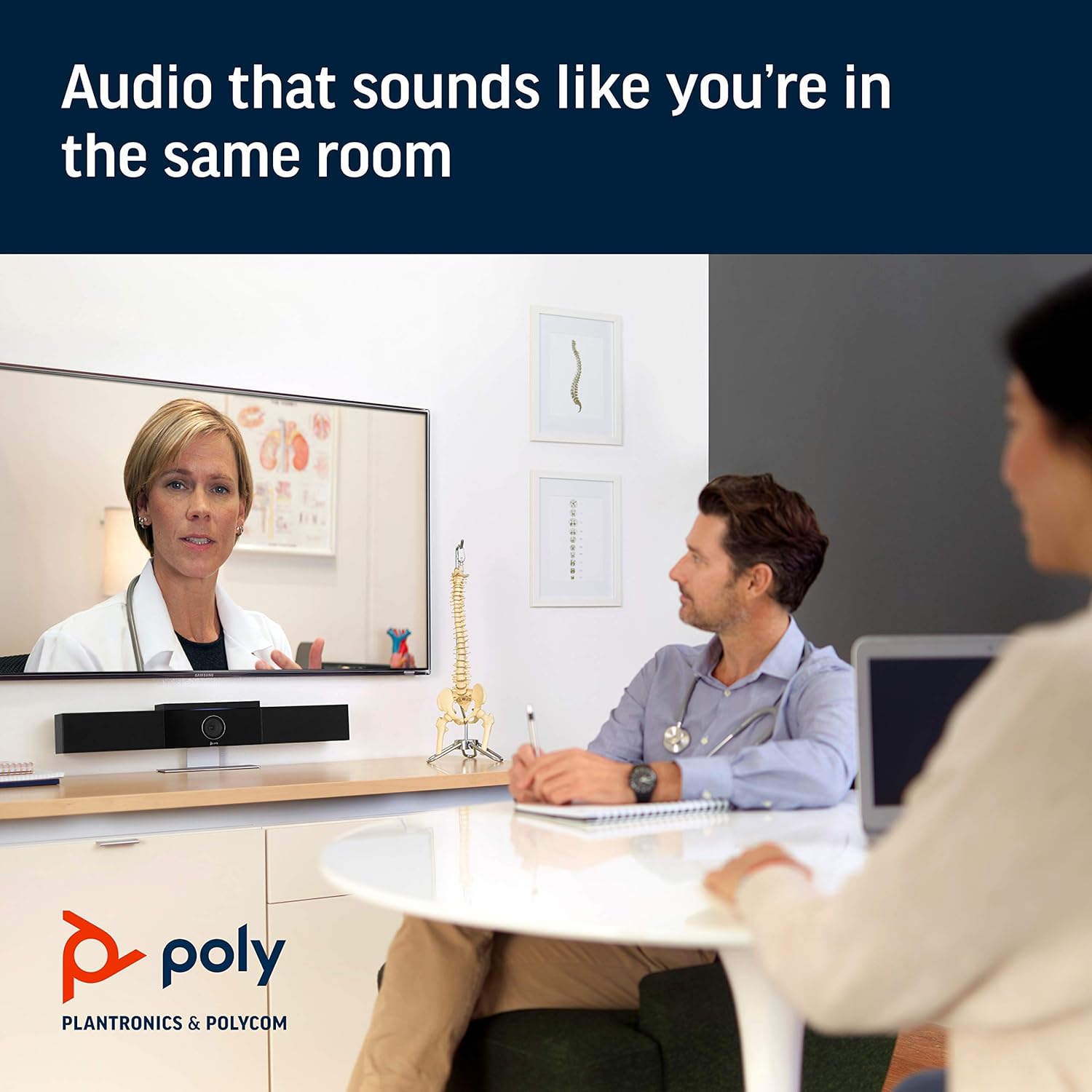
Image: Poly Studio in a meeting room, illustrating its capability to deliver clear audio for all participants.

Image: Poly Studio capturing vivid details and facial expressions of meeting participants.
4. ບໍາລຸງຮັກສາ
To ensure optimal performance and longevity of your Poly Studio, regular maintenance is recommended:
- ທໍາຄວາມສະອາດ: ເຊັດອຸປະກອນດ້ວຍຜ້າອ່ອນໆແລະແຫ້ງ. ຫຼີກລ່ຽງການໃຊ້ສານເຄມີທີ່ຮຸນແຮງ ຫຼື ວັດສະດຸຂັດ.
- ອັບເດດຊອບແວ: Regularly check for and install software updates. These updates often include performance improvements, new features, and bug fixes. Poly Lens remote device management software can assist with this.
- ການຄຸ້ມຄອງສາຍໄຟ: ຮັບປະກັນວ່າສາຍໄຟທັງໝົດຖືກຈັດລຽງຢ່າງເປັນລະບຽບ ແລະ ບໍ່ມີຄວາມເຄັ່ງຕຶງເພື່ອປ້ອງກັນຄວາມເສຍຫາຍ.
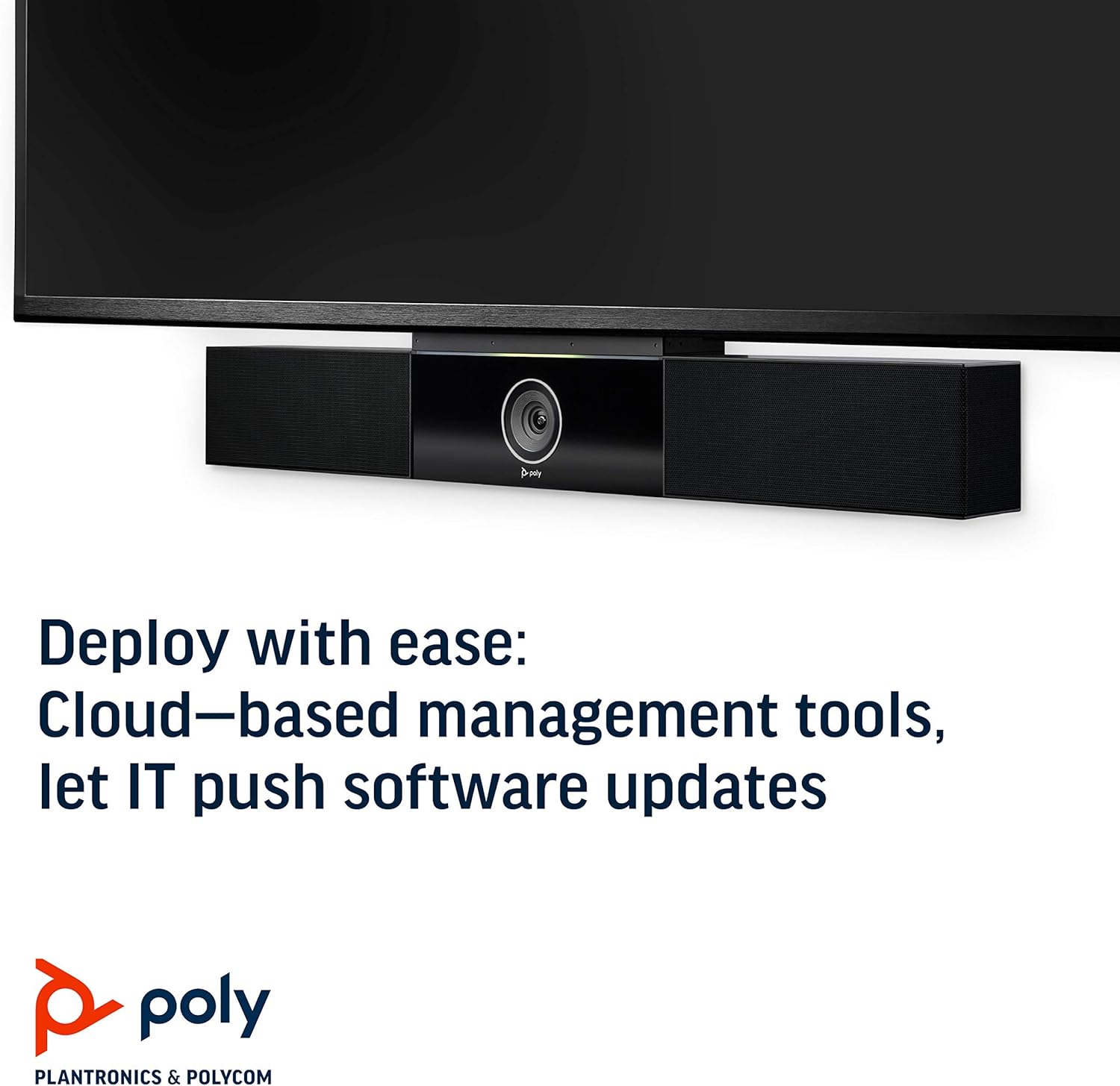
Image: Poly Studio, illustrating its compatibility with cloud-based management tools for easy software updates.
5. ການແກ້ໄຂບັນຫາ
If you encounter issues with your Poly Studio, try the following troubleshooting steps:
- ບໍ່ມີພະລັງງານ: Ensure the power cable is securely connected to both the device and the power outlet. Try a different outlet if necessary.
- ບໍ່ມີວິດີໂອ/ສຽງ: Verify that the USB cable is securely connected to both the Poly Studio and your computer. Check your video conferencing application settings to ensure the Poly Studio is selected as the active camera, microphone, and speaker.
- ຄຸນະພາບສຽງບໍ່ດີ: Ensure the device is placed in a central location in the room. Check for any physical obstructions blocking the microphones or speakers. Update the device firmware via the Poly Lens app.
- Camera Not Tracking: Ensure the room is adequately lit. Check the Poly Lens app settings for camera tracking modes and adjust as needed.
- ອຸປະກອນບໍ່ຮັບຮູ້: Try connecting the USB cable to a different USB port on your computer. Restart your computer.
6. ຂໍ້ມູນຈໍາເພາະ
| ຄຸນສົມບັດ | ລາຍລະອຽດ |
|---|---|
| ປະເພດການຕິດຕັ້ງ | ພູຕັ້ງໂຕະ |
| ຊື່ຕົວແບບ | 649661882596 |
| ປະເພດລຳໂພງ | ສະເຕຣິໂອ |
| ຄຸນນະສົມບັດພິເສດ | ແສງໜ້ອຍ |
| ການນໍາໃຊ້ທີ່ແນະນໍາສໍາລັບຜະລິດຕະພັນ | video conferencing in home offices and small conference rooms |
| ອຸປະກອນທີ່ເຂົ້າກັນໄດ້ | ແລັບທັອບ |
| ການຕັ້ງຄ່າຊ່ອງສຽງອ້ອມຮອບ | 2.0 |
| ສີ | ດຳ |
| ອົງປະກອບລວມ | camera, stereo speakers, microphones, control unit |
| ແມ່ນກັນນ້ໍາ | ຜິດ |
| ປະເພດການຮັບປະກັນ | ຈຳກັດ |
| ຈໍານວນລາຍການ | 1 |
| ວິທີການຄວບຄຸມ | ສຽງ |
| ເຕັກໂນໂລຊີການສື່ສານໄຮ້ສາຍ | ບໍ່ມີເທັກໂນໂລຢີການສື່ສານໄຮ້ສາຍ |
| ຂະຫນາດລໍາໂພງ | 21.59 ຊັງຕີແມັດ |
| ແຫຼ່ງພະລັງງານ | ໄຟຟ້າສາຍ |
| ລະດັບຄວາມຕ້ານທານນ້ໍາ | ບໍ່ທົນທານຕໍ່ນ້ໍາ |
| ປະເພດໄດເວີສຽງ | ໄດນາມິກໄດເວີ |
| ເທກໂນໂລຍີການເຊື່ອມຕໍ່ Subwoofer | ມີສາຍ |
| ການນໍາໃຊ້ສະເພາະສໍາລັບຜະລິດຕະພັນ | Home office, Small conference rooms, Video conferencing with Zoom and Microsoft Teams |
| UPC | 649661882596 |
| ການນຳໃຊ້ພາຍໃນ/ນອກ | ພາຍໃນ |
| ຜູ້ຜະລິດ | Polycom Inc. |
| ຮູບຮ່າງ | rectangular prism |
| ຂະໜາດສິນຄ້າ | 30 x 6 x 4 ນິ້ວ |
| ນ້ໍາຫນັກລາຍການ | 10.58 ປອນ |
| ASIN | B091YCFF84 |
| ໝາຍເລກຕົວແບບ | 649661882596 |
| ວັນທີທໍາອິດທີ່ມີ | ວັນທີ 7 ເມສາ 2021 |
| ຍີ່ຫໍ້ | ໂພລີ |
| ລຳໂພງກຳລັງຜົນຜະລິດສູງສຸດ | 40 ວັດ |
| ການຕອບສະໜອງຄວາມຖີ່ | 120 KHz |
| ເຕັກໂນໂລຊີການເຊື່ອມຕໍ່ | USB |
| ຮູບແບບການອອກສຽງ | ສະເຕຣິໂອ |
7. ການຮັບປະກັນແລະການສະຫນັບສະຫນູນ
Your Poly Studio Premium USB Video & Audio Conferencing System comes with a ການຮັບປະກັນຈໍາກັດ. For specific details regarding the warranty period and coverage, please refer to the official Poly documentation or contact Poly support.
This product is also eligible for a ການຄືນເງິນ 90 ວັນ/ການທົດແທນ policy under the Amazon Renewed Guarantee, as it is a renewed product. For support or to claim warranty/return, please contact the seller or refer to the product's official support channels.


