1. ບົດແນະນຳ
Thank you for choosing the DELTACO GAMING DM210 Ultralight RGB Gaming Mouse. This manual provides essential information for setting up, operating, and maintaining your new gaming mouse. The DM210 is designed for performance, featuring an ultralight construction, customizable RGB lighting, and programmable buttons to enhance your gaming experience.
2. ເນື້ອໃນຊຸດ
- 1x DELTACO GAMING DM210 Ultralight RGB Gaming Mouse
- 1x ຄູ່ມືຜູ້ໃຊ້
3. ຜະລິດຕະພັນເກີນview
The DELTACO GAMING DM210 mouse features an ergonomic design with a honeycomb shell for reduced weight and improved airflow. It includes 7 buttons for versatile control and customizable RGB lighting.
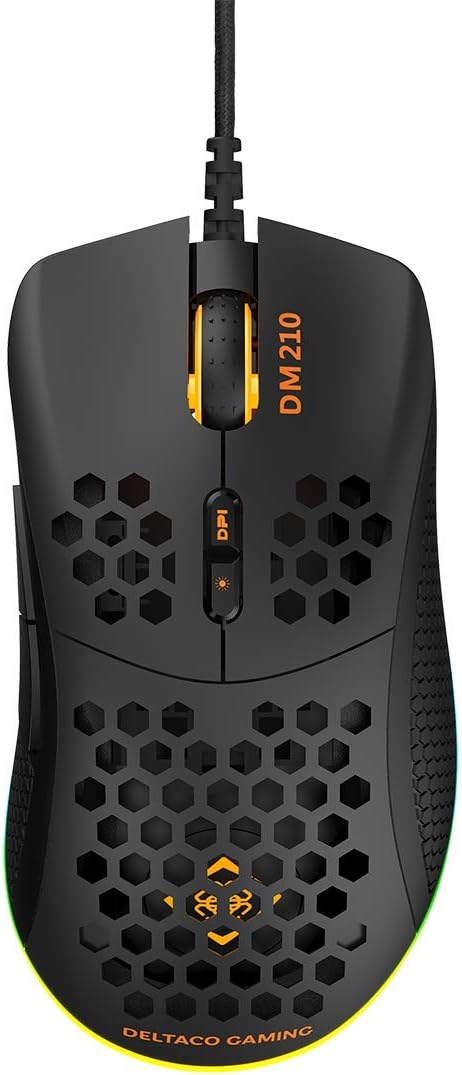
ຮູບພາບ 3.1: ເທິງ view of the DM210 mouse. This image displays the left and right click buttons, the scroll wheel, and the two DPI adjustment buttons located below the scroll wheel. The ultralight honeycomb shell design is visible across the top surface of the mouse.
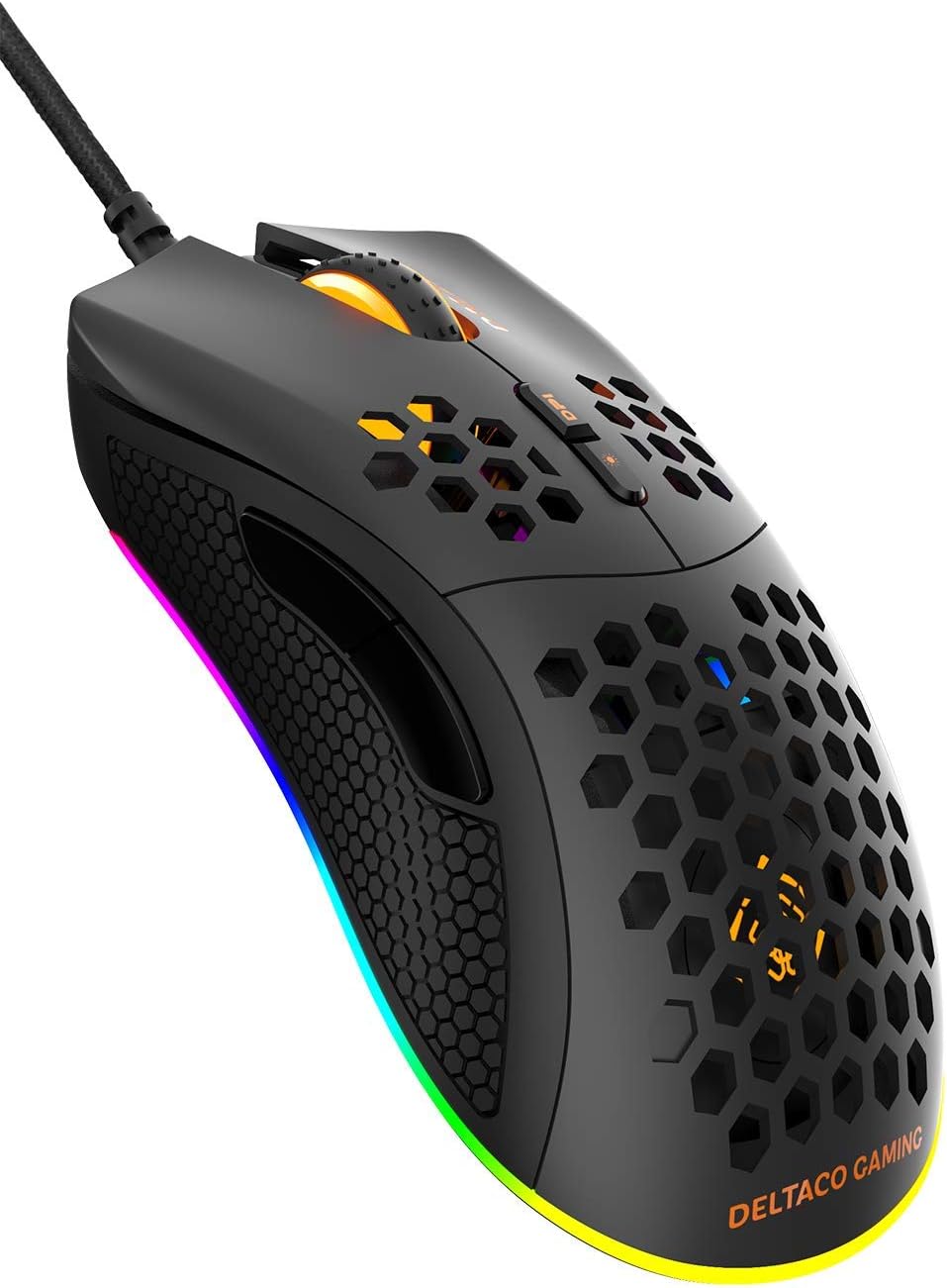
ຮູບພາບ 3.2: ມຸມ view of the DM210 mouse from the front-right. This image highlights the two side buttons (forward and back) located on the left side of the mouse, designed for easy thumb access. The RGB lighting strip along the base of the mouse is also visible.
ຟັງຊັນປຸ່ມ:
- ປຸ່ມກົດຊ້າຍ: ຟັງຊັນການຄລິກຫຼັກມາດຕະຖານ.
- ປຸ່ມກົດຂວາ: ຟັງຊັນການຄລິກຂັ້ນສອງມາດຕະຖານ.
- ລໍ້ເລື່ອນ: ສຳລັບການເລື່ອນຜ່ານເອກະສານ ແລະ web ໜ້າຕ່າງໆ. ຍັງເຮັດໜ້າທີ່ເປັນປຸ່ມຄລິກກາງອີກດ້ວຍ.
- ປຸ່ມ DPI+: Increases the DPI sensitivity.
- DPI- ປຸ່ມ: Decreases the DPI sensitivity. (Note: The product description mentions a single DPI button and a separate LED button. For this model, the two buttons below the scroll wheel are typically for DPI adjustment.)
- ປຸ່ມສົ່ງຕໍ່: ນຳທາງໄປຂ້າງໜ້າ web ໂປຣແກຣມທ່ອງເວັບ ຫຼື ແອັບພລິເຄຊັນຕ່າງໆ.
- ປຸ່ມກັບຄືນ: ນຳທາງກັບຄືນໃນ web ໂປຣແກຣມທ່ອງເວັບ ຫຼື ແອັບພລິເຄຊັນຕ່າງໆ.
4. ຕັ້ງຄ່າ
- ເຊື່ອມຕໍ່ຫນູ: Plug the USB connector of the DELTACO GAMING DM210 mouse into an available USB port on your computer.
- ການຕິດຕັ້ງໄດເວີ: Your operating system (Windows 7/8/10) will automatically detect and install the necessary drivers. This process may take a few moments.
- ການຕິດຕັ້ງຊອບແວ (ທາງເລືອກ): For advanced customization, including programmable buttons and RGB lighting effects, download the DELTACO GAMING software. Refer to the product packaging or the official DELTACO GAMING website for the software download link.
5. ຄໍາແນະນໍາການດໍາເນີນງານ
5.1. ການປັບ DPI
The DM210 mouse features multiple DPI (Dots Per Inch) settings, allowing you to adjust cursor sensitivity on the fly. Use the DPI buttons (located below the scroll wheel) to cycle through the available DPI levels:
- 400 DPI
- 800 DPI
- 1200 DPI
- 1600 DPI
- 3200 DPI
- 6400 DPI
Each DPI level may be indicated by a specific LED color or pattern, depending on the current RGB settings.
5.2. ການຄວບຄຸມໄຟ RGB
The mouse features dynamic RGB lighting. While some basic lighting modes might be accessible via a dedicated button (if present, often combined with DPI control), full customization of the RGB loop and logo lighting is achieved through the DELTACO GAMING software. The software allows you to select from 16 million colors and various lighting effects.
5.3. ປຸ່ມ ແລະ ຊອບແວທີ່ສາມາດຕັ້ງໂປຣແກຣມໄດ້
The 7 buttons on the DM210 mouse are programmable using the DELTACO GAMING software. This software allows you to:
- Remap button functions to suit your preferences.
- Create macros for complex in-game actions.
- Adjust polling rate (up to 1000 Hz).
- ປັບແຕ່ງຜົນກະທົບ ແລະ ສີຂອງໄຟ RGB.
Install the software from the official DELTACO GAMING website for access to these advanced features.
6. ບໍາລຸງຮັກສາ
To ensure the longevity and optimal performance of your DELTACO GAMING DM210 mouse, follow these maintenance guidelines:
- ທໍາຄວາມສະອາດ: ໃຊ້ອ່ອນ, ເລັກນ້ອຍ damp cloth to clean the surface of the mouse. Avoid using harsh chemicals, abrasive cleaners, or solvents, as these can damage the finish and internal components.
- ການດູແລສາຍໄຟ: Avoid sharp bends or excessive pulling on the USB cable. Store the cable neatly when not in use to prevent tangling and damage.
- ສະພາບແວດລ້ອມ: Keep the mouse away from extreme temperatures, direct sunlight, and excessive moisture.
7. ການແກ້ໄຂບັນຫາ
If you encounter issues with your DELTACO GAMING DM210 mouse, refer to the following common solutions:
- ເມົາສ໌ບໍ່ຕອບສະໜອງ:
- ກວດໃຫ້ແນ່ໃຈວ່າໄດ້ສຽບສາຍ USB ໃສ່ຢ່າງປອດໄພກັບພອດ USB ທີ່ເຮັດວຽກຢູ່ໃນຄອມພິວເຕີຂອງທ່ານ.
- ລອງສຽບເມົາສ໌ໃສ່ຊ່ອງສຽບ USB ອື່ນ.
- ປິດເປີດຄອມພິວເຕີຂອງທ່ານຄືນໃໝ່.
- ທົດສອບເມົາສ໌ໃນຄອມພິວເຕີເຄື່ອງອື່ນເພື່ອກວດສອບວ່າບັນຫາເກີດກັບເມົາສ໌ ຫຼືລະບົບຂອງເຈົ້າ.
- DPI ບໍ່ປ່ຽນແປງ:
- Ensure you are pressing the correct DPI adjustment buttons.
- If using the software, check if DPI settings have been reconfigured or if a specific profile ມີການເຄື່ອນໄຫວ.
- ແສງ RGB ບໍ່ເຮັດວຽກ / ບໍ່ຖືກຕ້ອງ:
- ກວດສອບວ່າເມົາສ໌ໄດ້ເຊື່ອມຕໍ່ຢ່າງຖືກຕ້ອງແລ້ວ.
- Check the DELTACO GAMING software for lighting settings and ensure they are configured as desired.
- ກວດໃຫ້ແນ່ໃຈວ່າຊອບແວໄດ້ອັບເດດແລ້ວ.
- ປຸ່ມບໍ່ເຮັດວຽກຢ່າງຖືກຕ້ອງ:
- If using the DELTACO GAMING software, check button assignments to ensure they haven't been accidentally remapped.
- Test the mouse on another computer to rule out software conflicts on your primary system.
8. ຂໍ້ມູນຈໍາເພາະ
| ຍີ່ຫໍ້ | ເກມ DELTACO |
| ຕົວແບບ | DM210 (GAM-108) |
| ການເຊື່ອມຕໍ່ | USB |
| ການຕັ້ງຄ່າ DPI | 400/800/1200/1600/3200/6400 |
| ອັດຕາການລົງຄະແນນສຽງ | 1000 Hz |
| ປຸ່ມ | 7 (ຕັ້ງໂປຣແກຣມໄດ້) |
| ນ້ຳໜັກ | 70g |
| ແສງໄຟ | RGB (16 ລ້ານສີ) |
| ຄວາມເຂົ້າກັນໄດ້ | Windows 7 / 8 / 10 |
| ສີ | ດຳ |
9. ຂໍ້ມູນການຮັບປະກັນ
The DELTACO GAMING DM210 Ultralight RGB Gaming Mouse comes with a ຮັບປະກັນ 5 ປີ from the date of purchase. This warranty covers manufacturing defects and ensures the product meets its specified performance. Please retain your proof of purchase for warranty claims. For detailed warranty terms and conditions, refer to the official DELTACO GAMING webເວັບໄຊທ໌ຫຼືຕິດຕໍ່ສະຫນັບສະຫນູນລູກຄ້າ.
10. ສະຫນັບສະຫນູນ
For further assistance, software downloads, frequently asked questions (FAQs), and the latest product information, please visit the official DELTACO GAMING website. You can also contact DELTACO GAMING customer support for technical issues or warranty inquiries.


