1. ບົດແນະນຳ
This manual provides detailed instructions for the installation, operation, and maintenance of your Mars Gaming MC500 ATX PC Case. Please read this guide thoroughly before beginning assembly or use to ensure proper functionality and safety. The MC500 is designed for high-performance computing, featuring exceptional cooling capabilities and a stylish FRGB lighting system.

Figure 1: Mars Gaming MC500 PC Case with tempered glass design.
2. ເນື້ອໃນຊຸດ
ກວດສອບວ່າອົງປະກອບທັງໝົດມີຢູ່ໃນຊຸດ:
- Mars Gaming MC500 ATX PC Case
- Accessory box (screws, standoffs, cable ties)
- ຄູ່ມືຜູ້ໃຊ້ (ເອກະສານນີ້)
3. ການຕິດຕັ້ງແລະການຕິດຕັ້ງ
Follow these steps for proper assembly of your PC components within the MC500 case.
3.1 ການກະກຽມກໍລະນີ
- ເອົາເຄສອອກຈາກການຫຸ້ມຫໍ່ຢ່າງລະມັດລະວັງ.
- ວາງກໍລະນີຢູ່ເທິງພື້ນຜິວຮາບພຽງທີ່ຫມັ້ນຄົງ.
- Remove the tempered glass side panel by unscrewing the thumb screws at the rear of the case.
3.2 ການຕິດຕັ້ງເມນບອດ
- Install the I/O shield into the motherboard tray opening.
- Align the motherboard with the pre-installed standoffs. Ensure the standoffs match your motherboard's form factor (ATX, Micro-ATX, Mini-ITX).
- ຮັບປະກັນ motherboard ດ້ວຍ screws ທີ່ສະຫນອງໃຫ້.
3.3 ການຕິດຕັ້ງ Drive Storage
The MC500 supports up to 4 x 2.5" SSDs or 2 x 3.5" HDDs.
- For 2.5" SSDs: Locate the dedicated mounting points on the motherboard tray or drive cages. Secure the SSDs with screws.
- For 3.5" HDDs: Utilize the drive cages located in the dual chamber design. Slide the HDDs into the trays and secure them.

Figure 2: Internal layout showing storage drive mounting locations.
3.4 ການຕິດຕັ້ງຫນ່ວຍບໍລິການພະລັງງານ (PSU).
- Install the PSU into the dedicated compartment at the bottom rear of the case.
- ຮັບປະກັນ PSU ດ້ວຍ screws ຈາກດ້ານຫລັງຂອງກໍລະນີ.
3.5 ການຕິດຕັ້ງກາດກຣາບຟິກ ແລະ ກາດຂະຫຍາຍ
- ເອົາຊ່ອງສຽບ PCIe ທີ່ຈໍາເປັນອອກຈາກດ້ານຫລັງຂອງກໍລະນີ.
- ໃສ່ກາດກຣາບຟິກ ຫຼື ບັດຂະຫຍາຍອື່ນໆຂອງທ່ານເຂົ້າໃນຊ່ອງ PCIe ທີ່ເໝາະສົມໃນເມນບອດ.
- ຮັດບັດໃຫ້ແໜ້ນດ້ວຍສະກູ.
3.6 ການຈັດການສາຍ
ນຳໃຊ້ແຜ່ນຕັດເສັ້ນທາງສາຍເຄເບິນ ແລະຈຸດຜູກລົງທາງຫຼັງຖາດເມນບອດເພື່ອຈັດການສາຍ. ນີ້ປັບປຸງການໄຫຼຂອງອາກາດແລະຄວາມງາມ.
4. ຄໍາແນະນໍາການດໍາເນີນງານ
4.1 ການເປີດເຄື່ອງ
After all components are installed and connected, close the side panel. Connect your monitor, keyboard, mouse, and power cable. Press the power button on the top I/O panel to start your system.
4.2 ການດໍາເນີນງານພັດລົມ
The MC500 comes with two pre-installed 18cm XXL FRGB fans at the front, providing excellent airflow. These fans operate automatically once the system is powered on, drawing cool air into the case.
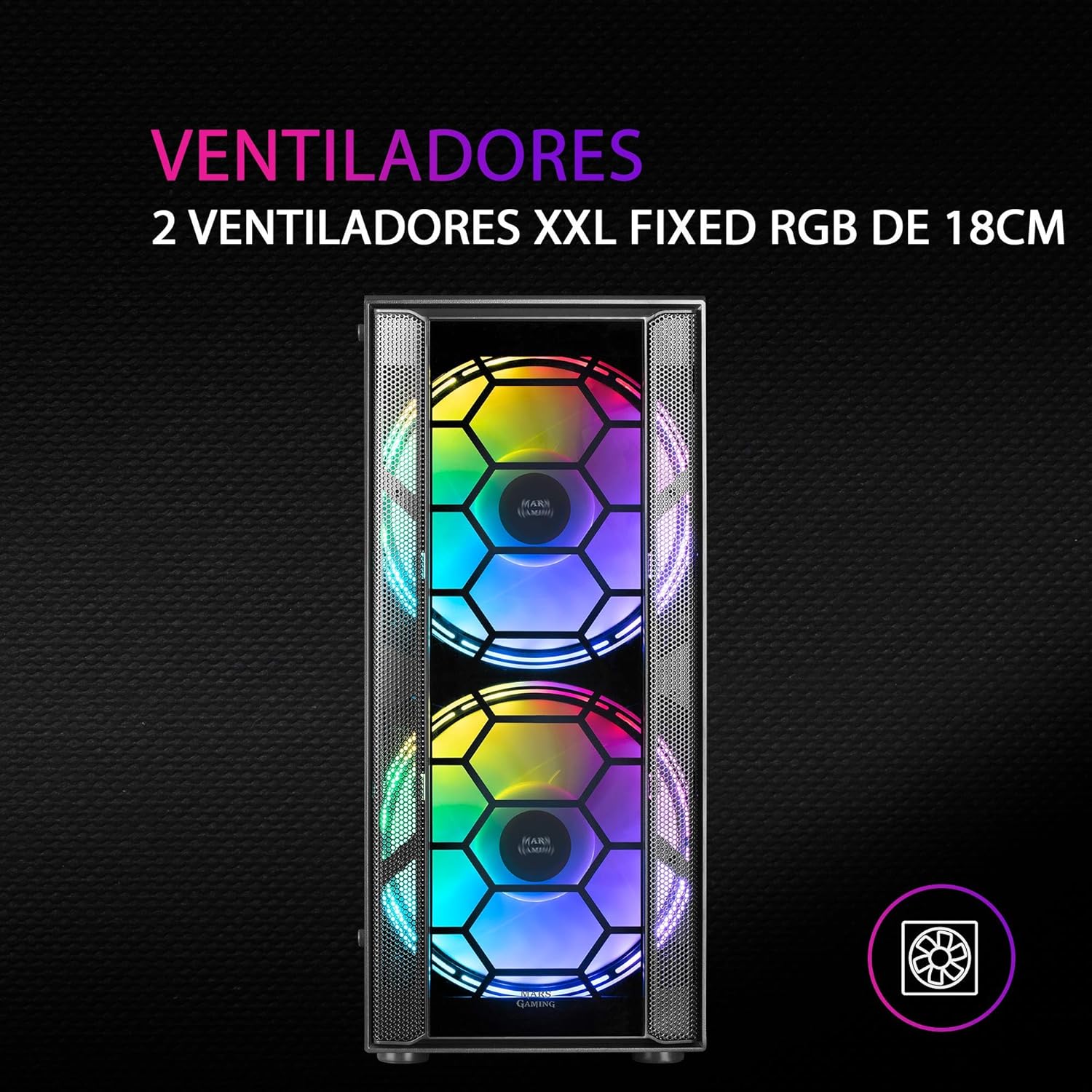
ຮູບ 3: ດ້ານຫນ້າ view highlighting the two 18cm XXL FRGB fans.
4.3 FRGB Lighting
The front fans feature Fixed RGB (FRGB) lighting. This lighting system provides a constant stream of colors and activates automatically when the fans receive power. No additional software or controller is required for its operation.
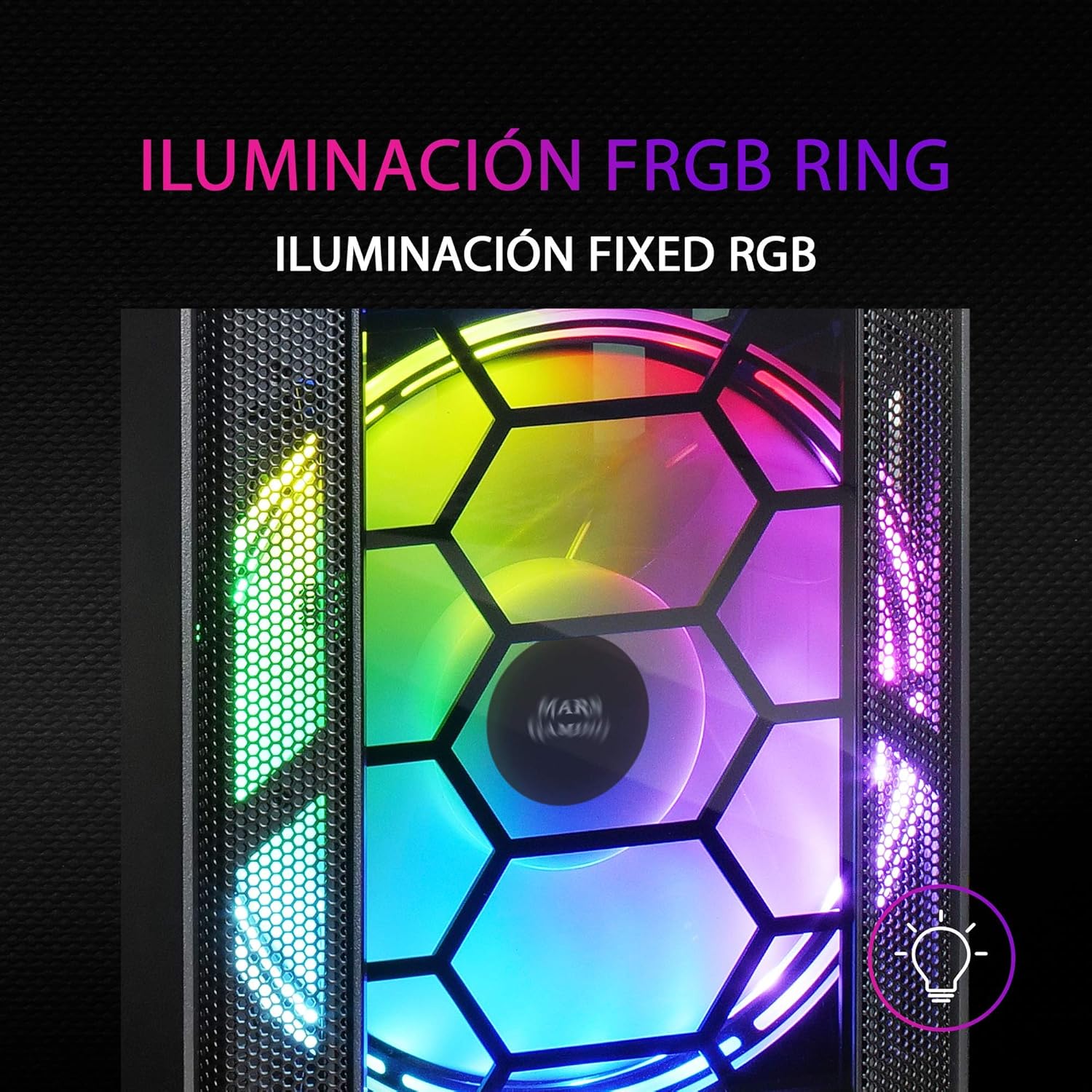
Figure 4: Detail of the FRGB ring lighting on the fans.
5. ບໍາລຸງຮັກສາ
ການບຳລຸງຮັກສາເປັນປະຈຳຮັບປະກັນປະສິດທິພາບທີ່ດີທີ່ສຸດ ແລະ ອາຍຸການໃຊ້ງານທີ່ຍາວນານຂອງເຄສຄອມພິວເຕີຂອງທ່ານ.
5.1 ການເຮັດຄວາມສະອາດກອງຂີ້ຝຸ່ນ
The MC500 is equipped with two removable dust filters to prevent dust buildup inside the case. It is recommended to clean these filters periodically (e.g., monthly) depending on your environment.
- ປິດຄອມພິວເຕີຂອງທ່ານ ແລະ ຖອດສາຍໄຟອອກ.
- Gently remove the dust filters (typically located on the top and bottom/front of the case).
- Clean the filters using compressed air or by rinsing them with water. If using water, ensure they are completely dry before re-installing.
- Re-install the dust filters.

Figure 5: Removable dust filter for easy cleaning.
5.2 ການທໍາຄວາມສະອາດທົ່ວໄປ
ເຊັດດ້ານນອກຂອງກໍລະນີດ້ວຍຄວາມອ່ອນ, ງamp ຜ້າ. ຫຼີກລ່ຽງການໃຊ້ສານເຄມີທີ່ຮຸນແຮງ ຫຼື ວັດສະດຸຂັດທີ່ອາດຈະທຳລາຍໜ້າຜິວ ຫຼື ແກ້ວທີ່ມີຄວາມແຂງແກ່ນໄດ້.
6. ການແກ້ໄຂບັນຫາ
If you encounter issues with your MC500 PC case, consider the following common solutions:
- ລະບົບບໍ່ເປີດ: Ensure all power cables (24-pin ATX, 8-pin CPU, GPU power) are securely connected to the motherboard and components. Verify the PSU switch is in the 'ON' position. Check front panel header connections to the motherboard.
- ພັດລົມບໍ່ໝຸນ: Confirm that the fan power cables are correctly connected to the motherboard fan headers or a fan controller. Check BIOS settings for fan speed control.
- FRGB Lighting Not Working: Since the FRGB lighting is fixed and powered by the fans, ensure the fans are spinning and receiving power.
- ການໄຫຼວຽນຂອງອາກາດບໍ່ດີ/ຄວາມຮ້ອນເກີນໄປ: Ensure all case fans are oriented correctly (intake/exhaust). Clean dust filters regularly. Verify no cables are obstructing airflow.
- ອົງປະກອບວ່າງ: If you hear rattling, check that all screws for the motherboard, drives, and expansion cards are tightened.
For persistent issues, consult the documentation for your individual PC components (motherboard, PSU, etc.) or contact Mars Gaming support.
7. ຂໍ້ມູນຈໍາເພາະ
| ຄຸນສົມບັດ | ຂໍ້ມູນຈໍາເພາະ |
|---|---|
| ຍີ່ຫໍ້ | ເກມດາວອັງຄານ |
| ຕົວແບບ | MC500 |
| ຂະໜາດສິນຄ້າ | 37.5 x 44.8 x 20.2 cm |
| ນ້ໍາຫນັກລາຍການ | 5.1 ກິໂລ |
| ປັດໄຈແບບຟອມ | ATX |
| ຄວາມເຂົ້າກັນໄດ້ຂອງເມນບອດ | ATX, Micro ATX, Mini ITX |
| ປະເພດກໍລະນີ | ຫໍ |
| ວັດສະດຸ | ແກ້ວ |
| ຮວມມີແຟນໆ | 2 x 18cm XXL FRGB Fans (Front) |
| ສະຫນັບສະຫນູນການເຮັດຄວາມສະອາດຂອງແຫຼວ | 240/120mm (Top), 120mm (Rear) |
| ການເກັບຮັກສາ Bays | Up to 4 x 2.5" SSDs or 2 x 3.5" HDDs |
| ການກັ່ນຕອງຂີ້ຝຸ່ນ | 2 (ສາມາດຖອດອອກໄດ້) |
| ສີ | ດຳ |
8. ການຮັບປະກັນແລະການສະຫນັບສະຫນູນ
8.1 ຂໍ້ມູນການຮັບປະກັນ
For detailed warranty information regarding your Mars Gaming MC500 PC Case, please refer to the official Mars Gaming webເວັບໄຊທ໌ ຫຼື ບັດຮັບປະກັນທີ່ມາພ້ອມກັບການຊື້ຂອງທ່ານ. ຂໍ້ກຳນົດ ແລະ ເງື່ອນໄຂການຮັບປະກັນອາດແຕກຕ່າງກັນໄປຕາມພາກພື້ນ.
8.2 ສະຫນັບສະຫນູນດ້ານວິຊາການ
If you require technical assistance or have questions not covered in this manual, please visit the official Mars Gaming support page or contact their customer service directly. Contact information can typically be found on their webເວັບໄຊ.


