ແນະນຳ
The Tera Pro Series Wireless 1D 2D QR Barcode Scanner (Model HW0008) is designed for efficient and accurate barcode scanning in various environments, including warehouse inventory management. This device features a unique counting screen, a convenient charging cradle, and supports both 2.4G wireless and USB wired connections. It is capable of reading a wide range of 1D and 2D barcodes, including those on damaged or reflective surfaces.

Figure 1: Tera Pro Series Wireless Barcode Scanner (HW0008) with its charging cradle.
ອົງປະກອບ ແລະໂຄງສ້າງຂອງຜະລິດຕະພັນ
Familiarize yourself with the main components of your Tera HW0008 barcode scanner and charging cradle.

ຮູບທີ 2: ລາຍລະອຽດ view of the scanner's structure, highlighting the scanning head, logo, indicator light, count screen, reset touch button, trigger, and connection interface.
- Scanning Head: Emits the scan beam to read barcodes.
- ໂລໂກ້: Tera brand identification.
- ແສງຕົວຊີ້ວັດ: Provides status feedback (e.g., charging, connected, scan successful).
- Count Screen: Displays the real-time number of scanned items.
- Reset Touch Button: Used to reset the count screen to zero.
- ຕົວກະຕຸ້ນ: ເປີດໃຊ້ງານຟັງຊັນການສະແກນ.
- ການເຊື່ອມຕໍ່ການເຊື່ອມຕໍ່: Port for wired USB connection.
ຄູ່ມືການຕິດຕັ້ງ
1. Unboxing ແລະຄ່າເລີ່ມຕົ້ນ
Upon receiving your Tera HW0008 scanner, ensure all components are present: Barcode Scanner x1, Charging Cradle x1, User Manual x1.
Place the scanner onto the charging cradle. The cradle acts as both a charging station and a 2.4G wireless receiver. Ensure the scanner is correctly seated for charging to begin.

Figure 3: The horizontal charging base functions as a USB receiver and charges the scanner.

Figure 4: The scanner charges automatically when placed in the charging base, ensuring adequate power for continuous operation.
2. ການເຊື່ອມຕໍ່ກັບອຸປະກອນຂອງທ່ານ
The Tera HW0008 supports two connection modes: 2.4G Wireless and USB Wired.
2.1. ການເຊື່ອມຕໍ່ໄຮ້ສາຍ 2.4G
- Plug the charging cradle's USB cable into an available USB port on your computer (Desktop or Laptop). The cradle acts as the 2.4G wireless receiver.
- The scanner should automatically connect to the cradle. No additional drivers or software installation are needed.
2.2. ການເຊື່ອມຕໍ່ແບບມີສາຍ USB
- ເຊື່ອມຕໍ່ເຄື່ອງສະແກນໂດຍກົງກັບຄອມພິວເຕີຂອງທ່ານໂດຍໃຊ້ສາຍ USB ທີ່ສະໜອງໃຫ້.
- The scanner is plug-and-play; no driver installation is required.

Figure 5: The scanner supports both wired USB and 2.4G wireless connections, compatible with iOS, Android, Linux, Windows, and Mac OS.

Figure 6: The Tera HW0008 barcode scanner is compatible with iOS, Android, Linux, Windows, and Mac OS operating systems.
ຄໍາແນະນໍາການດໍາເນີນງານ
1. Basic Scanning Operation
To scan a barcode, point the scanning head at the barcode and press the trigger. The scanner will emit a light beam to read the code. A successful scan is typically indicated by an audible beep and/or a change in the indicator light.

Figure 7: The scanner supports digital and printed 1D, 2D, and QR codes, including damaged, fuzzy, blurred, scratched, colorful, and folded codes. Examples include a Fancy QR Code, barcode 4603146002134, and barcode 3578633187933.
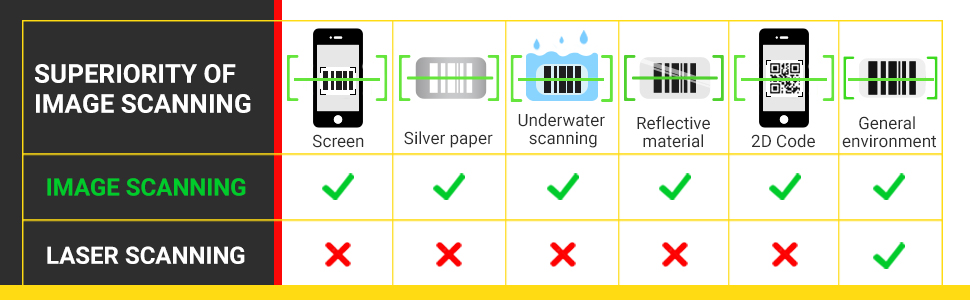
Figure 8: The Tera HW0008 utilizes superior CMOS imaging scanning, allowing it to read barcodes from screens, silver paper, underwater, reflective materials, and general environments, unlike traditional laser scanners.
2. Using the Counting Screen
The unique counting screen on the scanner displays the real-time number of barcodes scanned, which is highly beneficial for inventory management.

Figure 9: The counting screen shows the current scan count (e.g., 169). To reset the counter to '000', simply touch the designated reset button on the scanner.
3. Advanced Symbology Settings
The Tera HW0008 allows for specific symbology settings. For example, you can configure the scanner to modify data when scanning certain barcode types (e.g., Code39) by deleting characters or adding tabs, while leaving other barcode types unedited. Refer to the full user manual (PDF) for detailed programming instructions.

Figure 10: Illustration of how the scanner can be programmed to add or hide digits from scanned barcode data, providing flexibility for various data formats.
4. Supported Keyboard Languages
The scanner supports multiple keyboard languages for data output.

Figure 11: The scanner supports English, Spanish, German, Japanese, French, and Italian keyboard layouts.
5. ວິດີໂອຜະລິດຕະພັນຢ່າງເປັນທາງການ
Video 1: This video demonstrates the Tera Pro HW0008 barcode scanner, highlighting its counting screen and charging cradle. It shows the scanner in use, including scanning barcodes and resetting the counter, and emphasizes its fast scanning speed and convenient charging capabilities.
ບໍາລຸງຮັກສາ
1. ທໍາຄວາມສະອາດ
Regularly clean the scanning window and the exterior of the scanner with a soft, lint-free cloth. Avoid using abrasive cleaners or solvents that could damage the device.
2. ການດູແລຫມໍ້ໄຟ
Always place the scanner in its charging cradle when not in use to ensure it maintains an adequate battery level. This practice helps prolong battery life and ensures the scanner is always ready for operation.
ການແກ້ໄຂບັນຫາ
Scanner Not Reading Barcodes
- Ensure the scanner is properly connected to your computer (either via 2.4G wireless through the cradle or directly via USB cable).
- Check if the barcode is clear and not excessively damaged, blurred, or too small. Although the scanner can read damaged codes, extreme cases may prevent scanning.
- Verify that the scanner's battery is charged.
- ຢືນຢັນວ່າປະເພດບາໂຄດຖືກຮອງຮັບໂດຍເຄື່ອງສະແກນ.
Data Not Transmitting to Computer
- For wireless connection, ensure the charging cradle is plugged into the computer and functioning as the receiver.
- For wired connection, ensure the USB cable is securely connected to both the scanner and the computer.
- Check if the computer's input focus is on the correct application or text field where you expect the barcode data to appear.
For more detailed troubleshooting or specific error codes, please refer to the comprehensive user manual (PDF) provided with your product or contact customer support.
ຂໍ້ມູນຈໍາເພາະ
| ຄຸນສົມບັດ | ລາຍລະອຽດ |
|---|---|
| ຂະໜາດສິນຄ້າ | 9.13 x 5.31 x 3.94 ນິ້ວ |
| ນ້ໍາຫນັກລາຍການ | 1.5 ປອນ |
| ໝາຍເລກຕົວແບບ | HW0008 |
| ເຕັກໂນໂລຊີການເຊື່ອມຕໍ່ | 2.4G Wireless, ສາຍ USB |
| ອຸປະກອນທີ່ເຂົ້າກັນໄດ້ | ເດັສທັອບ, ແລັບທັອບ |
| ແຫຼ່ງພະລັງງານ | ສາກແບັດເຕີລີ, ໄຟຟ້າມີສາຍ, ສາຍ USB |
| ບາໂຄດ 1D ທີ່ຮອງຮັບ | UPC/EAN, Code 128/EAN128, GS1-128, ISBT-128, Standard 2 of 5, Matrix 2 of 5, Code 39, Code 32, Code 93, Code 11, Codabar, PLESSEY, MSI, GSI Databar, ITF-14, GS1 |
| ບາໂຄດ 2D ທີ່ຮອງຮັບ | QR code, Data Matrix, PDF417 (including PDF417 on driver’s license), Aztec, Maxicode, Micro QR, Micro PDF417 |
ຂໍ້ມູນການຮັບປະກັນ
Tera products typically come with a standard manufacturer's warranty covering defects in materials and workmanship. For specific warranty terms, duration, and claim procedures, please refer to the warranty card included in your product packaging or visit the official Tera webເວັບໄຊ. ຮັກສາຫຼັກຖານການຊື້ຂອງທ່ານສໍາລັບການຮ້ອງຂໍການຮັບປະກັນ.
ການຊ່ວຍເຫຼືອລູກຄ້າ
Should you encounter any issues or have questions regarding your Tera Pro Series Wireless Barcode Scanner (HW0008), please contact Tera customer support. You can typically find contact information (email, phone, or support portal) on the official Tera website or in the user manual PDF. When contacting support, please have your product model number (HW0008) and purchase details ready.


