1. ຜະລິດຕະພັນເກີນview
The BUSICOM BC-BR1000-C17 is a dedicated USB Type-C cable designed for use with the BUSICOM BC-BR1000 barcode reader. This 1.7-meter cable facilitates a reliable connection between the barcode reader and devices equipped with a USB Type-C port, such as tablet terminals. Its modular design allows for easy replacement and secure attachment to the barcode reader.
2. ຄໍາແນະນໍາການຕິດຕັ້ງ
Follow these steps to connect your BC-BR1000 barcode reader using the BC-BR1000-C17 USB Type-C cable:
- Prepare the Barcode Reader: Ensure your BUSICOM BC-BR1000 barcode reader is powered off before connecting or disconnecting cables.
- Connect to Barcode Reader: Locate the modular port on your BC-BR1000 barcode reader. Align the modular connector of the BC-BR1000-C17 cable with this port and gently push until it clicks securely into place.
- ເຊື່ອມຕໍ່ຫາອຸປະກອນໂຮສ: Insert the USB Type-C end of the cable into an available USB Type-C port on your tablet, computer, or other compatible host device. The USB Type-C connector is reversible, so it can be inserted in either orientation.
- ເປີດ: Once both ends of the cable are securely connected, power on your barcode reader and the host device. The device should automatically detect the barcode reader.

ໂດຍລວມ view of the BUSICOM BC-BR1000-C17 USB Type-C cable, showing both the USB Type-C connector and the modular connector for the barcode reader.
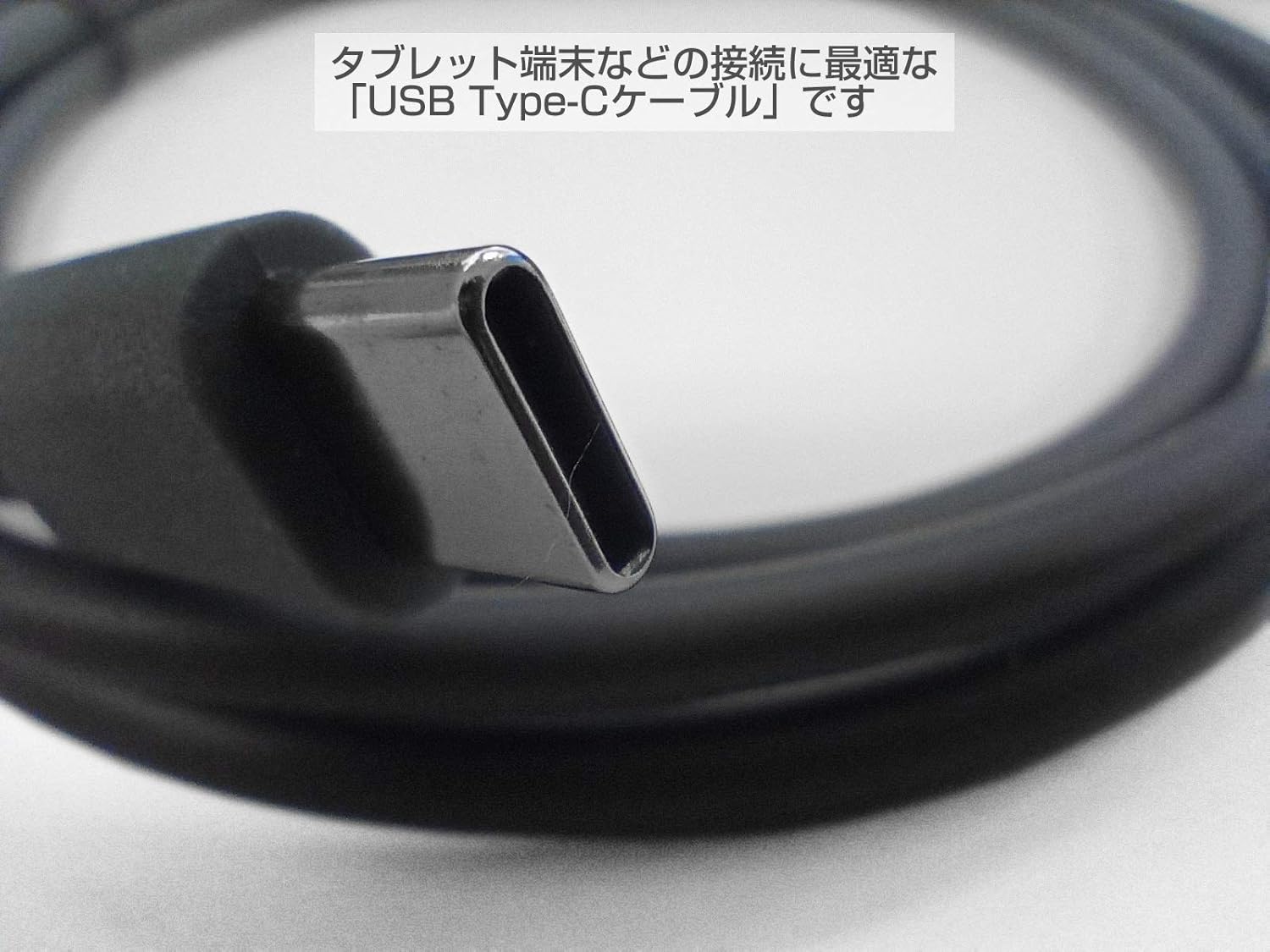
ໃກ້ຊິດ view of the USB Type-C connector, highlighting its reversible design and robust construction. This connector is suitable for modern tablet terminals.
3. ຄໍາແນະນໍາການດໍາເນີນງານ
Once the BC-BR1000-C17 cable is connected, the barcode reader will communicate with your host device. The cable acts as a data and power conduit. Ensure your host device's operating system or application is configured to receive input from the barcode reader.
- ການສົ່ງຂໍ້ມູນ: The cable enables the barcode reader to send scanned data directly to the connected tablet or computer.
- ການສະຫນອງພະລັງງານ: Depending on the barcode reader model and host device, the cable may also provide power to the barcode reader, eliminating the need for a separate power adapter.

Example of the BC-BR1000 barcode reader connected via the USB Type-C cable to a tablet, demonstrating a typical usage scenario for data input.
4. ບໍາລຸງຮັກສາ
Proper care of your BC-BR1000-C17 USB Type-C cable will ensure its longevity and reliable performance:
- ການເກັບຮັກສາ: ເກັບຮັກສາສາຍໄຟໄວ້ໃນບ່ອນທີ່ເຢັນ, ແຫ້ງ ແລະ ຫ່າງຈາກແສງແດດໂດຍກົງ ແລະ ອຸນຫະພູມສູງເກີນໄປ. ຫຼີກລ່ຽງການມ້ວນ ຫຼື ງໍສາຍໄຟຢ່າງແໜ້ນໜາ, ໂດຍສະເພາະຢູ່ໃກ້ກັບຕົວເຊື່ອມຕໍ່.
- ທໍາຄວາມສະອາດ: ໃຊ້ຜ້າອ່ອນແລະແຫ້ງເພື່ອທຳຄວາມສະອາດສາຍໄຟ ແລະ ຕົວເຊື່ອມຕໍ່. ຢ່າໃຊ້ສານເຄມີທີ່ຮຸນແຮງ ຫຼື ວັດສະດຸທີ່ມີສີຂັດ.
- ການຈັດການ: Always grasp the connector housing when plugging or unplugging the cable. Avoid pulling on the cable itself, as this can damage the internal wires.
- ການກວດກາ: Periodically inspect the cable for any signs of wear, fraying, or damage to the connectors. Replace the cable if any damage is observed.
5. ການແກ້ໄຂບັນຫາ
If you encounter issues with your BC-BR1000-C17 USB Type-C cable, consider the following:
- Barcode Reader Not Detected:
- ໃຫ້ແນ່ໃຈວ່າທັງສອງສົ້ນຂອງສາຍເຄເບີ້ນຖືກເຊື່ອມຕໍ່ຢ່າງປອດໄພ.
- Try connecting the cable to a different USB Type-C port on your host device.
- Test the barcode reader with a different, known-working cable if available.
- Verify that the host device's drivers for the barcode reader are installed and up to date.
- ການເຊື່ອມຕໍ່ແບບບໍ່ຢຸດຢັ້ງ:
- ກວດເບິ່ງຄວາມເສຍຫາຍທາງດ້ານຮ່າງກາຍຕໍ່ກັບສາຍຫຼືຕົວເຊື່ອມຕໍ່.
- Ensure the cable is not being strained or bent sharply during use.
- Clean the connectors to remove any dust or debris.
- No Power to Barcode Reader:
- Confirm that the host device's USB Type-C port provides power. Some ports may be data-only.
- If the barcode reader requires external power, ensure its power adapter is correctly connected.
6. ຂໍ້ມູນຈໍາເພາະ
| ຄຸນສົມບັດ | ຂໍ້ມູນຈໍາເພາະ |
|---|---|
| ໝາຍເລກຕົວແບບ | BC-BR1000-C17 |
| ຍີ່ຫໍ້ | BUSICOM |
| Compatible Barcode Reader | BUSICOM BC-BR1000 |
| ປະເພດຕົວເຊື່ອມຕໍ່ (ໂຮສ) | USB Type-C |
| Connector Type (Barcode Reader) | Modular (Dedicated for BC-BR1000) |
| ຄວາມຍາວສາຍ | 1.7 ແມັດ |
| ເຕັກໂນໂລຢີການເຊື່ອມຕໍ່ | ສາຍ USB |
| ຂະໜາດແພັກເກັດ | 14.9 x 11.6 x 1.9 cm |
| ນ້ຳໜັກ | 40 g |

Comparison of two cables, illustrating different lengths. This image shows the 1.7m cable alongside another length, emphasizing the available options (though only 1.7m is for this product).
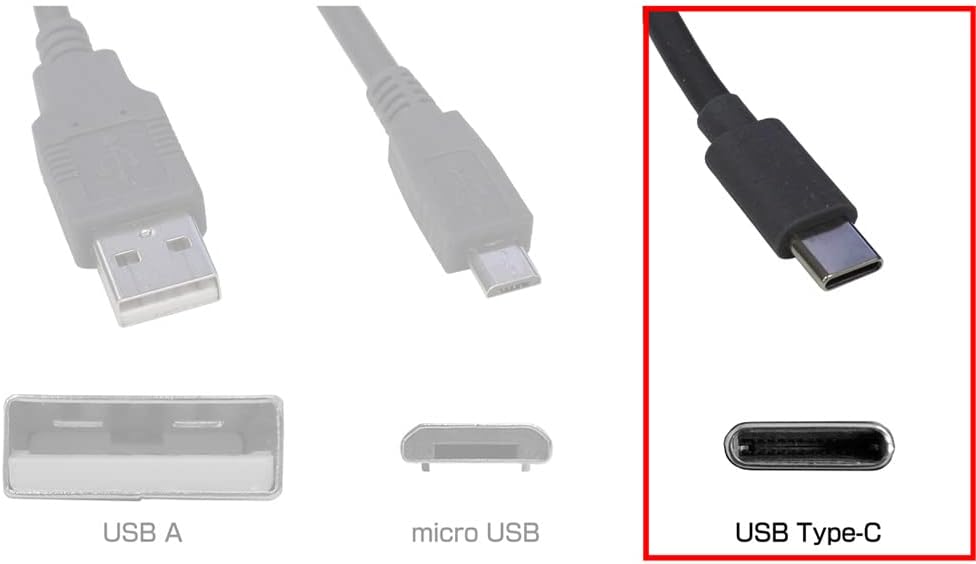
Diagram illustrating different USB connector types: USB-A, Micro USB, and USB Type-C. The USB Type-C connector is highlighted, indicating its compatibility with the BC-BR1000-C17 cable.
7. ຂໍ້ມູນການຮັບປະກັນ
For warranty details regarding the BUSICOM BC-BR1000-C17 USB Type-C cable, please refer to the product packaging or contact BUSICOM customer support directly. Warranty terms may vary based on region and purchase date.
8. ສະຫນັບສະຫນູນ
If you require further assistance or have questions not covered in this manual, please contact BUSICOM customer support. You can typically find contact information on the official BUSICOM webສະຖານທີ່ຫຼືຢູ່ໃນການຫຸ້ມຫໍ່ຜະລິດຕະພັນ.
BUSICOM Official Webເວັບໄຊ: www.busicom.co.jp


